
What is in the Tazk CRM sidebar menu?
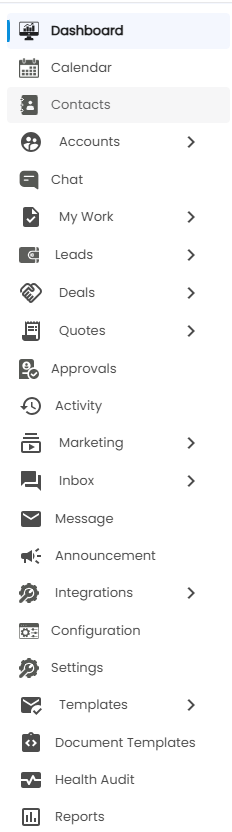
The sidebar runs from Dashboard to Reports: Dashboard, Calendar, Contacts, Accounts, Chat, My Work, Leads, Deals, Quotes, Approvals, Activity, Marketing, Inbox, Message, Announcement, Integrations, Configuration, Settings, Templates, Document Templates, Health Audit and Reports. Items with an arrow open to show more screens. Press Ctrl + K (⌘ + K on a Mac) to search the menus by name. The items you see depend on your role and plan.
How do I use the sidebar?
- On a computer, the sidebar is a narrow strip of icons. Point at it and it widens to show the names.
- Click an item with an arrow (›) to open its screens underneath it; click it again to close it. The menu you are working in stays open.
- On a phone or small window, tap the menu button at the top to open the sidebar.
How do I find a screen quickly?
Press Ctrl + K (⌘ + K on a Mac), or click Search… at the bottom of the sidebar, and type part of a screen's name. Use the arrow keys and Enter to open it, or Esc to close the search. Your last five choices are listed under Recent.
What does each menu item open?
| Menu item | What it is for |
|---|---|
| Dashboard | This month's lead figures, lead sources, why leads are lost, and your tasks and meetings — see Dashboard Overview. |
| Calendar | Holidays and events, the due dates of your lead tasks, and meetings on a month calendar — see Calendar. |
| Contacts | Your Employee Directory, every customer account, and starred contacts — see Contacts. |
| Accounts › | All Accounts — the companies you sell to; Account Contacts — the people in them. |
| Chat | Instant messages with your colleagues — see Chat. |
| My Work › | Tasks, Calls and Meetings across all your leads. |
| Leads › | All Leads, Import Leads from a file, and All Prospects. |
| Deals › | Pipeline Board, Deal List and Sales Forecast. |
| Quotes › | Quotations, your product Catalog and Price Lists. |
| Approvals | Quotation requests waiting for your approval — see Approvals. |
| Activity | The devices that have signed in to your account, and when each was last active — see Activity. |
| Marketing › | Overview, Broadcasts, Campaigns, Content Studio, Audiences, Journeys, A/B Tests, Analytics, Spend & Return, Consent & Suppression, WhatsApp Business, Channels, Brand Kit and AI & Usage. |
| Inbox › | WhatsApp & Email — conversations with leads and customers. |
| Message | Approval requests, quotation approvals, announcements and internal mail in one place — see Message. |
| Announcement | Company announcements — see Announcement. |
| Integrations › | All Connections — the sources that bring leads in; Website Forms — lead forms for your own website. |
| Configuration | How the CRM works for your company — SLA Policies, Custom Fields, Lead Assignment, Stage Rules, Reminder Settings, General, Approvals, SMS, Mail, WhatsApp and Time & Financial Year. |
| Settings | Your company and team — User Roles, Company Info, Users, Themes and Subscriptions. |
| Templates › | Message Library — saved WhatsApp, email and SMS messages. |
| Document Templates | The layout of the documents you print or send, such as quotations — see Document Templates. |
| Health Audit | Automatic checks on your company's accounting, GST, payment and stock records — see Health Audit. |
| Reports | Ready-made CRM reports and your own reports on leads, deals and quotations — see CRM Reports. |
With the Service Desk add-on, a Service Desk menu adds Tickets, Knowledge, Reports and Setup — see What the Service Desk does. The AI Support Agent add-on adds its own menu too.