
What is the Message page in Tazk CRM?
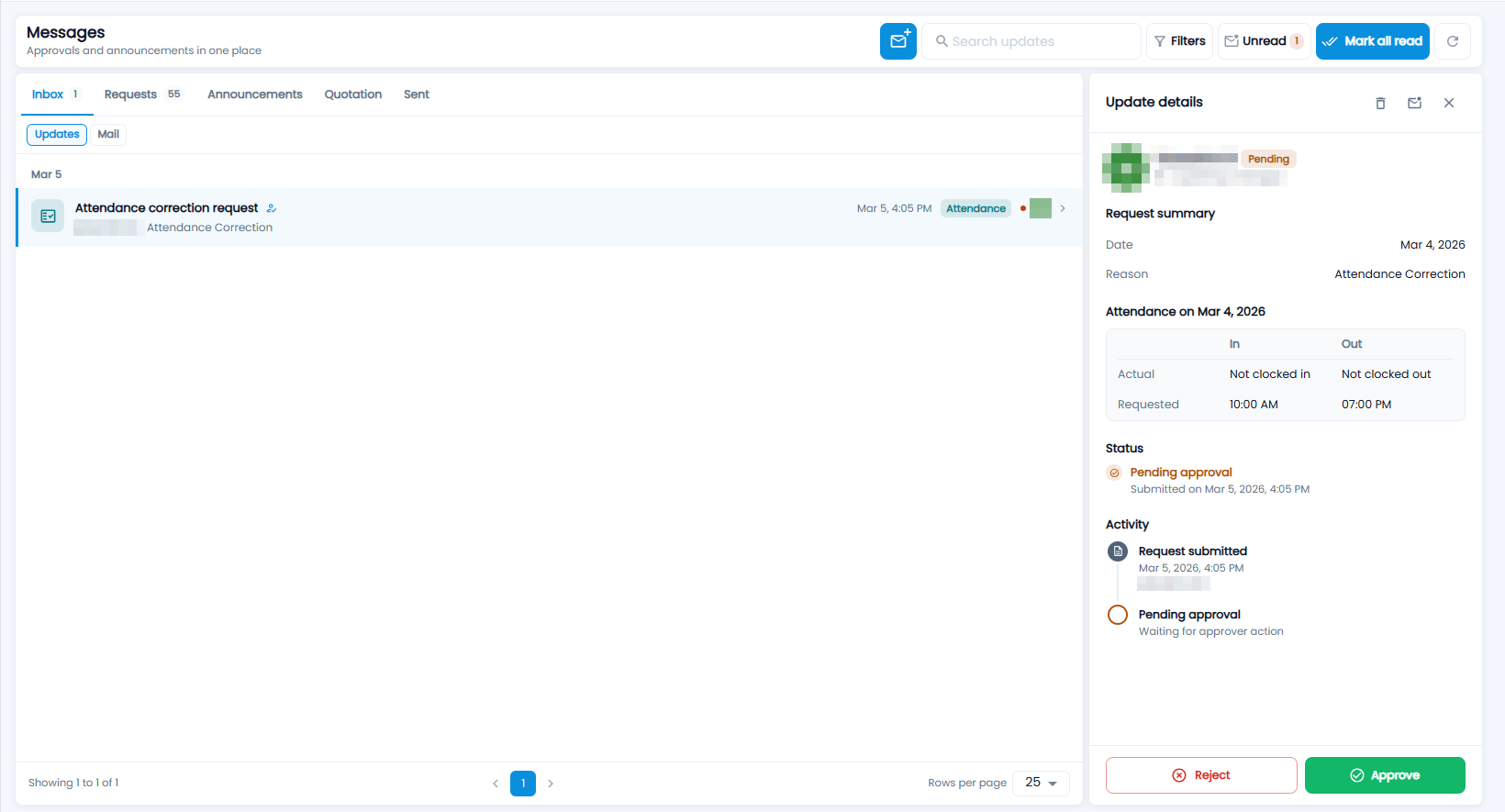
Message opens the Messages page — approvals and announcements in one place. Inbox lists what is waiting on you, Requests lists every request, Announcements shows company announcements, Quotation shows quotation approval requests, and Sent holds the mail you have sent. Click an item to see its details on the right, where you can approve or reject it. The envelope button at the top sends internal mail to colleagues.
What is in each tab?
| Tab | What it shows |
|---|---|
| Inbox | Only the items waiting on you. Two chips switch between Updates (requests and approvals) and Mail (internal mail you have received, with its own unread count). |
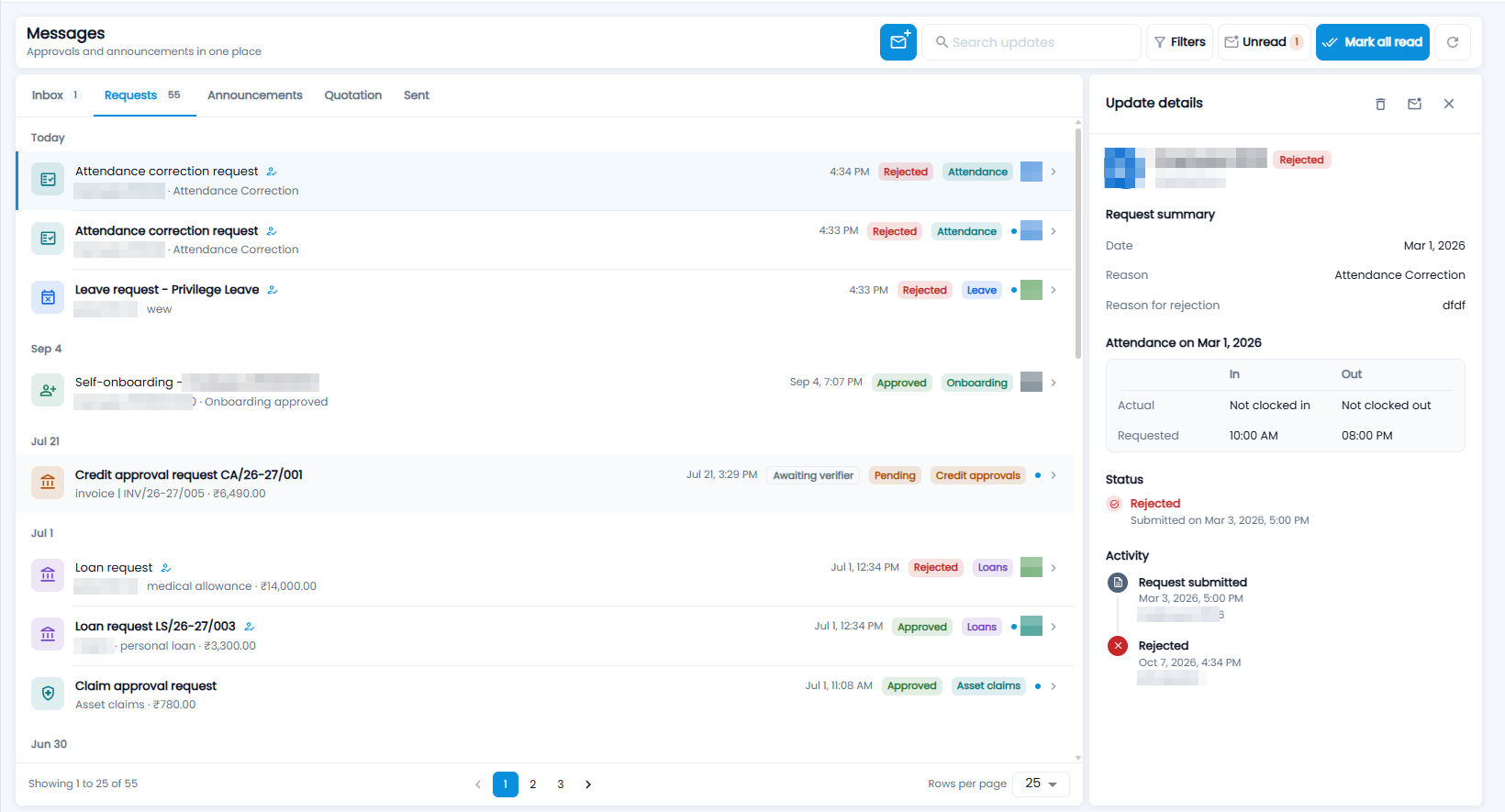
| Requests | Every request you can see, newest first, grouped by date, with its status — Pending, Approved or Rejected. |
| Announcements | Company announcements — see Announcement. |
| Quotation | Quotation approval requests. |
| Sent | Internal mail you have sent or scheduled. |
The number next to Inbox and Requests is how many items each holds. If your company uses other Tazk apps with the same login, their requests — leave, attendance corrections, loans or claims, for example — appear here too.
What do I see when I open an item?
Click an item to open Update details on the right:
- Who raised it, and its status chip.
- The Request summary — the date, the reason, and the details of the request. A rejected request also shows the reason for rejection.
- Status — for example Pending approval, with when it was submitted.
- Activity — each step so far: submitted, approved, rejected, and by whom.
The icons at the top of the panel delete the item (only for request types that allow it), mark it unread again, and close the panel.
How do I approve or reject a request?
- Open the request from Inbox, Requests or Quotation.
- Click Approve — the button reads Verify or Approve & Verify when that is your step.
- Or click Reject, add a reason if you want (up to 250 characters) and confirm. The person who asked sees the reason.
You only get the buttons when the request is waiting on you. Approvers and verifiers are set up by your administrator in Configuration. A verifier can act only after the approver has. If no approver is set up for a request type, an Administrator can act on it.
How do I find an item?
- Search updates — type a few words.
- Filters — by employee (when you can see more than one person), by message type (announcements, approvals or quotation approvals), by status (Pending, Approved, Confirmed, Rejected or Cancelled) and by a From and To date.
- Unread — show only what you haven't read; the badge is the number unread.
- Mark all read — marks everything in the current tab, with its filters, as read.
- The refresh button reloads the list. Use the page numbers and Rows per page at the bottom to move through long lists.
How do I send internal mail?
- Click the envelope button with the + at the top.
- Choose who it goes to — employees, a department or a role. The page shows how many people it will reach.
- Write a Subject and your message.
- Attach up to 5 files if needed — PDF or images, each under 2 MB.
- Send it now, or schedule it to send later.
Received mail appears under Inbox › Mail for the people you sent it to; your copy is under Sent, where you can cancel a scheduled mail. You can reply to and forward mail.