
How do I import leads into Tazk CRM?
Open Leads › Import Leads. On the CSV Import screen, click Choose CSV Or Excel File or paste CSV text, keep the import type on Leads, and click Preview. Check how your columns are matched, start the import, and the results show what was added, skipped or failed. The same screen imports deals, accounts, contacts and tasks.
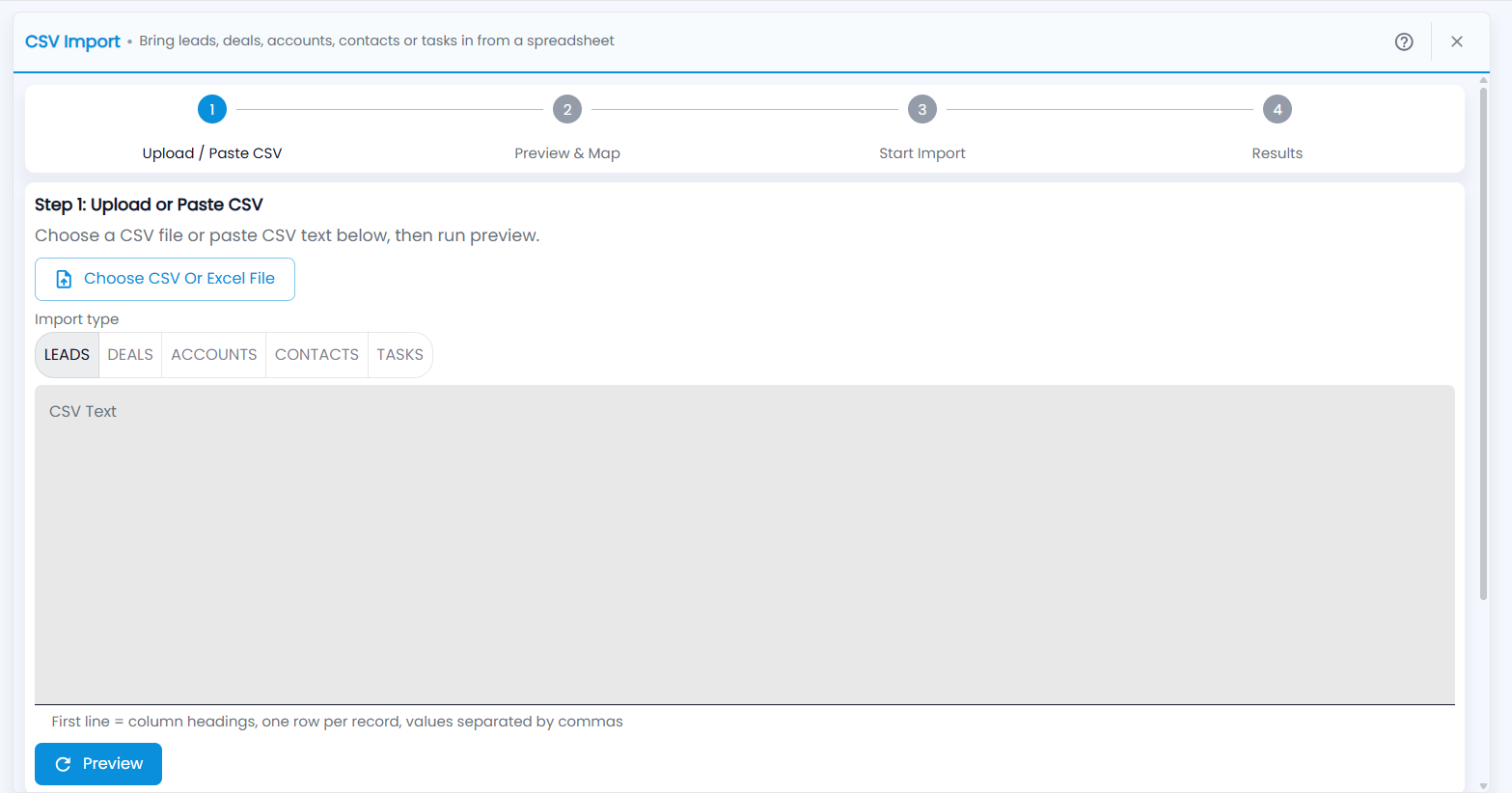
What are the four steps?
The bar at the top shows where you are: 1 Upload / Paste CSV, 2 Preview & Map, 3 Start Import and 4 Results.
How do I upload or paste the data?
- Click Choose CSV Or Excel File and pick your file — or paste CSV text into the CSV Text box. The first line is the column headings, then one row per record, values separated by commas.
- Choose the Import type: LEADS, DEALS, ACCOUNTS, CONTACTS or TASKS.
- Click Preview.
What happens in Preview & Map?
Tazk matches your column headings to its fields; change any match that is wrong. Each import type needs at least these columns:
| Import type | Must include |
|---|---|
| Leads | At least one of full name, company, email or phone |
| Deals | Deal name |
| Accounts | Company name |
| Contacts | At least one of first name, email or phone |
| Tasks | Subject |
The preview warns about rows with an invalid email or phone before anything is saved.
What do Start Import and Results show?
Start the import, then check the results: how many rows were Added, Skipped (for example a lead that already exists with the same phone or email) and Failed, with the reason for each. Download the failed rows, fix them in your spreadsheet and import that smaller file.