
How do I manage my tasks in Tazk CRM?
Open My Work › Tasks. My Day lists open tasks that are overdue, due today or due in the next 7 days, overdue first. Mark one done, push it out a day, or log what happened and schedule the next task with the buttons on its row. All tasks lists every task. Click + to add a task with an owner, due date, priority, reminder and repeat, or add one from the Tasks tab on a lead.
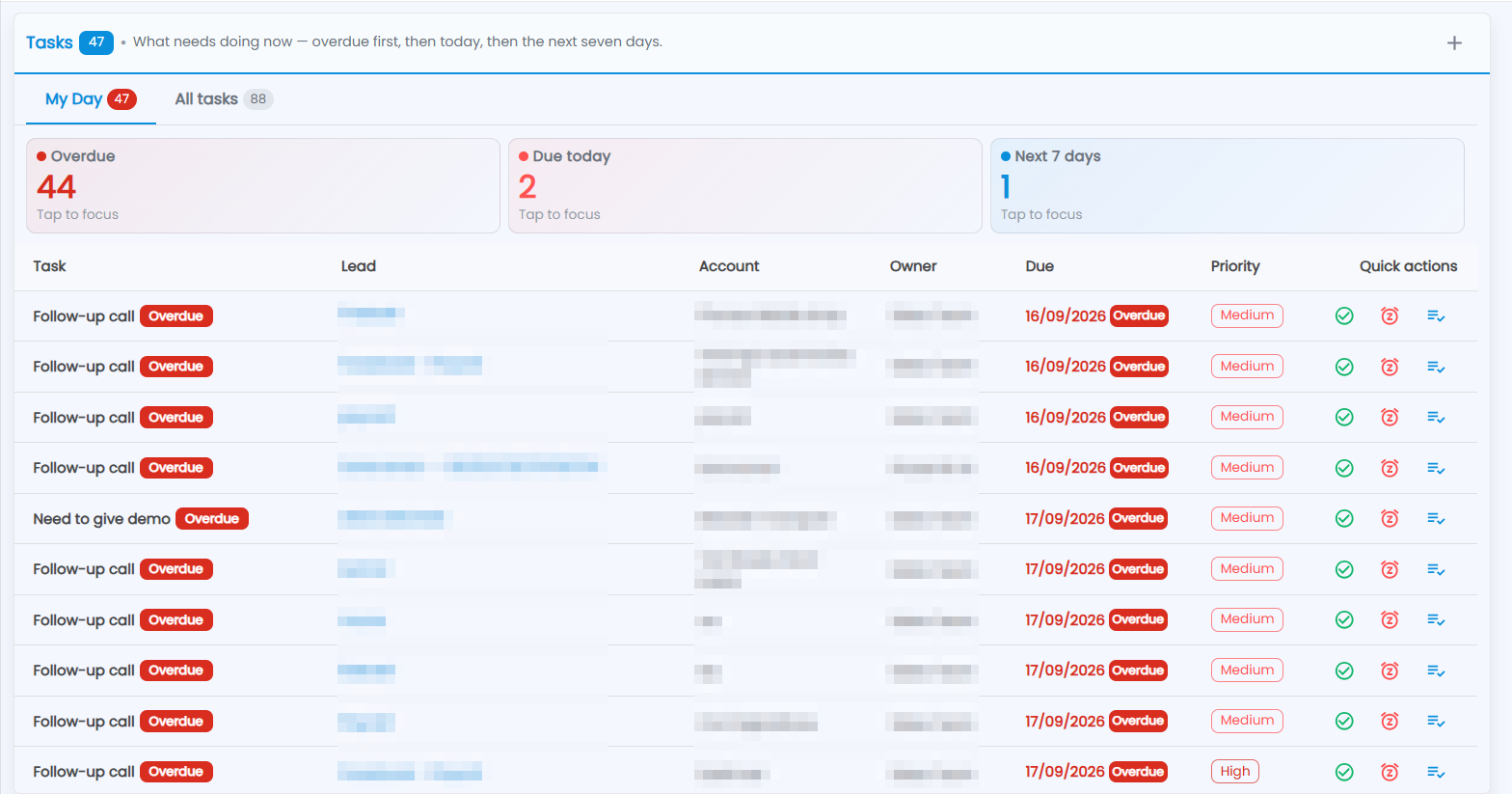
What does My Day show?
My Day opens first. It lists open tasks that need doing now — overdue first, then today, then the next seven days. Three tiles at the top count them: Overdue, Due today and Next 7 days. Click a tile (Tap to focus) to show only those tasks.
Each row shows the Task, the Lead it is for (click to open the lead), the Account, the Owner, the Due date and the Priority. Overdue tasks carry a red Overdue tag. Click a row to see the task, with Edit and Delete.
What do the quick action buttons do?
| Button | What it does |
|---|---|
| Green tick — Mark done | Completes the task. |
| Alarm clock — Push out one day | Moves the due date to tomorrow (or one day after its due date, if that is later). |
| List with a tick — Log outcome & schedule the next one | Completes the task and adds the next one on the same lead — Follow-up: <task>, due in 3 days, same owner and priority — with your note as its description. |
What is the All tasks tab?
Every task you can see, with its Owner, Subject, Due Date, Lead, Status and Priority. Type in Search tasks, leads, owners… to find one. The ⋮ on a row offers Edit, Mark complete and Delete (after you confirm; it cannot be undone).
Which tasks you see follows your role: your own, your team's, or everyone's — plus any task you own.
How do I add a task?
Click + at the top right of Tasks — or use the lead's ⋮ menu → Create Task, which fills in the lead for you.
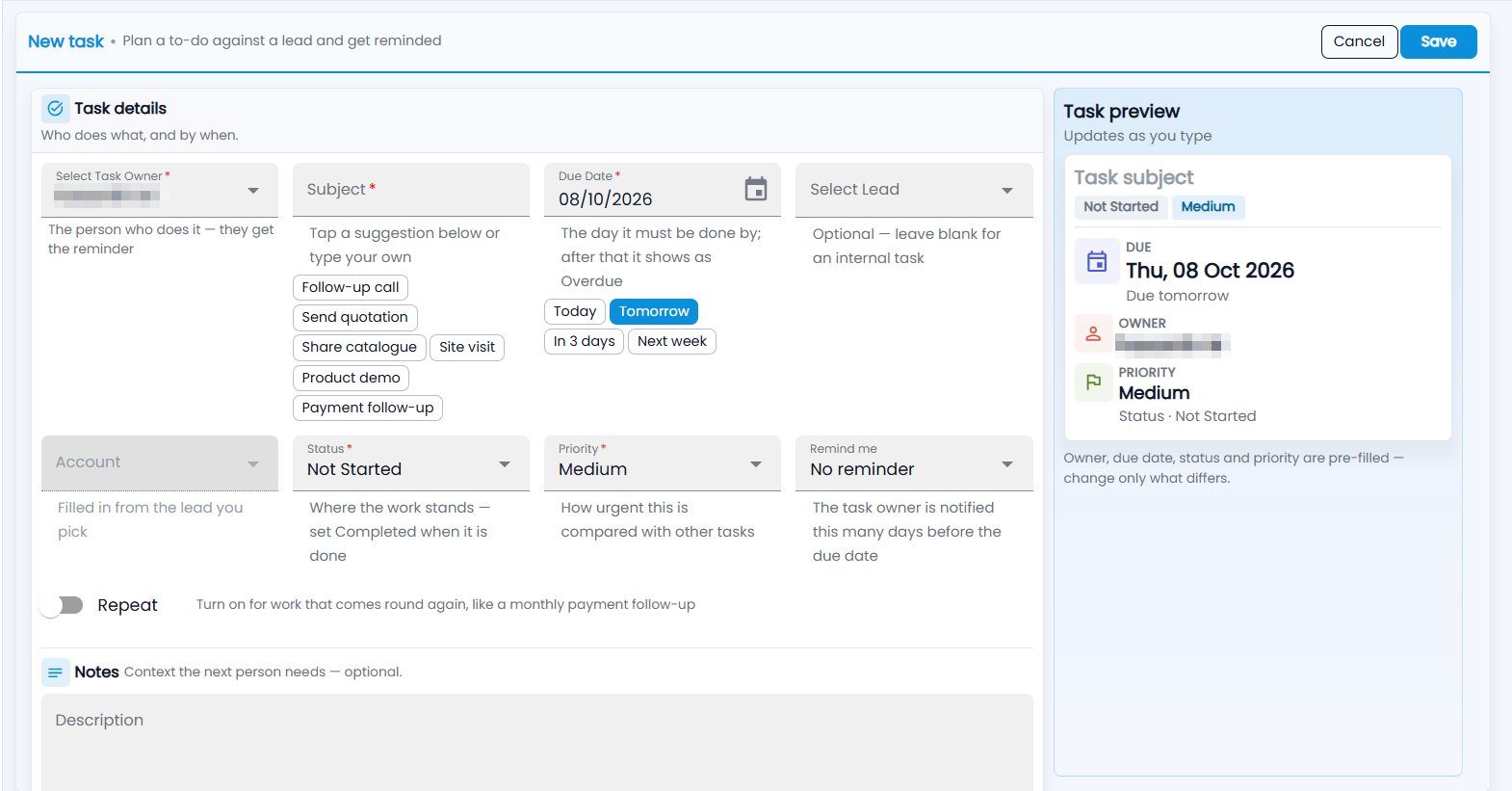
- Select Task Owner — the person who does it; they get the reminder. You are filled in.
- Subject — type your own or tap a suggestion: Follow-up call, Send quotation, Share catalogue, Site visit, Product demo, Payment follow-up.
- Due Date — the day it must be done by; after that it shows as Overdue. Quick picks: Today, Tomorrow, In 3 days, Next week.
- Select Lead — optional; leave it blank for an internal task. The Account fills in from the lead.
- Status — Not Started, In Progress, Waiting for input, Deferred or Completed.
- Priority — Highest, High, Medium, Low or Lowest.
- Remind me — no reminder, or 1 day, 2 days, 3 days or 1 week before the due date. The owner is notified at 9:00 AM that day.
- Repeat — for work that comes round again: Every Week, Every Month or Every Year. The next task is created two days before it is due.
- Notes — context the next person needs.
The Task preview on the right shows what will be saved. Click Save.
How do I add a task from a lead?
- Open the lead and go to its Tasks tab.
- Under Add a task, type What needs doing?, check the Due date (tomorrow is filled in) and pick a Priority.
- Add Notes if needed, or open More fields (status, reminder).
- Click Add task. A task added here is yours.
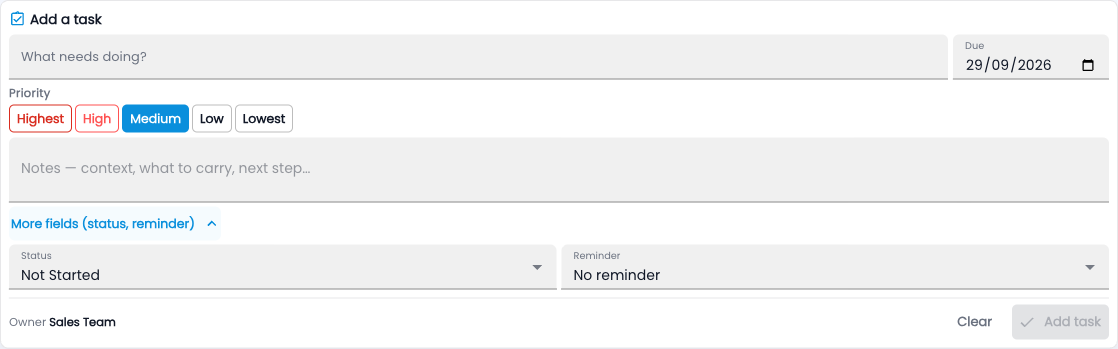
A task added on the lead and one added in My Work are the same record: it shows in both places, and editing, completing or deleting it in one changes it in the other. Every change is recorded on the lead's Timeline tab.