
How do I set up outgoing mail in Tazk CRM?
Open Configuration › Mail and click + Add Mail Config. Enter your SMTP host and port, the sender name and email, the app password, choose the location, add BCC addresses if you want copies, send a test mail, and click Save settings. Each location has one mail configuration.
What does the Mail screen show?
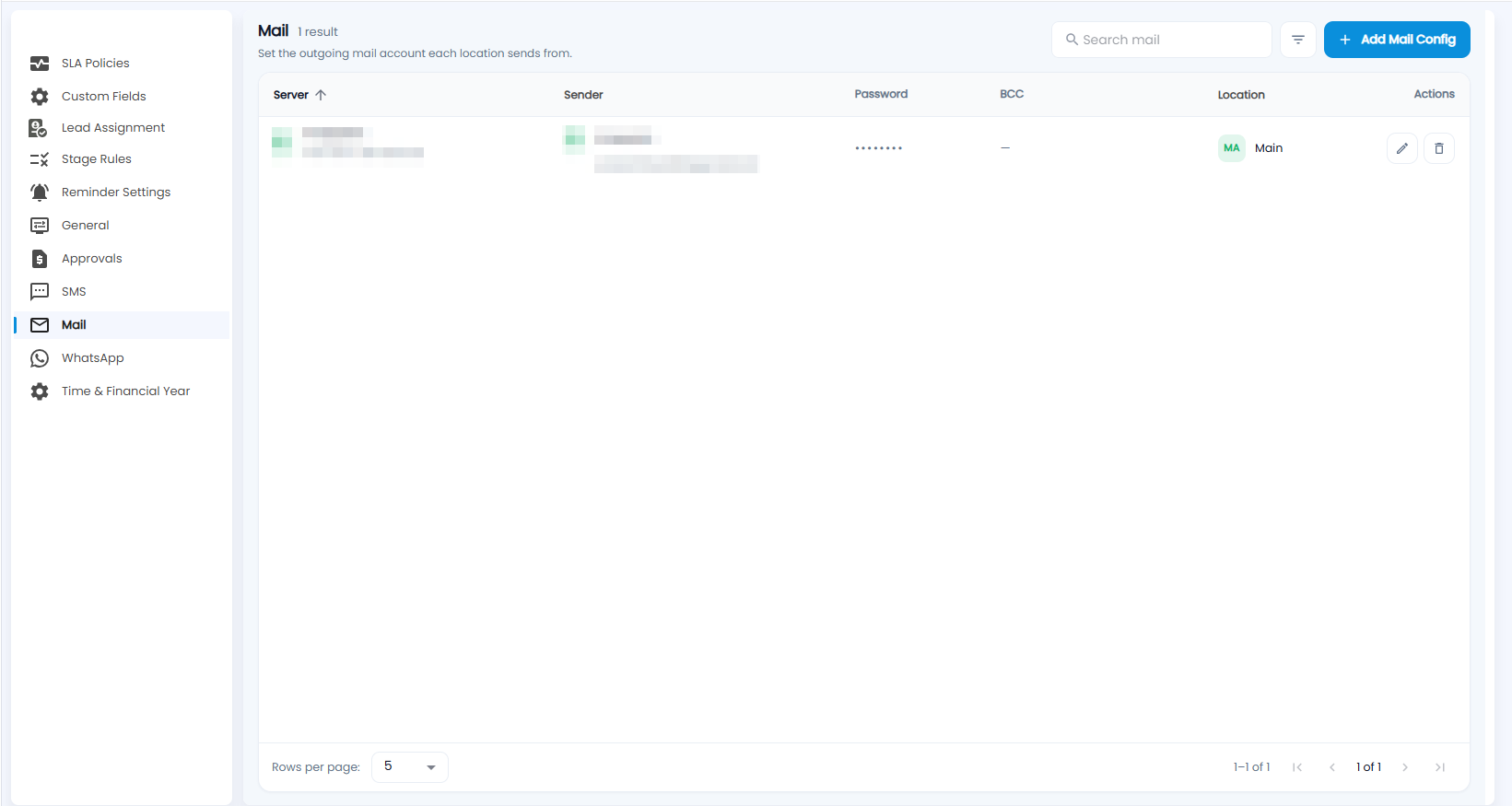
Set the outgoing mail account each location sends from. Each account shows its Server (with the port and whether it is secure), Sender, Password (hidden), BCC and Location, with edit and delete. Search and a filter are at the top.
How do I set up a mail account?
Click + Add Mail Config. Configure Mail Settings sets the outgoing mail server and the sender identity used for a location.
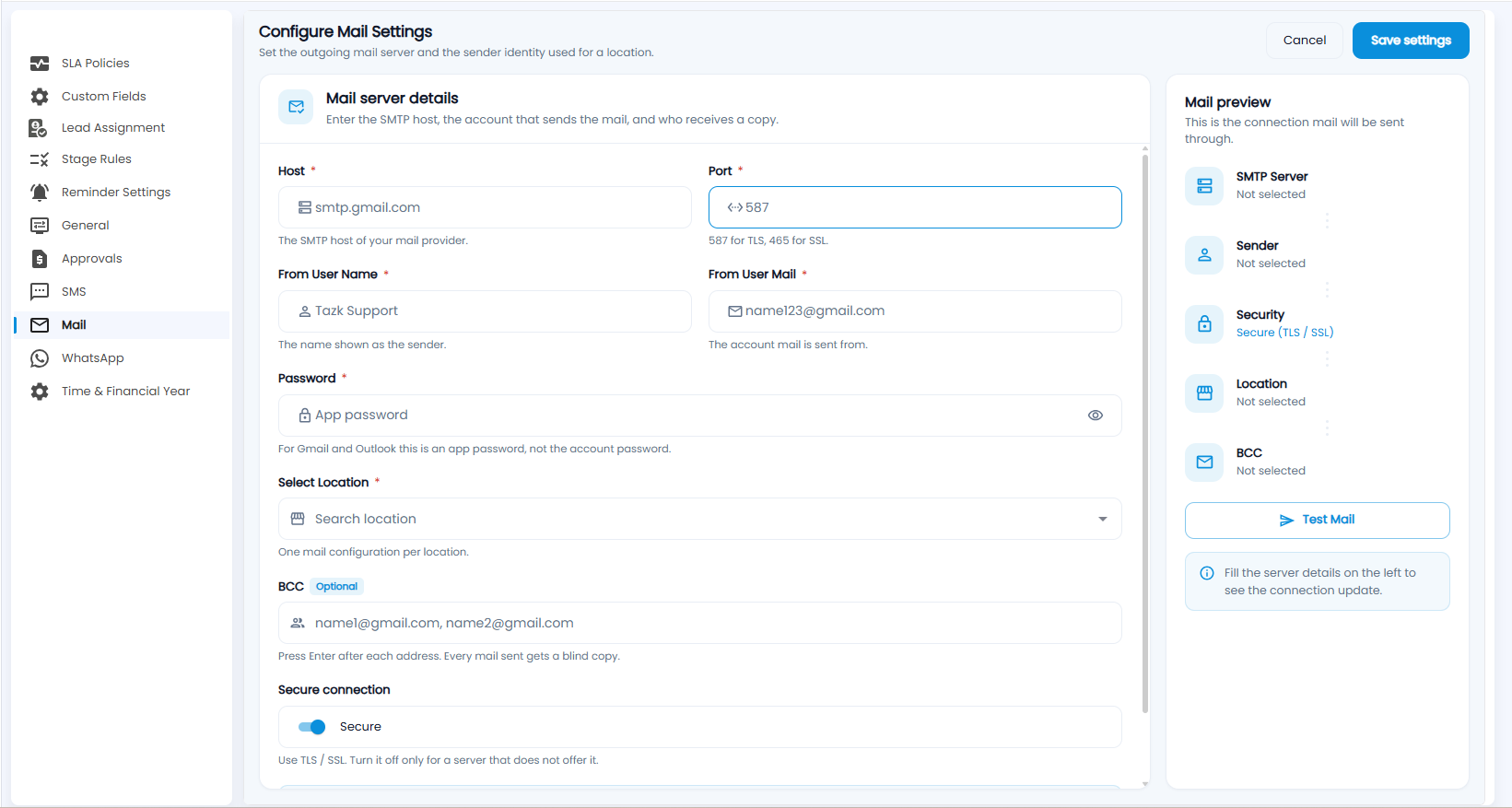
- Host (required) — the SMTP host of your mail provider, for example smtp.gmail.com.
- Port (required) — 587 for TLS, 465 for SSL.
- From User Name (required) — the name shown as the sender.
- From User Mail (required) — the account mail is sent from.
- Password (required) — for Gmail and Outlook this is an app password, not the account password.
- Select Location (required) — one mail configuration per location.
- BCC (optional) — press Enter after each address; every mail sent gets a blind copy.
- Secure connection — uses TLS / SSL. Turn it off only for a server that does not offer it.
- Check the Mail preview, click Test Mail, then Save settings — or Cancel.