
How do I create a quotation in Tazk CRM?
Open Quotes › Quotations and click +. Pick the customer, and optionally a deal and a price list, add the products with their quantity, unit price, discount and GST, add your notes and terms, and click Save. Keep the status as Draft until the quotation is sent. Each quotation gets the next number in your series, such as QNO/26-27/007.
What does the Quotations list show?
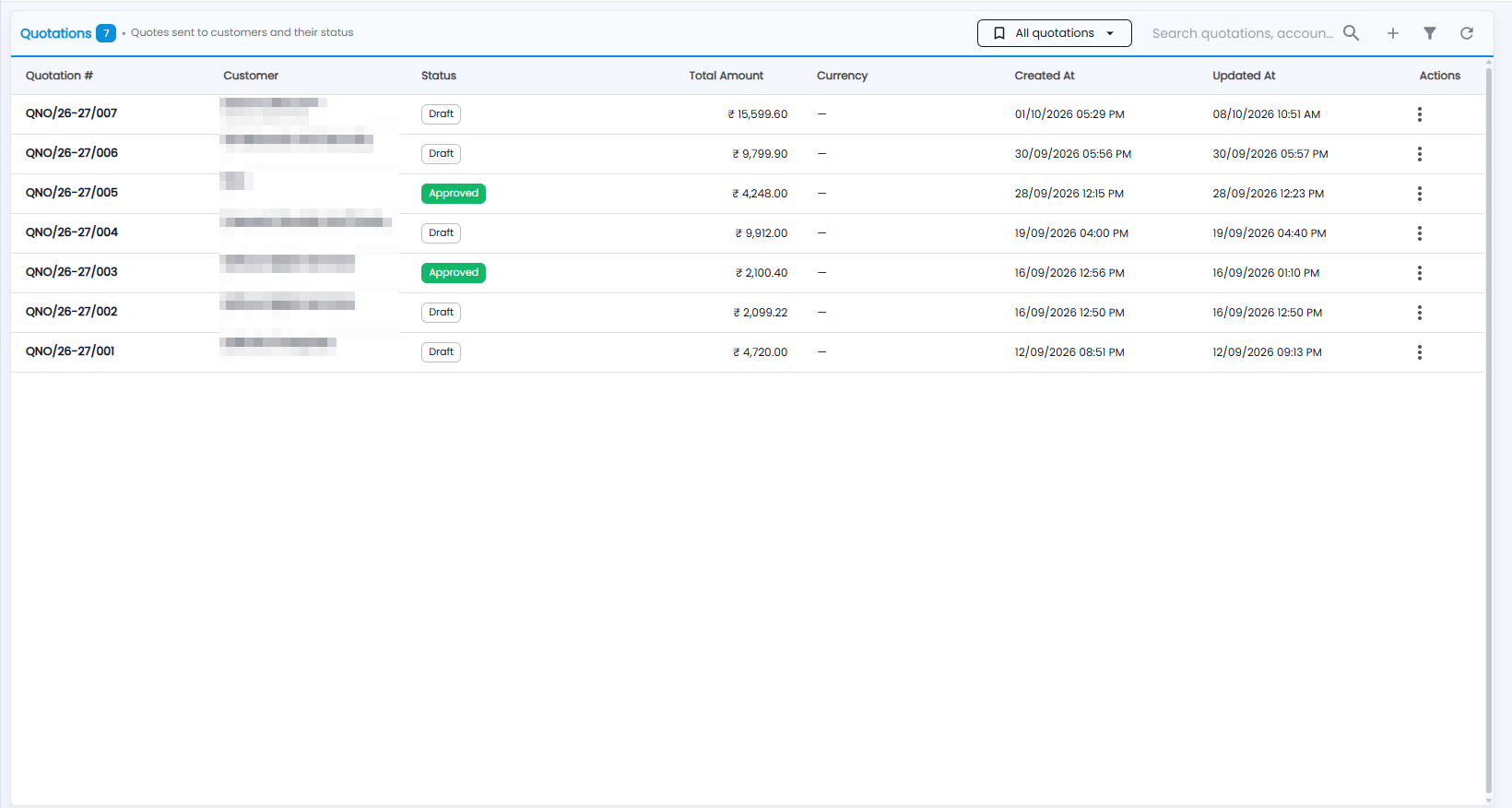
Quotes sent to customers and their status; the number next to the title is how many there are. The header has the view menu (All quotations), Search quotations, accoun…, + for a new quotation, the filter and refresh.
| Column | What it shows |
|---|---|
| Quotation # | The quotation number — for example QNO/26-27/007, where 26-27 is the financial year |
| Customer | The customer, with the deal underneath if it has one |
| Status | For example Draft or Approved |
| Total Amount | The quotation total in ₹ |
| Currency | The currency, when one is set |
| Created At and Updated At | When it was created and last changed |
| Actions | The ⋮ menu for the quotation |
Click a quotation to open it.
How do I create a quotation?
Click +. Pick a customer, add products, and send the quote for approval or to the customer.
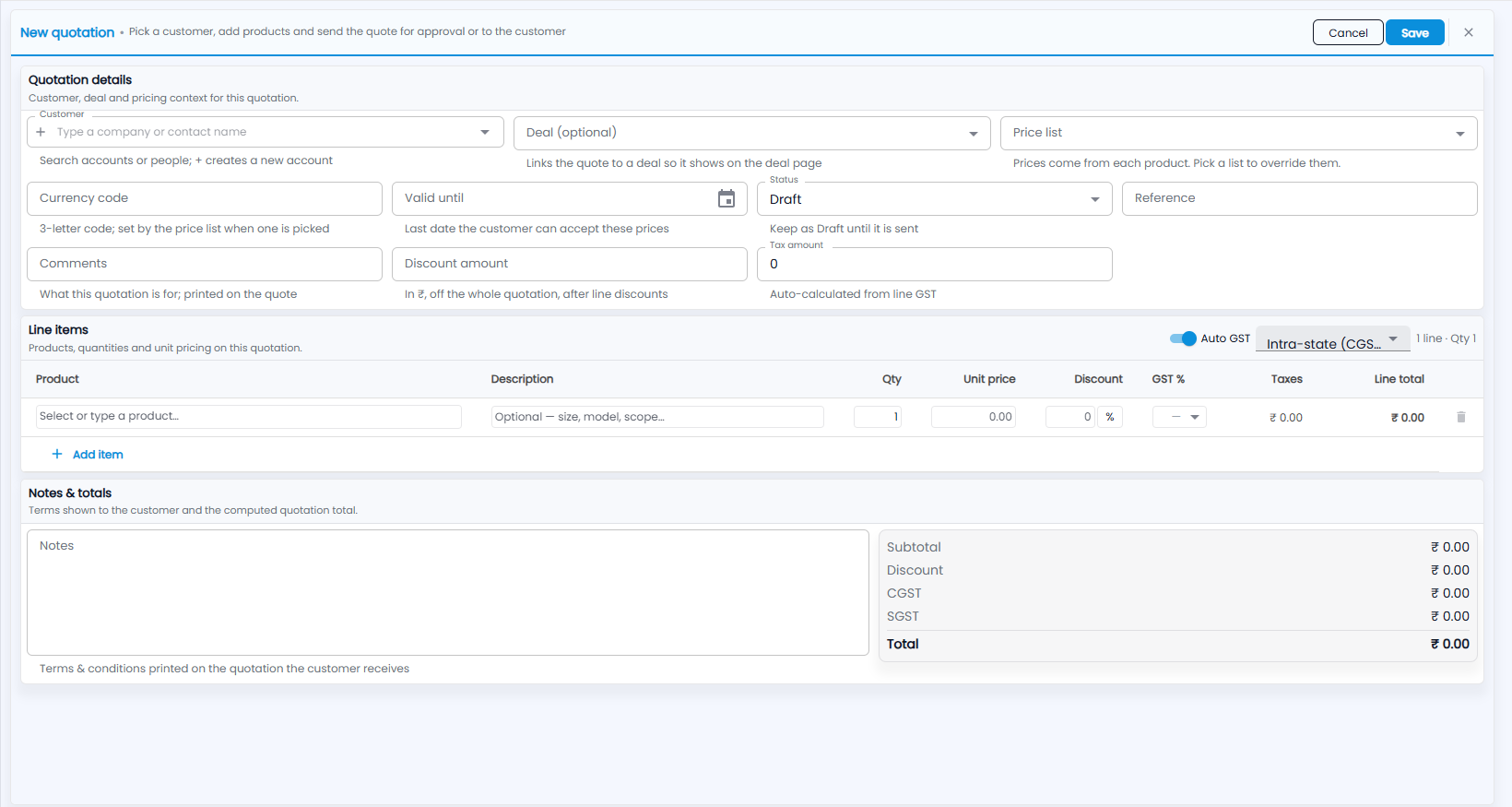
- Quotation details — customer, deal and pricing:
- Customer — type a company or contact name to search accounts or people; + creates a new account.
- Deal (optional) — links the quote to a deal so it shows on the deal page.
- Price list — prices come from each product; pick a list to override them.
- Currency code — a 3-letter code; set by the price list when one is picked.
- Valid until — the last date the customer can accept these prices.
- Status — keep it as Draft until it is sent.
- Reference, and Comments — what this quotation is for; printed on the quote.
- Discount amount — in ₹, off the whole quotation, after line discounts.
- Tax amount — worked out for you from the line GST.
- Line items — for each line, Select or type a product, add an optional Description (size, model, scope), the Qty, Unit price, Discount (as % or ₹) and GST %. The Taxes and Line total are calculated. Click + Add item for another line, or the bin to remove one. With Auto GST on, choose intra-state (CGST + SGST) or inter-state; the count of lines and quantity shows next to it.
- Notes & totals — Notes are the terms and conditions printed on the quotation the customer receives. The totals show the Subtotal, Discount, CGST, SGST and Total.
- Click Save, or Cancel.
How do I filter quotations?
Click the filter icon.
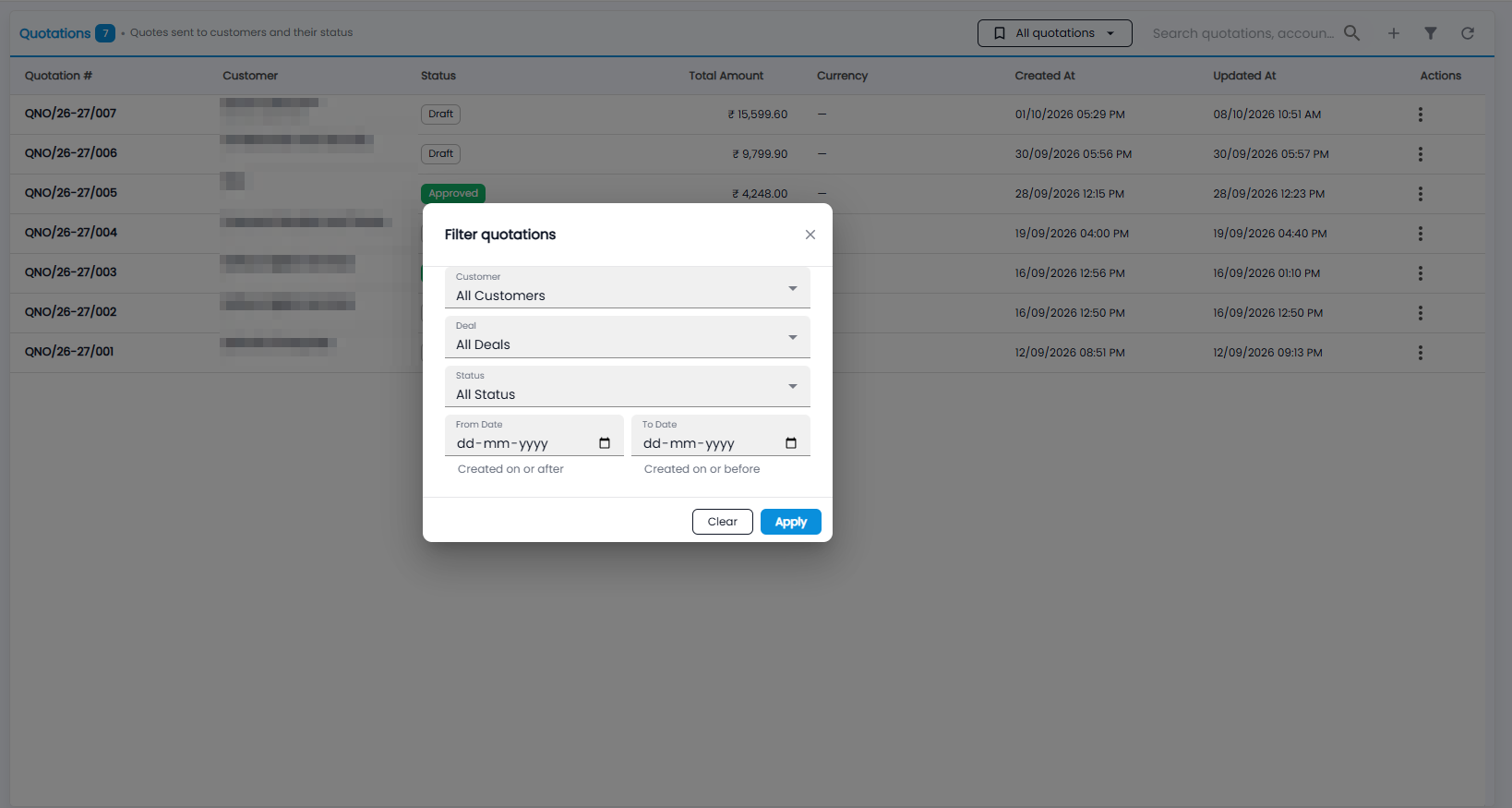
- Customer — All Customers or one customer.
- Deal — All Deals or one deal.
- Status — All Status or one status.
- From Date — created on or after; To Date — created on or before.
Click Apply, or Clear to show every quotation again.