
How do I create a message template in Tazk CRM?
Open Templates › Message Library and choose the WhatsApp, Email or SMS tab. For WhatsApp, click + New template, name it, choose the kind of message, write it and click Create — Meta must approve it before it can be sent. Email templates need a name, subject and body; SMS templates need the text DLT approved and its DLT template ID.
What is the Message Library?
Every message your team sends over and over — email, WhatsApp and SMS — in three tabs: WhatsApp, Email and SMS. The chip next to the title shows how WhatsApp is billed (Your WhatsApp account · billed by Meta).
What does the WhatsApp tab show?
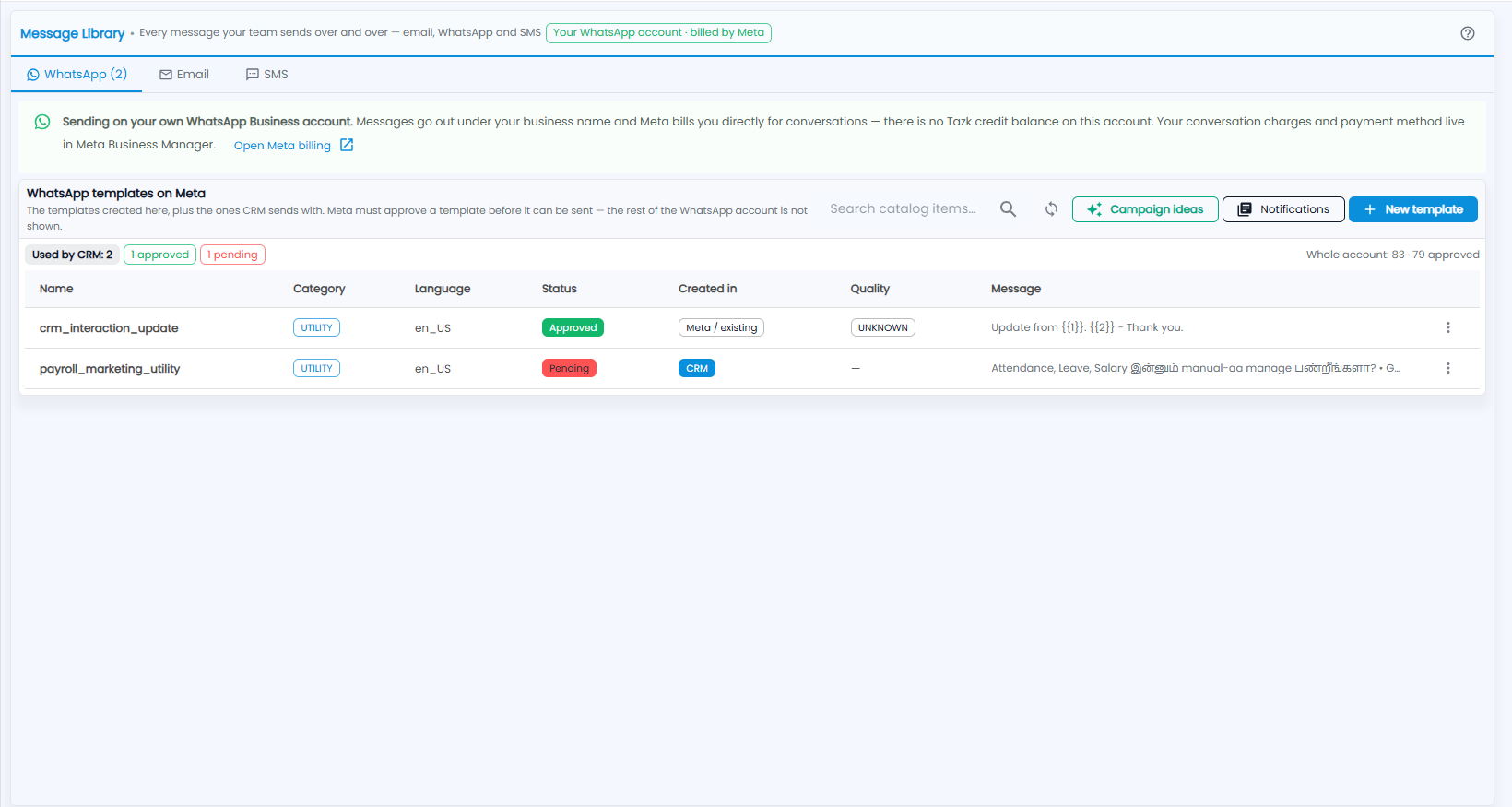
The banner explains you are sending on your own WhatsApp Business account: messages go out under your business name and Meta bills you directly for conversations — there is no Tazk credit balance. Open Meta billing takes you to your charges and payment method in Meta Business Manager.
WhatsApp templates on Meta lists the templates created here, plus the ones the CRM sends with. Meta must approve a template before it can be sent. The chips show how many the CRM uses and how many are approved or pending, and the count for your whole account is on the right.
| Column | What it shows |
|---|---|
| Name | The template name |
| Category | For example UTILITY |
| Language | For example en_US |
| Status | Approved or Pending |
| Created in | Where it was made — CRM, or Meta / existing |
| Quality | Meta's quality rating |
| Message | The start of the message |
Search, sync, Campaign ideas, Notifications and + New template are above the list; each row has a ⋮ menu.
How do I create a WhatsApp template?
Click + New template, or Start from an idea for a ready-written one.
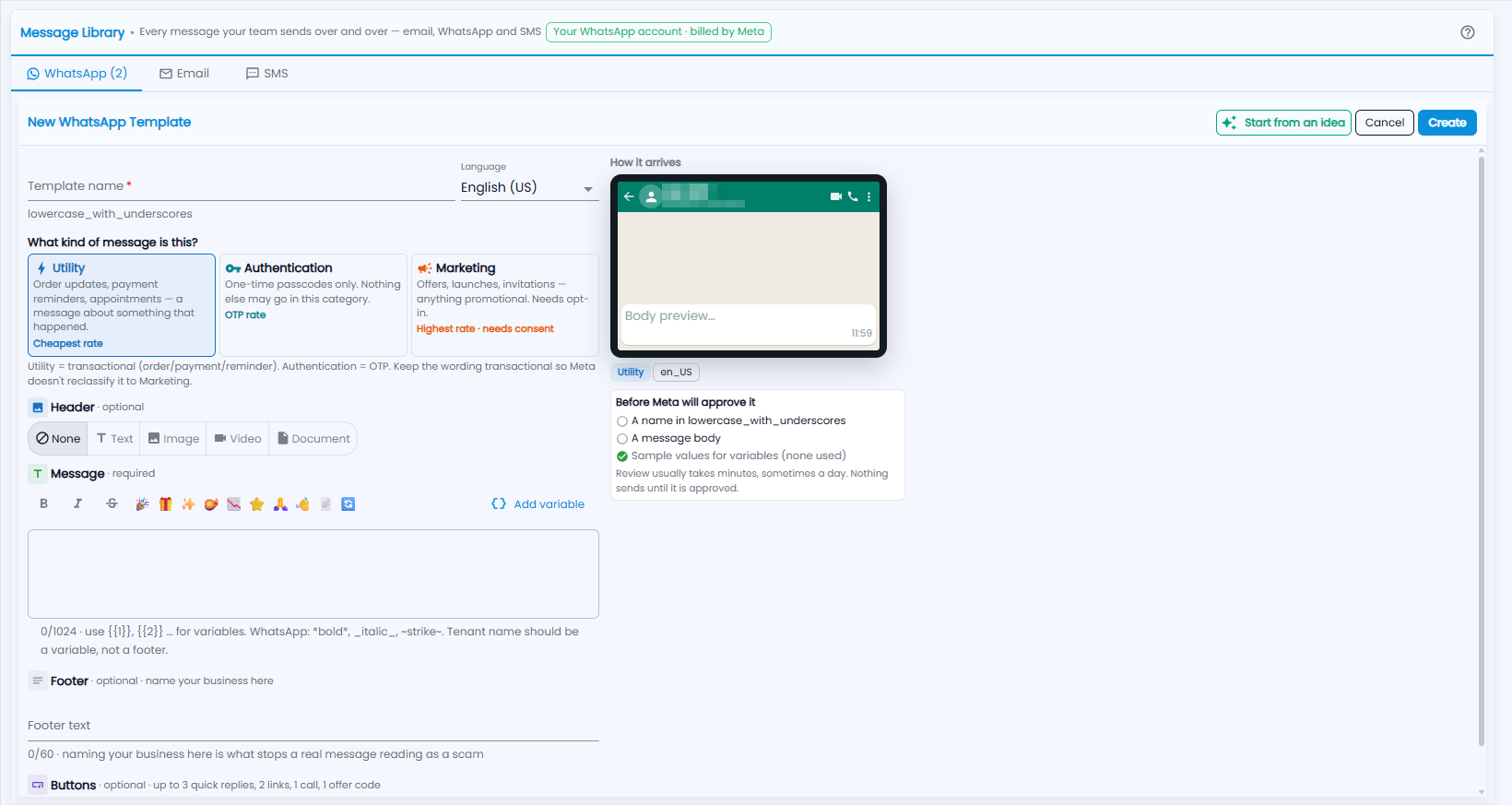
- Template name (required) — lowercase_with_underscores — and the Language.
- What kind of message is this?
- Utility — order updates, payment reminders, appointments: a message about something that happened. Cheapest rate.
- Authentication — one-time passcodes only. OTP rate.
- Marketing — offers, launches, invitations: anything promotional. Needs opt-in; highest rate.
- Header (optional) — none, text, an image, a video or a document.
- Message (required, up to 1,024 characters) — use {{1}}, {{2}} … for variables (Add variable), and *bold*, _italic_, ~strike~. Put your business name in a variable, not the footer.
- Footer (optional, up to 60 characters) — name your business here; it is what stops a real message reading as a scam.
- Buttons (optional) — up to 3 quick replies, 2 links, 1 call and 1 offer code.
- Check How it arrives and Before Meta will approve it — a name in lowercase_with_underscores, a message body, and sample values for any variables. Review usually takes minutes, sometimes a day; nothing sends until it is approved.
- Click Create, or Cancel.
How do I create an email template?
On the Email tab, start a new email template — subject, sender and body. Merge fields are filled from the lead when it is sent.
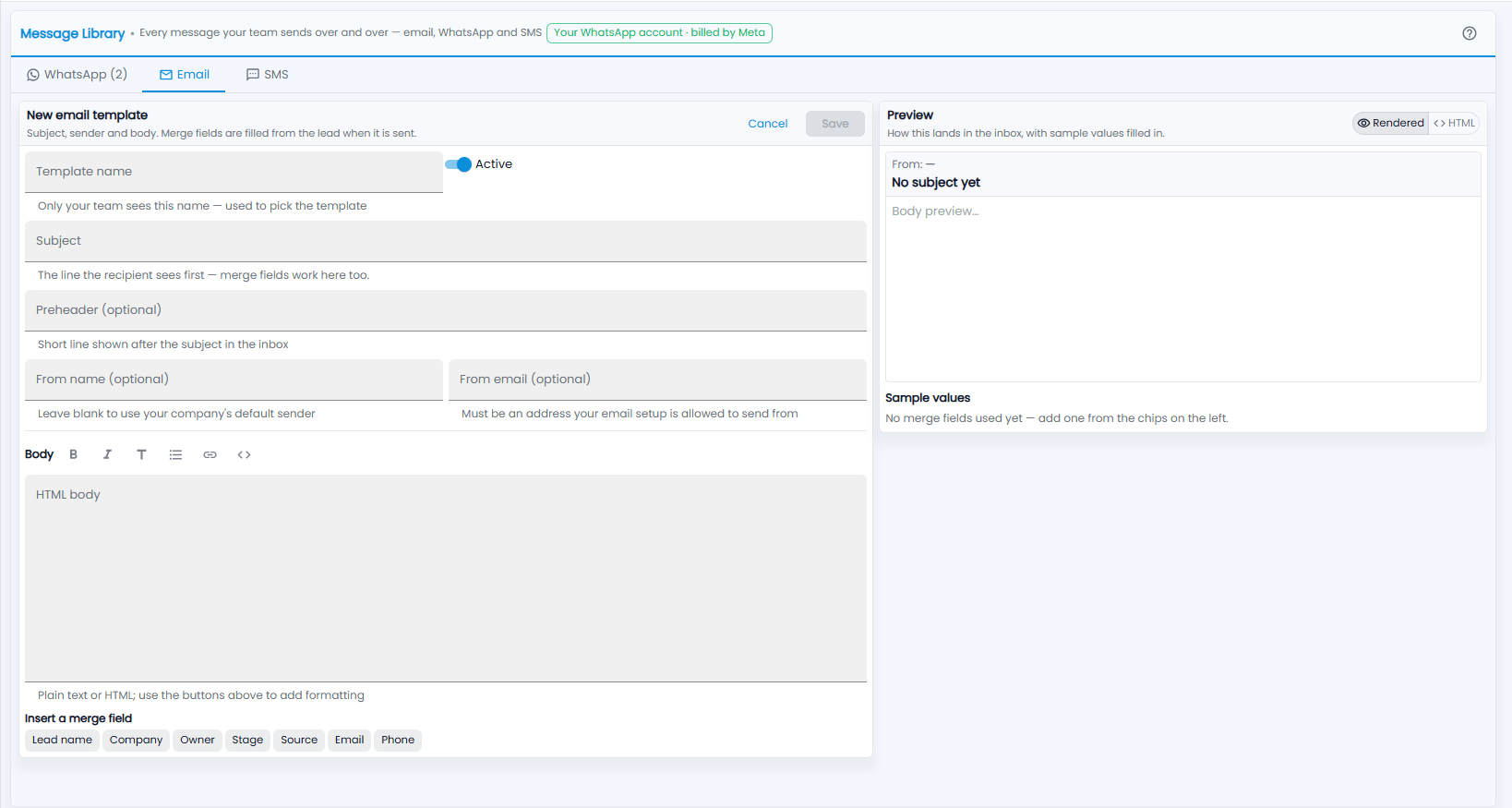
- Template name — only your team sees it; used to pick the template. Active is on by default.
- Subject — the line the recipient sees first; merge fields work here too.
- Preheader (optional) — a short line shown after the subject in the inbox.
- From name (optional) — leave blank to use your company's default sender. From email (optional) — must be an address your email setup is allowed to send from.
- Body — plain text or HTML; use the buttons above it for formatting. Insert a merge field: Lead name, Company, Owner, Stage, Source, Email or Phone.
The Preview shows how it lands in the inbox, with sample values filled in (switch between Rendered and HTML). Click Save, or Cancel.
How do I create an SMS template?
On the SMS tab, start a new SMS template. The text must match what DLT approved, character for character — the operator compares them before delivering.
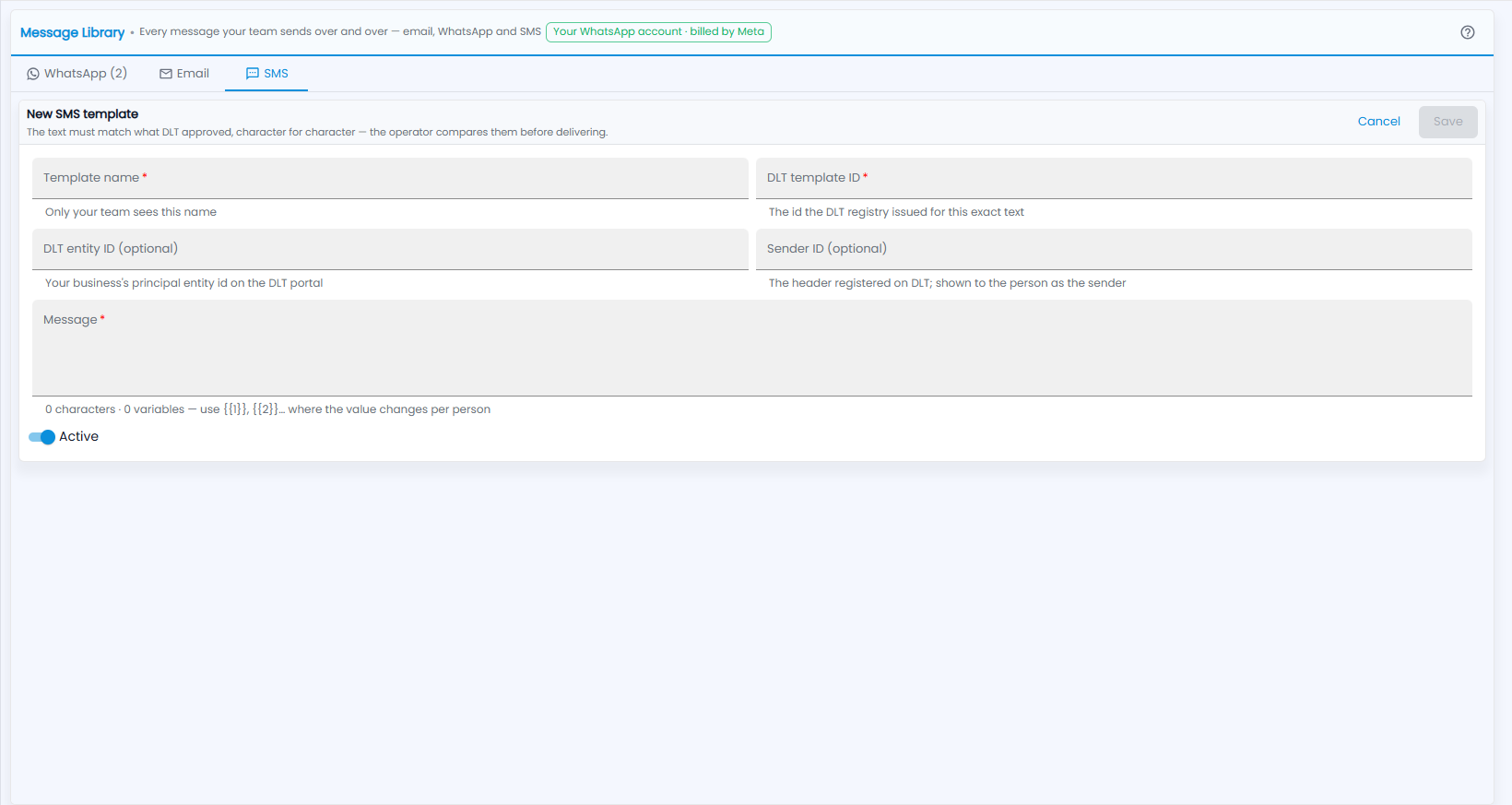
- Template name (required) — only your team sees it.
- DLT template ID (required) — the id the DLT registry issued for this exact text.
- DLT entity ID (optional) — your business's principal entity id on the DLT portal.
- Sender ID (optional) — the header registered on DLT; shown to the person as the sender.
- Message (required) — the character and variable counts show underneath; use {{1}}, {{2}} … where the value changes per person.
- Active — on by default.
Click Save, or Cancel.