
How do I see the return on my marketing spend in Tazk CRM?
Open Marketing › Spend & Return and click + Record spend. Enter the month, where you spent it, the amount and, if you like, the campaign, and save. Tazk matches that spend against the leads that came from each source and the deals you won from them, so you can see which source paid for itself and which did not.
What does the Spend & Return page show?
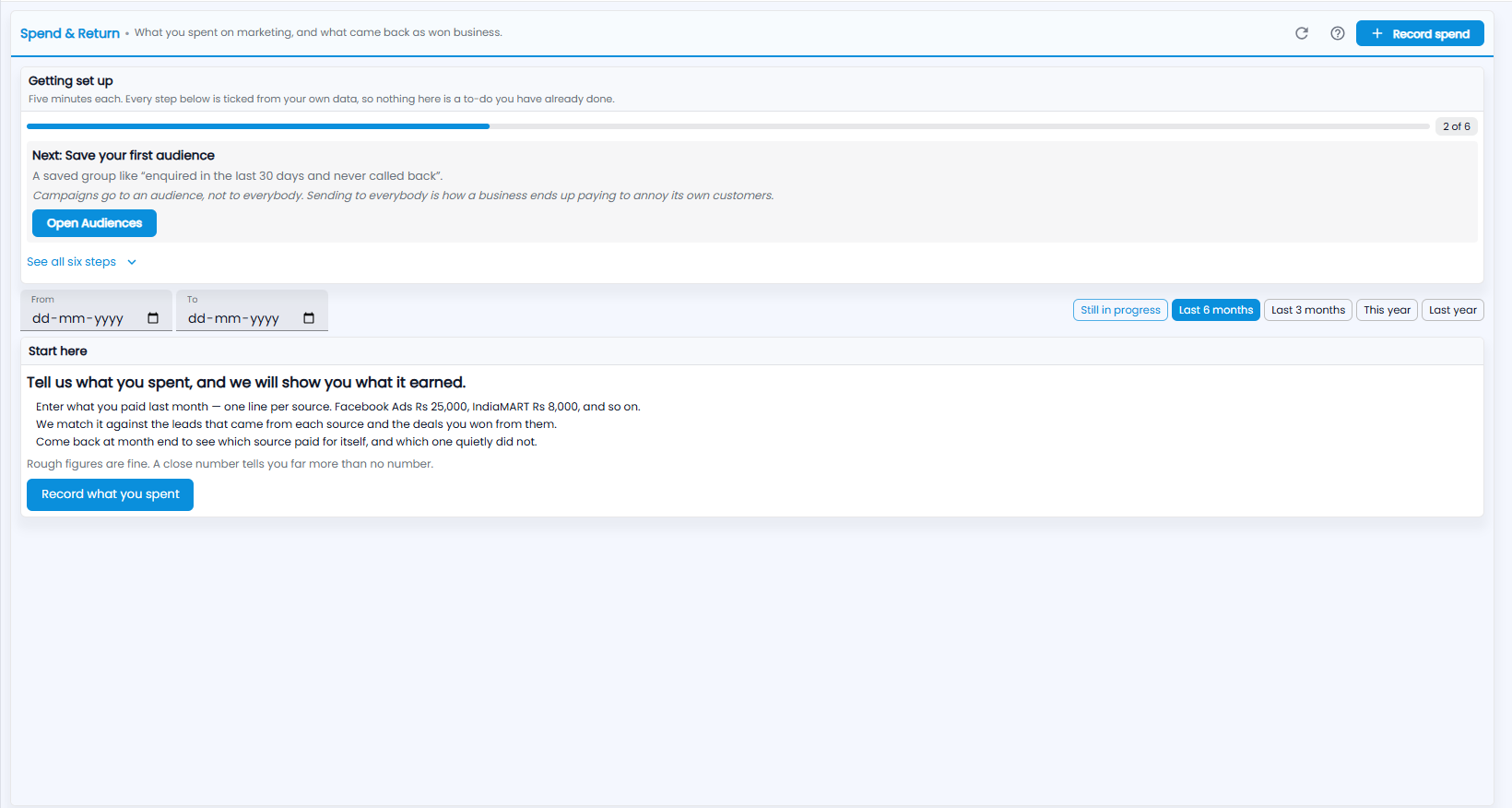
What you spent on marketing, and what came back as won business. At the top right are refresh, the ? guide and + Record spend.
- Getting set up — the same six-step checklist as the Marketing Overview, with your next step and See all six steps.
- From and To — the dates to look at, or a quick range: Still in progress, Last 6 months, Last 3 months, This year or Last year.
- Start here — until you record any spend: tell us what you spent, and we will show you what it earned. Enter what you paid last month — one line per source, for example Facebook Ads Rs 25,000, IndiaMART Rs 8,000. Tazk matches it against the leads from each source and the deals you won from them. Come back at month end to see which source paid for itself, and which one quietly did not. Rough figures are fine — a close number tells you far more than no number.
How do I record what I spent?
Click + Record spend or Record what you spent.
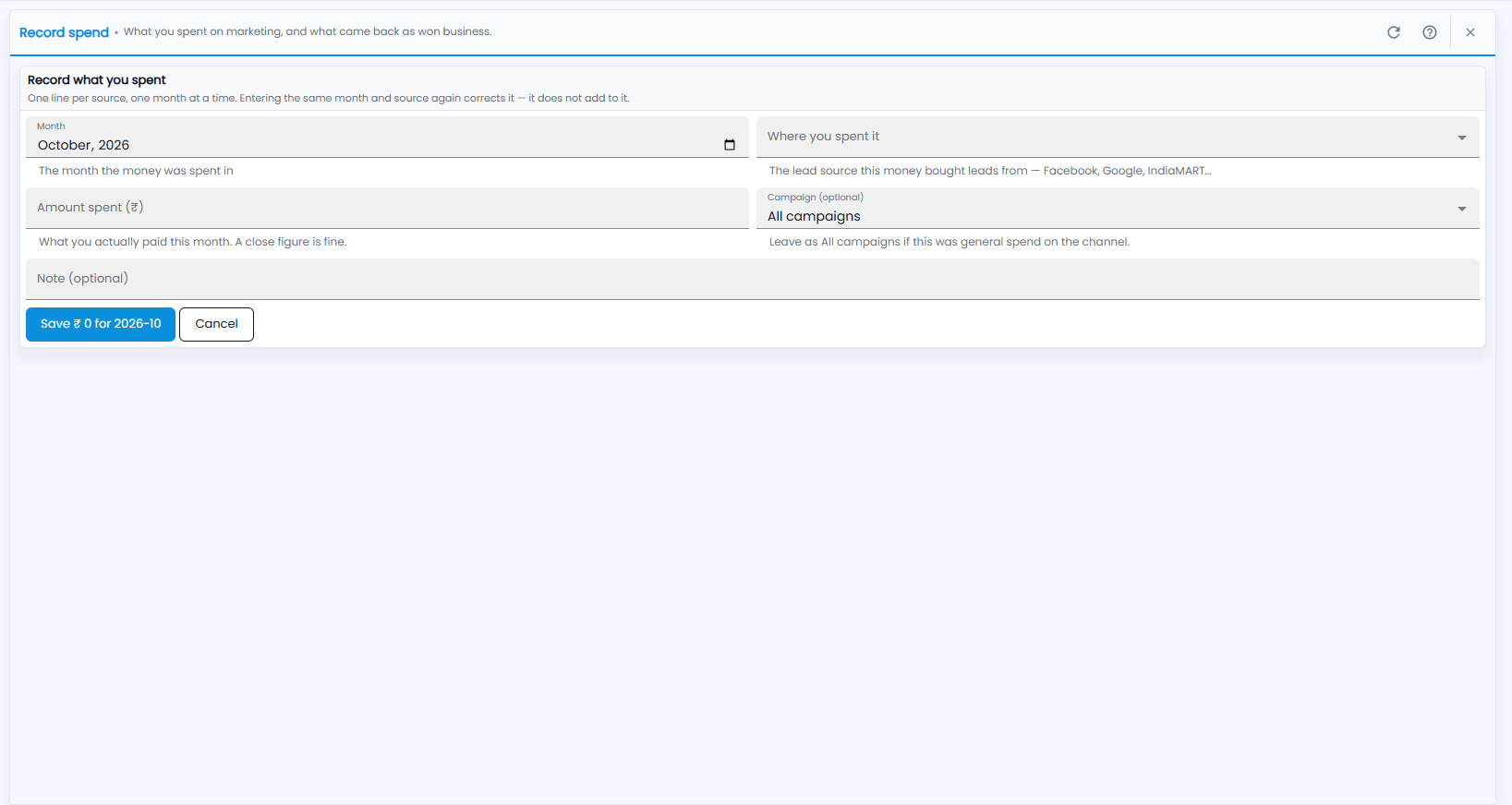
One line per source, one month at a time. Entering the same month and source again corrects it — it does not add to it.
- Month — the month the money was spent in.
- Where you spent it — the lead source this money bought leads from: Facebook, Google, IndiaMART and so on.
- Amount spent (₹) — what you actually paid this month. A close figure is fine.
- Campaign (optional) — leave it as All campaigns if this was general spend on the channel.
- Note (optional).
- Click the save button — it shows the amount and month, for example Save ₹ 0 for 2026-10 — or Cancel.