
How do I add a user in Tazk CRM?
Open Settings › Users and click +. Fill in the person's personal information, then their application information and payroll information, and save. They can then sign in with the user name you give them and the role you choose.
What does the Users list show?
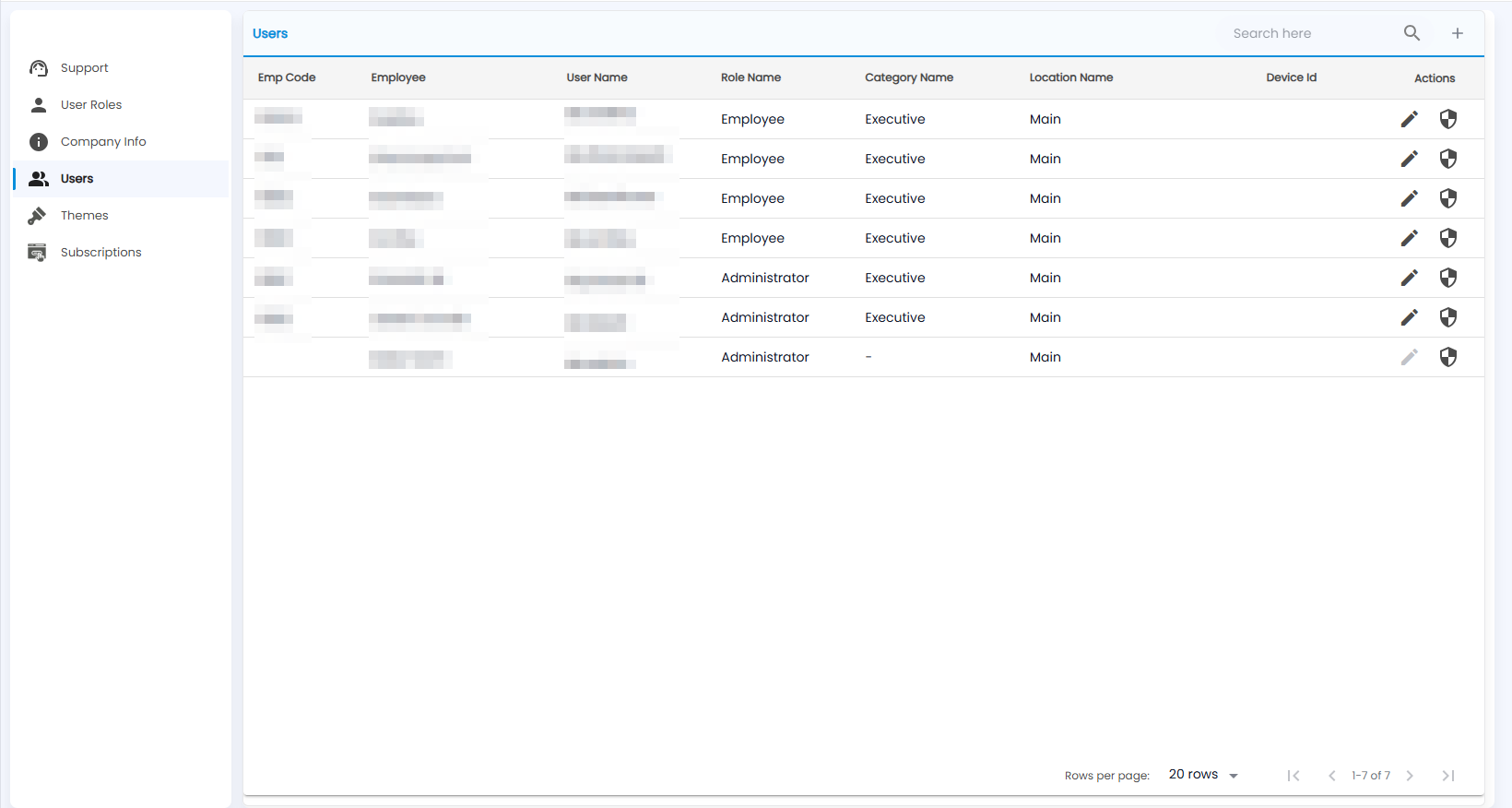
Everyone who can sign in, with their Emp Code, Employee name, User Name, Role Name, Category Name, Location Name and Device Id. The pencil on a row edits that user; a shield icon sits beside it. Use Search here to find someone, and + to add a user.
How do I add a user?
Click +. New User has three steps: Personal Info, Application Info and Payroll Info.
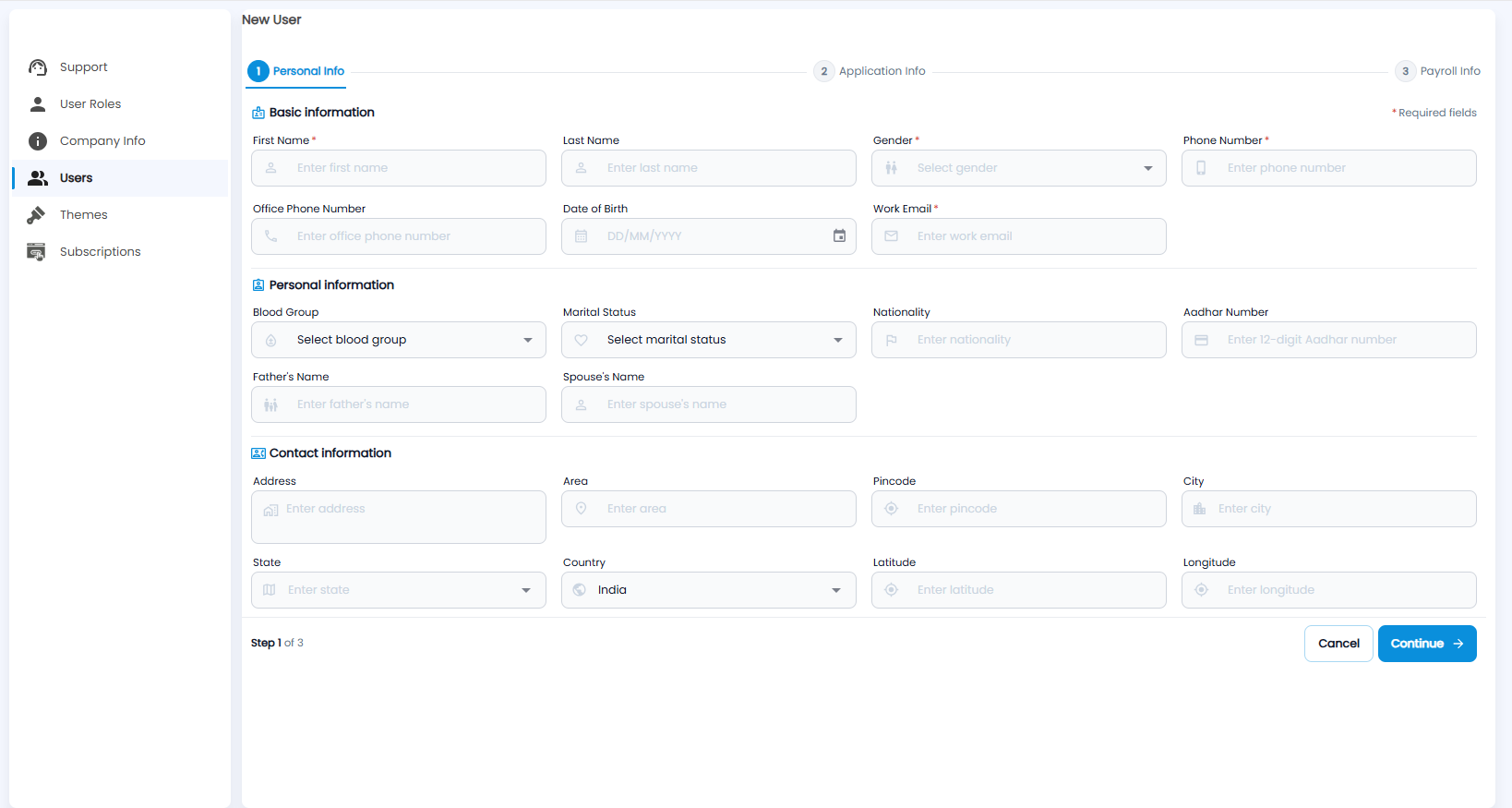
Step 1, Personal Info:
- Basic information — First Name, Gender, Phone Number and Work Email (required), and the last name, office phone number and date of birth.
- Personal information — blood group, marital status, nationality, Aadhar number (12 digits), father's name and spouse's name.
- Contact information — address, area, pincode, city, state, country, latitude and longitude.
Click Continue for the next step, or Cancel.