
What is All Accounts in Tazk CRM?
All Accounts (Accounts → All Accounts) lists the companies you sell to. Each account holds the company details, a primary contact and any additional contacts, and every lead raised for that company. Click a row to open the account and see its information, active leads, contacts and timeline; click + to add a new account.
What is an account?
An account is a customer company — for example Priya Traders. The people you speak to there are its contacts, and each enquiry from it is a lead. One account can have many leads over time, so the account is where you see everything you have done with that company in one place.
An account is also created for you when you add a lead for a company that is not in the CRM yet. If the company already exists, pick it with Select Account on the lead form so the lead is linked to the existing account instead of starting a new one.
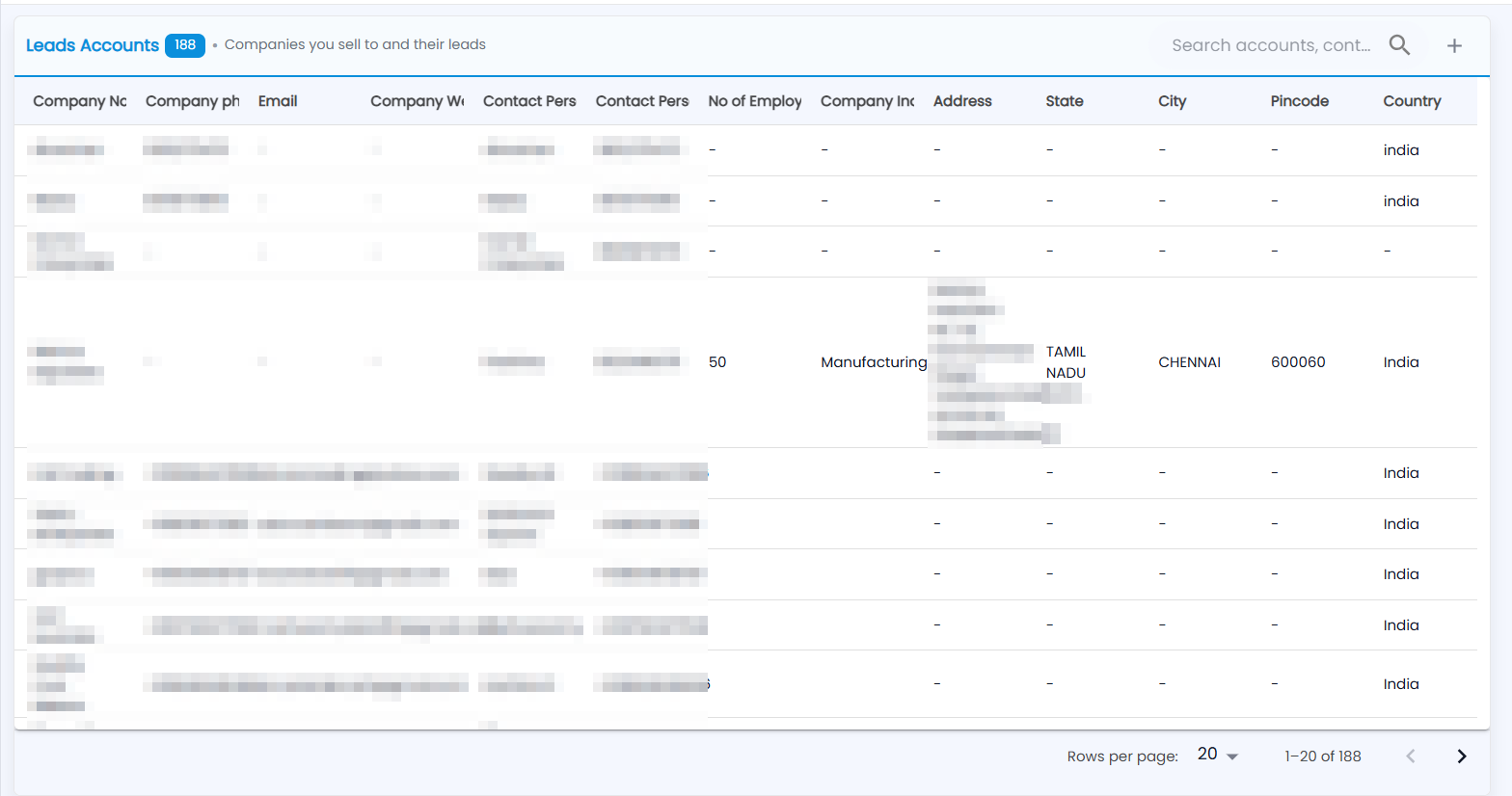
What does the accounts list show?
Go to Accounts → All Accounts. The screen is headed Leads Accounts and shows how many accounts you can see. The columns are:
| Column | What it holds |
|---|---|
| Company Name | The account’s name |
| Company phone Number, Email, Company Website | How to reach the company itself |
| Contact Person Name, Contact Person Number | The primary contact at the company |
| No of Employees, Company Industry | Size and sector |
| Address, State, City, Pincode, Country | Where the company is |
An empty value shows as a dash. Use the search box at the top (Search accounts, contacts, phone…) to find an account, and the pager at the bottom to move through pages or change how many rows you see. The list shows the accounts your role is allowed to see.
How do I add an account?
- On All Accounts, click + (Add account) at the top right.
- Fill in the Account section — company and account details such as the address, city, country, company email, industry, account mobile (used for WhatsApp and SMS), number of employees, account phone, PIN code, state and website. Company Name is required.
- Fill in the Primary Contact section — the main person for this account. First Name, Gender and Contact person's phone are required.
- Under Additional Contacts, click + (Add Contact) for each other person you deal with there.
- Click Save. The new account appears in the list, and an “Account Created” entry is added to its timeline.
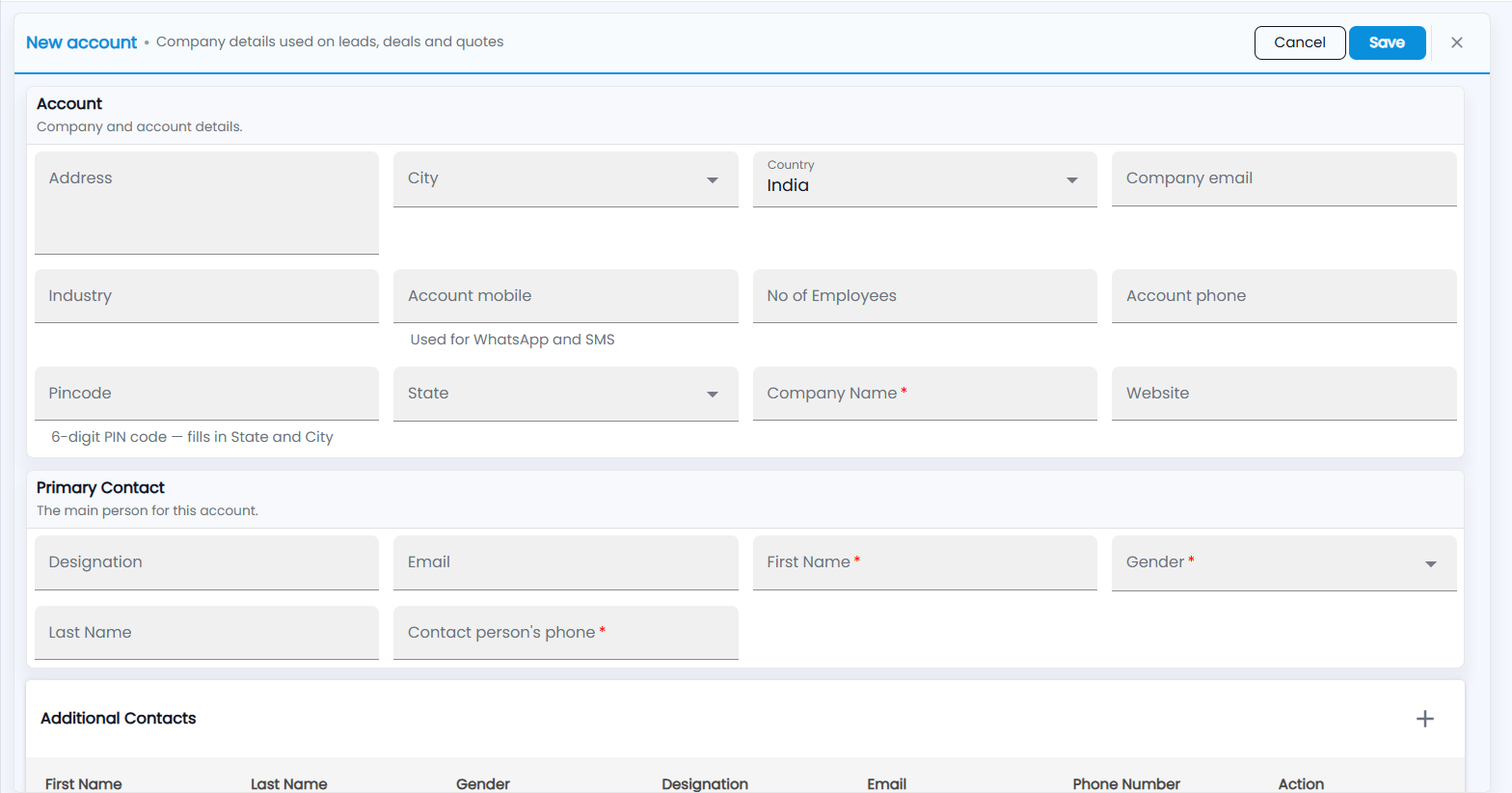
The fields and which ones are required come from your lead form settings, so yours may differ slightly from the picture. Phone, mobile and email are checked as you type, and entering a 6-digit PIN code fills in the state and city. If anything required is missing, Tazk tells you before it saves.
What do I see when I open an account?
Click any row. The account opens with its name as the title, and its industry and city beneath. Use the arrows in the header to step to the previous or next account without going back to the list, and the X to close it.
The Overview tab has:
- Account Information — Account Owner, Industry, Employees, Company Phone, Website; the contact’s name, phone and email; and the address.
- Active Leads — every open lead for this company with its Stage and when it was Last Updated. Click a lead to open it.
- Contacts — the people at this account, including the primary contact, with their name, email, designation, gender and phone number.
The Timeline tab lists the activity recorded against the account, newest first.