
How do I work my leads in Tazk CRM?
Open Leads › All Leads. The list shows every enquiry with its contact, source, stage, value, owner and when it was last updated. Click + New lead for the full Create a lead form, or the lightning icon to quick-add someone with just a name and phone. The funnel icon filters the list by date, stage, source, owner and how long a lead has gone untouched.
What does the leads list show?
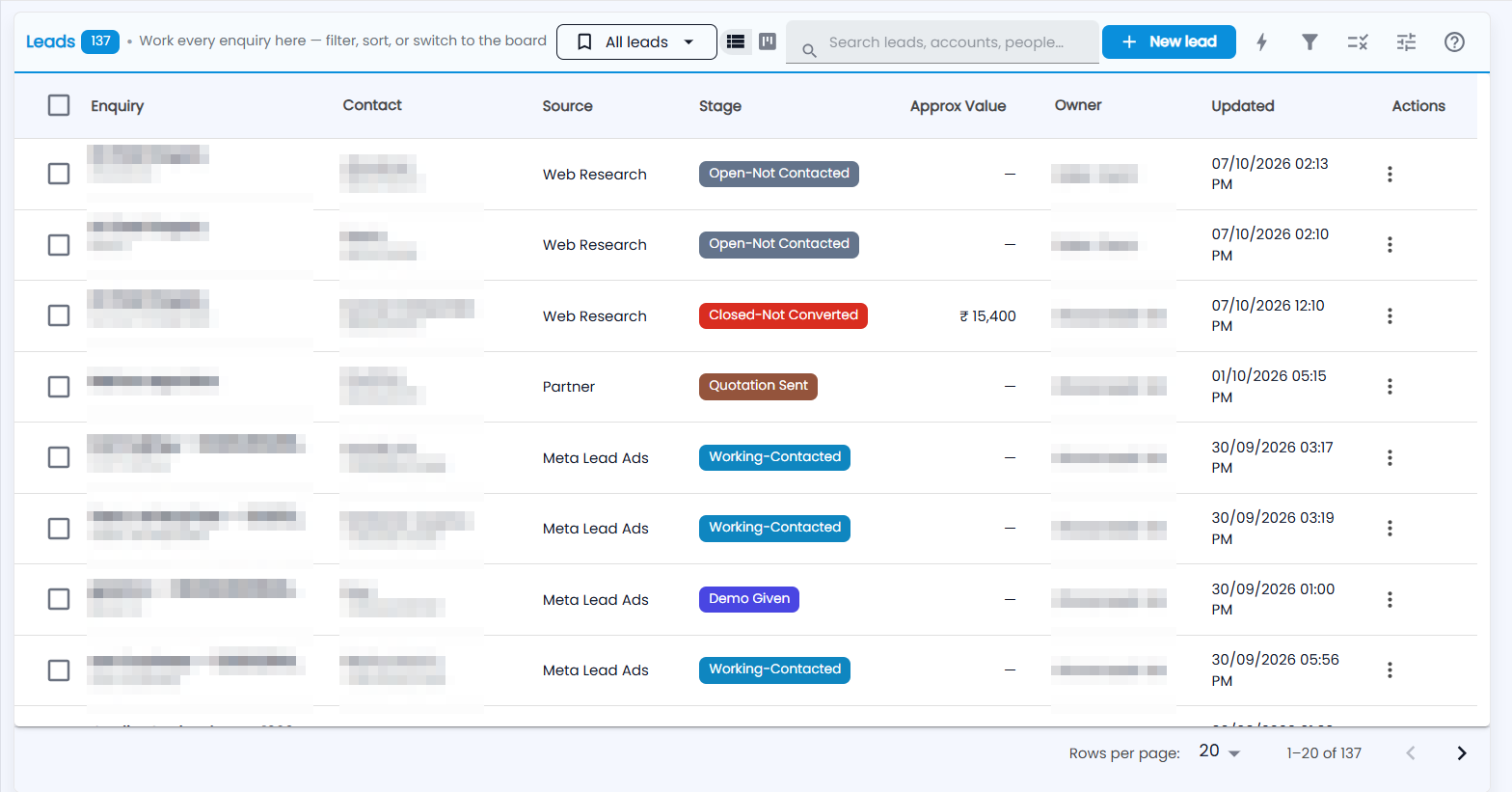
The header shows how many leads you have — 137 in the picture — and the toolbar:
- All leads — the view menu. Pick a saved view, or choose Save current filters… to keep the filters you are using.
- The two icons next to it switch between the table and the board (one column per stage).
- Search leads, accounts, people… — find a lead by any of these.
- + New lead — the full Create a lead form.
- The lightning icon — Quick add.
- The funnel icon — Filter leads.
- The sliders icon — leads configuration: custom fields, stages and rules, and assignment rules.
- ? — a short guide to this screen.
| Column | What it shows |
|---|---|
| Enquiry | What the lead is about, with the company underneath |
| Contact | The contact person and their phone number |
| Source | Where the lead came from — for example Web Research, Partner or Meta Lead Ads |
| Stage | Where the lead is, as a coloured chip — for example Open-Not Contacted, Working-Contacted, Demo Given, Quotation Sent or Closed-Not Converted |
| Approx Value | The expected value in ₹, or a dash if it isn't set |
| Owner | The person responsible for the lead |
| Updated | When the lead last changed |
| Actions | The ⋮ menu: Edit, Convert to Deal and Delete |
Click a lead to open it. Tick the boxes on the left to select leads and hand them to another person with Reassign owner. Use Rows per page and the arrows at the bottom to move through the list.
How do I create a lead?
Click + New lead. The Create a lead form opens.
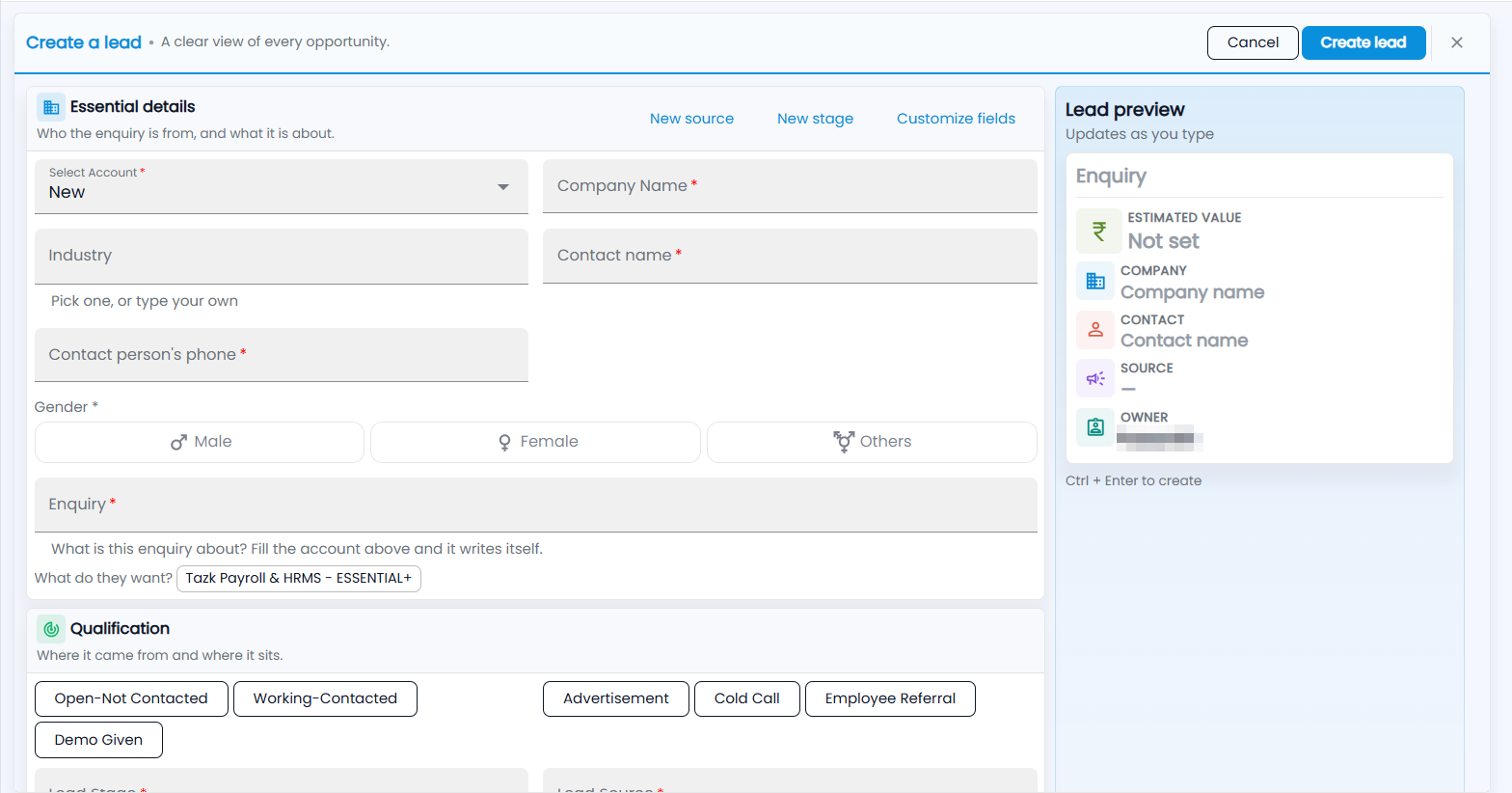
- Under Essential details — who the enquiry is from, and what it is about:
- Select Account — leave it on New for a new company and type the Company Name, or pick an existing account.
- Industry — pick one, or type your own.
- Contact name, Contact person's phone and Gender (Male, Female or Others).
- Enquiry — what the enquiry is about. Fill in the account above and it writes itself. Under What do they want?, tap one of your products to add it.
- Under Qualification — where it came from and where it sits — tap a stage (for example Open-Not Contacted) and a source (for example Cold Call), or choose them in Lead Stage and Lead Source.
- Check the Lead preview on the right — the estimated value, company, contact, source and owner — and click Create lead, or press Ctrl + Enter.
Fields marked * are required. The links at the top of the form — New source, New stage and Customize fields — add a lead source, add a stage, or change which fields the form asks for; they appear only if your role can change the lead setup.
How do I quick-add a lead?
Click the lightning icon in the toolbar. Quick add lead needs only a name and a phone.
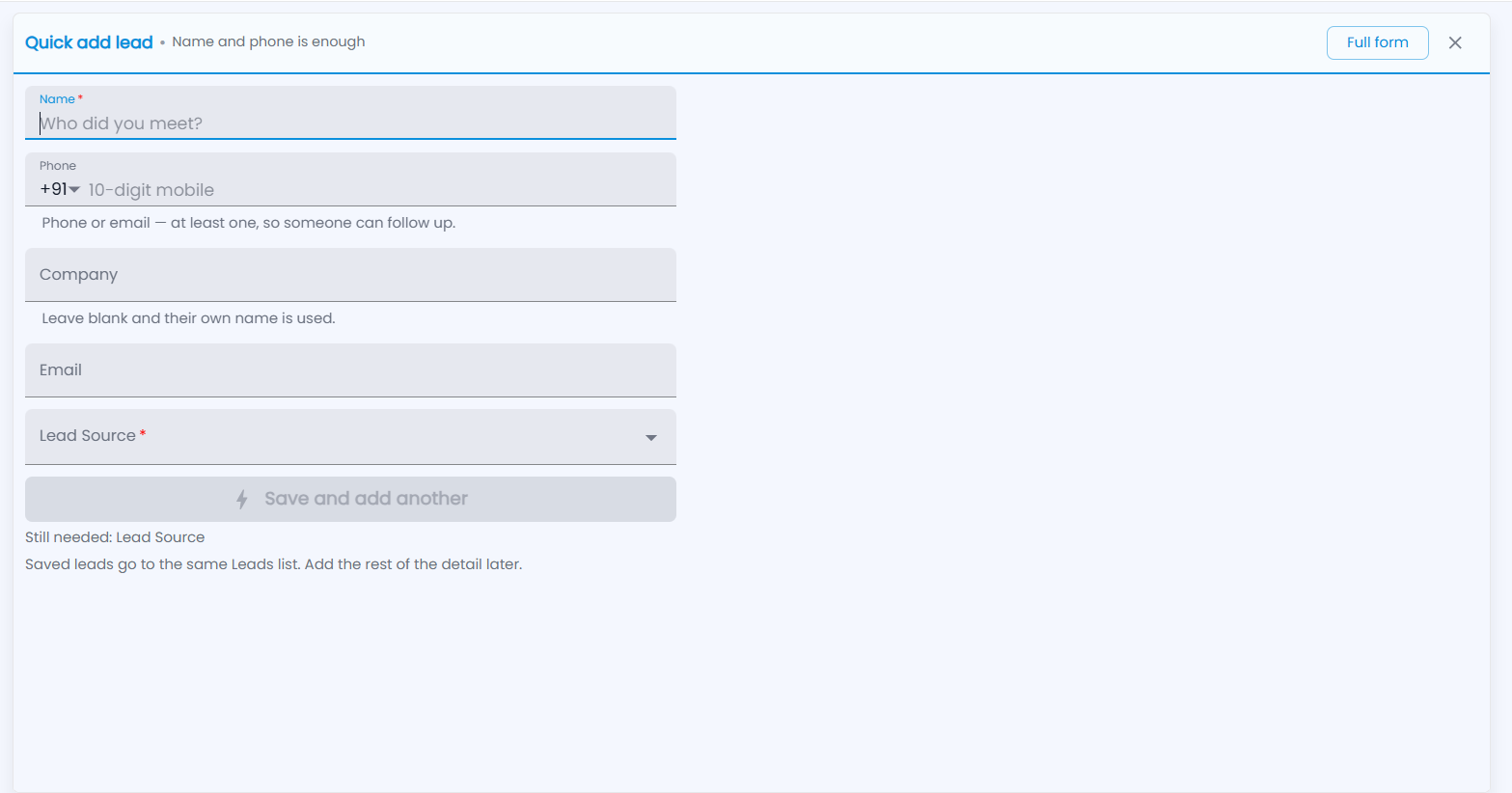
- Type the Name — who did you meet?
- Enter a Phone (a 10-digit mobile; +91 is filled in) or an Email — at least one, so someone can follow up.
- Add the Company if you know it; leave it blank and their own name is used.
- Choose the Lead Source.
- Click Save and add another. The form clears for the next person.
Until everything required is filled, the button stays grey and Still needed says what is missing. Saved leads go to the same Leads list — add the rest of the detail later, or click Full form to switch to Create a lead.
How do I filter the leads list?
Click the funnel icon. Filter leads narrows the list, and each choice shows how many leads it holds.
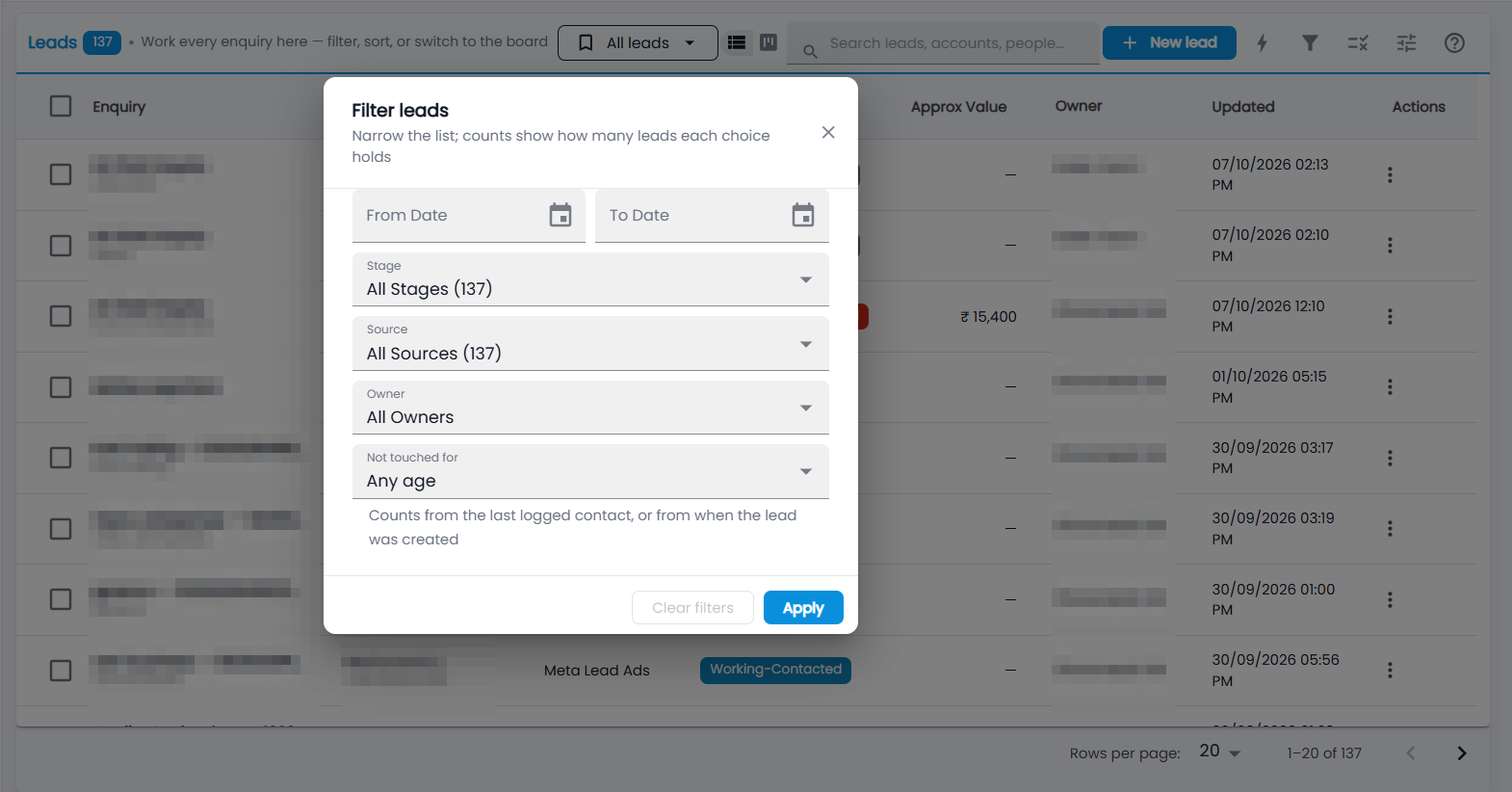
- From Date and To Date — leads created between these dates.
- Stage — All Stages or one stage, with the number of leads in each.
- Source — All Sources or one source, with its count.
- Owner — All Owners or one person.
- Not touched for — Any age, or leads untouched for 7, 14, 30, 60 or 90 days and more, counted from the last logged contact or from when the lead was created.
Click Apply. Clear filters takes you back to every lead. To keep a set of filters, save it as a view from the All leads menu.