
How do I connect WhatsApp Business to Tazk CRM?
Open Marketing › WhatsApp Business. On the Sending campaigns tab, follow Connect your WhatsApp Business account: open WhatsApp Manager, add and verify your number, copy your WABA ID and Phone Number ID, create a permanent access token, paste the details and test the connection. Campaigns then go out under your own brand and number. The Receiving leads tab lists the numbers that receive messages.
What is on the WhatsApp page?
One place for both sides of WhatsApp — the account campaigns go out from, and the numbers that bring leads in. The chips next to the title show the state of each side, for example Sending: connected and Receiving: via connected number. Refresh and the ? guide are at the top right. There are two tabs: Sending campaigns and Receiving leads.
What does the Sending campaigns tab show?
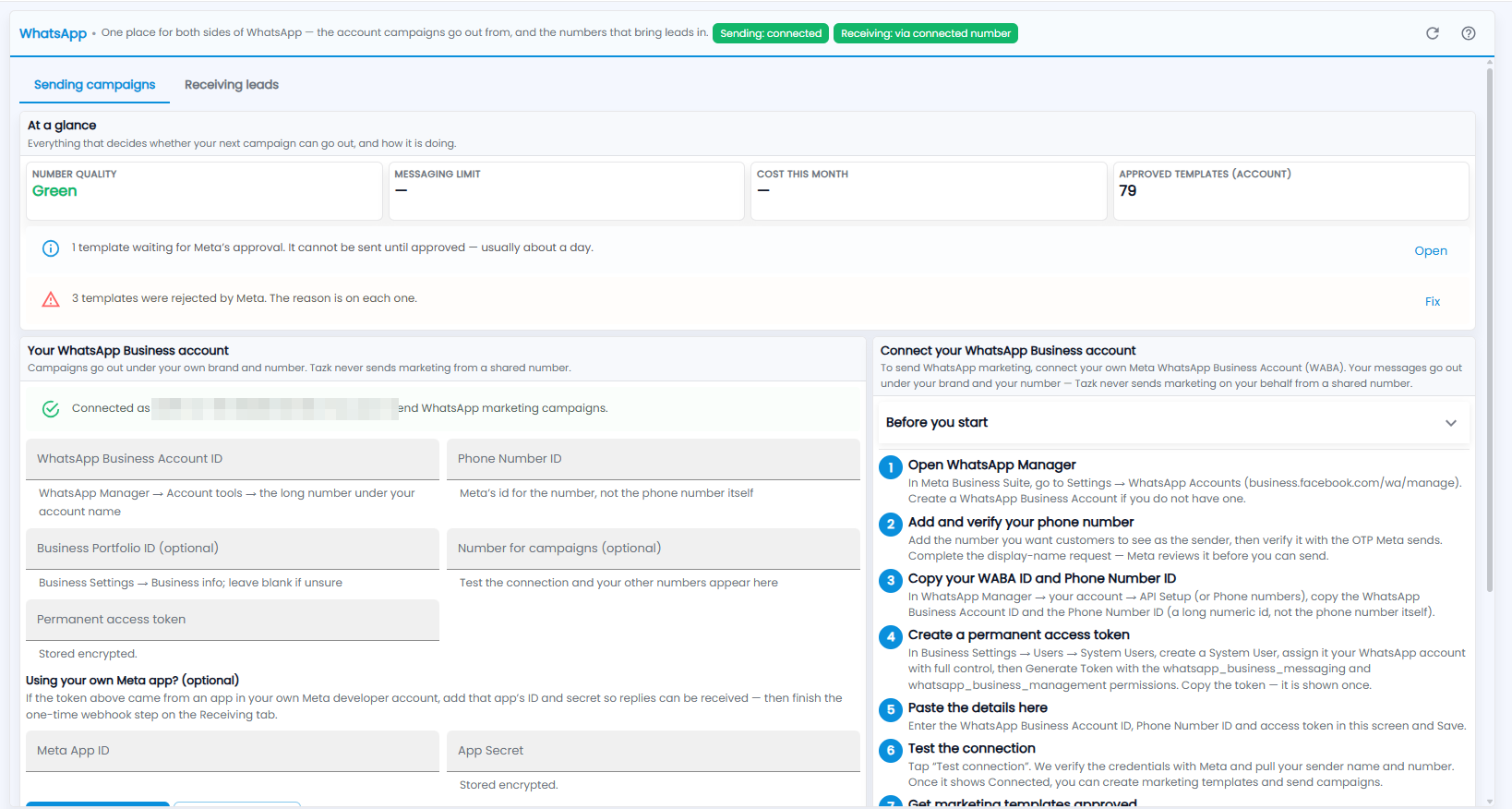
At a glance — everything that decides whether your next campaign can go out, and how it is doing:
- Number quality (for example Green), Messaging limit, Cost this month and Approved templates (account).
- Notices about your templates — for example a template waiting for Meta's approval (it cannot be sent until approved, usually about a day) with Open, or templates Meta rejected (the reason is on each one) with Fix.
Your WhatsApp Business account — campaigns go out under your own brand and number; Tazk never sends marketing from a shared number. Once connected, it says which name and number you are connected as. The fields are:
- WhatsApp Business Account ID — in WhatsApp Manager → Account tools, the long number under your account name.
- Phone Number ID — Meta's id for the number, not the phone number itself.
- Business Portfolio ID (optional) — Business Settings → Business info; leave it blank if unsure.
- Number for campaigns (optional) — test the connection and your other numbers appear here.
- Permanent access token — stored encrypted.
- Using your own Meta app? (optional) — if the token came from an app in your own Meta developer account, add its Meta App ID and App Secret (stored encrypted) so replies can be received, then finish the one-time webhook step on the Receiving tab.
How do I connect my WhatsApp Business account?
Follow Connect your WhatsApp Business account on the right of the Sending campaigns tab (open Before you start for what you need):
- Open WhatsApp Manager — in Meta Business Suite, go to Settings → WhatsApp Accounts (business.facebook.com/wa/manage). Create a WhatsApp Business Account if you do not have one.
- Add and verify your phone number — the number you want customers to see as the sender, verified with the OTP Meta sends. Complete the display-name request; Meta reviews it before you can send.
- Copy your WABA ID and Phone Number ID — in WhatsApp Manager → your account → API Setup (or Phone numbers): the WhatsApp Business Account ID and the Phone Number ID (a long numeric id, not the phone number itself).
- Create a permanent access token — in Business Settings → Users → System Users, create a System User, assign it your WhatsApp account with full control, then Generate Token with the whatsapp_business_messaging and whatsapp_business_management permissions. Copy the token — it is shown once.
- Paste the details here — the WhatsApp Business Account ID, Phone Number ID and access token, and Save.
- Test the connection — Tazk verifies the credentials with Meta and pulls your sender name and number. Once it shows Connected, you can create marketing templates and send campaigns.
- Get marketing templates approved before your first campaign.
What does the Receiving leads tab show?
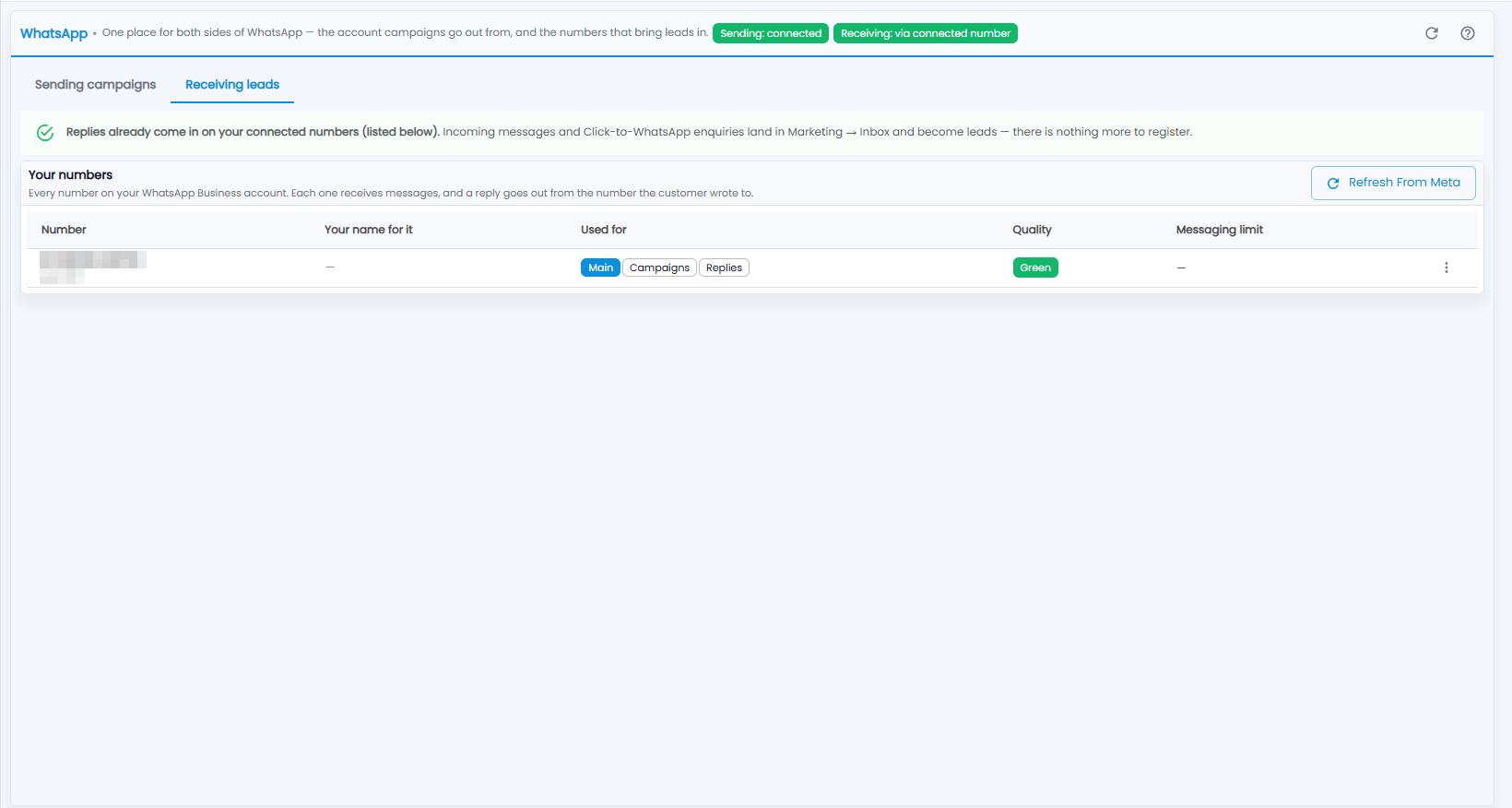
Replies already come in on your connected numbers. Incoming messages and Click-to-WhatsApp enquiries land in Marketing → Inbox and become leads — there is nothing more to register.
Your numbers lists every number on your WhatsApp Business account. Each one receives messages, and a reply goes out from the number the customer wrote to. The columns are Number, Your name for it, Used for (for example Main, Campaigns, Replies), Quality and Messaging limit, with a ⋮ menu on each row. Click Refresh From Meta to update the list.