
How do I create a price list in Tazk CRM?
Open Quotes › Price Lists and click Create a price list or +. Give it a name such as Dealer price 2026, check the currency code, add a region or channel tag if you like, set the effective dates, leave Active on and click Create. Add product prices after saving.
What is a price list?
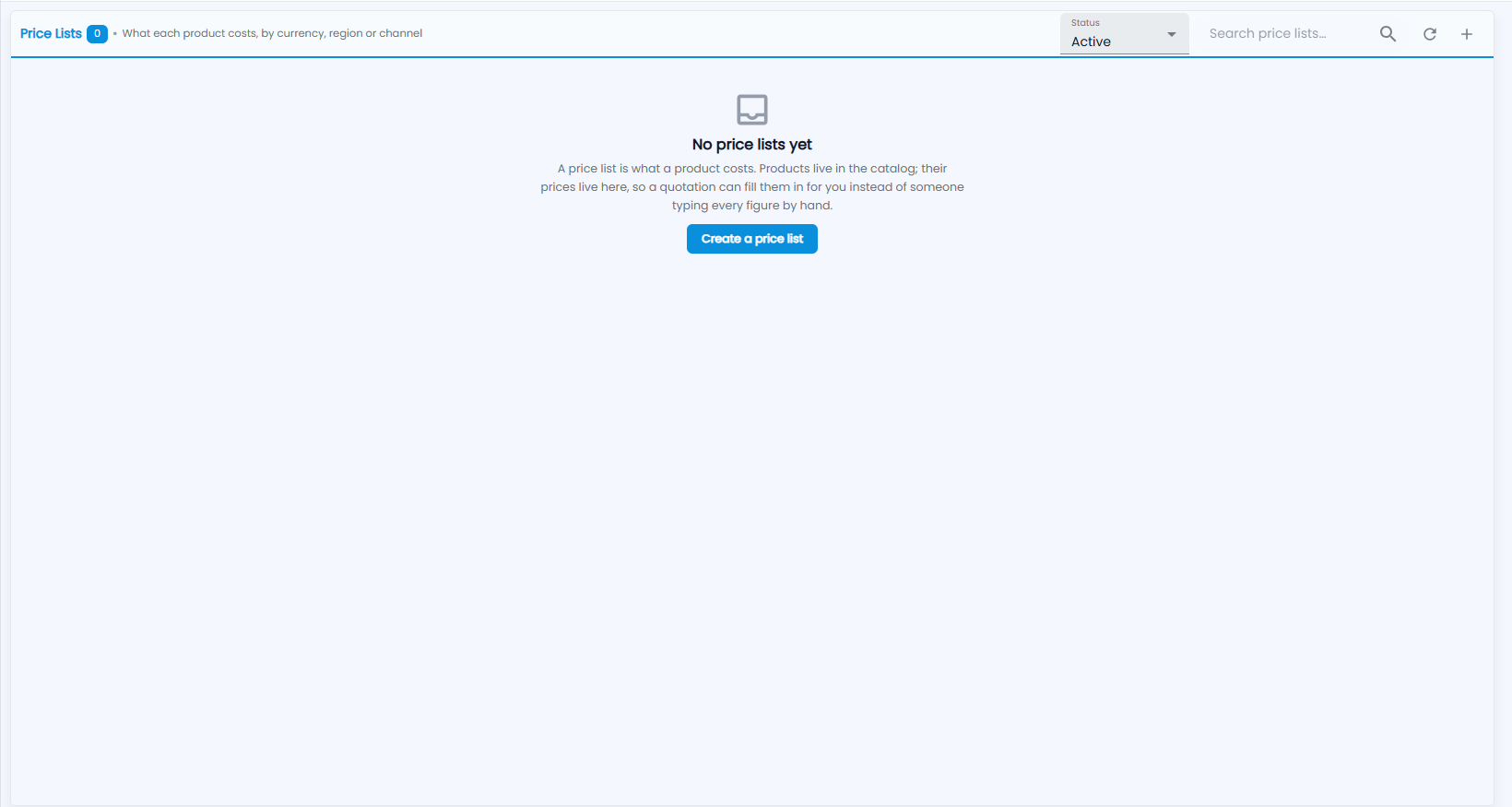
What each product costs, by currency, region or channel. Products live in the catalog; their prices live here, so a quotation can fill them in for you instead of someone typing every figure by hand. The number next to the title is how many price lists there are, and Status, Search price lists…, refresh and + are at the top right. Until you create one, the screen says No price lists yet.
How do I create a price list?
Click Create a price list or +. Set the currency and dates; add product prices after saving.
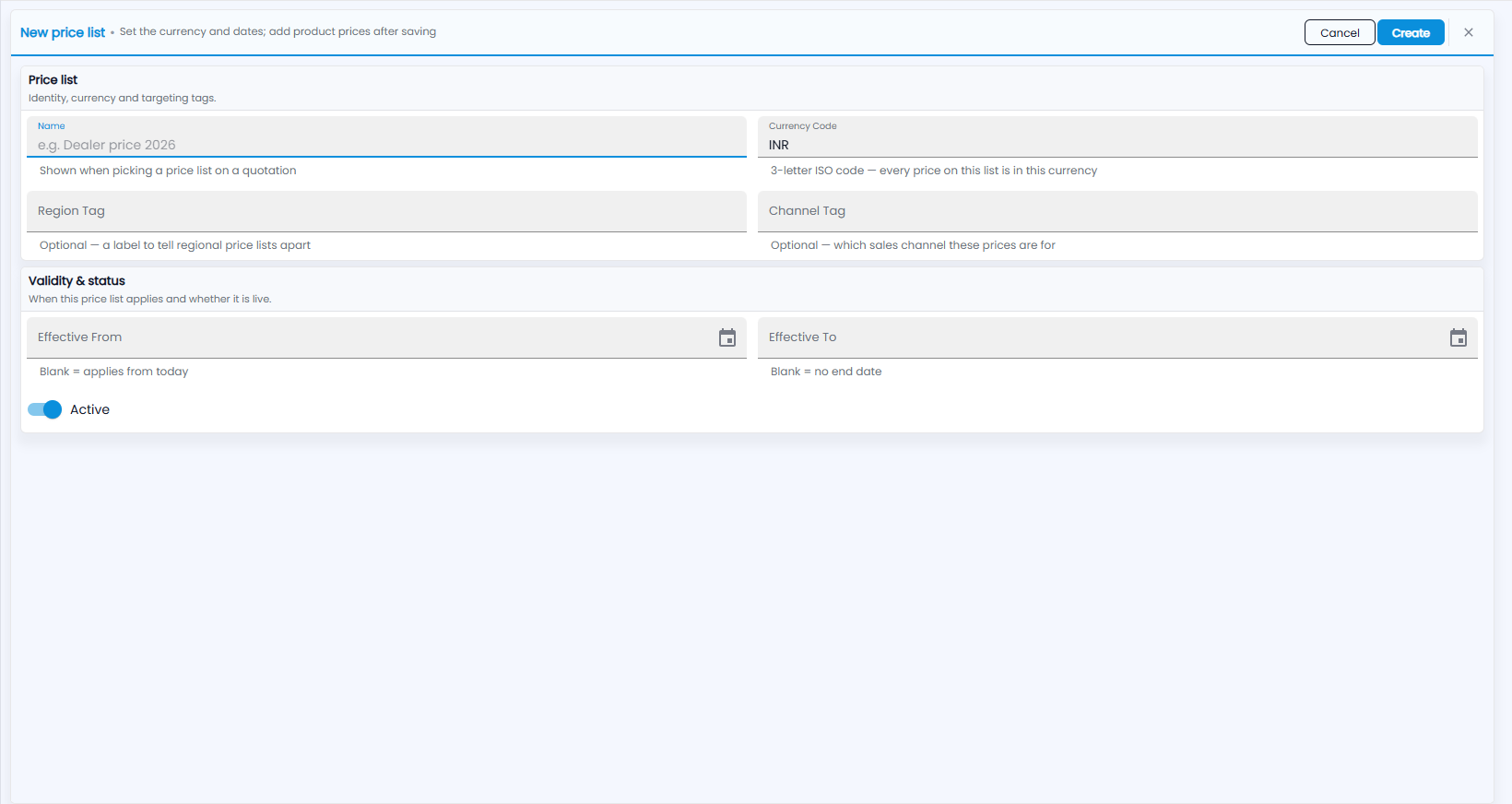
- Price list — identity, currency and targeting tags:
- Name — for example “Dealer price 2026”; shown when picking a price list on a quotation.
- Currency Code — the 3-letter ISO code (INR); every price on this list is in this currency.
- Region Tag — optional; a label to tell regional price lists apart.
- Channel Tag — optional; which sales channel these prices are for.
- Validity & status — when this price list applies and whether it is live:
- Effective From — blank means it applies from today.
- Effective To — blank means no end date.
- Active — on for a live price list.
- Click Create, or Cancel.