
How do I approve a quotation in Tazk CRM?
Open Approvals from the sidebar. The Quotation tab lists quotation requests waiting on you. Click a request to see the quote, then click Approve, Verify or Approve & Verify, depending on your step, or Deny with a reason. Quotations that need approval because of their value are approved from Quotes › Quotations › Approvals.
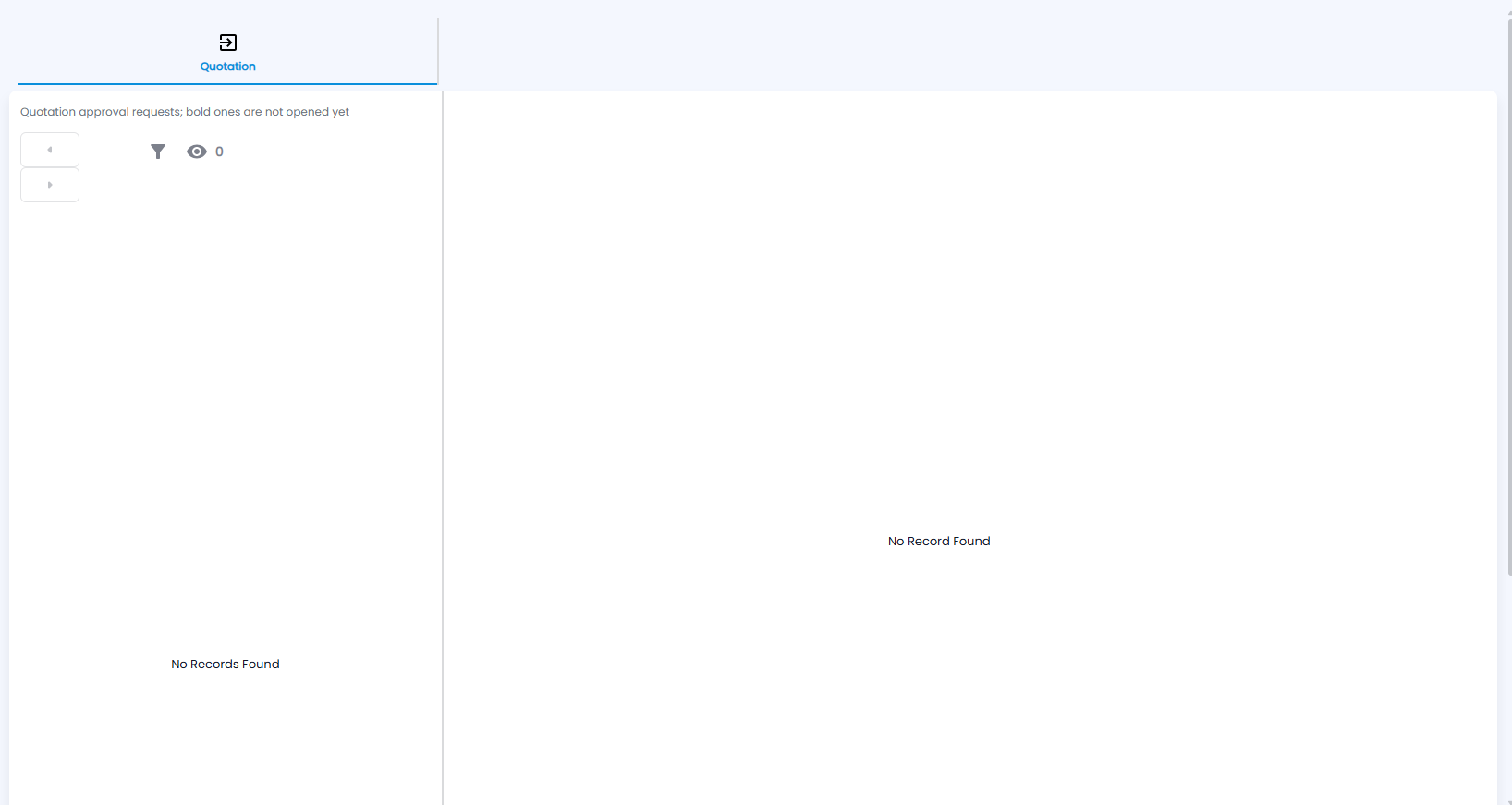
What does the Approvals page show?
In Tazk CRM, Approvals has one tab, Quotation. The left side lists quotation approval requests. Each line shows Quote Number and its status: Pending, Approved or Rejected. Bold requests have not been opened yet.
- The eye icon shows how many requests you haven't opened.
- The arrow buttons page through the list.
- The filter icon narrows the list by a From and To date and by employee. With no dates set, the list shows the current month.
What do I see when I open a request?
The right side shows the Quotation Request:
- Quote number, Customer, Total, Quotation Date and Expiry.
- The line items, with Product, Price, Quantity, Discount, Net Price and Sub-Total.
- Where the request has reached: Waiting For the Approval, Approved and Waiting for the Verifier or Approved and Verified. A rejected request shows Quotation has been Rejected.
How do I approve, verify or deny?
A request can have two steps: an approver, then an optional verifier. The buttons you get depend on your step.
| Button | Who sees it |
|---|---|
| Approve | The approver named in the approval rule, while the request is pending. |
| Verify | The verifier named in the approval rule. |
| Approve & Verify | An Administrator (when no rule is set up, or they hold both steps), or a Manager who is both approver and verifier. One click completes both steps. |
| Deny | Anyone who can approve or verify the request. |
- To approve, click your approve or verify button, then Ok in the Are you sure to approve? box.
- To deny, click Deny, type a Reason and click Submit. The reason is required and is saved with the rejection.
Approvers and verifiers are set up by your administrator as approval rules for the Quotation request type, in Configuration.
Where do I approve quotations over the approval threshold?
If your company requires approval for quotations above a set amount, those requests are handled from Quotes:
- Go to Quotes › Quotations and click Approvals. The button also appears on an open quotation.
- The Pending approvals table lists each request with Quotation, Requested by, Requested at, Version, Total and Status.
- Click Approve and confirm. The requester can then send the quotation to the customer.
- Or click Reject, add an optional Note to requester, click Continue and confirm. The requester sees your note and must revise the quotation and ask again.
Each request is tied to the quotation version shown. If someone edits the quotation while you are reviewing it, the request no longer counts and has to be raised again.
Users who can edit approval settings also see an Approval settings card on that page. There they can switch on Require approval above threshold and set the Threshold amount (₹), which is the grand total including GST.