
How do I add a contact to an account in Tazk CRM?
Go to Accounts → Account Contacts, open the Accounts tab, pick the company, then click Add contact. Enter at least a name, email or phone, choose their Role on the account, switch on Primary contact if they are the main person, and click Save. To find someone without knowing their company, stay on the People tab and search.
What is Account Contacts for?
A company is rarely one person. The person who asks for a quote is often not the one who approves it. Account Contacts keeps the named people at each of your customer companies, and the part each one plays, so your team knows whom to call about what.
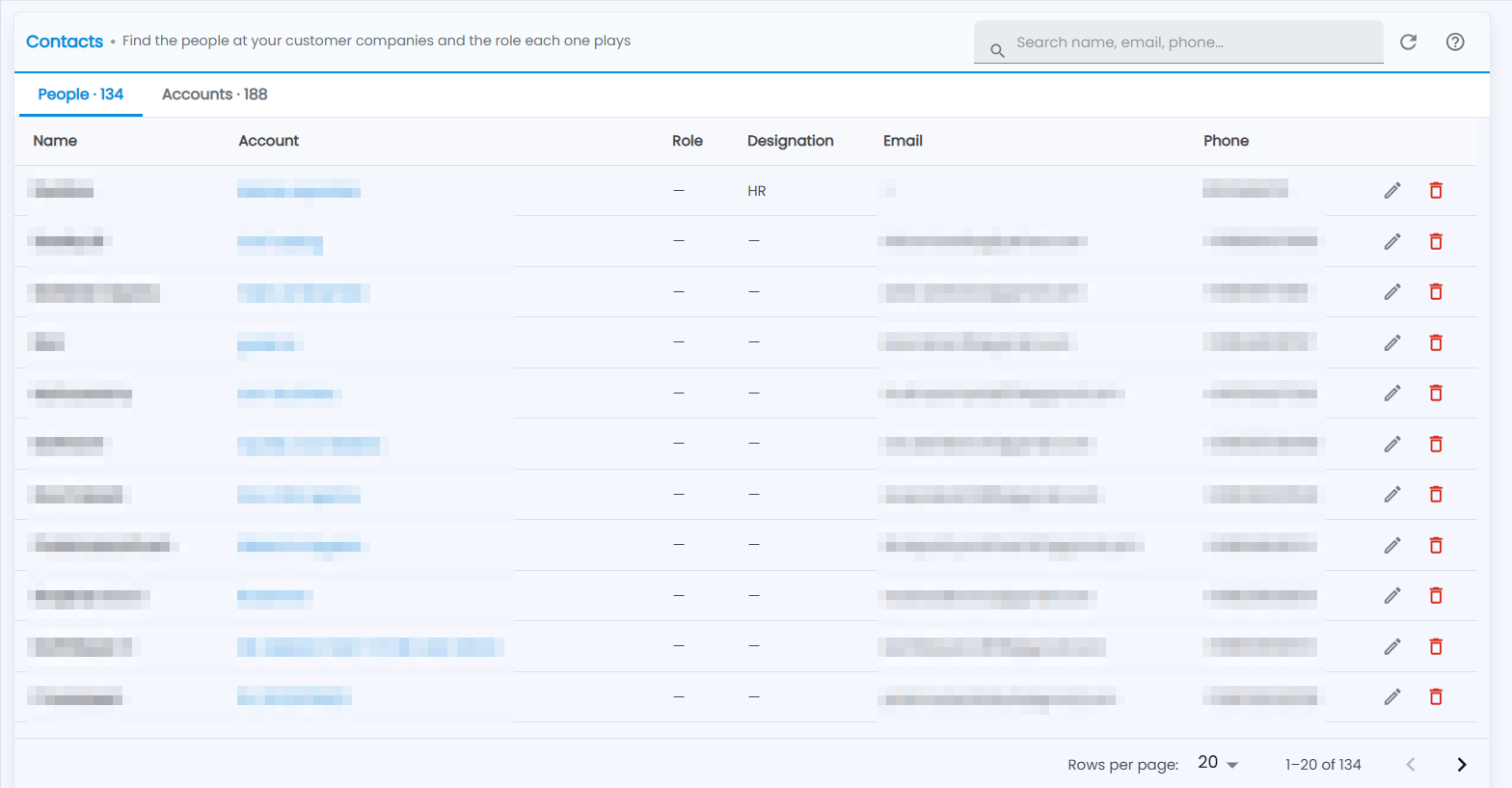
The screen is titled Contacts and has two tabs, each showing its own total:
- People (opens first) — one list of every contact, with their account shown beside them.
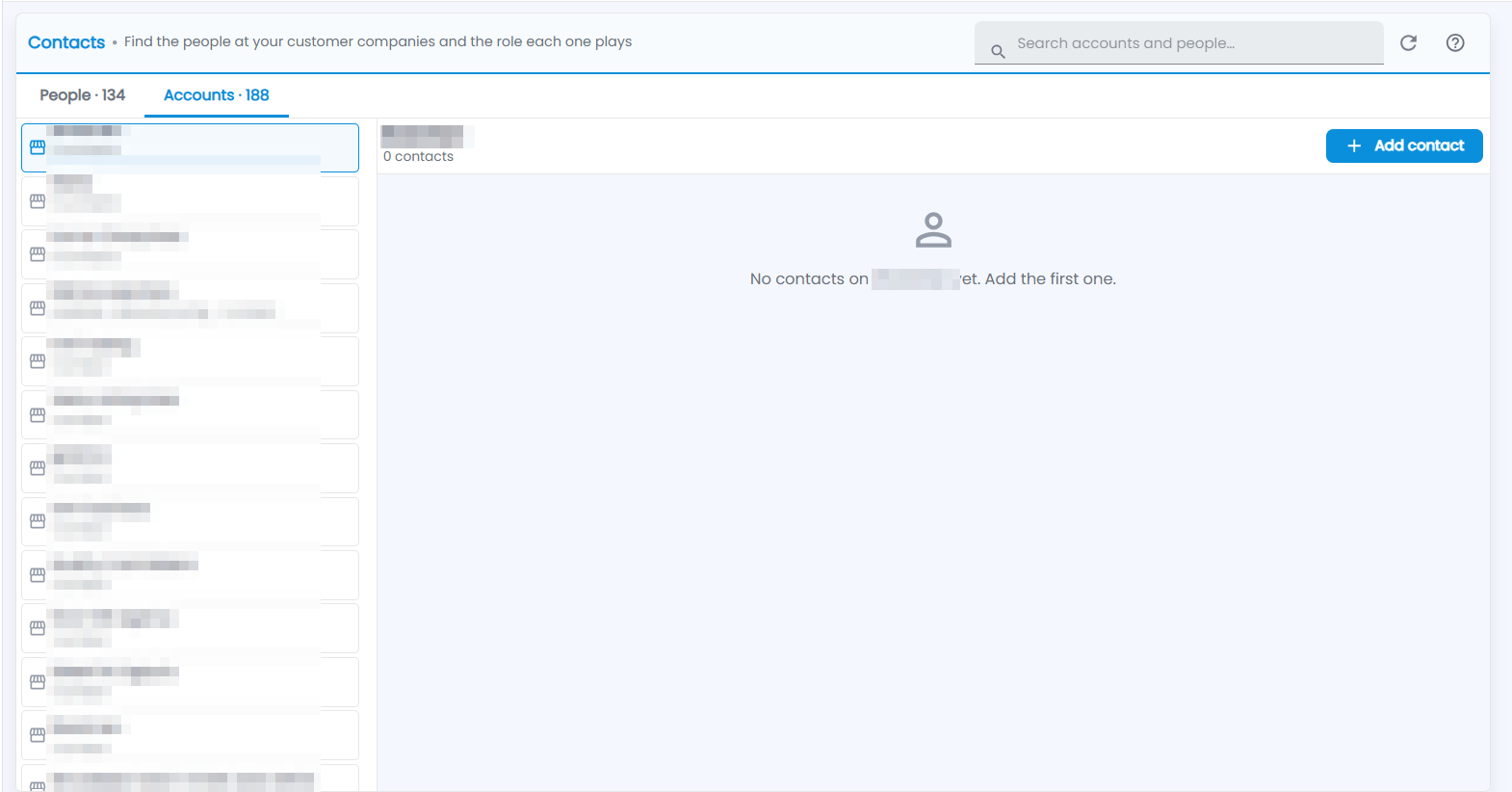
- Accounts — one company at a time: pick an account on the left and its contacts appear on the right.
How do I find someone?
- On the People tab, type part of a name, email or phone number in the search box (Search name, email, phone…).
- The list shows the matches with their Name, Account, Role, Designation, Email and Phone. The primary contact of each account carries a Primary tag.
- Click the account name on a row to jump to that company on the Accounts tab and see everyone there.
On the Accounts tab, the search box (Search accounts and people…) looks for both companies and people at once and shows them in two groups. Each account card shows its city, industry and number of contacts. If there are more accounts than fit, click Show more at the bottom of the list. Inside an account, use Filter contacts (name, designation, email, phone)… to narrow its contact list.
How do I add or edit a contact?
- Open the Accounts tab and click the company. A contact always belongs to an account, so you pick the account first.
- Click Add contact.
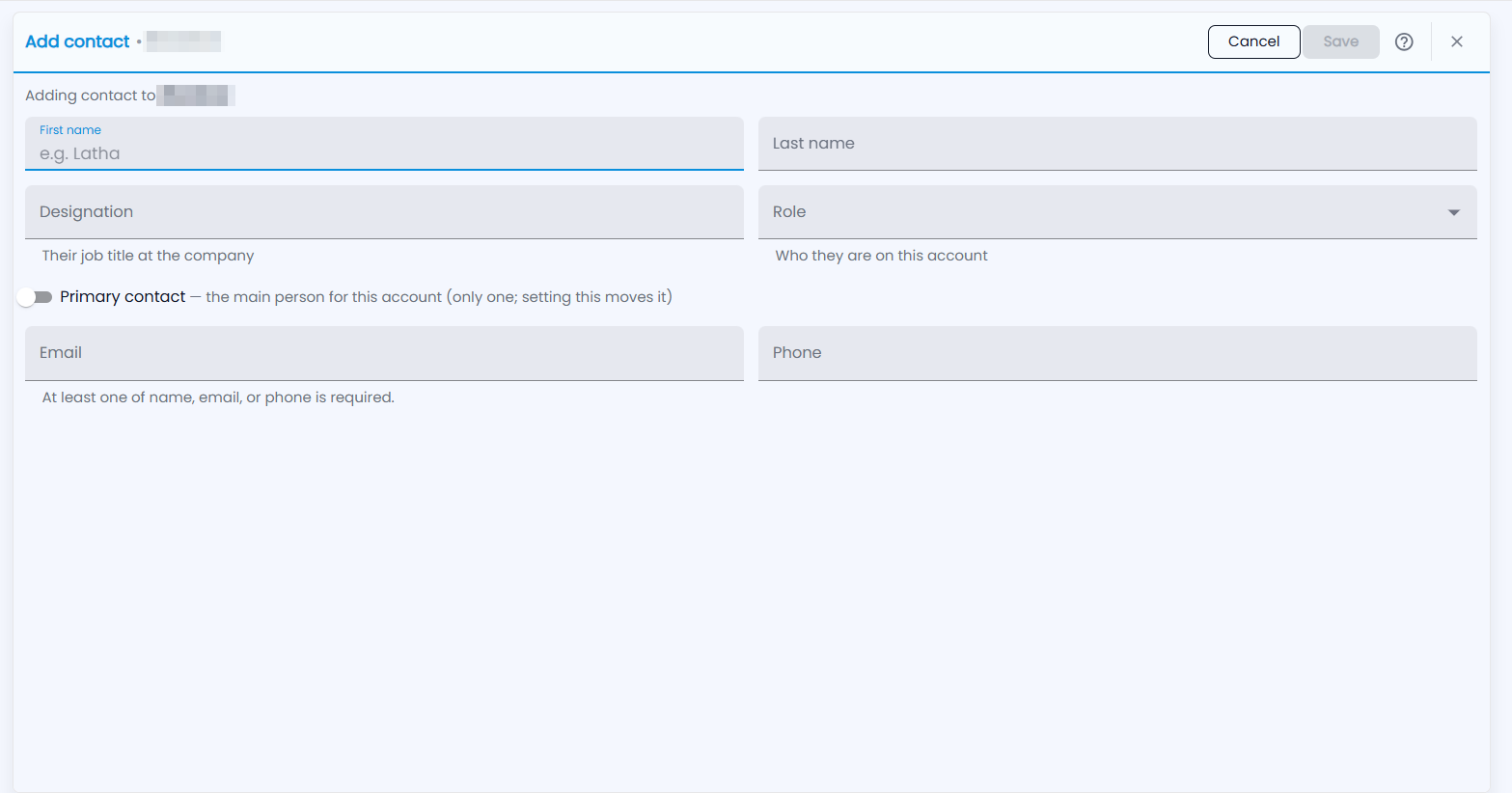
- Fill in First name, Last name, Designation (their job title), Role, Email and Phone. At least one of name, email or phone is required.
- Switch on Primary contact if this is the main person for the account.
- Click Save.
To change a contact, click the pencil (Edit contact) on their row — on either tab — change the details and click Save.
What do Role and Primary contact mean?
Role is what the person does on this account, separate from their job title. Choose from:
| Role | Use it for |
|---|---|
| Decision Maker | The person who signs off |
| Economic Buyer | The person who controls the budget |
| Influencer | Someone who shapes the choice |
| Billing | Handles invoices and payments |
| Technical | Has to use or support what you sell |
| Procurement | Runs the purchase process |
| Champion | Argues for you inside the company |
| Other | Anything else |
Role is optional — leave it as Not set if you do not know yet.
Primary contact marks the main person for the account. An account has only one: switching it on for someone moves it off whoever had it before.
What happens when I remove a contact?
Click the remove icon on the row and confirm. The person is taken off that account. You are asked to confirm first, because it cannot be undone.
Who can add, edit or remove contacts?
Add contact, edit and remove appear only if your role has those rights. You see the contacts of the accounts your role is allowed to see — a contact is visible exactly when its account is.