
How do I send an announcement in Tazk CRM?
Open Announcement in the sidebar and click + New Announcement. Choose the departments, locations and employees who should receive it, when it goes live and for how many days, write the title and the announcement, and click Publish Announcement. Leave Publish On blank to publish it straight away.
What is the Announcement Center?
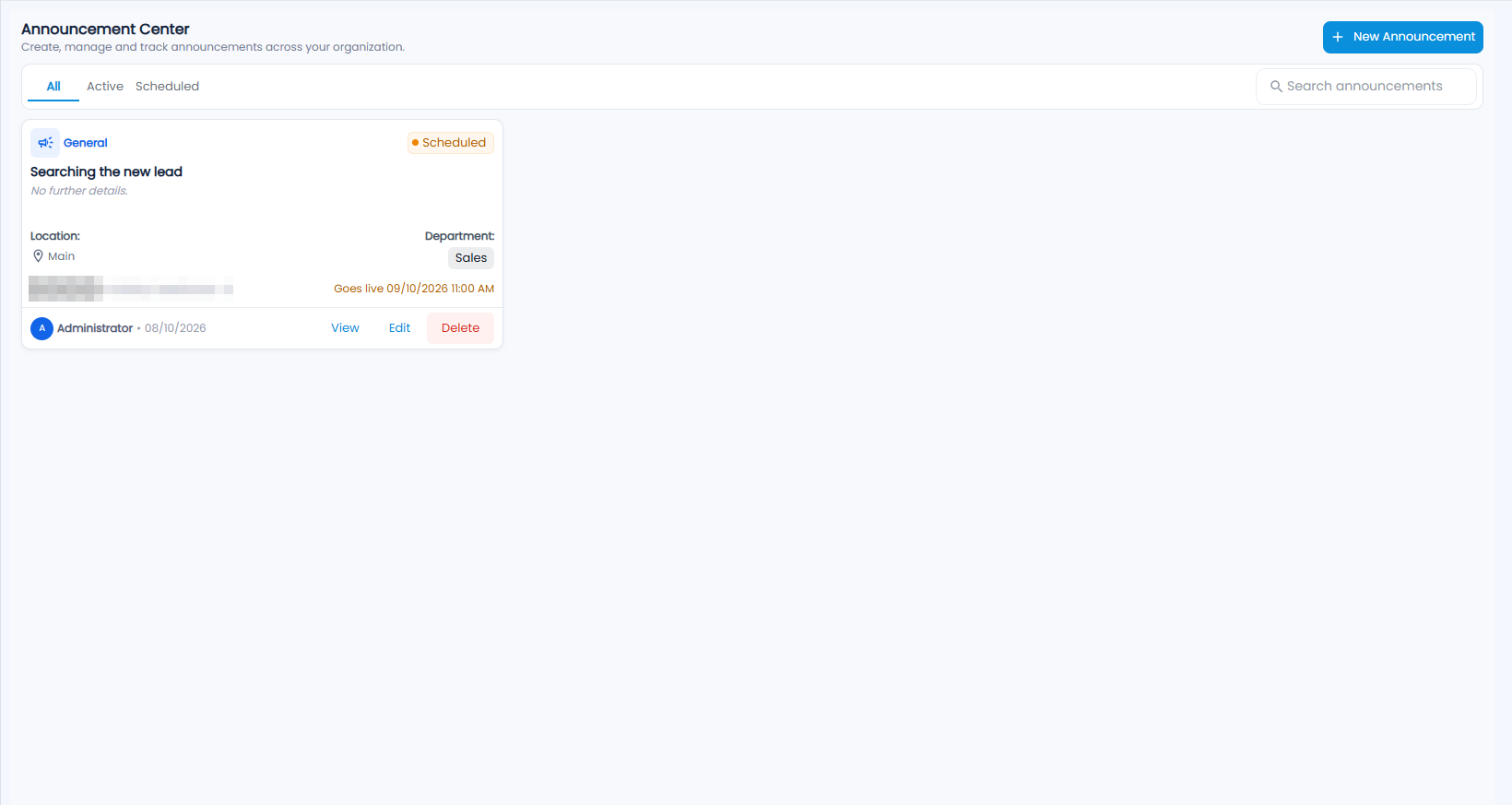
Create, manage and track announcements across your organisation. Use the tabs to see All, Active or Scheduled announcements, and Search announcements to find one. + New Announcement is at the top right.
Each announcement is a card showing:
- Its type (for example General) and status — Scheduled or Active.
- The title, and the message (or No further details).
- The Location and Department it was sent to, and the people who receive it.
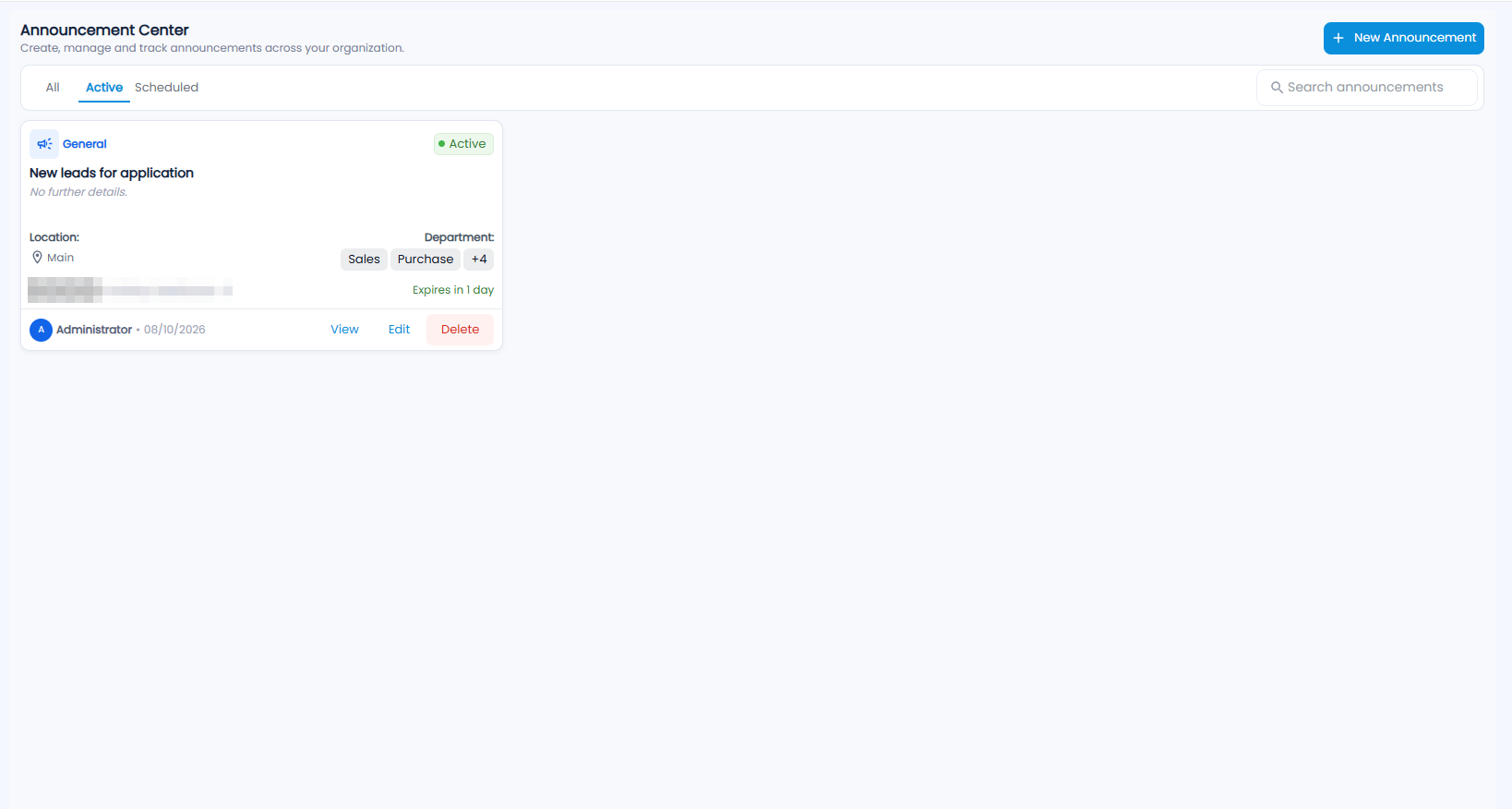
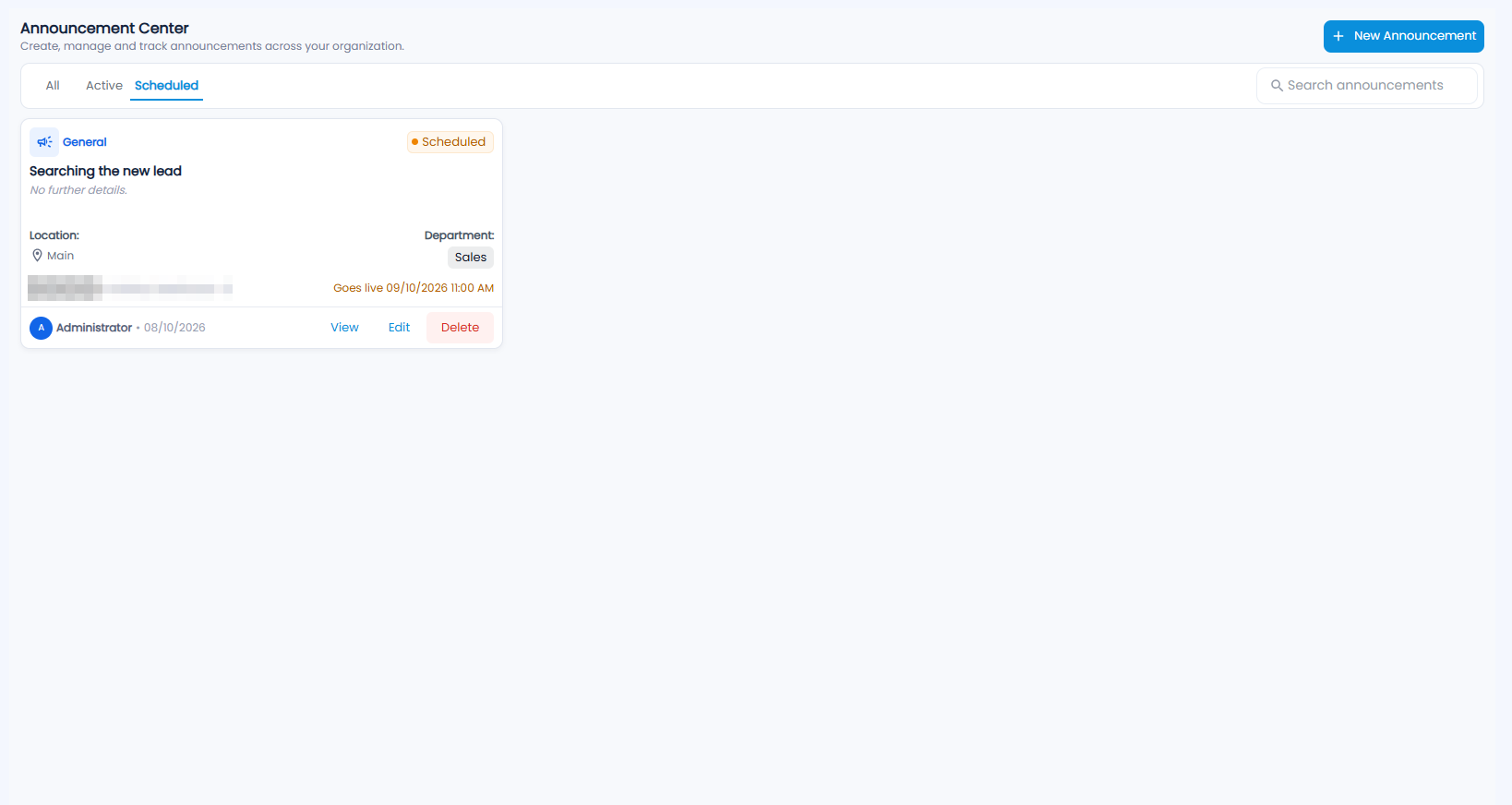
- When a scheduled announcement goes live (Goes live 09/10/2026 11:00 AM), or how long an active one has left (Expires in 1 day).
- Who created it and when, with View, Edit and Delete.
What are the Active and Scheduled tabs?
Active shows the announcements live now, each with how long until it expires.
Scheduled shows the announcements waiting to go live, each with its go-live date and time.
How do I create an announcement?
Click + New Announcement. Create Announcement sends a targeted update to selected employees, now or at a set time.
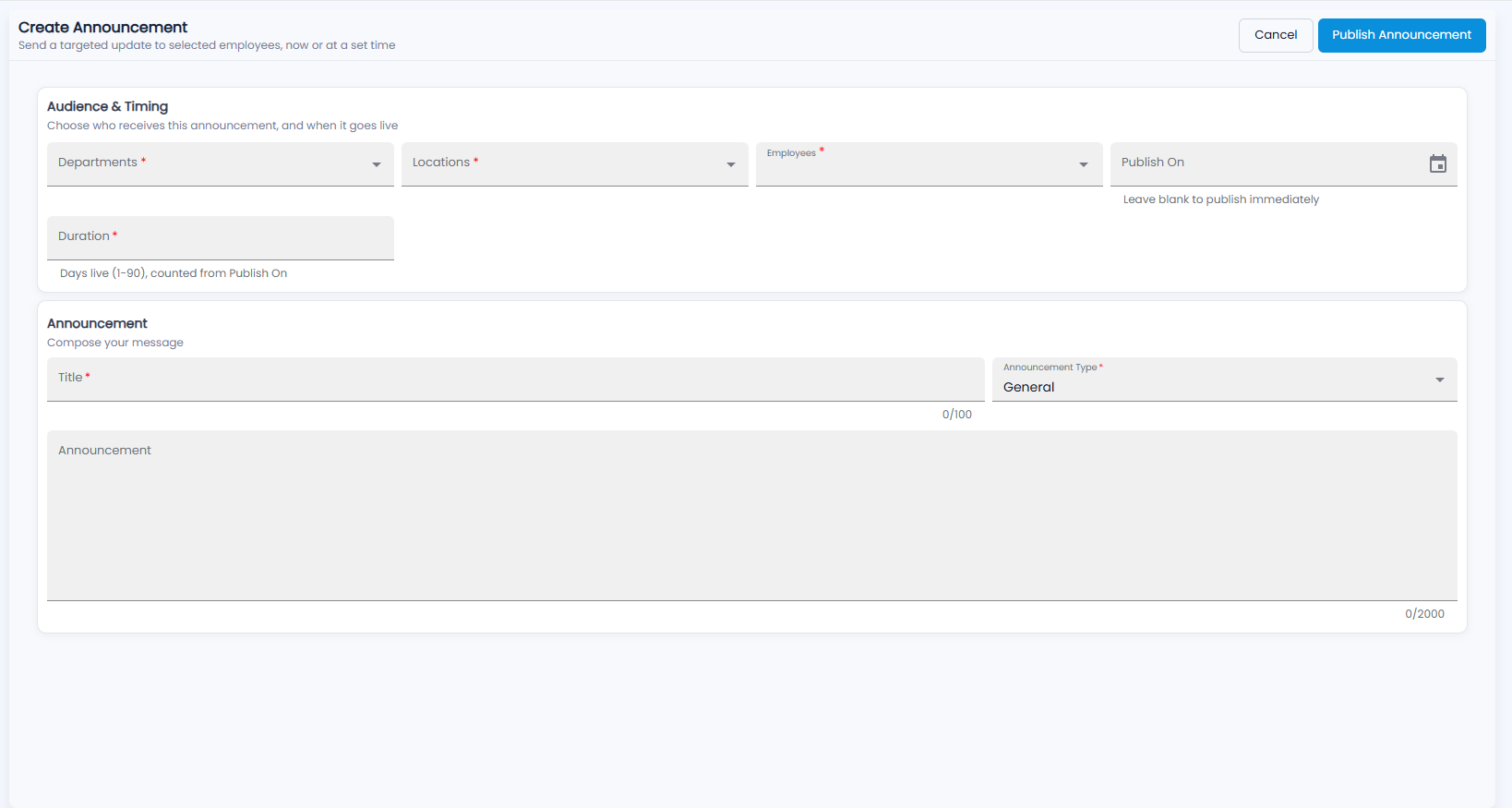
- Audience & Timing — who receives this announcement, and when it goes live:
- Departments, Locations and Employees (all required).
- Publish On — leave it blank to publish immediately.
- Duration (required) — the days it stays live, 1 to 90, counted from Publish On.
- Announcement — compose your message:
- Title (required, up to 100 characters).
- Announcement Type (required) — for example General.
- Announcement — the message itself, up to 2,000 characters.
- Click Publish Announcement, or Cancel.