
What is the Deal List in Tazk CRM?
Deals › Deal List shows all your deals in a table with their pipeline, stage, amount, expected close date, owner and when they were last updated. Click + to create a deal: choose the pipeline and stage, name the deal, pick the account and owner, enter the amount and expected close date, and click Save.
What does the Deal List show?
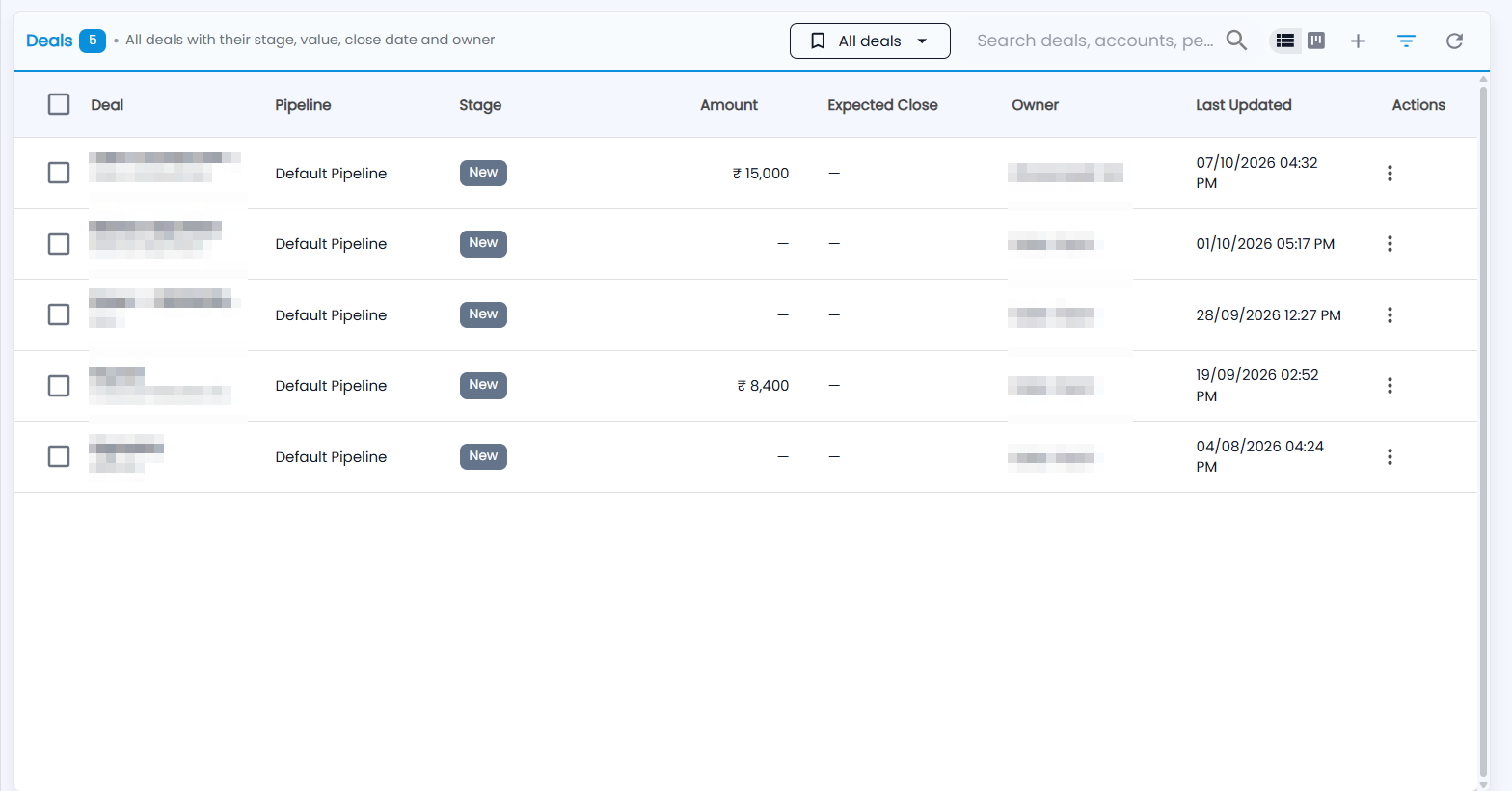
| Column | What it shows |
|---|---|
| Deal | The deal name, with its account underneath |
| Pipeline | The sales process it follows — for example Default Pipeline |
| Stage | Where the deal is now — for example New |
| Amount | The deal value in ₹, or a dash |
| Expected Close | When you expect the customer to sign |
| Owner | The salesperson responsible |
| Last Updated | When the deal last changed |
| Actions | The ⋮ menu: Edit, Move Stage and Delete |
The header has the view menu (All deals), search, the list and board icons, +, the filter and refresh. Tick deals to change their owner or status together. Click a deal to open it.
How do I create a deal?
Click +. New deal adds a sales opportunity with its value, stage and expected close date.
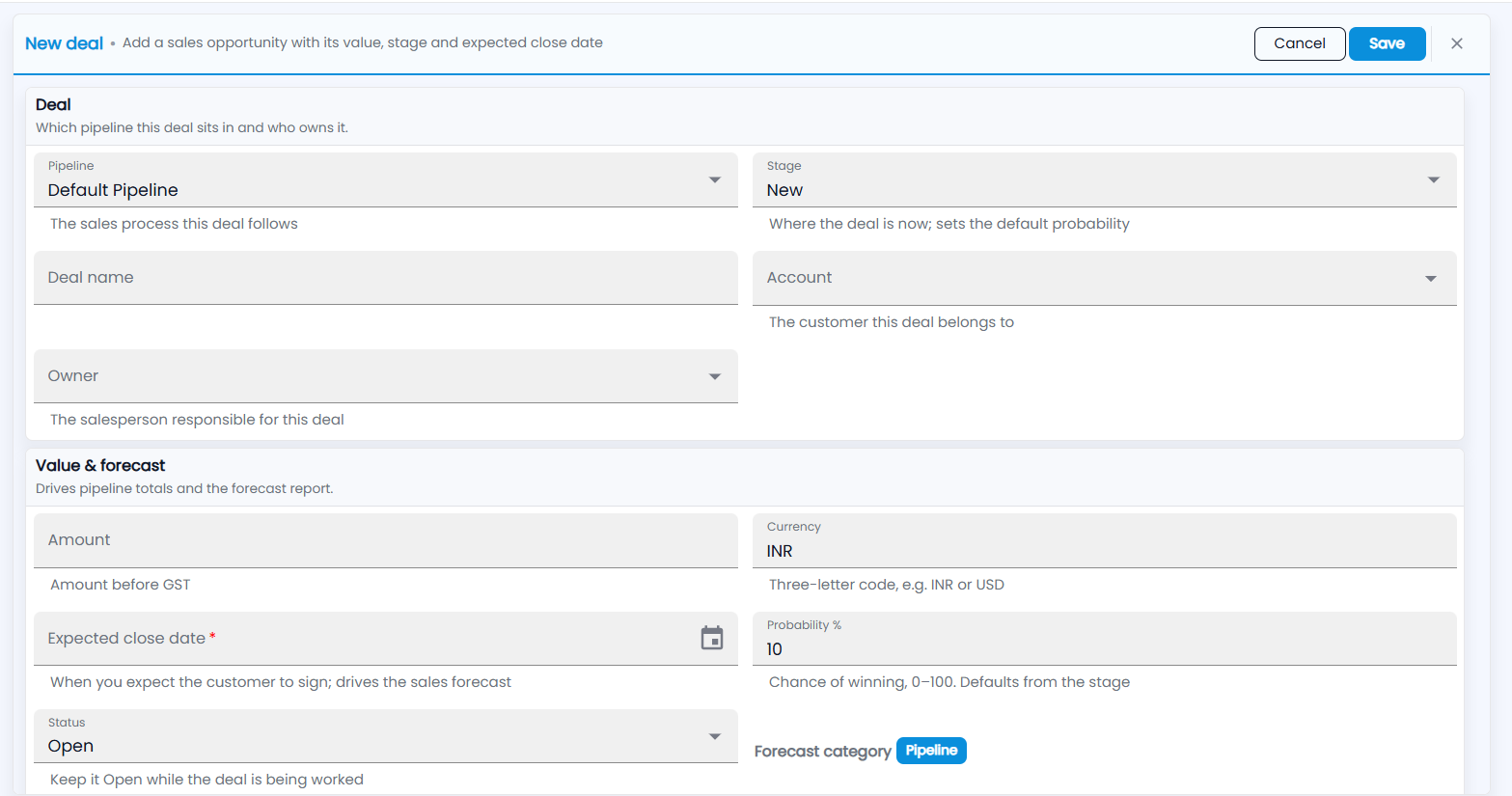
Deal — which pipeline this deal sits in and who owns it:
- Pipeline — the sales process this deal follows (Default Pipeline).
- Stage — where the deal is now. It sets the default probability.
- Deal name.
- Account — the customer this deal belongs to.
- Owner — the salesperson responsible for this deal.
Value & forecast — drives pipeline totals and the forecast report:
- Amount — the amount before GST.
- Currency — a three-letter code, such as INR or USD.
- Expected close date (required) — when you expect the customer to sign; it drives the sales forecast.
- Probability % — the chance of winning, 0–100. It fills in from the stage.
- Status — keep it Open while the deal is being worked; the other choices are Won, Lost and Closed.
- Forecast category — shown for you (Pipeline in the picture); you don't fill it in.
Click Save, or Cancel.