
Where do I manage WhatsApp settings in Tazk CRM?
Open Configuration › WhatsApp. WhatsApp Credits shows your messaging balance and usage. WhatsApp Consent records who has opted in or out. Setup connects your own WhatsApp Business account. Templates lists your WhatsApp templates and creates new ones for Meta to approve.
What does the WhatsApp Credits tab show?
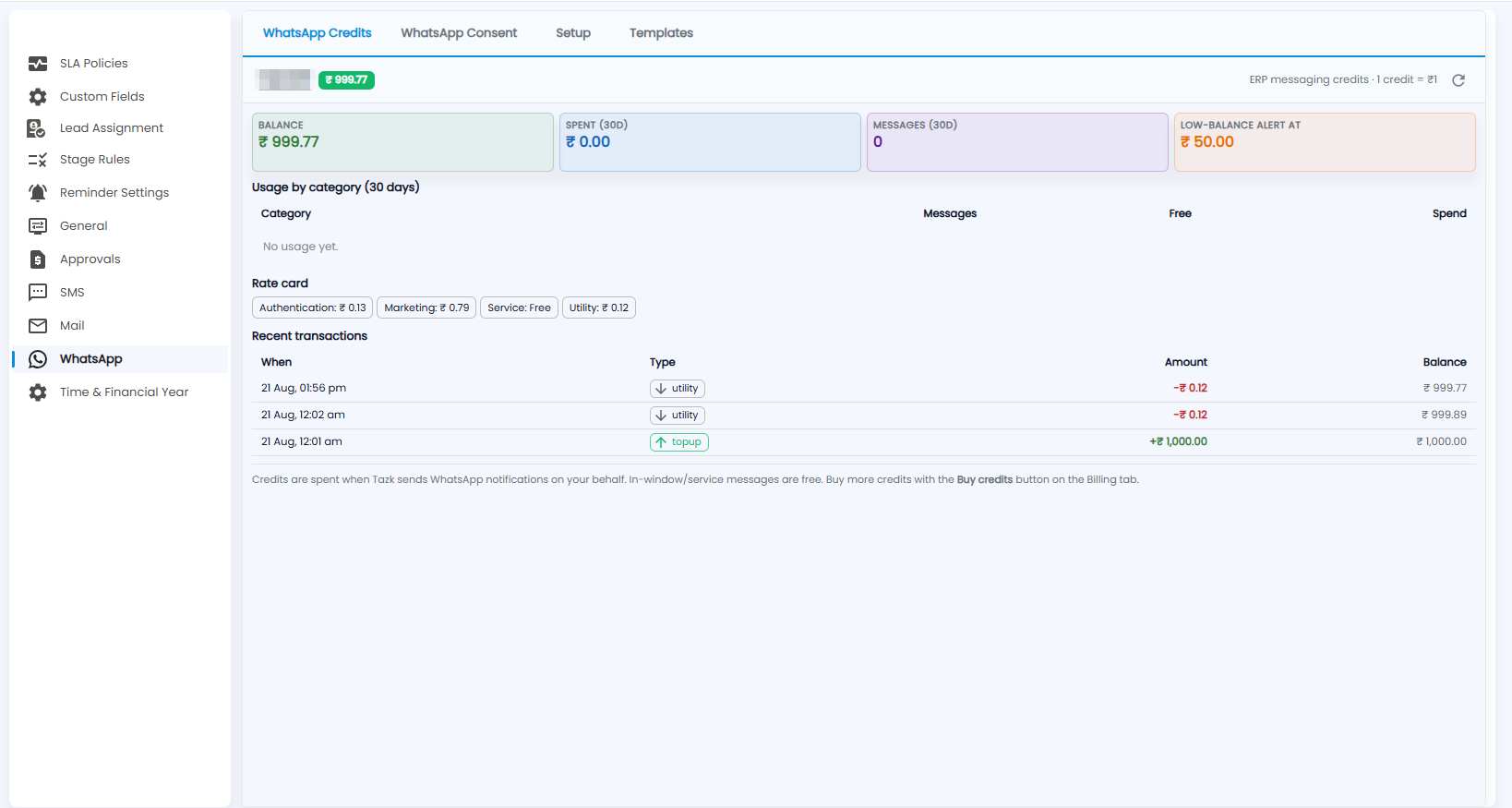
Your ERP messaging credits (1 credit = ₹1), with refresh at the top right:
- Balance, Spent (30d), Messages (30d) and Low-balance alert at.
- Usage by category (30 days) — messages, free messages and spend for each category.
- Rate card — the price of each kind of message: Authentication, Marketing, Service (free) and Utility.
- Recent transactions — when, the type (for example utility or topup), the amount and the balance after it.
Credits are spent when Tazk sends WhatsApp notifications on your behalf; in-window and service messages are free.
What is the WhatsApp Consent tab?
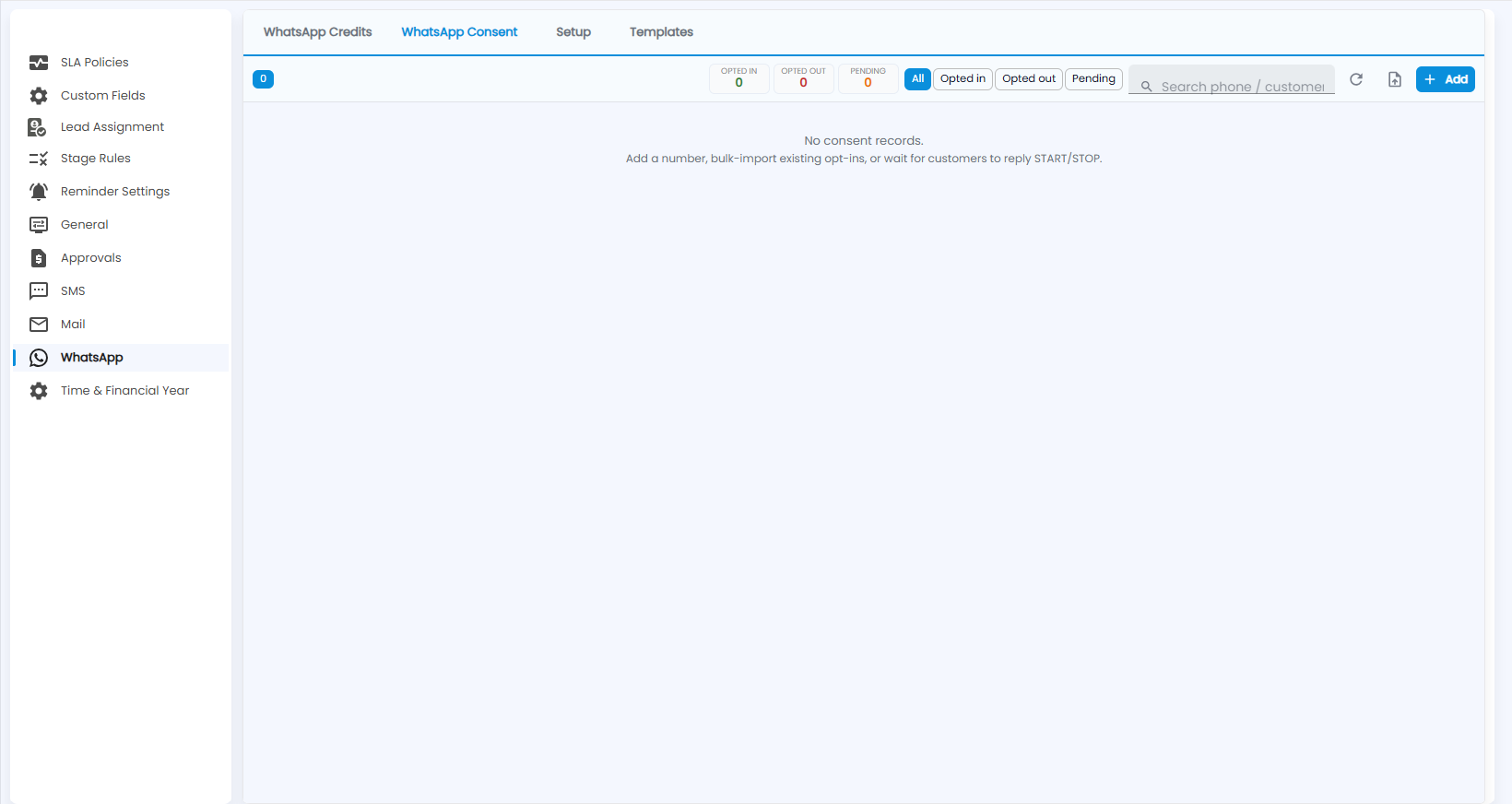
Who has agreed to receive your WhatsApp messages. The counts show Opted in, Opted out and Pending; the chips filter the list (All, Opted in, Opted out, Pending), with search by phone or customer, refresh and import. With no records yet, add a number, bulk-import existing opt-ins, or wait for customers to reply START or STOP.
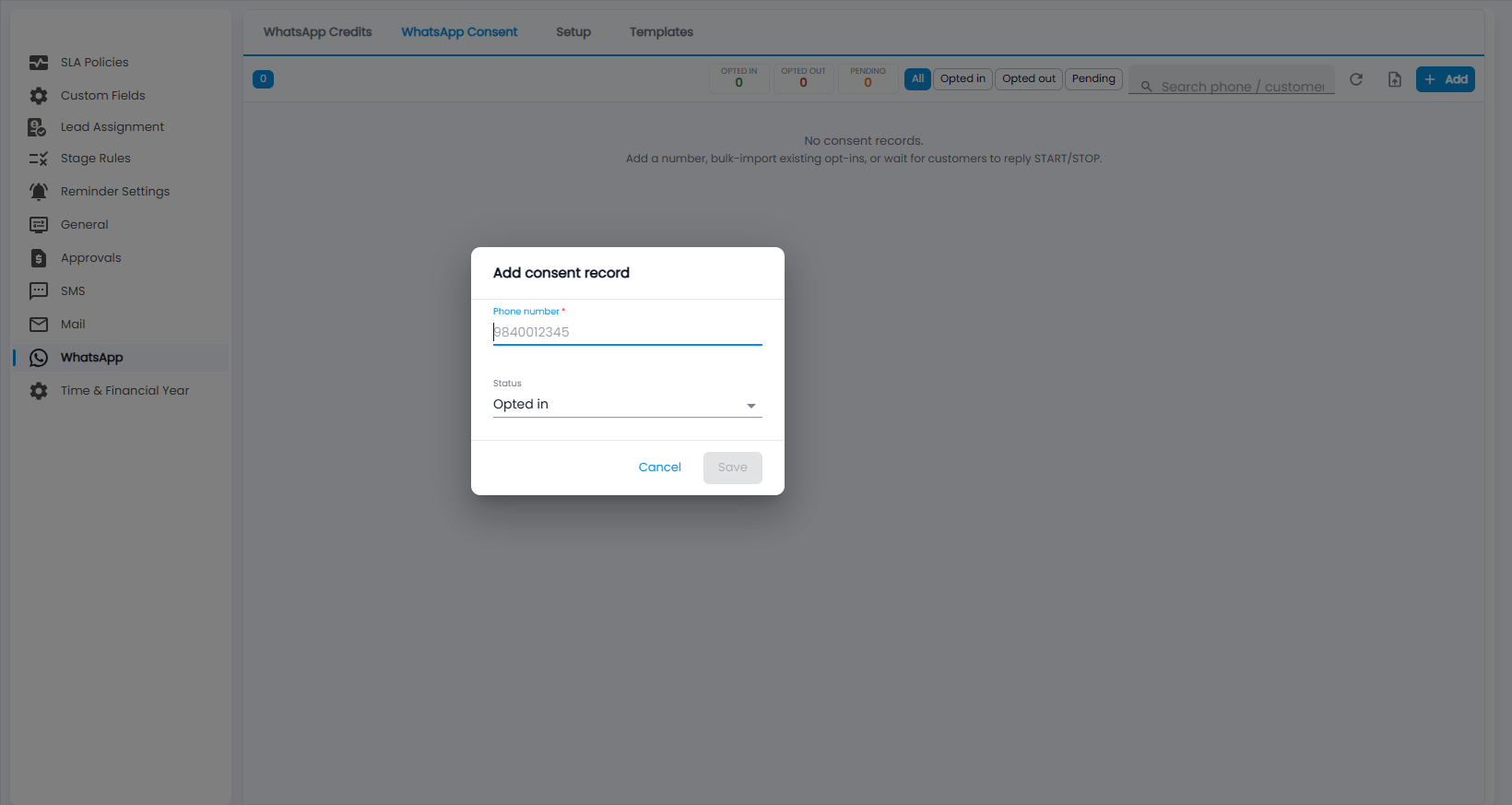
To add one, click + Add, enter the Phone number (required), choose the Status (for example Opted in) and click Save.
What is on the Setup tab?
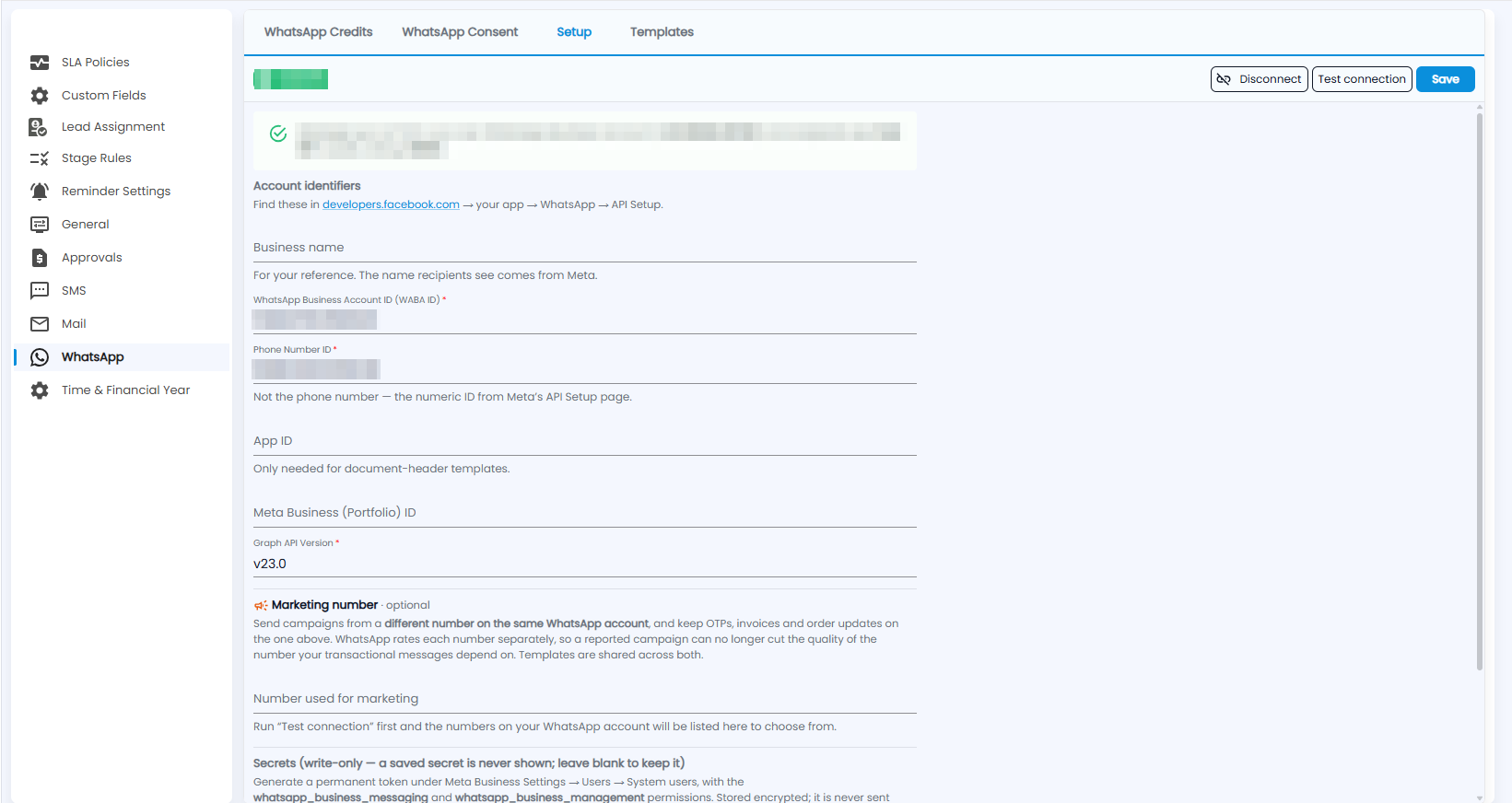
Connect your own WhatsApp Business account. Once connected, the banner says which number messages go out from, the name recipients see and the quality rating. Disconnect, Test connection and Save are at the top right.
- Account identifiers — find these in developers.facebook.com → your app → WhatsApp → API Setup: Business name (for your reference), WhatsApp Business Account ID (WABA ID) (required), Phone Number ID (required — the numeric ID from Meta's API Setup page, not the phone number), App ID (only needed for document-header templates), Meta Business (Portfolio) ID and Graph API Version (required).
- Marketing number (optional) — send campaigns from a different number on the same WhatsApp account and keep OTPs, invoices and order updates on the main one; WhatsApp rates each number separately. Run Test connection first and the numbers on your account are listed to choose from.
- Secrets — write-only: a saved secret is never shown; leave it blank to keep it. Generate a permanent token under Meta Business Settings → Users → System users.
What is on the Templates tab?
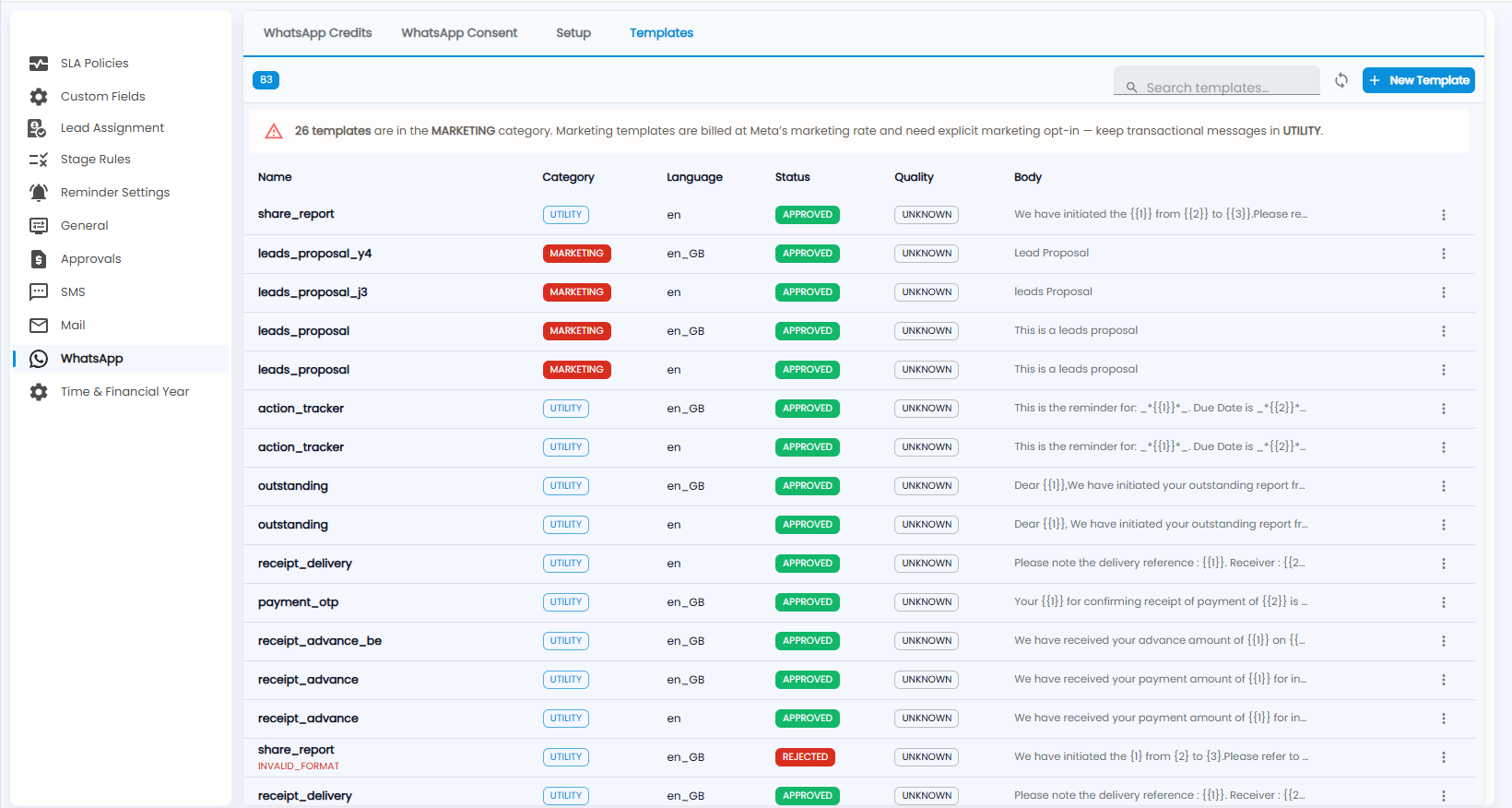
All the WhatsApp templates on your account (the number shows how many), with search, sync and + New Template. A banner warns how many are in the MARKETING category — they are billed at Meta's marketing rate and need explicit marketing opt-in, so keep transactional messages in UTILITY. Each template shows its Name, Category, Language, Status (for example APPROVED or REJECTED, with the reason under the name), Quality and Body, with a ⋮ menu.
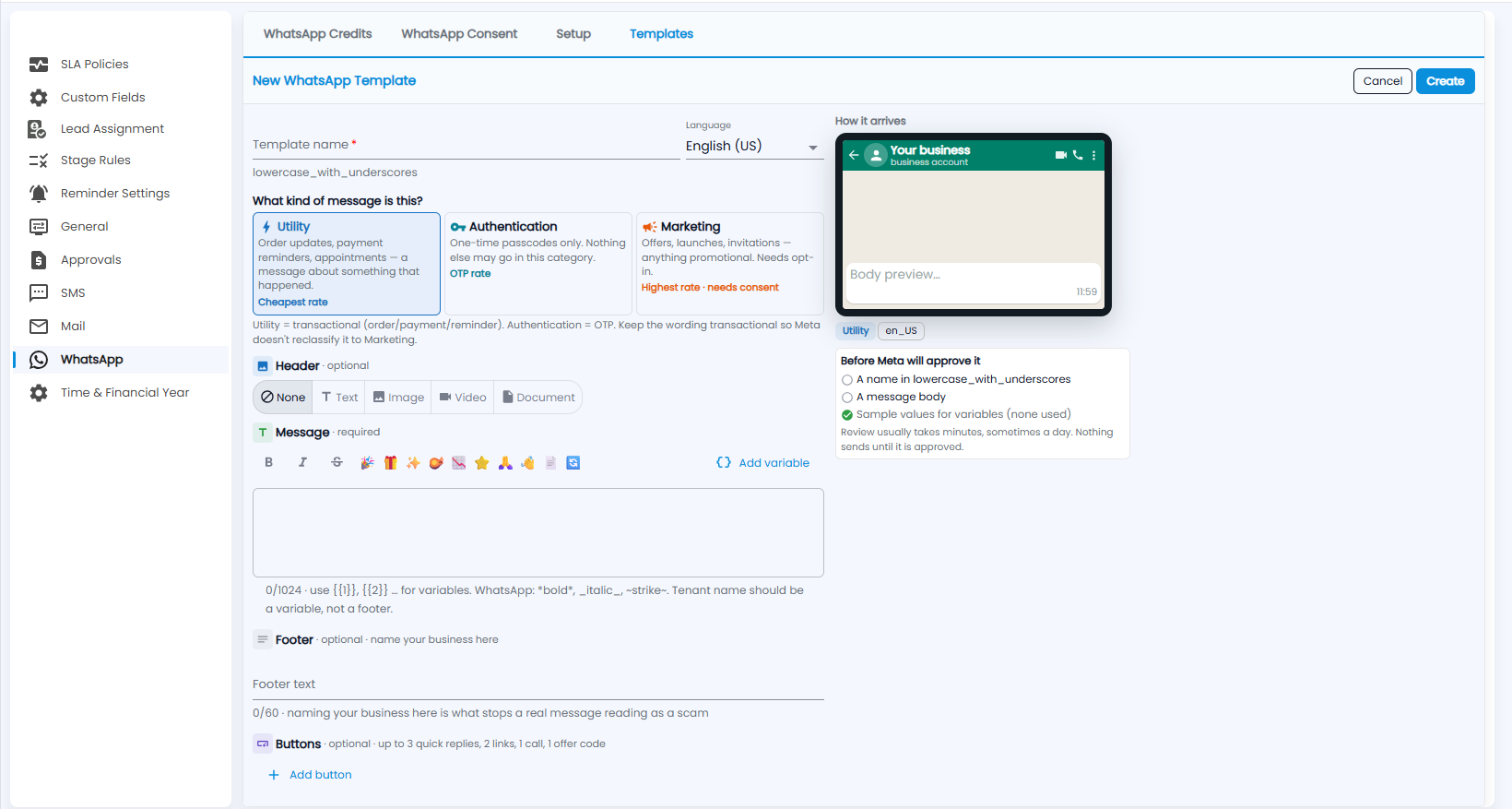
Click + New Template to create one — name, language, the kind of message (Utility, Authentication or Marketing), an optional header, the message, an optional footer and buttons — then Create. The steps are the same as in the Message Library.