
How do I assign new leads automatically in Tazk CRM?
Open Configuration › Lead Assignment and click + New rule. Name the rule, set its order, say which leads it catches, choose who gets them, and click Save rule. Rules are checked top first; the first rule a new lead matches decides its owner.
How do routing rules work?
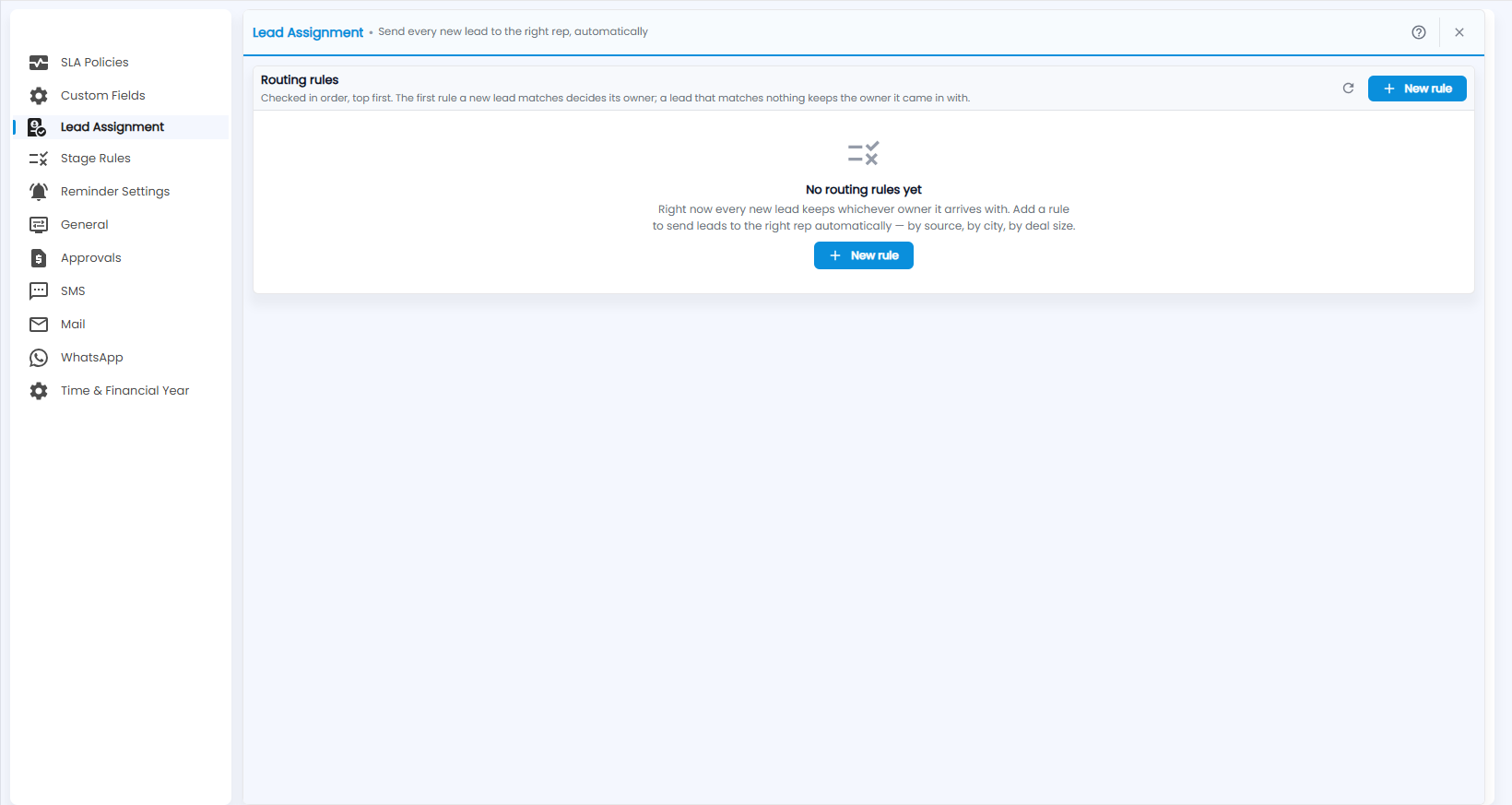
Send every new lead to the right rep, automatically. Routing rules are checked in order, top first: the first rule a new lead matches decides its owner, and a lead that matches nothing keeps the owner it came in with. With no rules yet, every new lead keeps whichever owner it arrives with — add a rule to send leads to the right rep by source, by city or by deal size.
How do I create a rule?
Click + New rule.
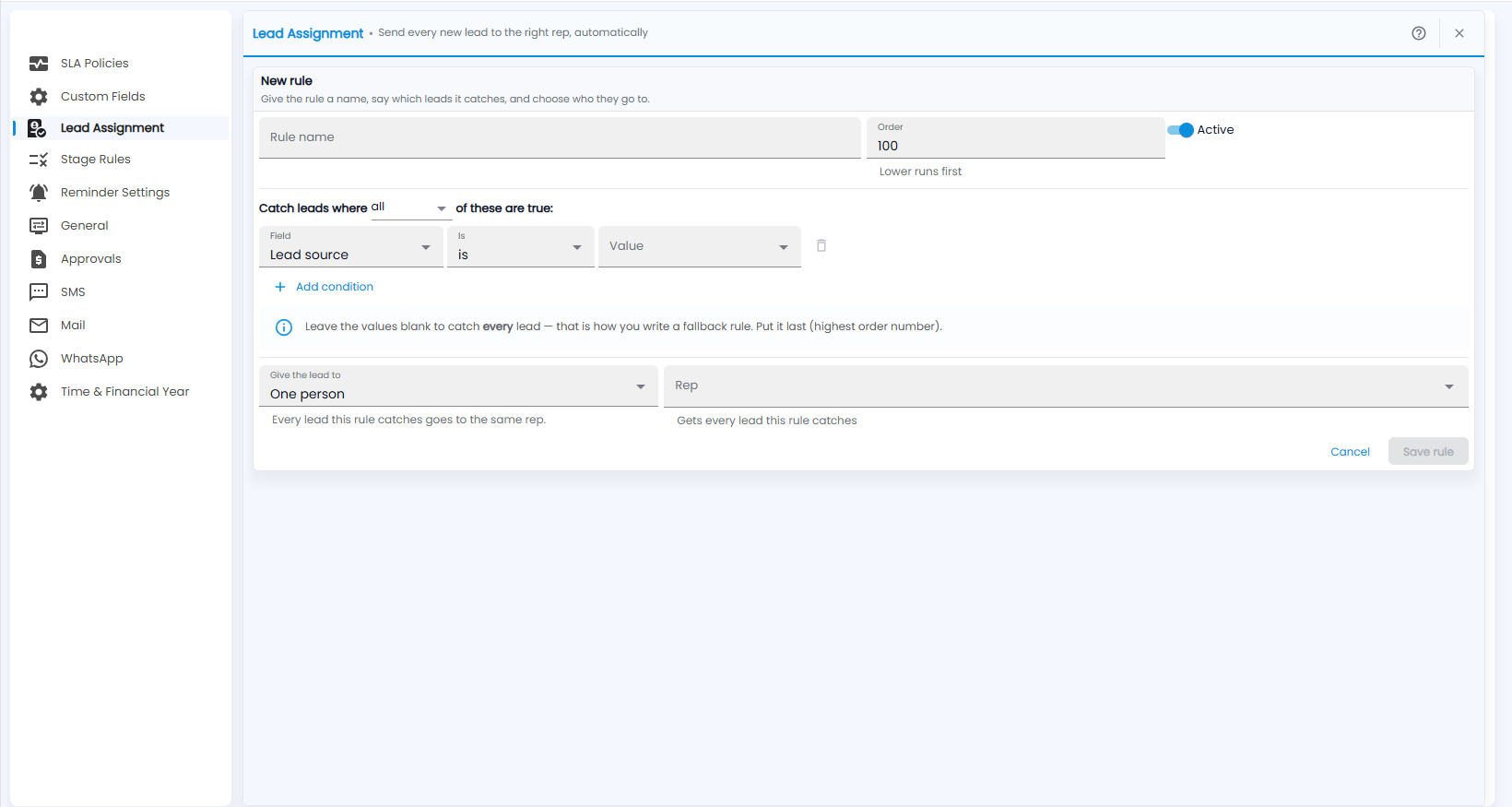
- Rule name, and the Order — lower runs first (100 by default). Active is on.
- Catch leads where all (or any) of these are true — for each condition pick a Field (for example Lead source), an operator (for example is) and a Value. Click + Add condition for more. Leave the values blank to catch every lead — that is how you write a fallback rule; put it last (highest order number).
- Give the lead to — One person sends every lead this rule catches to the same Rep; you can also take turns across a pool (Round robin) or pick whoever holds the fewest open leads (Least loaded).
- Click Save rule, or Cancel.