
How do I chat with a colleague in Tazk CRM?
Open Chat from the sidebar, switch to the Contacts tab and click the person's name. Type in the message box and press Enter or click Send. Chats are one-to-one, update live, and also sync with the Tazk mobile app. You can attach photos and documents, and edit, delete or pin messages.
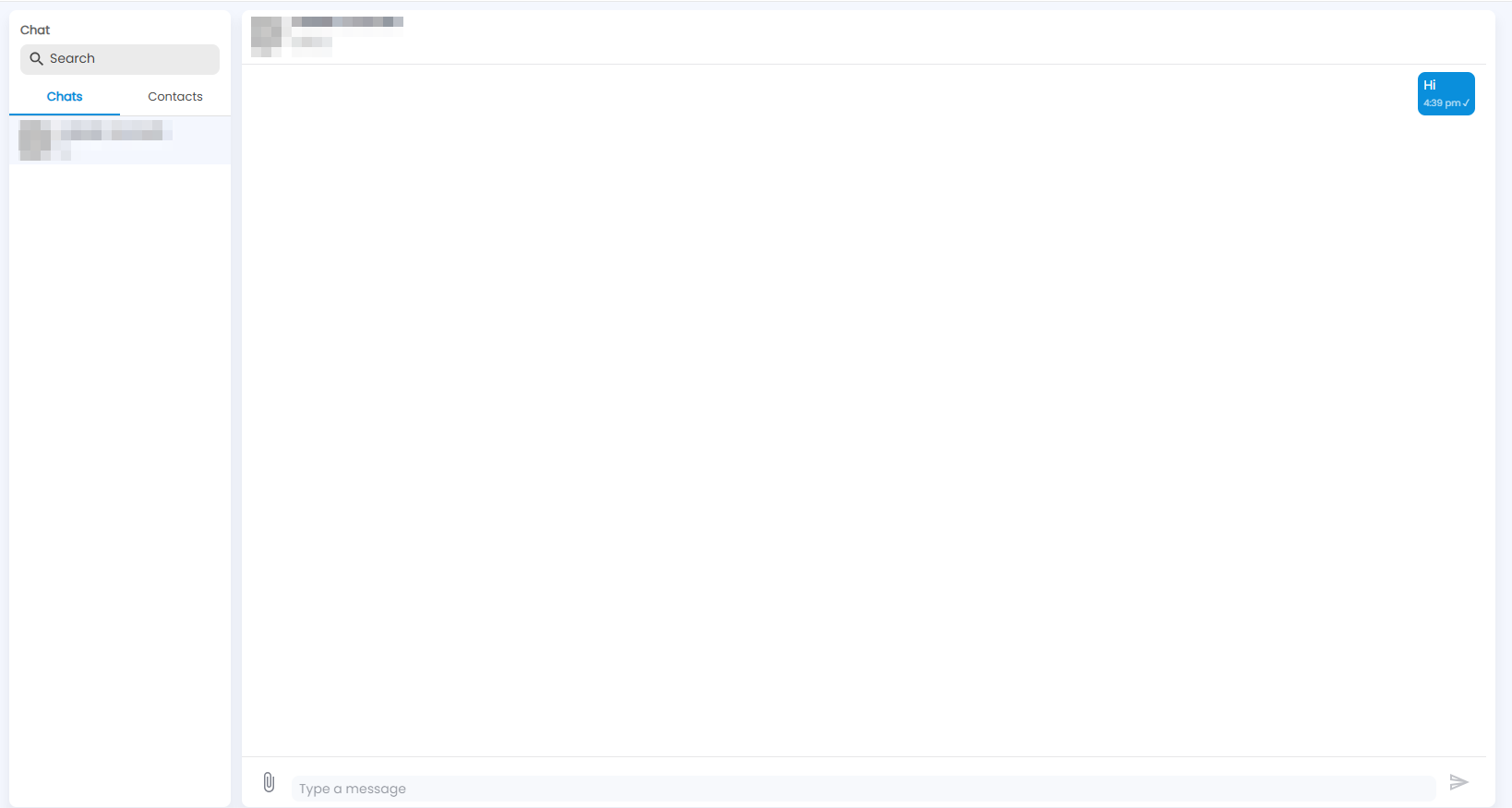
How is the Chat page laid out?
The left panel has a Search box and two tabs:
- Chats — conversations you have already had, newest first, with the last message and an unread count.
- Contacts — everyone in your company you can start a chat with.
The conversation opens on the right. Under the person's name you see online, their last-seen time, or typing… while they are writing to you.
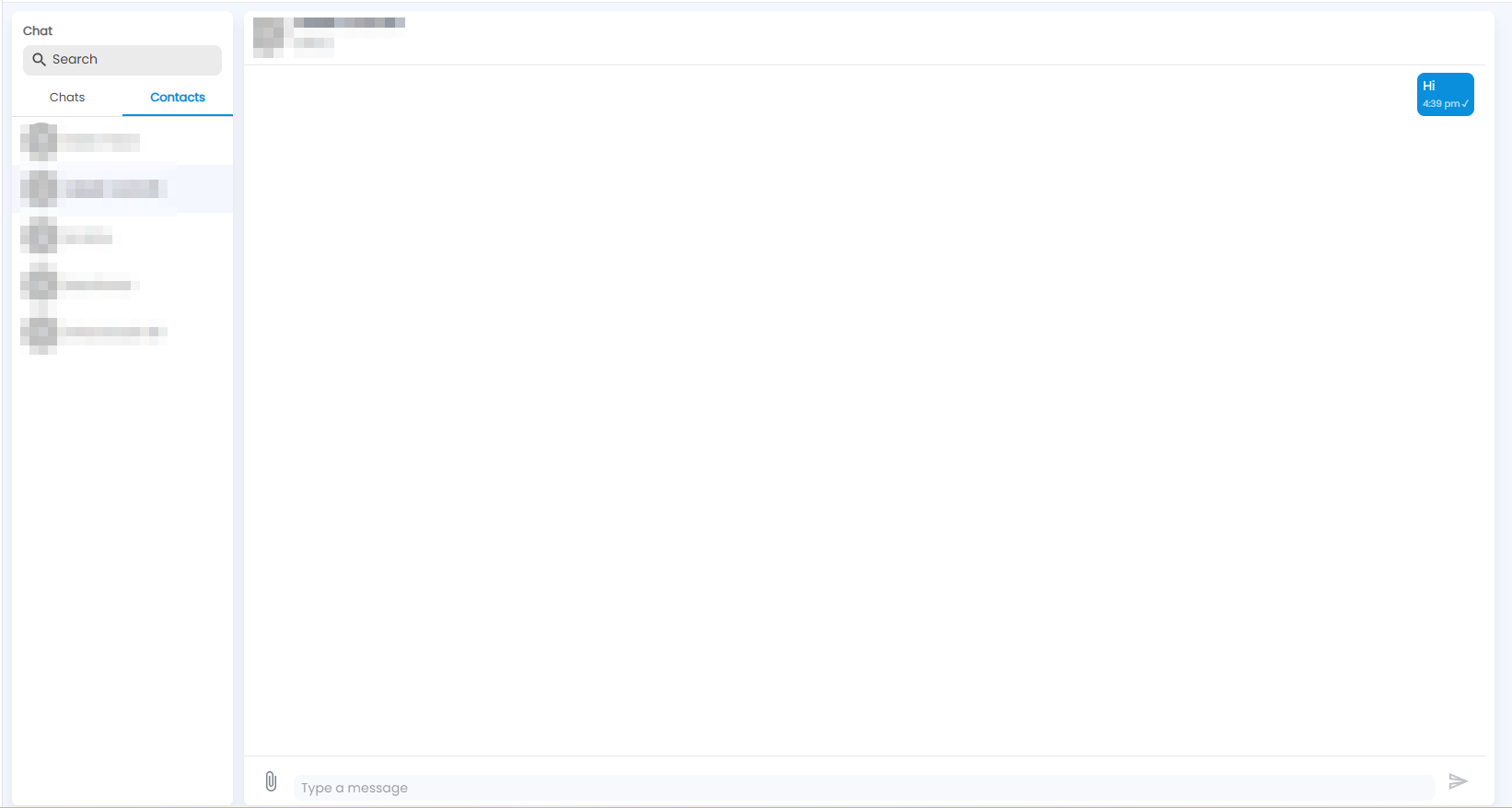
How do I start a new chat?
- Click the Contacts tab. Type in Search to narrow the list.
- Click the person.
- Type in Type a message and press Enter or click Send. Use Shift + Enter for a new line.
The conversation then appears under Chats, for you and for them.
How do I send a photo or document?
- Click the paperclip and choose Photo or Document.
- Select one or more files. They wait above the message box; click the small cross on one to remove it.
- Click Send.
Each file can be up to 50 MB. Click a photo in the conversation to see it full size and download it.
What do the ticks mean?
| Mark | Meaning |
|---|---|
| ✓ | Sent. |
| ✓✓ | Read by the other person. |
| ! | The message failed to send. |
Can I edit, delete or pin a message?
Hover over a message to see its actions:
- Edit — your own text messages only. The message box switches to edit mode; click Save, or press Esc to cancel. The message is marked edited.
- Delete — your own messages. It is deleted for everyone, and both of you see This message was deleted in its place.
- Pin / Unpin — either person can pin a message. Pinned messages show in a banner at the top of the conversation. Click the banner to jump to the pin, and again to move to the next one.
Note: Chat is part of the Growth and Scale plans. If you don't see it in the sidebar, ask your administrator about your plan and role.