
How do I set what a role can do in Tazk CRM?
Open Settings › User Roles and pick a role on the left, or click + to add one. Use the tabs to set its Menu Access, the Dashboard widgets it sees, its Notifications, its Data Scope and its Field Visibility, and click that tab's save button. Changes apply to everyone with that role.
What is on the User Roles screen?
The roles are listed on the left — for example Administrator, Employee, Manager and Salesman — with + to add one. Click a role to see its settings on the right. Role packs for your industry at the top right offers ready-made sets of roles. Each role has five tabs.
What does Menu Access set?
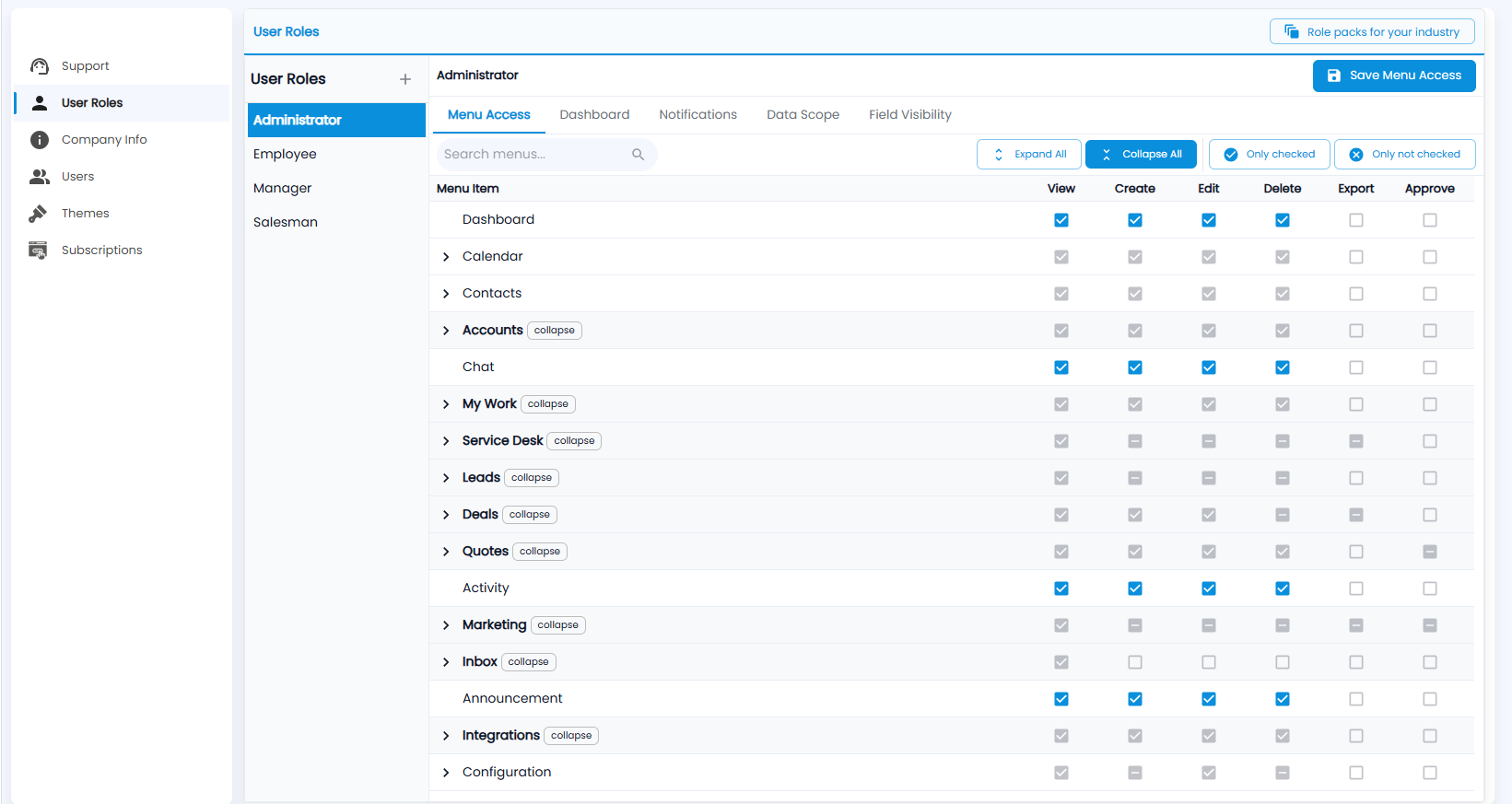
Which menus the role can use, and what it can do in each: View, Create, Edit, Delete, Export and Approve. Menus with an arrow (for example Accounts, My Work, Leads, Deals) open to show their screens; Expand All and Collapse All open or close them all. Use Search menus… to find one, and Only checked or Only not checked to see what is granted or not. Click Save Menu Access.
What does the Dashboard tab set?
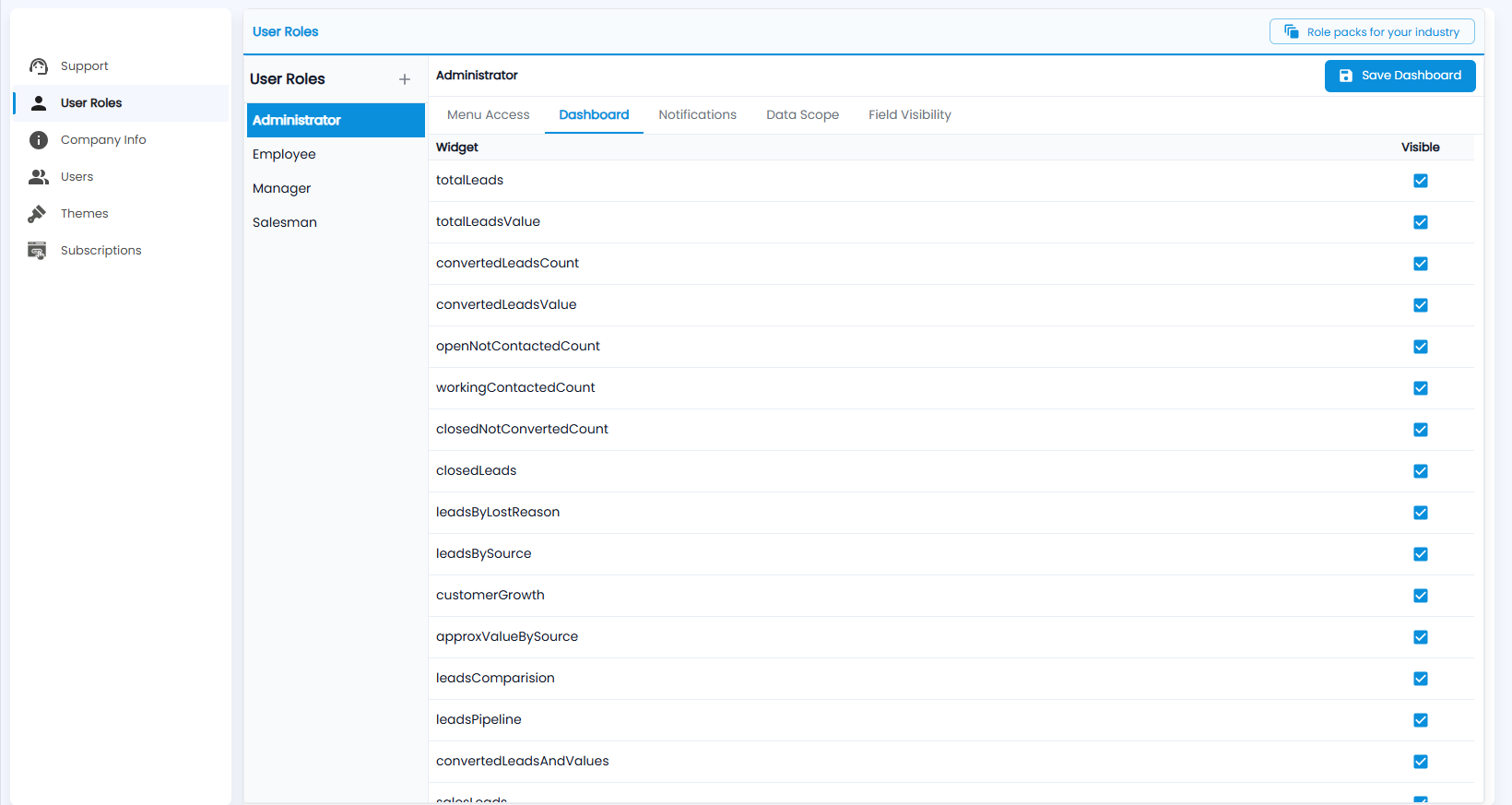
Which dashboard widgets the role sees — tick Visible for each widget (for example total leads, leads by source, leads by lost reason) — then click Save Dashboard.
What does the Notifications tab set?
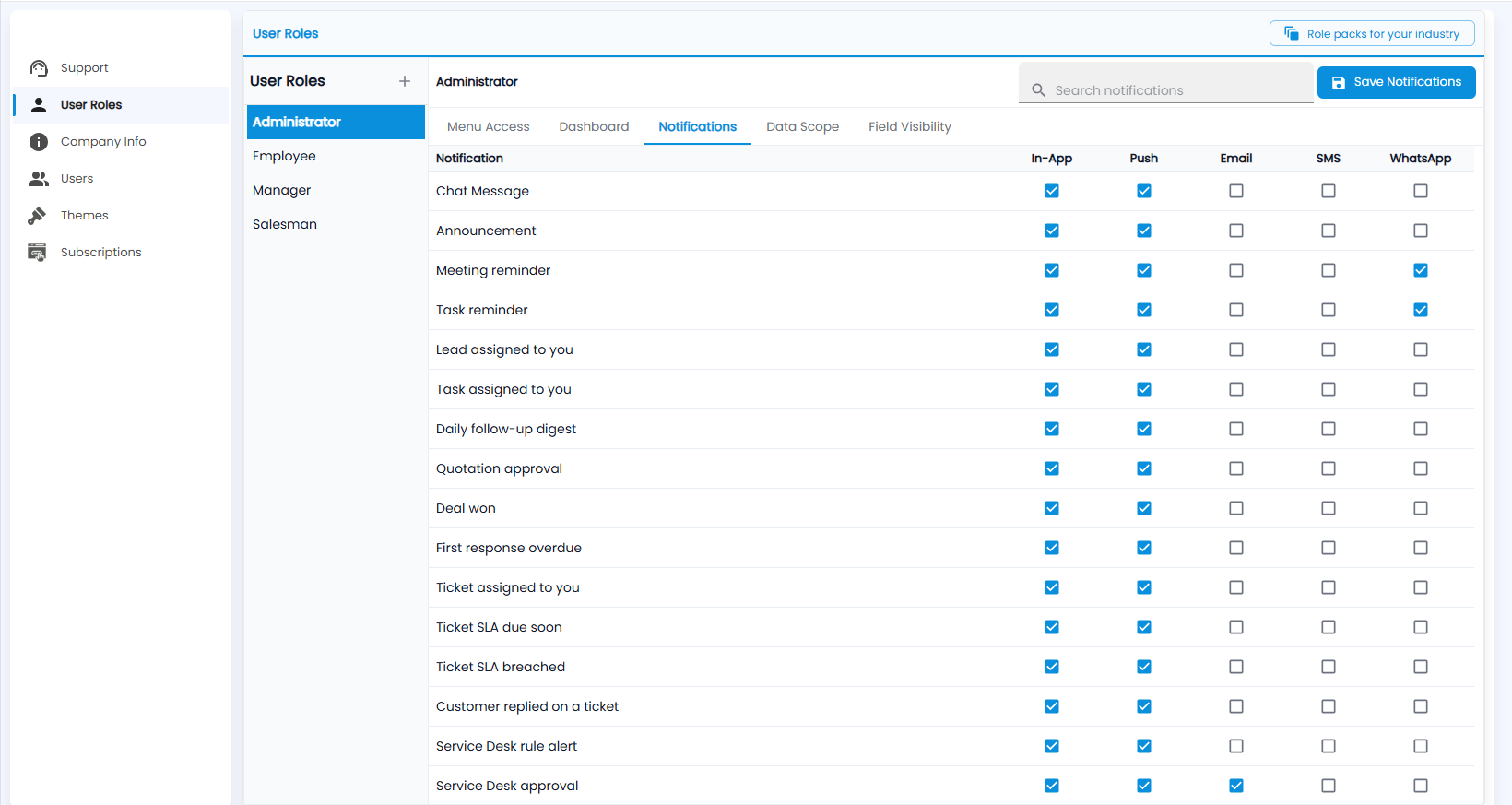
How the role is told about each event — for example a chat message, a meeting or task reminder, a lead or task assigned to you, a quotation approval or a deal won — by In-App, Push, Email, SMS or WhatsApp. Use Search notifications to find one, and click Save Notifications.
What does Data Scope set?
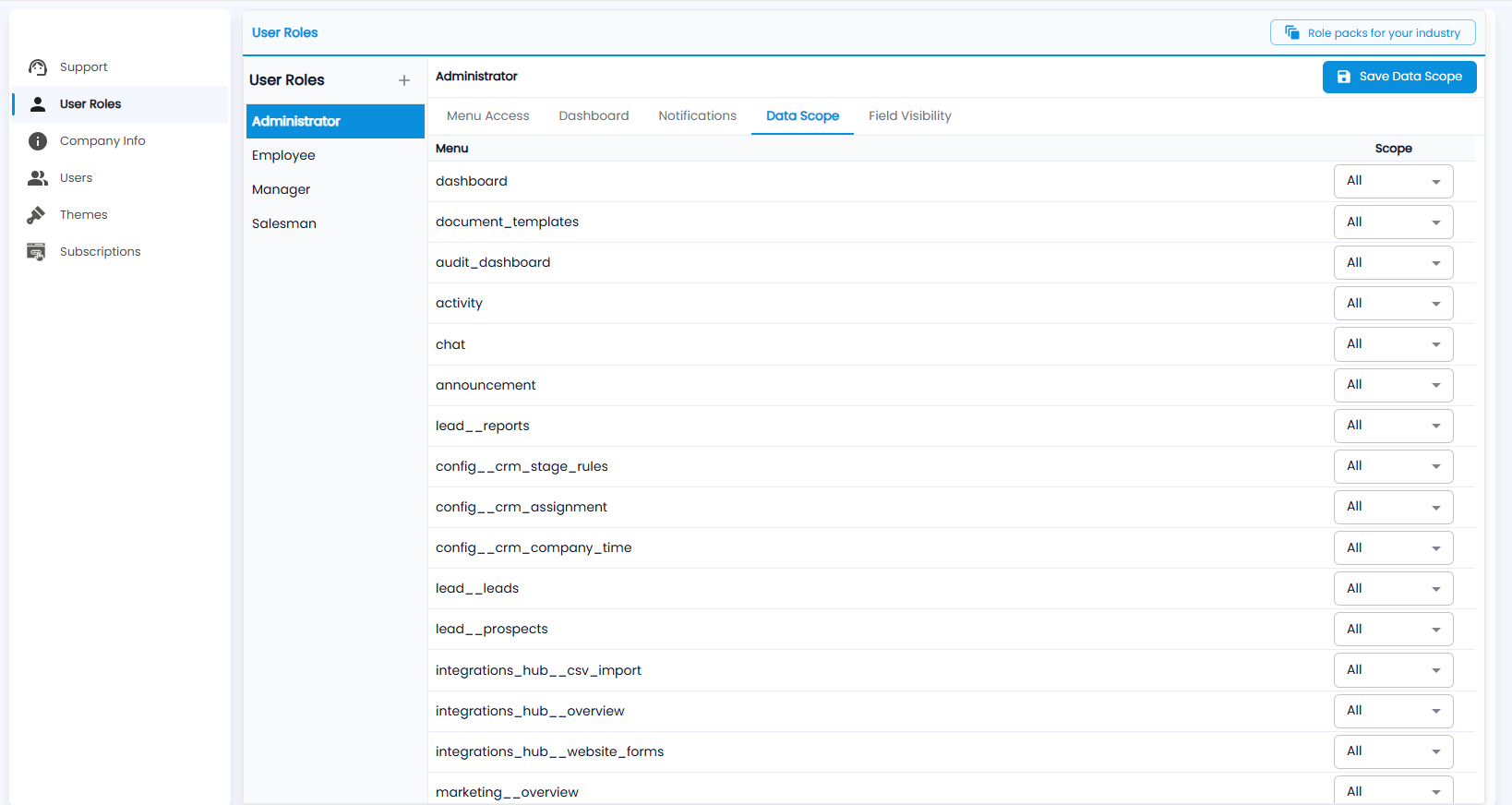
For each menu, whose records the role sees — for example All records, or only their own. Choose the Scope for each menu and click Save Data Scope.
What does Field Visibility set?
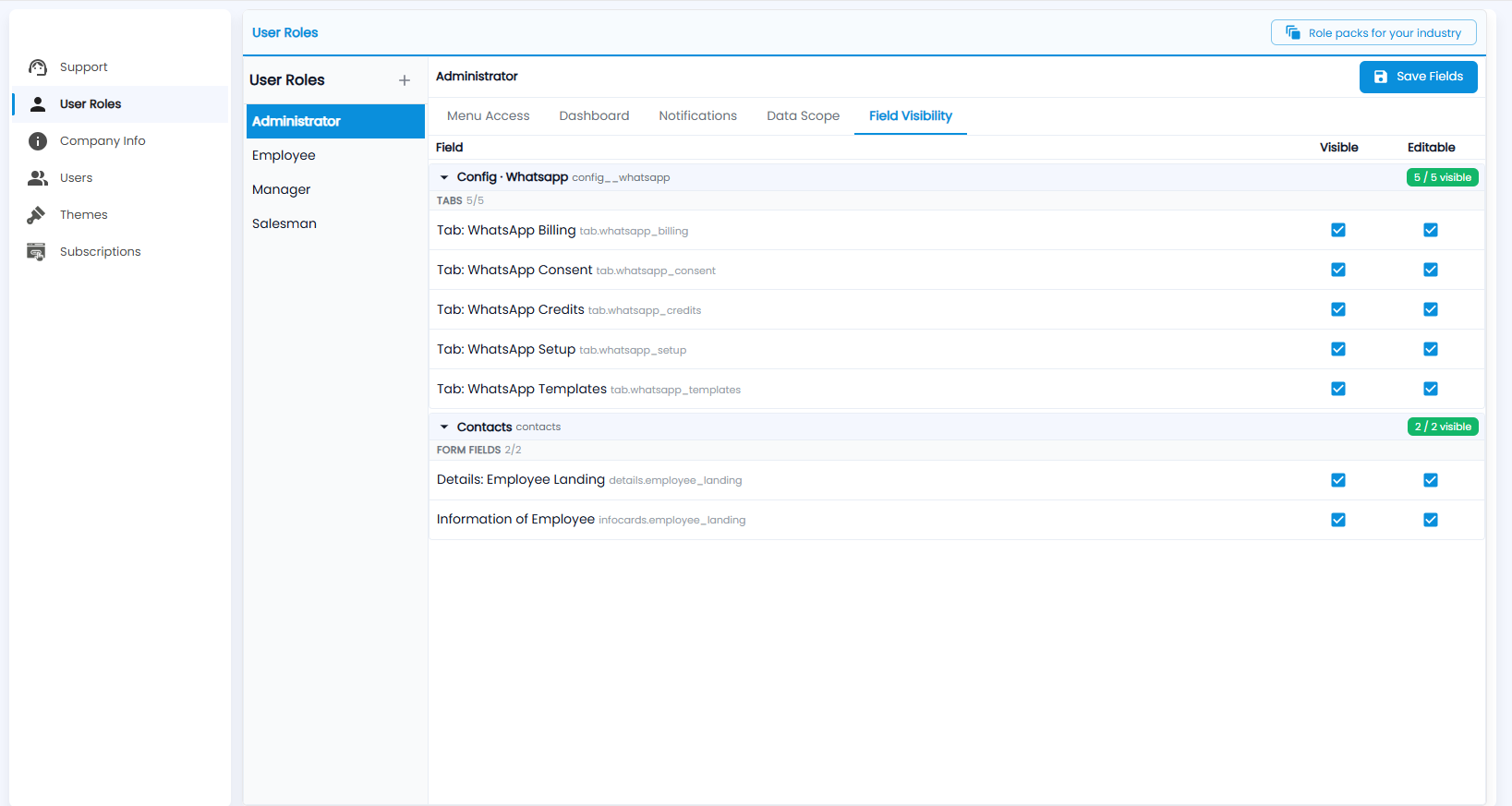
Which tabs and form fields the role can see and change, grouped by screen — for example the WhatsApp configuration tabs, or the details on an employee's page. Tick Visible and Editable for each; the chip on each group shows how many are visible. Click Save Fields.