
What is Contacts in Tazk CRM?
Contacts keeps the people your company works with in three folders. Employee is the Employee Directory of your team. Customer lists every customer account, including the account created for each lead. Starred holds the contacts your company has starred. Use Create Contact to add an employee or a customer, Import to load many at once, and the search box to find anyone.
What are the folders in Contacts?
Open Contacts from the sidebar. The panel on the left shows Create Contact and the folders your role can open, each with a count:
| Folder | What it holds |
|---|---|
| Employee | Your team — the Employee Directory. |
| Customer | Every customer account. Each new lead creates one, so this list grows with your leads. Customers you add here or import also appear. |
| Starred | Employees and customers your company has starred, for quick access. |
What does the Employee Directory show?
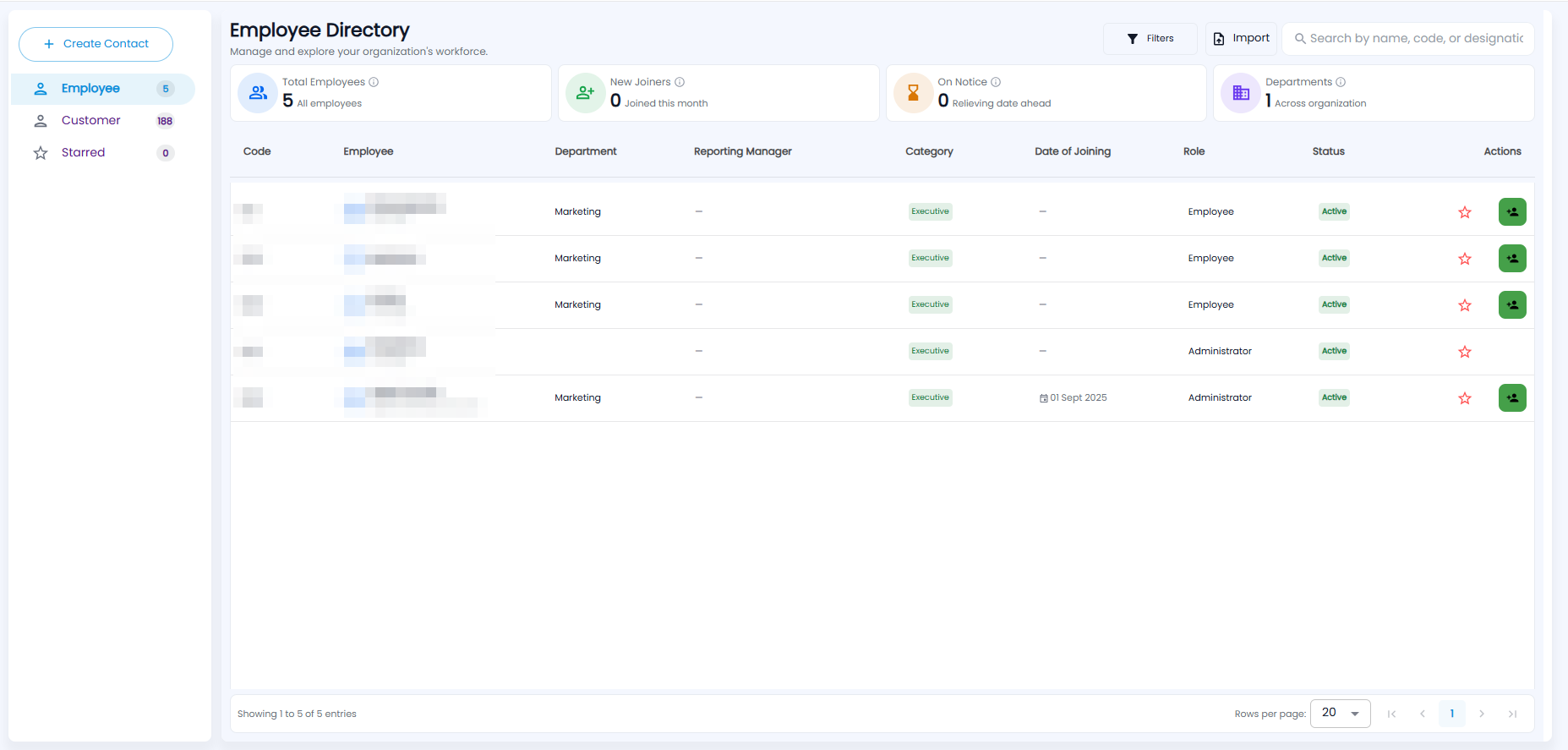
Four cards sit above the list:
- Total Employees — everyone in the directory.
- New Joiners — people who joined this month. Click the card to show only them; click again to clear.
- On Notice — people with a relieving date ahead. Click to show only them.
- Departments — how many departments your team is spread across.
The list shows each person's Code, name and designation under Employee, Department, Reporting Manager, Category, Date of Joining, Role (their Tazk role, which decides what they can see and do) and Status. Choose how many Rows per page to see at the bottom.
To find someone, type a name, code or designation into Search by name, code, or designation, or click Filters to narrow the list by location, department, role or category and click Apply.
What do the star and the green button on a row do?
- Star — adds the person to Starred. Click it again to remove them. Stars are shared: everyone in your company sees the same starred contacts.
- Green person button — follows the person. Administrators, Managers, HR Managers and Front Desk users follow straight away and are then alerted about the person's attendance — absent, present, late login, early check-out and early check-in. Other roles send a follow request instead. Your own row has no follow button.
What is on an employee's page?
Click a row to open the person's page.
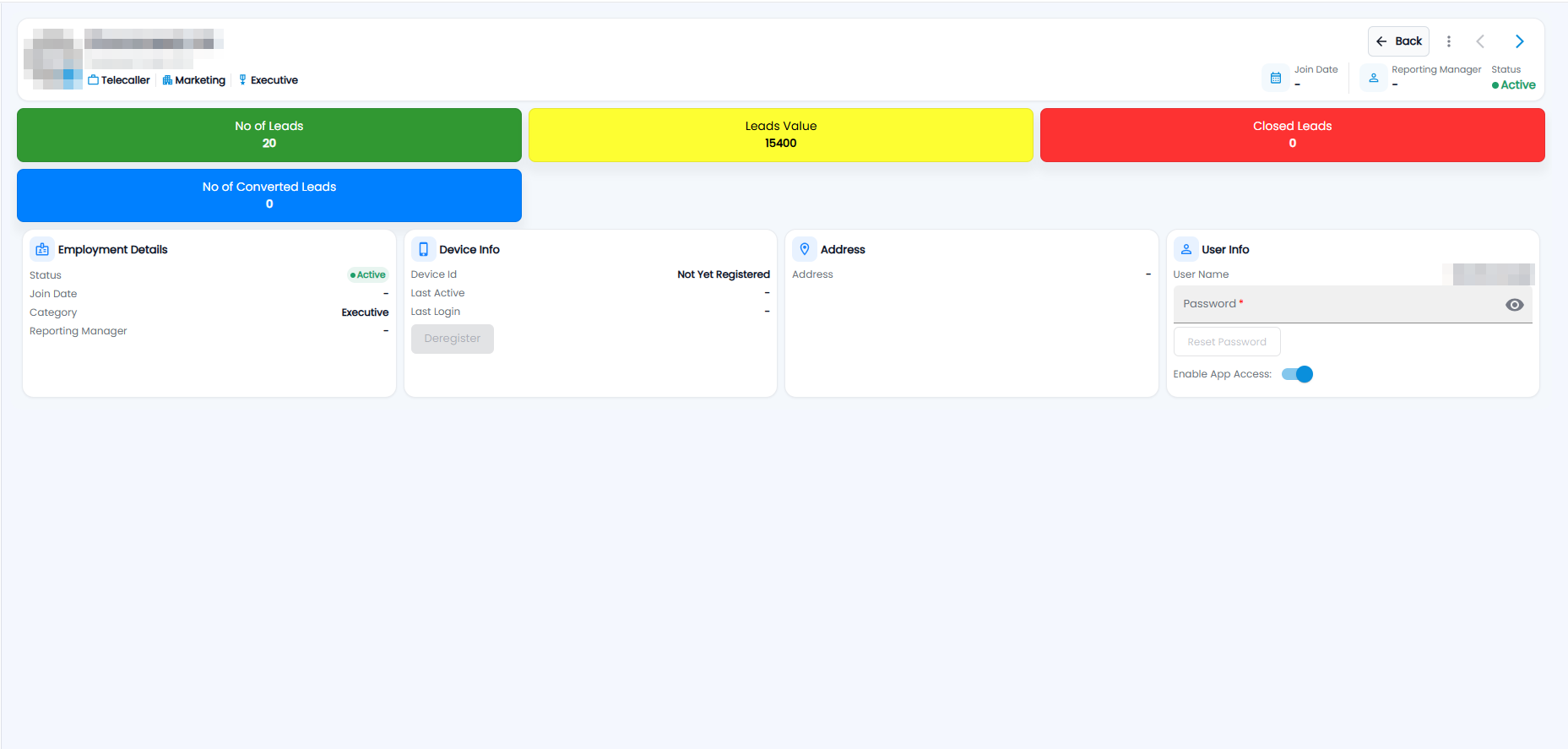
- Header — name, Employee Code, designation, department and category, with the join date, reporting manager and status on the right. Back returns to the list and the arrows move to the previous or next person. The pencil on the photo changes the profile picture; it saves as soon as you pick one.
- Lead tiles — No of Leads counts every lead this person owns, and Leads Value adds up those leads' Approx Value. Closed Leads and No of Converted Leads sit beside them.
- Employment Details — status, join date, category and reporting manager.
- Device Info — the mobile device registered to the person's login, and when it was last active. Deregister asks Reset Device Id? and then frees the login so the person can register a new phone. It is greyed out while no device is registered.
- Address — the person's address.
- User Info — their User Name, a Password box with Reset Password, and the Enable App Access switch.
- ⋮ menu — Edit, Delete and Relieve (for someone who is leaving).
How do I reset an employee's password?
- Open the person's page from the Employee folder.
- Under User Info, type the new password into Password. It needs at least 8 characters, with an upper-case letter, a lower-case letter, a number and a special character.
- Click Reset Password, then give the person their new password.
What does the Customer folder show?
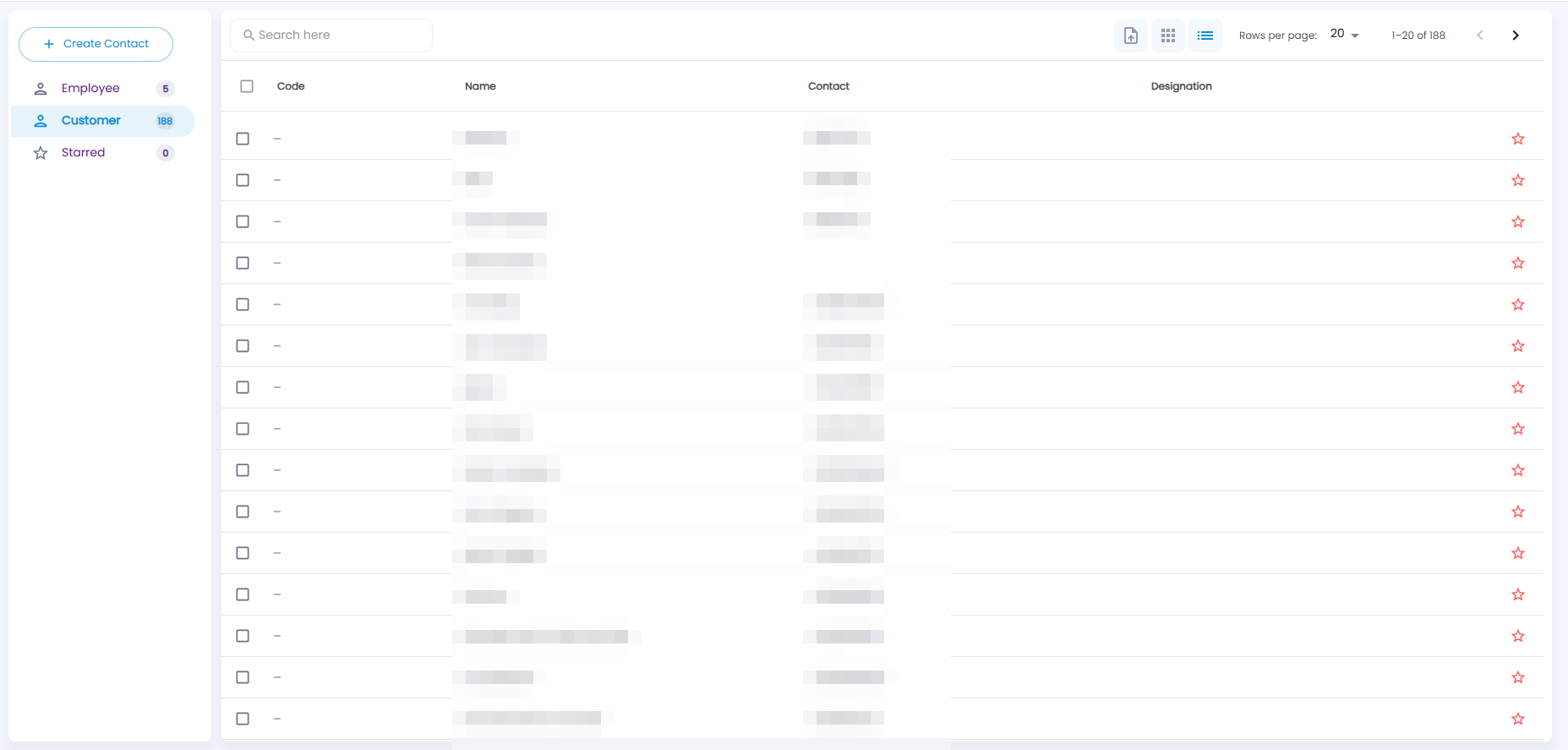
Every customer account, with its Code, Name, Contact number and Designation. Type in Search here to find one, use the arrows and Rows per page to move through the list, and switch between the grid of cards and the list with the two buttons at the top right.
- Click a customer to open their page.
- Tick customers with the checkboxes to Add to group — this needs at least one contact group to exist.
- Customers can be starred like employees.
To work with a customer's leads, deals and people, use All Accounts and Account Contacts.
What is the Starred folder?
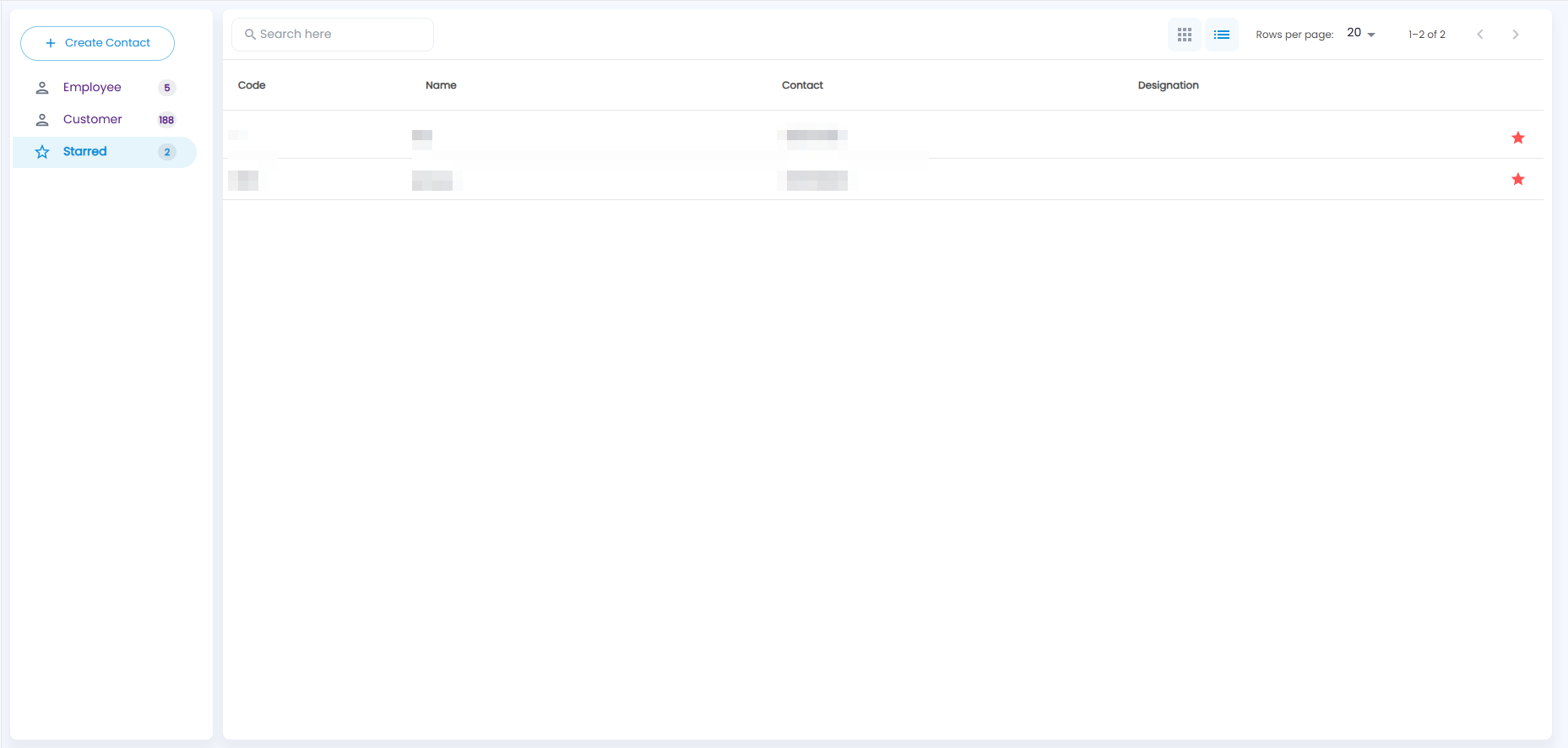
The employees and customers your company has starred, with their code, name, contact and designation. Click a filled star to remove someone from the list. Starred rows don't open a page — open the person from the Employee or Customer folder instead.
How do I add or import contacts?
- Create Contact opens a form with Customer and Employee tabs, starting on the folder you are in. A customer needs a Company Name, Phone Number, Pincode, State and City. On the Employee folder the button disappears once your company has used all the users its plan allows.
- Import on the Employee Directory loads up to 5,000 people from the Excel template. You check and correct the rows in a preview, and nothing is saved until you click Upload. Each row needs an employee code, join date, name, gender, phone, email, date of birth, address, user name, password, location and user role. Administrators, HR Managers and Managers with rights to add employees see this button.
- The upload button on the Customer folder loads customers from the customer Excel template (.xlsx). Every row needs a phone number — a file with a blank one is rejected — plus the company name, 6-digit PIN code, city, state and country. You review the rows before they are added.