
How do I log a call in Tazk CRM?
Open My Work › Calls and click +. Pick the Lead, check the Subject, set when the call started, choose the call type and tap the Call Result — for example Interested. Add the duration, remarks and purpose if you like, tick Follow-up task to create the next task at the same time, and click Save. The call shows in the Calls list and on the lead's Calls tab.
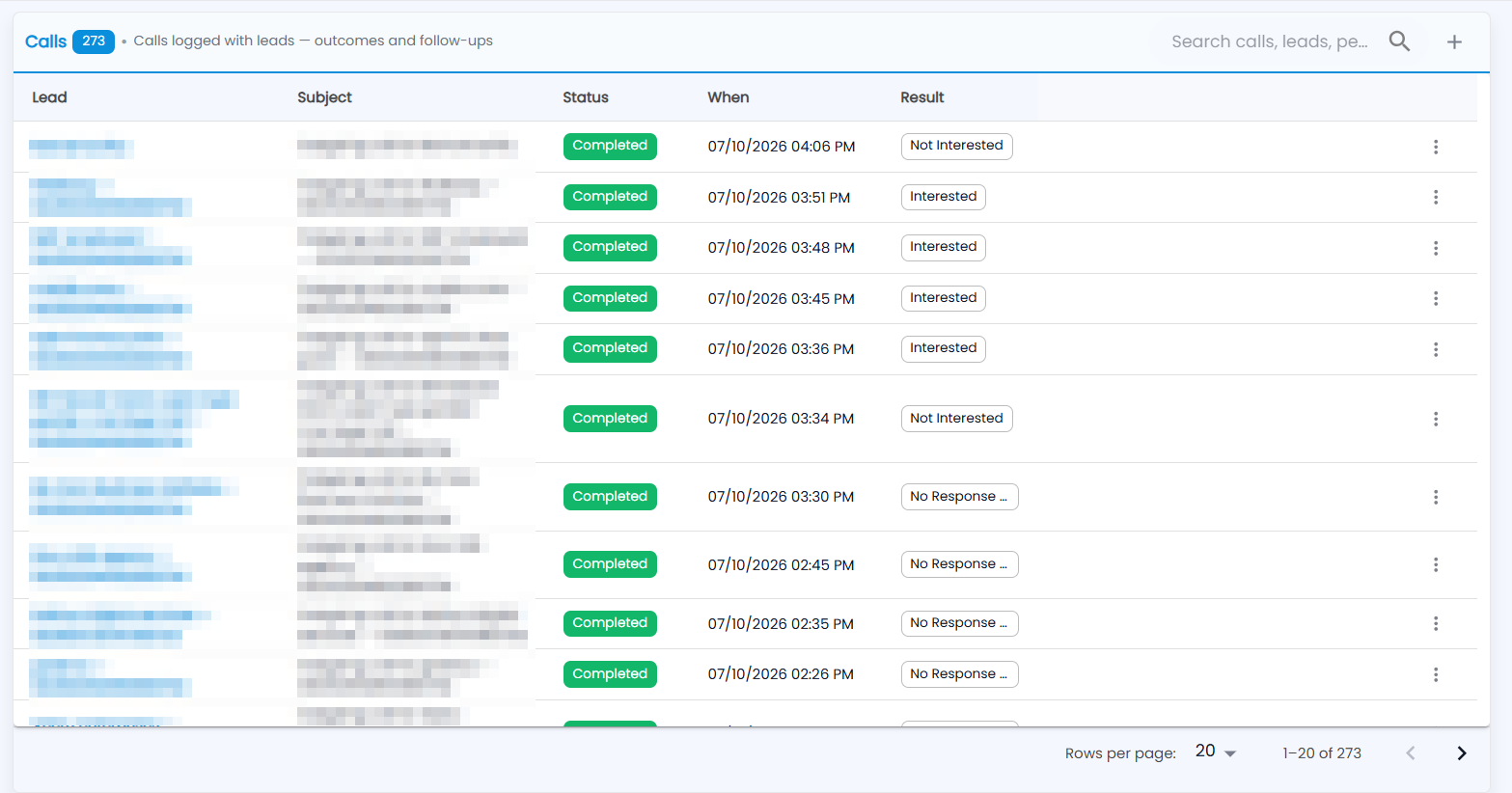
What does the Calls list show?
Every call logged with your leads, newest first: the Lead (click to open it), the Subject, the Status — Completed, or Incomplete for a missed call — When it happened, and the Result. The number next to the title is how many calls you can see; which ones follows your role.
- Type in Search calls, leads, pe… to find a call.
- Click a row to see the call.
- The ⋮ on a row offers View lead, Edit and Delete.
How do I log a call?
Click + — or use the lead's ⋮ menu → Log Call.
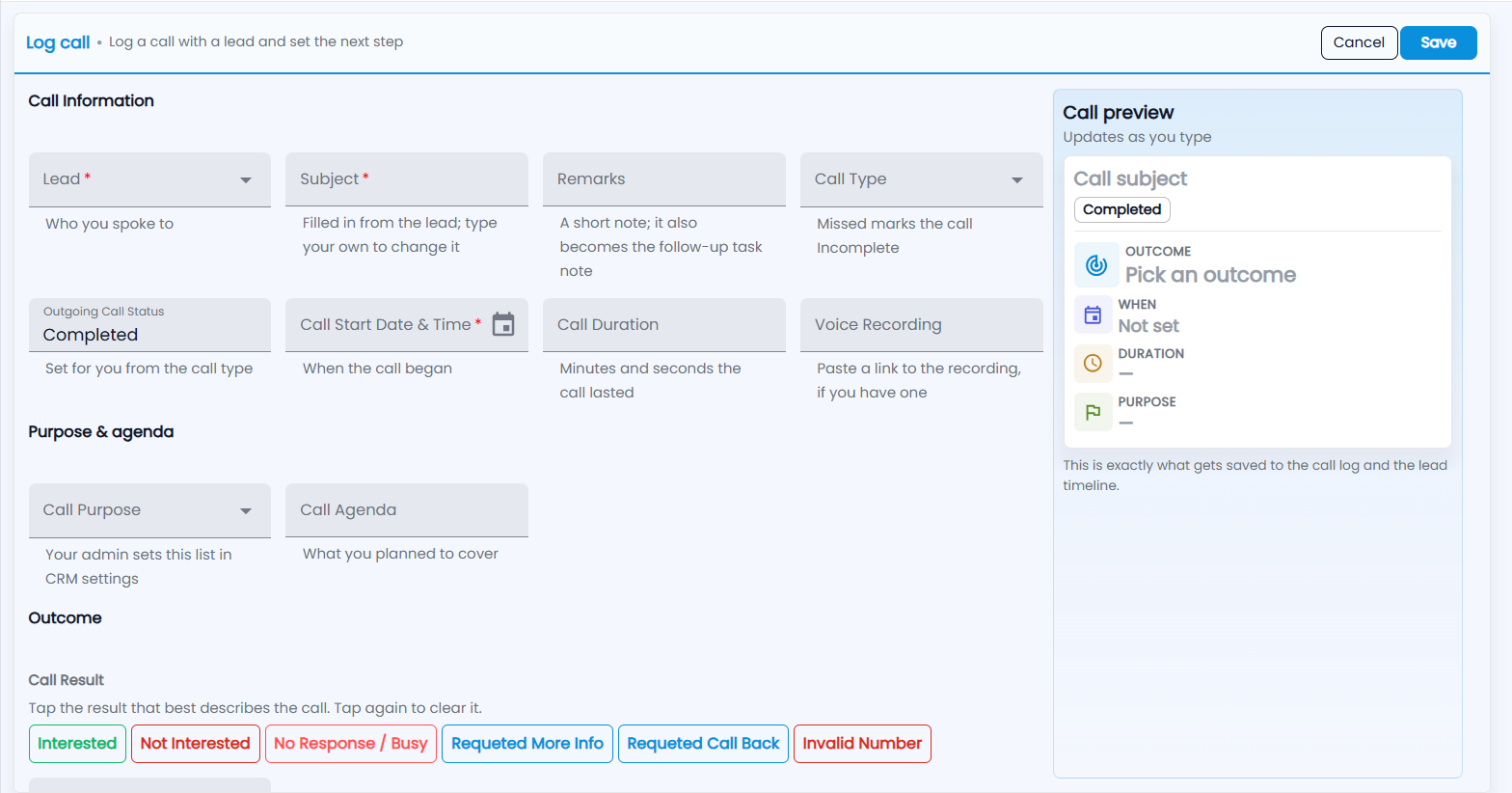
- Lead — who you spoke to. Required.
- Subject — filled in from the lead; type your own to change it. Required.
- Remarks — a short note. It also becomes the follow-up task's note.
- Call Type — Outbound, Inbound or Missed. Missed saves the call as Incomplete; the Outgoing Call Status is set for you from it.
- Call Start Date & Time — when the call began. Required.
- Call Duration — minutes and seconds (mm:ss).
- Voice Recording — paste a link to the recording, if you have one.
- Call Purpose and Call Agenda — why you called and what you planned to cover.
- Call Result — tap the one that fits: Interested, Not Interested, No Response / Busy, Requested More Info, Requested Call Back or Invalid Number. Tap it again to clear it.
The Call preview on the right shows exactly what goes into the call log and the lead's timeline. Click Save.
Can I create the follow-up task in the same step?
Yes. Tick Follow-up task before you save and pick its due date (tomorrow is filled in). Tazk saves the call and adds a task on the same lead — Follow-up: <call result>, owned by you, with your remarks as its note. It appears in Tasks and on the lead's Tasks tab.
How do I log a call from a lead?
- Open the lead and go to its Calls tab.
- Under Log a call, click the Outcome — the only thing you must fill in.
- Choose Outgoing or Incoming; the date and time default to now.
- Add the Duration, a Purpose and what was said, tick Follow-up task if you want one, and click Log call.
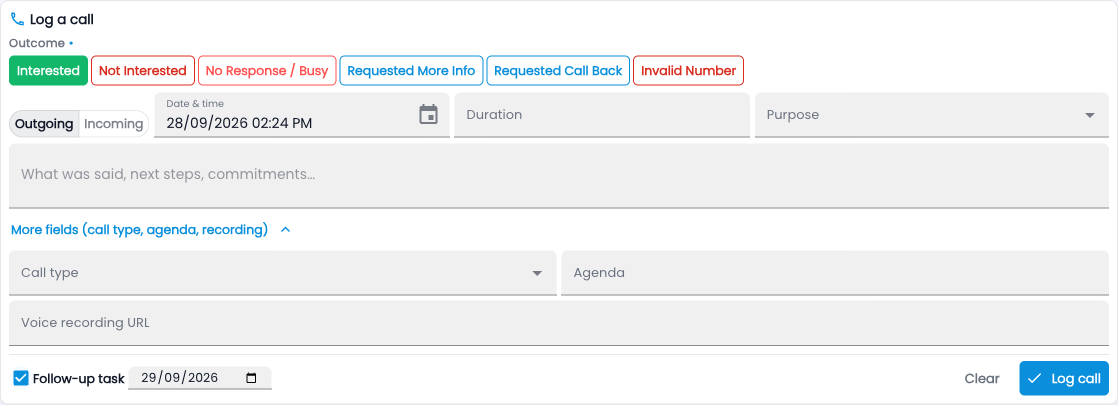
A call logged on the lead and one logged in My Work are the same record, and both show on the lead's Timeline. A logged call stays with its lead — if it went on the wrong lead, delete it and log it again on the right one.