
How do I set lead response targets in Tazk CRM?
Open Configuration › SLA Policies and click +. Name the policy, choose the lead source it applies to, set the minutes a new lead may wait for its first reply and the idle days before it is flagged as aging and rotting, pick who is alerted on a breach, and click Create. Leave a box empty to skip that check.
What does the SLA Policies screen show?
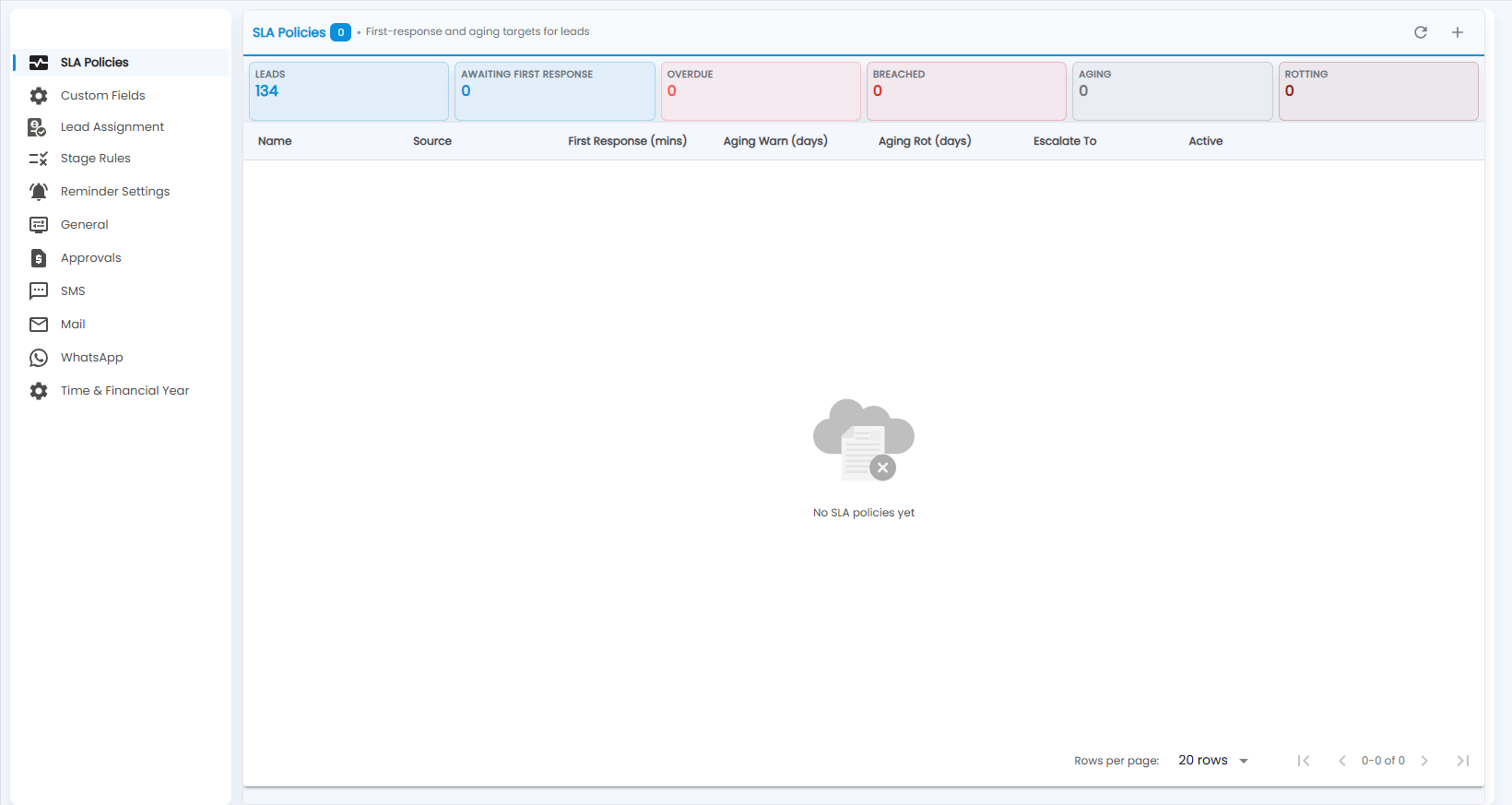
First-response and aging targets for leads. The tiles count Leads, Awaiting First Response, Overdue, Breached, Aging and Rotting. Below them, each policy shows its Name, Source, First Response (mins), Aging Warn (days), Aging Rot (days), Escalate To and whether it is Active. Refresh and + are at the top right.
How do I create a policy?
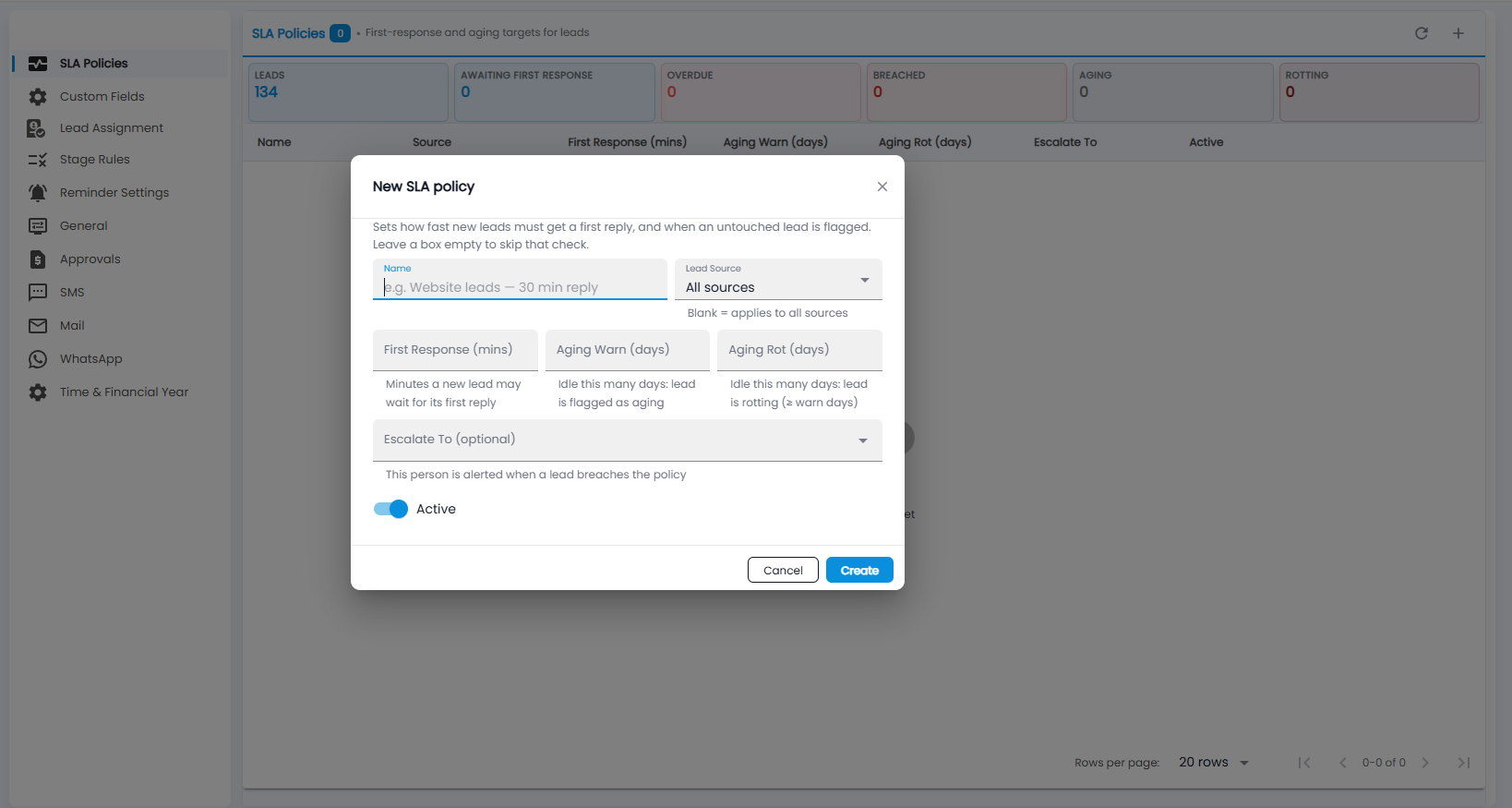
- Name — for example “Website leads — 30 min reply”.
- Lead Source — blank (All sources) applies to every source.
- First Response (mins) — the minutes a new lead may wait for its first reply.
- Aging Warn (days) — idle this many days, and the lead is flagged as aging.
- Aging Rot (days) — idle this many days (at least the warn days), and the lead is rotting.
- Escalate To (optional) — the person alerted when a lead breaches the policy.
- Active — on for a policy in use.
Click Create, or Cancel.