
How do I work a ticket in Tazk Service Desk?
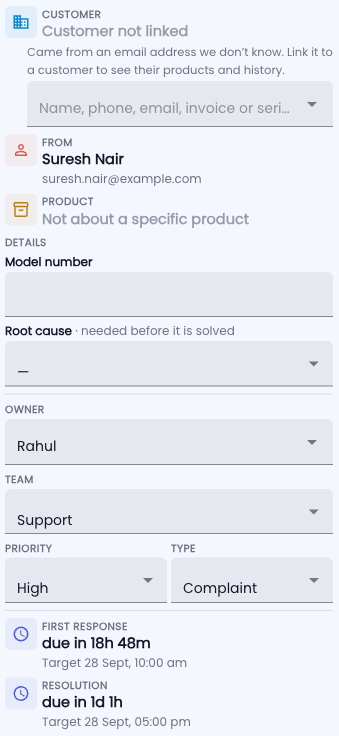
Reply to the customer, add notes, move the ticket through its stages and solve it — everything on one screen. Opening a ticket shows the whole story on the left — every email, message and note — and what you need to know on the right: the customer, the product, the owner and the promised times.

Step by step
- Read the conversation. History shows every change; What they bought shows the customer’s orders, serials and warranties.
- Write in the box at the bottom. Reply to customer sends an email (or WhatsApp, if it came that way); Internal note is only for your team.
- Use Insert reply for a saved answer, then edit it. Press Ctrl + Enter to send.
- Move the ticket with the buttons in the top bar — for example In Progress, or Waiting when you need something from the customer.
- When it is fixed, click Mark resolved and pick how it ended. The customer can reply to reopen it.

The right-hand column
- Customer — if it says “Customer not linked”, search and link the right customer so their products and history appear.
- Extra details your request type asks for, then Owner, Team, Priority and Type — change them here.
- Tags — your team’s own labels, like “VIP” or “refund risk”; type one to add it. Customers never see them.
- First response and Resolution — time left on each promise.
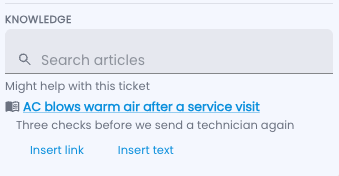
- Knowledge — articles that match this ticket. Insert link or Insert text puts one into your reply.
Tasks and related records
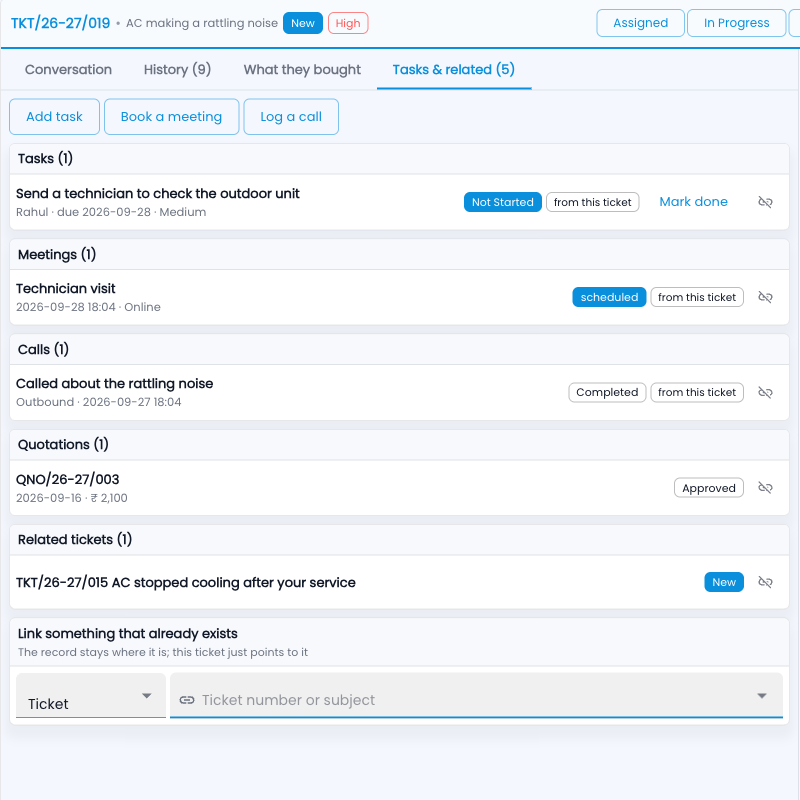
The Tasks & related tab keeps everything the ticket needs in one place — without moving it out of CRM or Projects.
- Add task — a real CRM task with an owner, a due date and a reminder; it also shows in My Work › Tasks. Tick Mark done here when it is finished.
- Book a meeting / Log a call — a CRM meeting (with its reminder) or call record, kept with the ticket.
- New Projects task — for companies using Tazk Projects: the task is created in the project, as you.
- Link something that already exists — a task, meeting, call, deal, quotation, Projects task or another ticket.
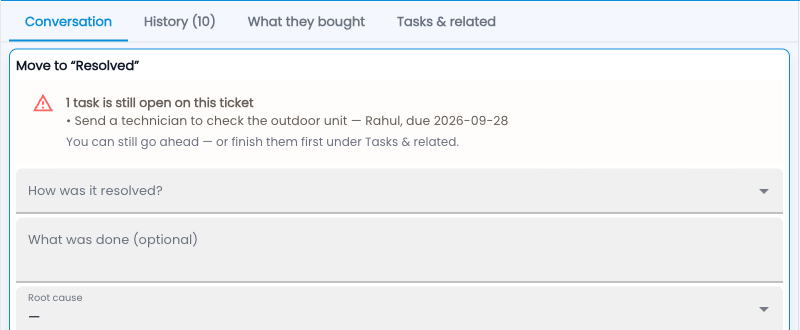
- Resolving a ticket with open tasks shows a warning listing them; you can still go ahead.
Also on this screen
- One-click actions run a saved bundle — for example “Escalate to field team”.
- Possible duplicates and similar solved tickets show when they exist; you can merge a duplicate into this ticket.
- With AI switched on: a short summary of long tickets, and Draft with AI in the reply box.
Common questions
Why can’t I resolve the ticket?
Your request type may need a detail first — look for a field marked “needed before it is solved” in the right column.
Does Waiting stop the clock?
Yes. Promised times pause while a ticket waits on the customer, and start again when it moves back.