
How do I set response and resolution times (SLA) in Tazk Service Desk?
Set how quickly you promise to respond and resolve, who hears when a promise is at risk, and your working hours. A promised time (SLA) is how quickly you promise to reply and to solve. Tickets show the time left, warn before it runs out, and alert the right people when it is missed.
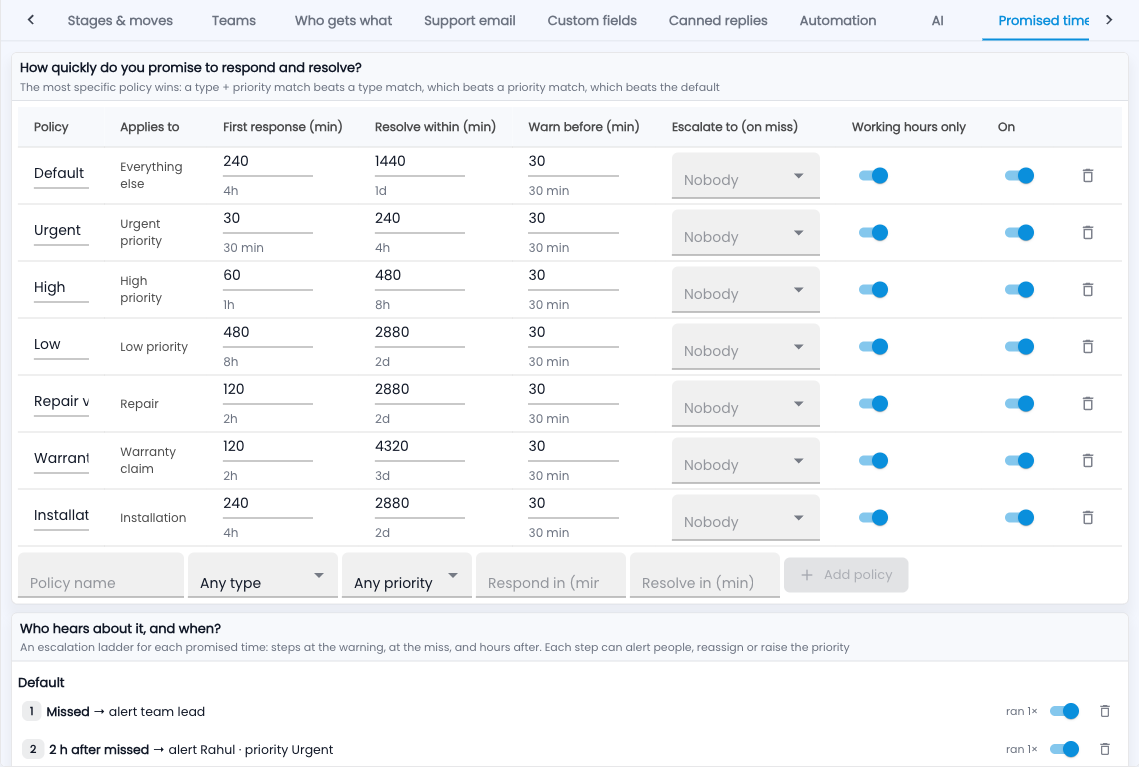
How do I set up promised times and working hours?
- Go to Setup › Promised times & hours.
- For each policy, set First response and Resolve within in minutes, and how long before to warn.
- Add a policy for a request type or a priority that needs a different promise.
- Under Who hears about it, and when?, add steps: at the warning, at the miss, and hours after — each can alert people, reassign or raise the priority.
- Set your working hours and holidays further down, and switch on Working hours only so clocks don’t run at night.
Which policy applies?
The most specific one: a type + priority match beats a type match, which beats a priority match, which beats the default.
Your timezone and financial year
Working hours are in your company’s timezone, shown at the top of this tab. Report days, “today” for warranties and task due dates follow it too. The financial year beside it decides the year in every document number — ticket and quotation numbers, and Sales numbers too.

An Administrator or Service Admin can click Change here, or in CRM Configuration › Time & Financial Year — it is the same setting. Changing the start month changes how new numbers show the year; numbers already issued stay as they are, and the counter carries on until the next year starts. Times on screen always show in your own device’s time.
Common questions
Does waiting on the customer count?
No. Clocks pause while a ticket is in a waiting stage.