
How do I raise a ticket in Tazk Service Desk?
Log a request that came by phone, in person or by message — the customer, what they need and who should handle it. Use New ticket when a customer calls, walks in or messages you personally. Emails to your support address and portal requests become tickets on their own.
Step by step
- Go to Service Desk › Tickets and click New ticket.
- Under Who is it for?, search the customer by name, phone, email, invoice number or serial number. Their contact and products are then offered.
- If it is about something they bought, pick the product — or type the serial number and click Look up. The warranty shows on the ticket.
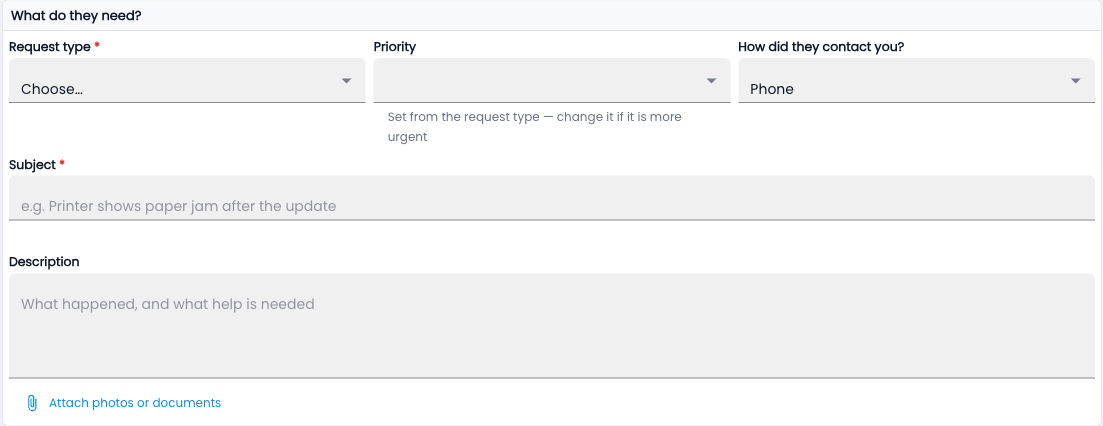
- Under What do they need?, choose the Request type. The priority fills in from it; raise it if the customer is in trouble.
- Say how they contacted you, write a short Subject and describe the problem.
- Leave Who should handle it? on automatic, or pick a team or person.
- Click Create ticket. If automatic emails are on, the customer gets their ticket number straight away.

An example
Meera calls: the AC you installed last month is noisy. Search “Meera”, pick the AC from her products, choose Repair, subject “AC compressor noisy”, and create. The warranty date shows, and the assignment rules give it to the next technician.
Common questions
The customer isn’t in Tazk yet — what now?
Create the ticket without one, or add them as an account first. You can link the customer later from the ticket.
Why are some fields required?
Your request type may ask for extra details (Setup › Custom fields) — for example a model number for repairs.