
How do I automate tickets in Tazk Service Desk?
Let routine steps happen on their own, and bundle common steps into one click. Rules run on their own when something happens — a ticket is created, the customer replies, a promised time is about to run out, or nothing has happened for a while. One-click actions are bundles your agents run from a ticket.
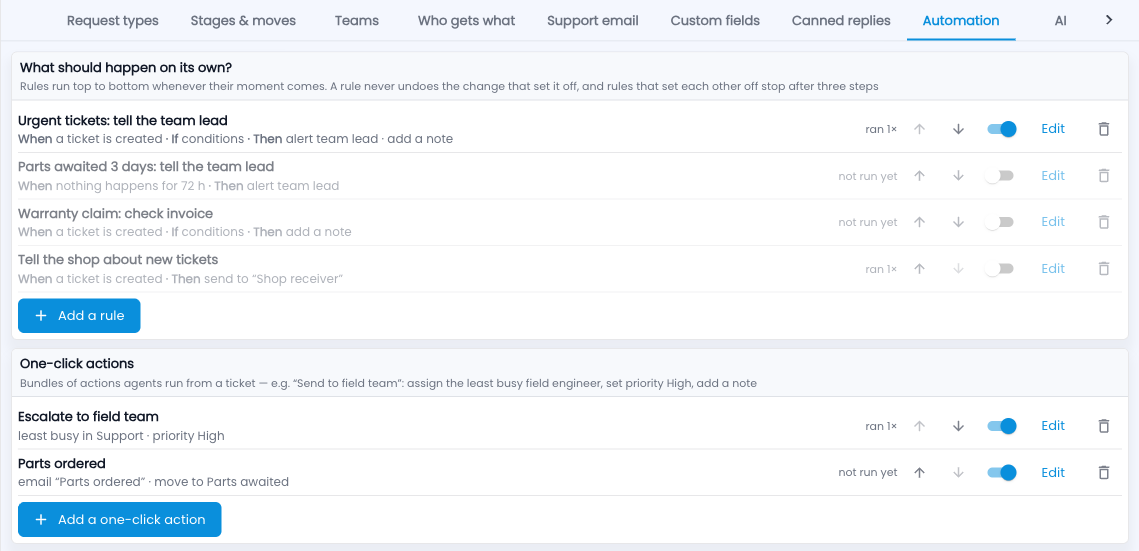
How do I set up automation and one-click actions?
- Go to Setup › Automation and click Add a rule.
- When — pick the moment, for example “A ticket is created”.
- If — add conditions if it should only apply sometimes, for example priority Urgent.
- Then — pick what happens: assign, set priority, move to a stage, set a field, add an internal note, email the customer a canned reply, alert someone, create a task, add or remove a tag, or send to a webhook.
- Save and switch it on. “ran 1×” shows it working.
An example
“Urgent tickets: tell the team lead” — when a ticket is created, if priority is Urgent, alert the team lead and add a note. A one-click action “Escalate to field team” gives the ticket to the least busy field engineer and sets priority High. “Warranty claims” — when a Warranty claim is created, Create a task for the owner: “Check the invoice for {ticket_no}”, due in 1 day.
Common questions
Can rules loop forever?
No. A rule never undoes the change that set it off, and rules that set each other off stop after three steps.
How often are timed rules checked?
Every minute.