
How do I use the ticket queue and saved views in Tazk Service Desk?
Find the tickets that need you: ready-made views, filters, search and your own saved views. Service Desk › Tickets lists requests. The tabs along the top are ready-made views, so you can go straight to what needs attention.
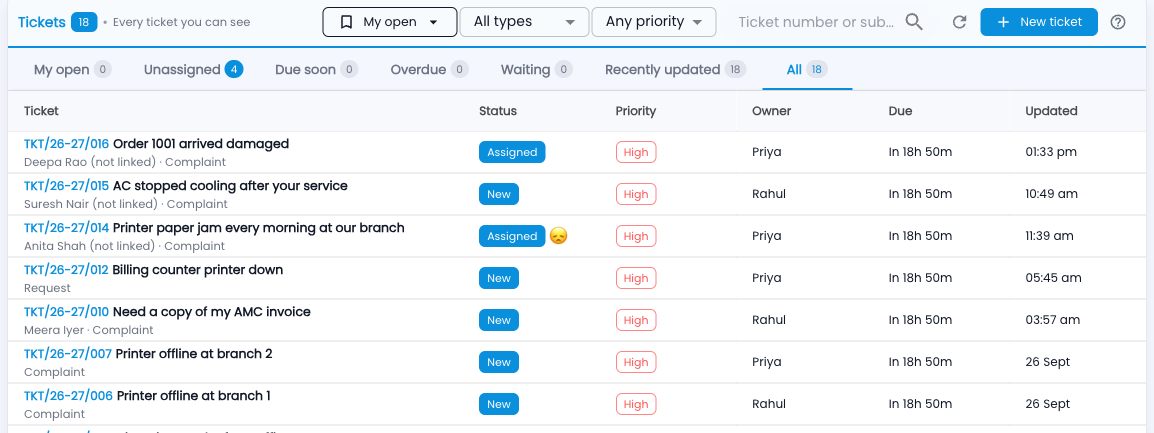
The views
- My open — assigned to you and not yet solved. Start your day here.
- Unassigned — nobody has picked these up yet.
- Due soon / Overdue — close to, or past, the promised time.
- Waiting — you are waiting on the customer or someone else; the clock is paused.
- Recently updated and All — everything you are allowed to see.
Step by step
- Pick a view from the tabs.
- Narrow it down with All types, Any tag and Any priority, or type a ticket number or a few words of the subject in the search box.
- Click a ticket to open it.
- To keep a filter you use often, open the views menu (the bookmark button) and save it with a name.
Reading a row
- The ticket number and subject, then the customer and request type underneath.
- “(not linked)” means the email address did not match a customer yet — open the ticket to link it.
- A face after the stage is the customer’s satisfaction rating, once they have given one.
- Due shows the time left on the next promise; red means it is overdue.
Common questions
Why can’t I see a colleague’s ticket?
Support Agents see tickets assigned to them, unassigned tickets in their teams, and tickets they raised. Ask a Support Manager to reassign it, or to add you to the team.
Can I share a saved view?
Yes — tick “Share with everyone in the company” when you save it. Everyone still only sees the tickets they are allowed to.