
How do I use tags on tickets in Tazk Service Desk?
Your team’s own labels on tickets — “VIP”, “refund risk”, “Diwali rush” — to find, sort, automate and report on them. Request types and stages say what a ticket is and where it is. Tags are everything else your team wants to remember: a VIP customer, a refund risk, a festive-season rush, a product batch. They are for your team only — customers never see them.
How do I set up tags?
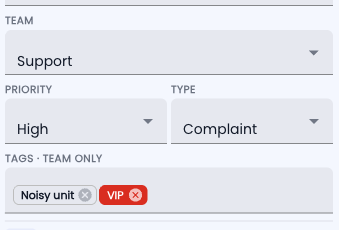
- On a ticket, type into Tags in the right-hand column and press Enter. A new word becomes a new tag; an existing one is offered as you type.
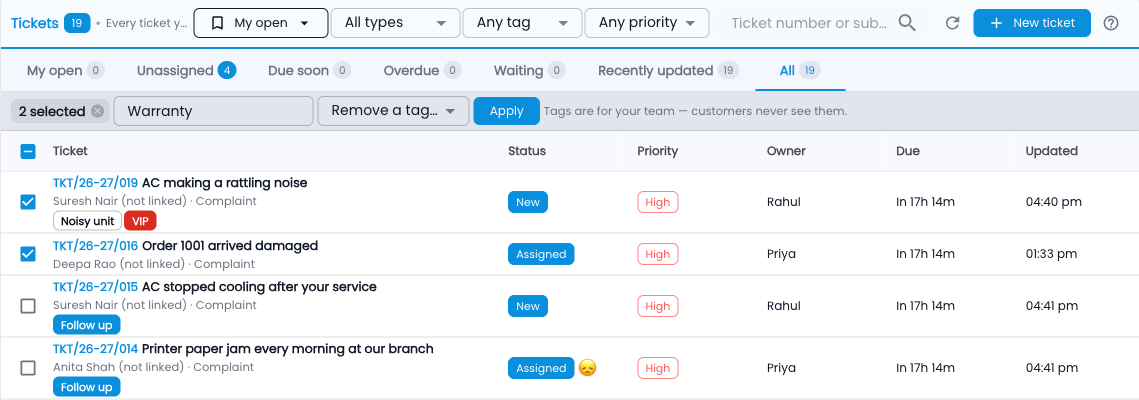
- In the queue, pick Any tag to see only tickets with those tags — and save it as a view if you use it often.
- To tag many tickets at once, tick them in the queue, type a tag (or pick one to remove) in the bar that appears, and click Apply.
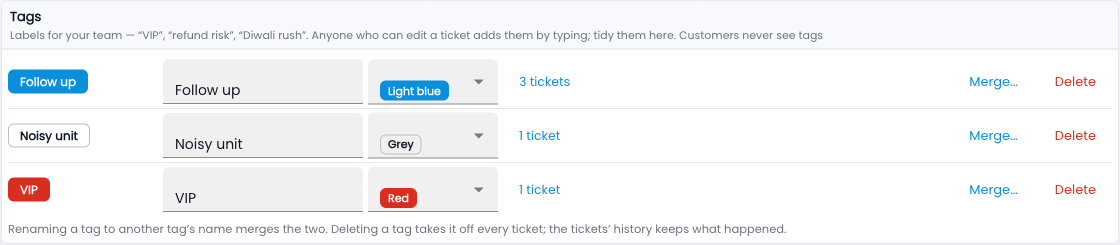
- In Setup › Tags, give a tag a colour, rename it, merge two tags that mean the same, or delete one.
Tags in automation, reports and the API
- Automation — use “Has a tag” as a condition, and “Add a tag” / “Remove a tag” as actions (Setup › Automation). For example: when a ticket is created and has the tag VIP, set priority to Urgent.
- Reports — “By tag” shows tickets created, resolved and the average time to resolve for each tag.
- API and webhooks — tickets carry their tags; your systems can set them and filter by them.
Common questions
Are “VIP” and “vip” two tags?
No — the same word in different cases is one tag.
What happens when I rename a tag to another tag’s name?
They merge into one: every ticket keeps a single copy.
How many tags can a ticket have?
Up to 10.
Does deleting a tag change the tickets’ history?
No — the tag comes off every ticket, but the history still shows when it was added or removed.