Biometric Attendance Not Syncing? Offline Mode, Device Changes and Installation Timelines: 12 Questions Answered
11 min read | By Lokesh A
Table Of Contents
Social Media


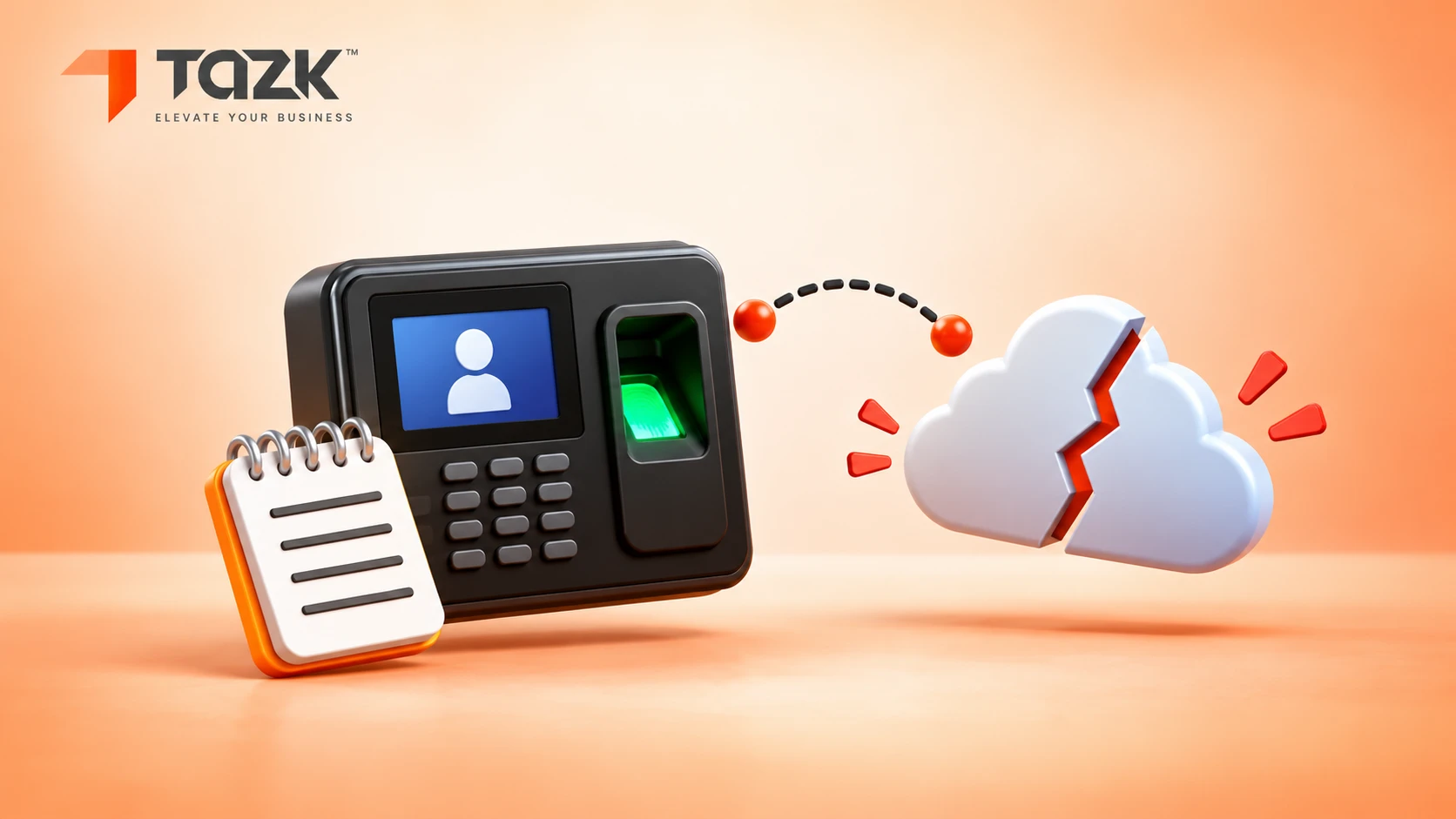
Picture a school gate with a register. A guard writes down each child's arrival time. If the phone line to the office is cut, the guard keeps writing. When the line comes back, he reads the whole list to the office. Nothing is lost, as long as the notebook is not full and the guard's watch was right.
A biometric attendance device works the same way. It reads a fingerprint or a face, writes the punch in its own memory, and sends it on when it can. Most trouble comes from four things: the connection, the clock, the memory and the settings. This guide answers 12 plain questions about them, from offline mode and duplicate punches to sync problems, changing devices, installation time and old devices with new payroll software.
A note on honesty: devices differ by model and firmware. We describe what vendors document and what common engineering practice says, and we give you a 30-minute test to run on your own device. We do not claim results for a model we have not tested.
The short answers
- Most networked devices keep punches in memory when offline and send them when the connection returns. Check your model's capacity.
- A punch should keep the time the device recorded, not the time it arrived. If the device clock is wrong, the punch is wrong.
- A device that stops syncing usually has a network, address, firewall, clock or full memory problem.
- Changing the device does not erase history held in the software, but fingerprint and face templates may not move between models.
- Installation is a set of phases, not one hour: mount, power, network, link, enrol and test.
- Many old devices can feed new payroll software by push, pull or USB. Send us the model number.
Under each heading you will find In simple words. Read only those lines and you will still understand the story.
Can biometric attendance devices work offline and sync later?
Yes, for most networked devices. They store each punch in their own memory and send it on when the connection returns. Peoplifi says punches accumulate on the device and sync automatically once connectivity is restored, and a Tressy guide says the terminal pushes its stored punches when the connection returns, so nothing is lost. Two limits matter. The device's memory is finite (one guide quotes up to 80,000 records for some models, so check yours). And anything that needs the cloud in real time, such as live dashboards and alerts, waits until the link is back.
In simple words: The device keeps a notebook. No internet means no phone call, not no writing.
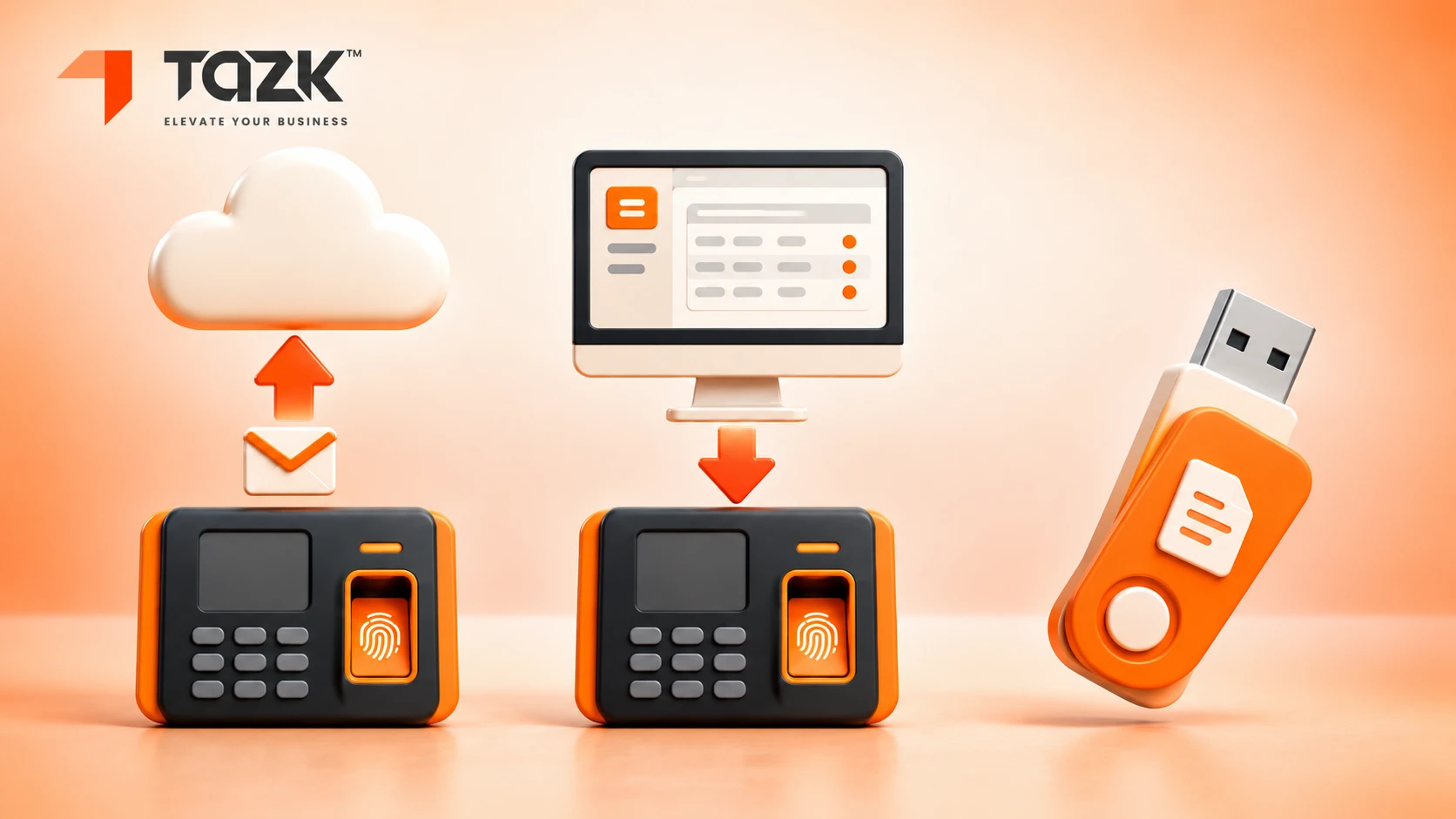
There are three common ways punches reach your software:
| Method | How it works | Good to know |
|---|---|---|
| Push (ADMS, or “cloud server”) | The device calls your server over HTTP or HTTPS and sends its logs | The device starts the call, so a normal router works without a fixed IP. Newer firmware can use HTTPS, as this explainer notes |
| Pull (SDK) | Software on your network connects to the device, by default on port 4370 | Both must sit on the same network. Never expose port 4370 to the internet, as the zkteco-php guide warns |
| USB file | Someone exports a log file and imports it | Manual and slow. Keep it as the fallback |
| What happens with no internet | Standalone devices |
|---|---|
| Punching and matching on the device | Keeps working |
| Sending punches to the cloud | Waits |
| Live dashboards and late-arrival alerts | Wait |
| Adding or changing users remotely | Waits |
One caution: camera and kiosk apps that match faces in the cloud need internet to match at all. Check which type you own.
What happens to punches, duplicates and timestamps after reconnection?
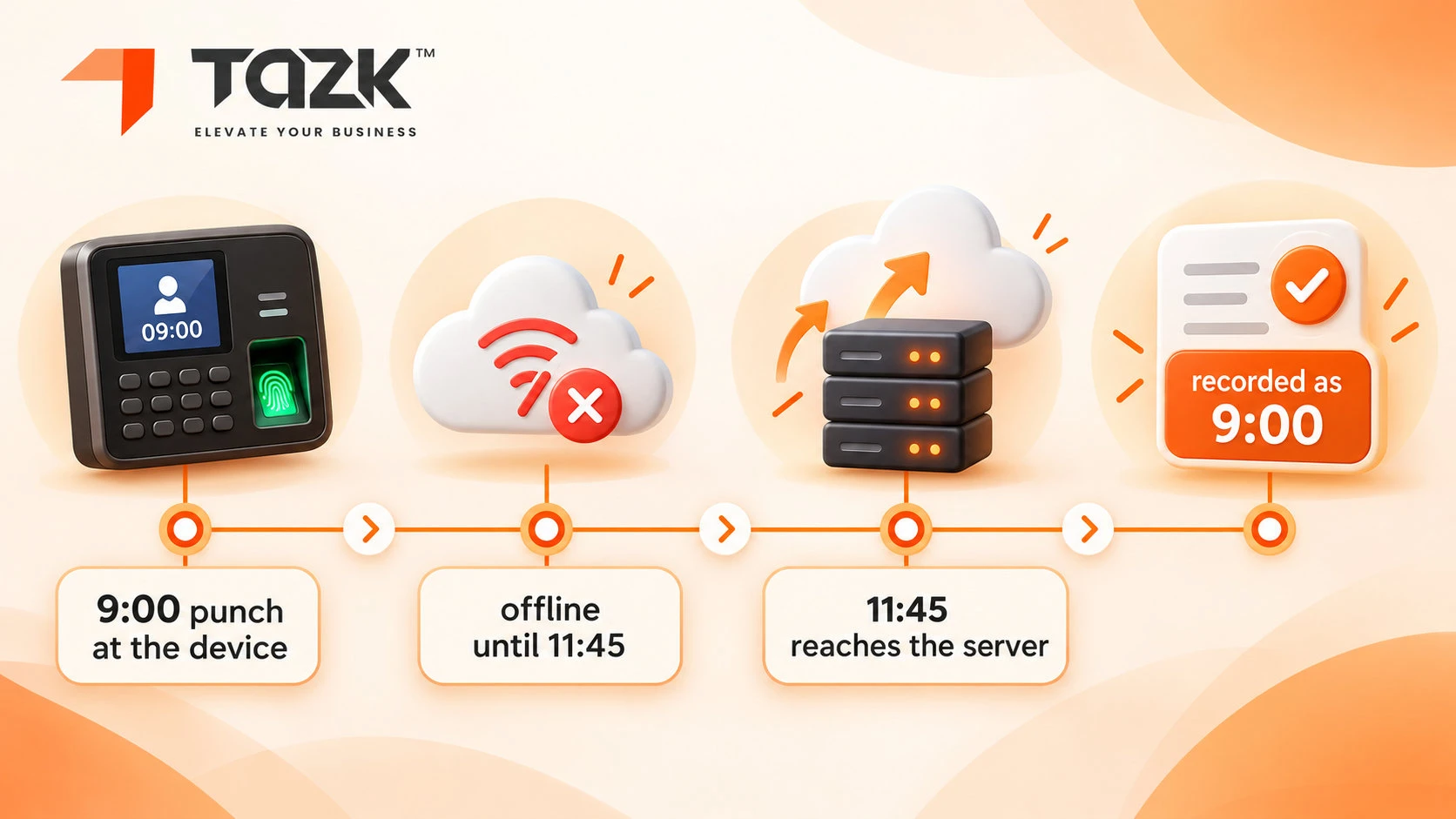
A well-built system keeps each punch's original time, sends each punch once and ignores repeats. The punch time is the time the device recorded when the person punched, not the time the server received it. Engineering notes on attendance systems say never to use the server's receive time as attendance time. A punch made at 9:00 that arrives at 11:45 must still count as 9:00.
In simple words: A letter is dated when it is written, not when the post office delivers it.
How duplicates are avoided, and how they still happen:
- ZKTeco's push protocol has the device first read from the server the time of the last record already uploaded, and then carry on from there, as a summary of its PUSH SDK document describes.
- Devices and software can ignore a repeat punch inside a set gap. greytHR calls its settingwait time between swipes.
- Duplicates still appear when two sync modes run at once, such as real-time and file import, as Peoplifi warns, and when someone double-taps.
| Check after a long outage | Why it matters |
|---|---|
| Count | Does the number of punches in the software match the device's record count? |
| Time | Does each punch carry the time the person punched, not the time it arrived? |
| Clock | Is the device clock right? One engineering guide suggests an alert when drift passes five minutes |
| Duplicates | Are there identical punches seconds apart? |
| Midnight | Are punches around midnight on the right day? Another vendor's release notes list a midnight bug as a past fix |
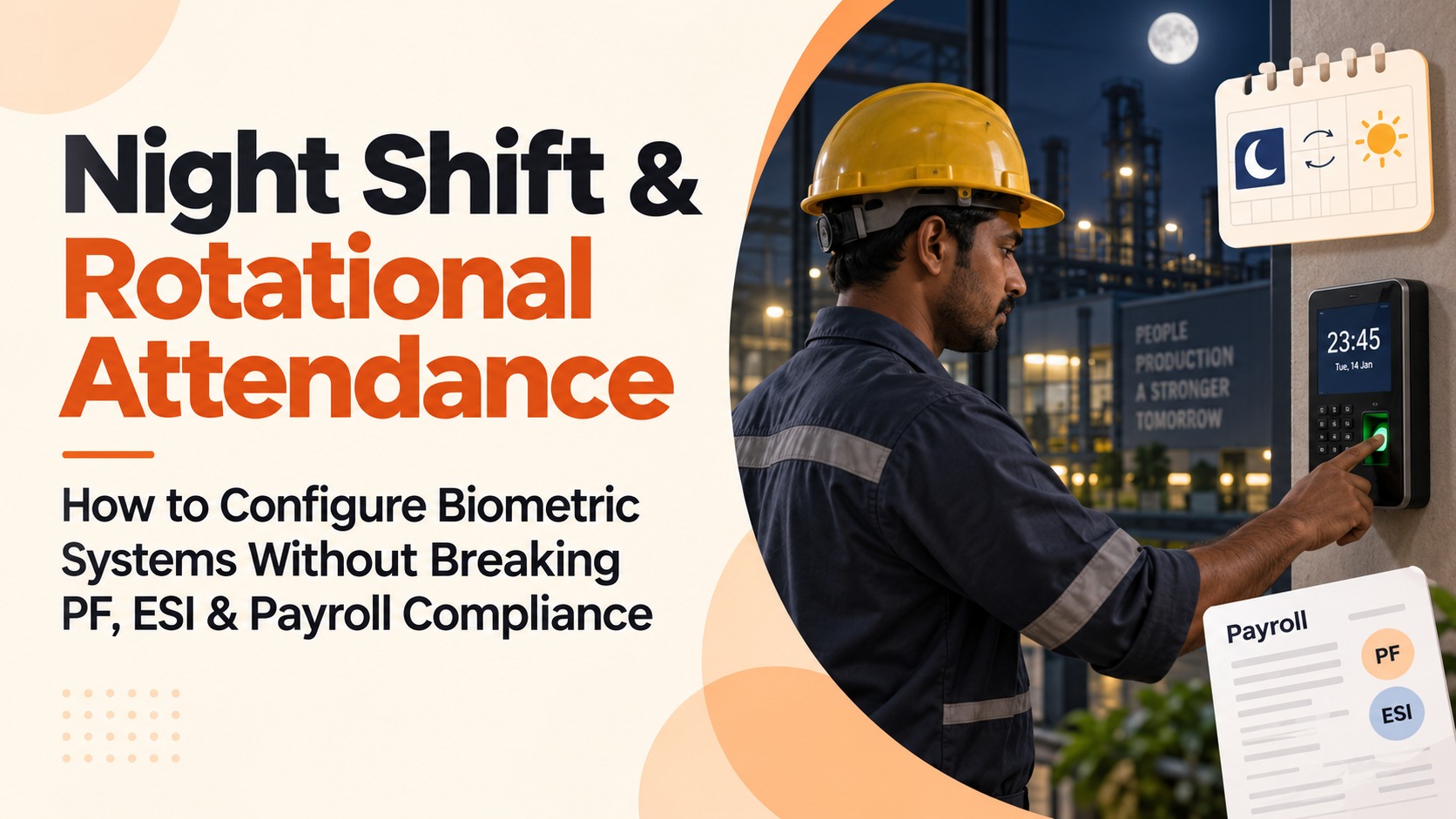
Shifts that cross midnight need extra care. See our guide to night-shift attendance configuration.
Attendance device not syncing to the cloud in real time: how do I fix it?
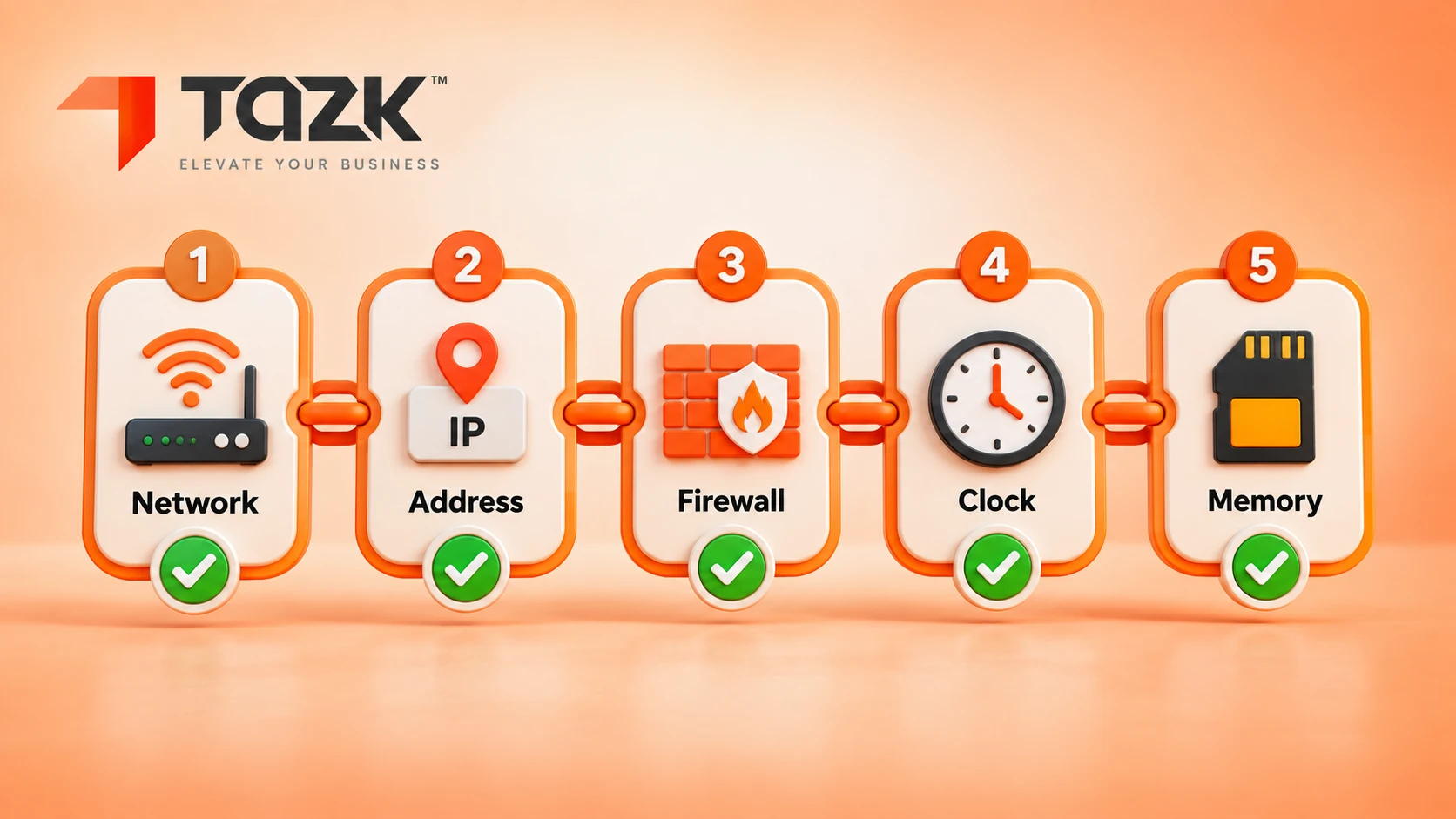
Check five things in order: the network, the server address, the firewall, the clock and the memory. Most sync failures come from one of them. Start at the device screen and work towards the server.
In simple words: If the phone does not ring, check the line, the number, the gate, the clock, and whether the notebook is full.
| # | Check | What to look for | If it is wrong |
|---|---|---|---|
| 1 | Network | The cable or Wi-Fi is connected and the device has an IP address | Fix the cable, Wi-Fi or router. For pull, give the device a fixed or reserved address |
| 2 | Server address | The cloud server address and port match what your software gave you. On many devices they sit under Comm, then Cloud Server, as SmartBioTime describes | Re-enter them, save and restart the device |
| 34 | Firewall | For push, outbound web traffic is allowed. For pull, your local network allows TCP port 4370 | Ask your IT person to allow it, and never open port 4370 to the internet |
| 4 | Clock | Date, time and time zone on the device are right | Correct them, then check for punches on the wrong day |
| 5 | Memory | The device is not full | Export a backup, check that it synced, then clear old logs, as MiHCM advises |
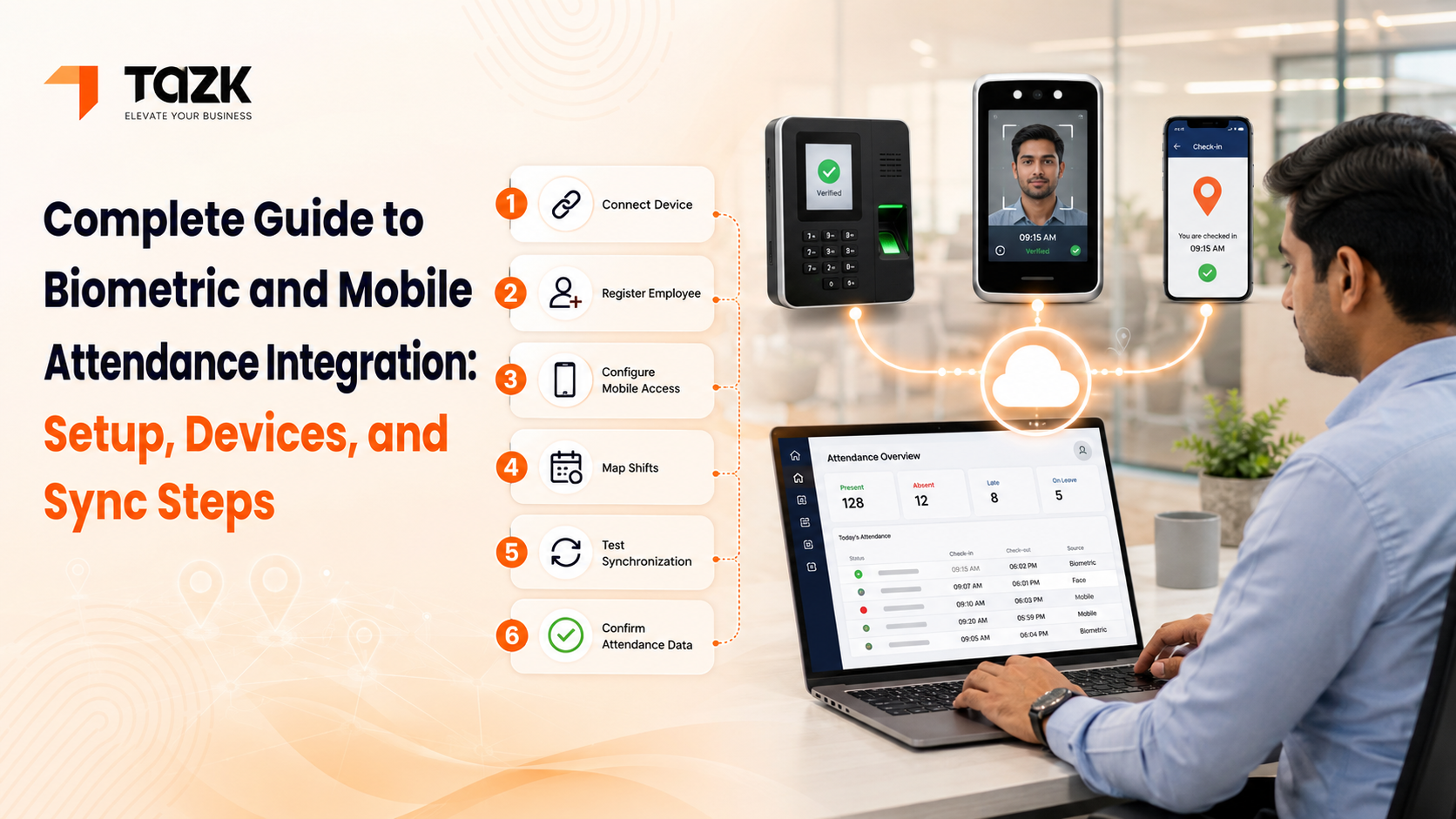
If all five pass, look at two more causes. MiHCM lists a mismatch between the SDK version and the device firmware, and Peoplifi warns about two sync modes running at once. Also look at the “last connected” or online status in your dashboard. As a last resort, export the log file by USB, import it, and fix any gaps with manual attendance corrections. For general setup, see our biometric and mobile attendance setup guide.
Is old attendance data safe when I change the device or app?
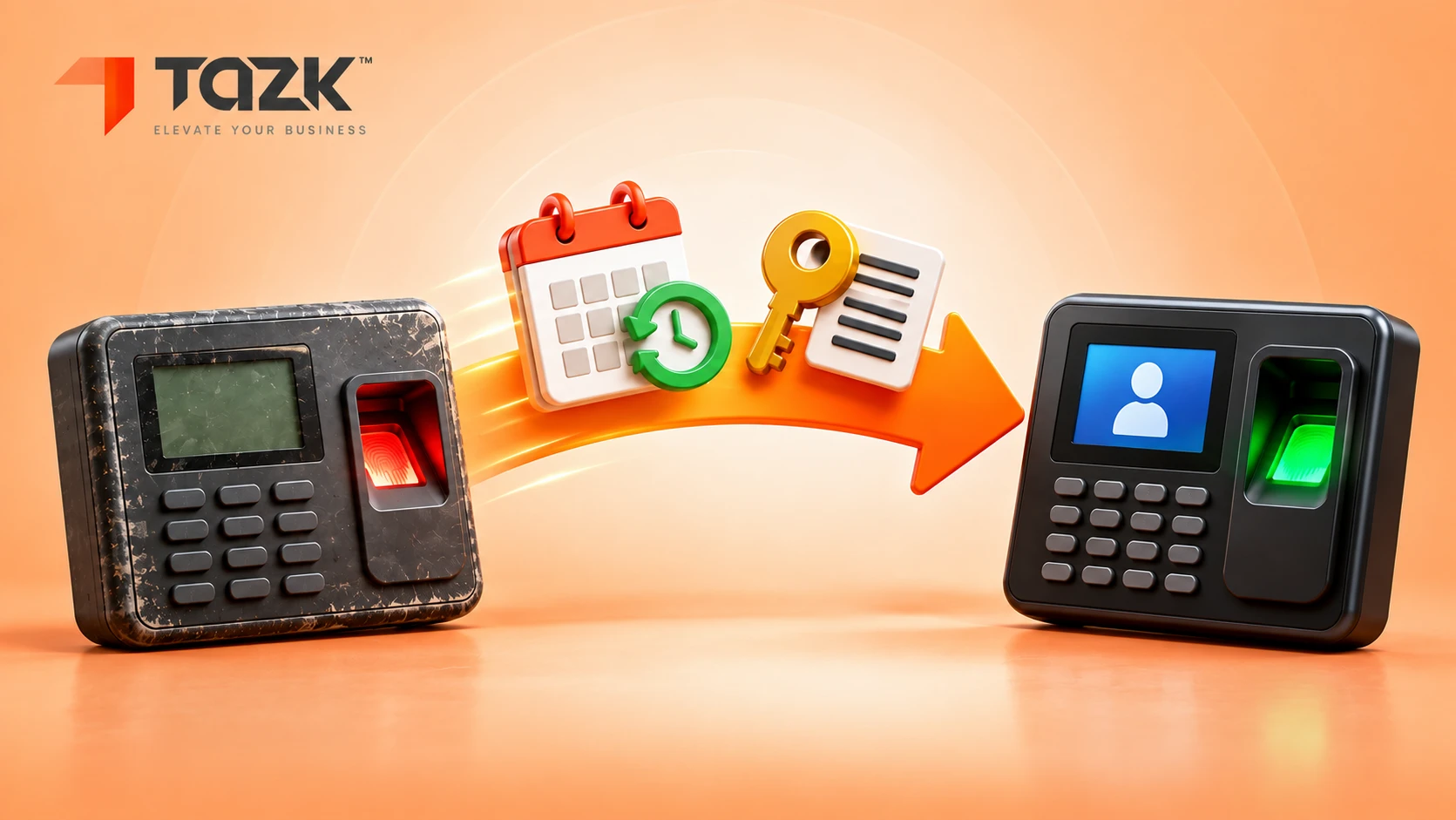
Usually yes for the history, and not always for the fingerprints and faces. Punch history is stored in your software, so a new device does not erase it, as long as the logs reached the software first. But enrolled fingerprints and faces, called templates, live on the device and are tied to the maker's algorithm version. Vendors warn that templates often do not move between models, so people may need to enrol again.
In simple words: Your attendance diary stays in the cupboard. But each person's “key” was cut for one lock. A new lock may need new keys.
Vendors say this plainly. TimeTec's knowledge base explains that differences in algorithm versions block fingerprint transfers between older and newer models, which forces re enrolment unless you pair devices on the same algorithm. Suprema notes that FaceStation 1 templates are not compatible with FaceStation 2 because the algorithm and template size differ. If templates are saved in the software, users can be pushed to a new device without re-enrolling. FingerTec's guide adds a warning: tick the option that stops empty data overwriting the device, or you can wipe its users.
A safe change plan:
- Sync and verify. Confirm all logs from the old device reached the software, and export a copy.
- Back up users and templates to the software or USB, not only on the device.
- Check template compatibility. Ask the vendor whether the new model uses the same algorithm. If not, plan re-enrolment by shift.
- Pilot with five people on the new device.
- Keep employee IDs identical, so the history lines up.
- Run both devices side by side for a short time, then retire the old one.
- Never clear the old device's logs until the totals match.
Changing the app is similar. Before you switch, export the raw punch logs and your employee ID map, ask the new vendor to import the history, and keep the old export read only for audits.
How long does face-attendance device installation take?
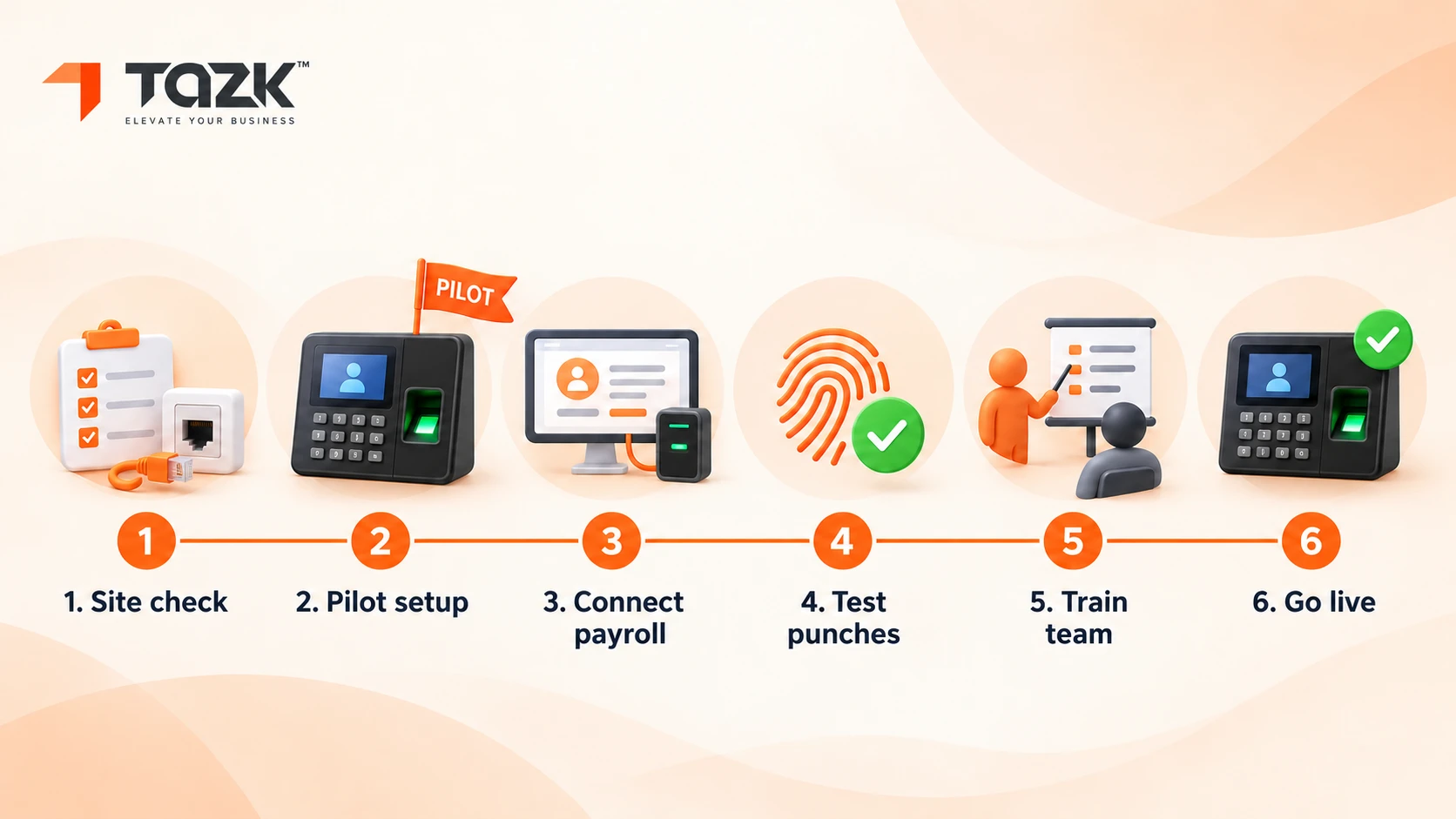
It depends on the phases, not on one number. Much of the time goes into network and linking work and into enrolling people, not into fixing the device to a wall. We do not quote a fixed number of hours, because it depends on your site, your network and your headcount. Ask your installer for a dated plan with each phase. Clockster says the requirements are minimal: power and internet, with the device fixed in place and out of direct sunlight. Begin's guide says to mount at eye level, connect to the network and check the lighting. ZKTeco's quick-start guide for its uFace model starts with a mounting template, drilling and a back plate, then power, network and enrolment.
In simple words: Hanging a picture is quick. Making sure everyone can see it, and knows how to look at it, takes the time.
| Phase | What happens | What makes it take longer |
|---|---|---|
| 1. Site check | Choose a spot at eye level, with good light, near power and network, out of direct sun | Many entrances or shift gates |
| 2. Mounting and power | Fix the back plate and connect power | Wall type and cable runs |
| 3. Network | Connect by cable or Wi-Fi and set the address | Locked-down office networks and firewall approvals |
| 4. Link to software | Enter the server address and check that a test punch arrives | Old firmware or an unknown model |
| 5. Enrolment | Each person registers a face. The ZKTeco guide notes the device captures a face up to three times | Headcount, shifts, and people wearing glasses |
| 6. Test and go live | Run a few days in parallel with your old method | Rules for late marks, overtime and shifts |
Three tips help. Start with one device as a pilot. Enrol people shift by shift. And plan go live just after a payroll cut-off, not just before one.
Can I connect an old biometric device to new payroll software?
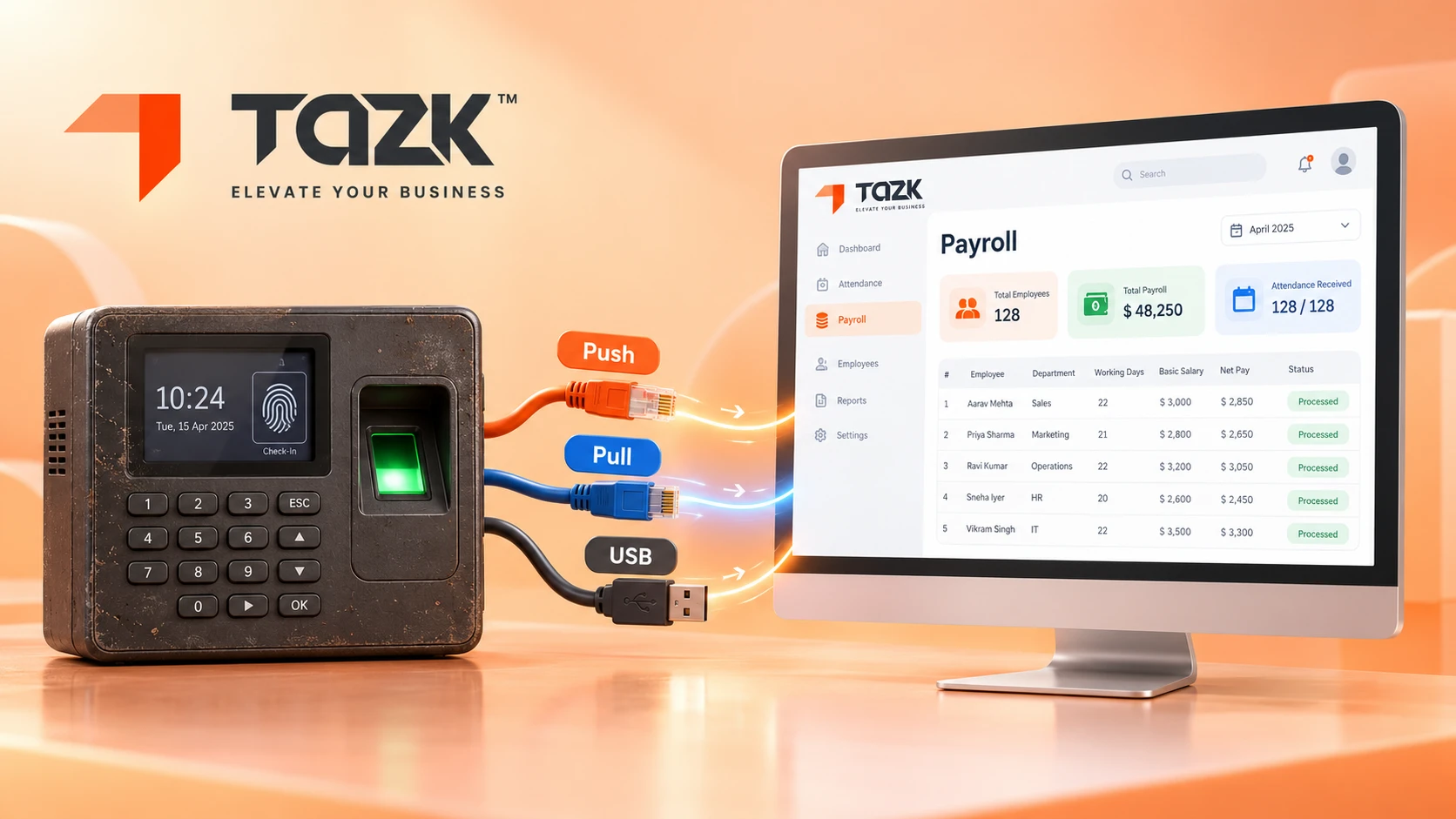
Often yes, if the device can send its punches out in one of three standard ways: push, pull or a USB file. Many brands share protocols. The Tressy guide notes that ZKTeco, eSSL and Realtime terminals use the same push system, usually labelled ADMS or Cloud Server in the menu. What decides compatibility is the model and the firmware, so the first step is to read both off the device.
In simple words: An old phone can still call a new number, if it speaks a language the new exchange understands.
| Method | Works when | Trade-off |
|---|---|---|
| Push (ADMS or Cloud Server) | The menu has a server address field | Near real time, and the device needs internet |
| Pull (SDK, port 4370) | Software on your network can reach the device | No internet needed on the device, but you need software on site and careful security |
| USB file | Nothing else works | Manual and delayed, so keep it as a fallback |
Check five things on the old device:
- The model and firmware version.
- Whether the menu has a Cloud Server or ADMS setting.
- That the clock is right and the memory is not full.
- That its user IDs match your employee IDs.
- That it has a working network connection.
If the device has only USB, plan a small gateway or a replacement. Send us your device model number and we will confirm whether it works with Tazk payroll software.
Run your own 30-minute offline test, and avoid 6 common mistakes
Do not trust any promise, ours included, until you have seen your own device do it. This test takes about 30 minutes. You need one device, one tester and a phone to note the times.
In simple words: Pull the plug on purpose, punch a few times, plug it back in, and count.
- Note the device model, the firmware version and the device time. Check that the time matches your phone.
- Make one punch and confirm it appears in the software straight away.
- Disconnect the device from the network.
- Make 10 punches. Write down the exact time of each, and include two quick double taps.
- Wait 15 minutes, then reconnect.
- Watch for the punches to arrive, and note how long it takes.
- Compare the software with your notes.
| Item | Your result |
|---|---|
| Device model and firmware | |
| Minutes offline | |
| Punches made | |
| Punches that arrived | |
| Minutes to arrive after reconnecting | |
| Were the punch times correct? | |
| Duplicates | |
| Double-taps collapsed into one? |
Six mistakes to avoid
- Clearing the device's logs before the totals match.
- Opening port 4370 to the internet.
- Running push and file import at the same time.
- Ignoring the device clock.
- Changing devices without checking template compatibility.
- Promising a go-live date before a pilot.
What happens next: biometric attendance, 2026 to 2027
The next year will bring more cloud push, more mobile punches beside devices, and new duties around biometric data. Here is what we know, then expectations that we label as expectations.
| When | What happens | What to do |
|---|---|---|
| Now | Push to the cloud is becoming the default, and newer firmware can use HTTPS | Use HTTPS where your device supports it |
| Every month | Payroll cut-off | Run the offline test and the count check before cut-off, not after |
| Mid-May 2027 | India's data protection duties on notice and consent become enforceable, as Legal 500 explains | Treat fingerprint and face templates as personal data. Record consent and limit who can see them |
What may come next (expectations, not promises):
- More health alerts. Vendors already add “device offline” alerts and sync-health monitors, as Creyox and QHRM show. Expect an offline device to tell you within the hour.
- Devices and phones side by side. One payroll will need to accept both. Our guide toGPS-verified attendance shows how phone punches fit.
- Weak template portability. Few formats are shared between makers, so budget for re enrolment when you change models.
- Stricter handling of biometric data. Expect questions on consent, storage and retention.
Not sure your device will work? Send us your device model number and we will confirm compatibility. Read more about https://tazk.in/payroll-management-software or visit theTazk home page to see every module.