Complete Guide to Biometric and Mobile Attendance Integration: Setup, Devices, and Sync Steps
15 min | By Lokesh A
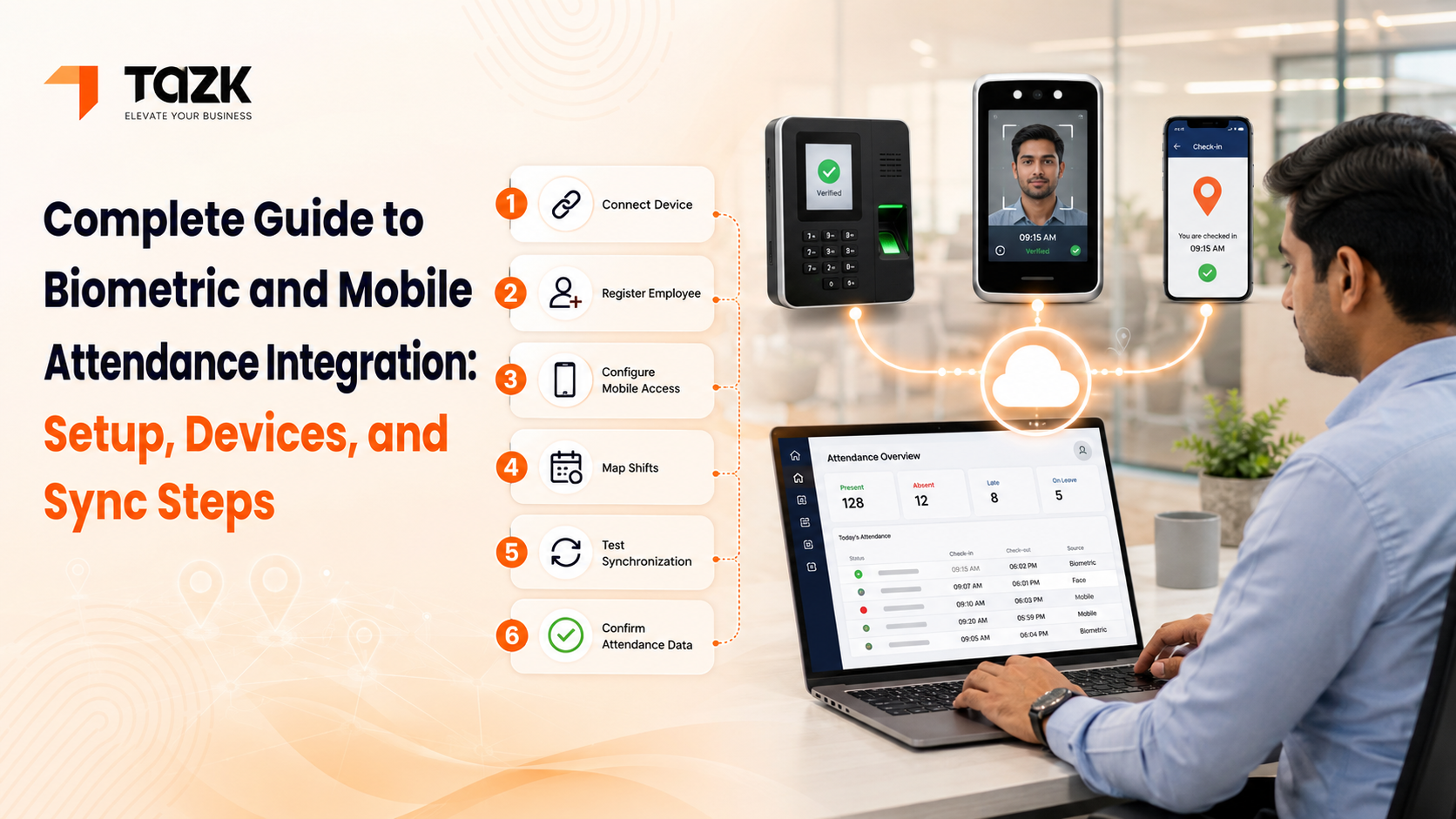
Table Of Contents
Social Media




Three months ago, I visited a garment factory in Tirupur. The owner, Ramesh, showed me their attendance system with visible frustration.
They had three biometric devices at different entry points. Each device stored attendance data locally. Every month-end, someone would physically go to each device with a USB drive, export data, manually merge three Excel files, clean up duplicate entries, and then copy-paste into their payroll sheet.
The whole process took two days. And errors? Constant.
"Last month," Ramesh told me, "we paid overtime to someone who'd actually taken leave because the data from gate 2 didn't merge properly."
Six weeks later, I visited again. Same factory, completely different story. Employees walked in, marked attendance on the same biometric devices, but now the data appeared instantly on Ramesh's phone. No USB drives. No manual merging. No errors.
His exact words: "I didn't realize how much mental bandwidth that chaos was consuming until it disappeared."
If you're setting up attendance tracking for your business—or replacing a system that isn't working—this guide will walk you through everything: which devices work well in Indian conditions, how to set them up properly, and most importantly, how to make everything sync smoothly with your payroll.
Understanding Your Attendance Tracking Options
Before buying devices or downloading apps, let's understand what options actually exist and when each makes sense.
Biometric Attendance Devices
These machines capture unique biological traits—usually fingerprints or face recognition—to mark attendance.
When they work best:
- Fixed workplace locations (factories, offices, shops)
- Employees who can't carry phones during work (manufacturing, healthcare)
- Higher security requirements
- Locations with reliable electricity and network
Common types:
Fingerprint scanners: Most popular in India. Affordable (₹5,000-₹15,000), reliable, and employees are familiar with them.
Face recognition devices: Contactless, hygienic, faster than fingerprint. More expensive (₹15,000-₹40,000) but gaining popularity post-COVID.
Iris scanners: Extremely accurate but expensive (₹40,000+). Usually only for high-security environments.
Card-based systems: Cheap but easily misused (someone else can use another's card). Avoid unless combined with biometrics.
Mobile Attendance Apps
Smartphone apps that use GPS, selfies, or QR codes to mark attendance.
When they work best:
- Field sales teams
- Delivery personnel
- Remote workers
- Employees who travel to client locations
- Companies without fixed office spaces
Common verification methods:
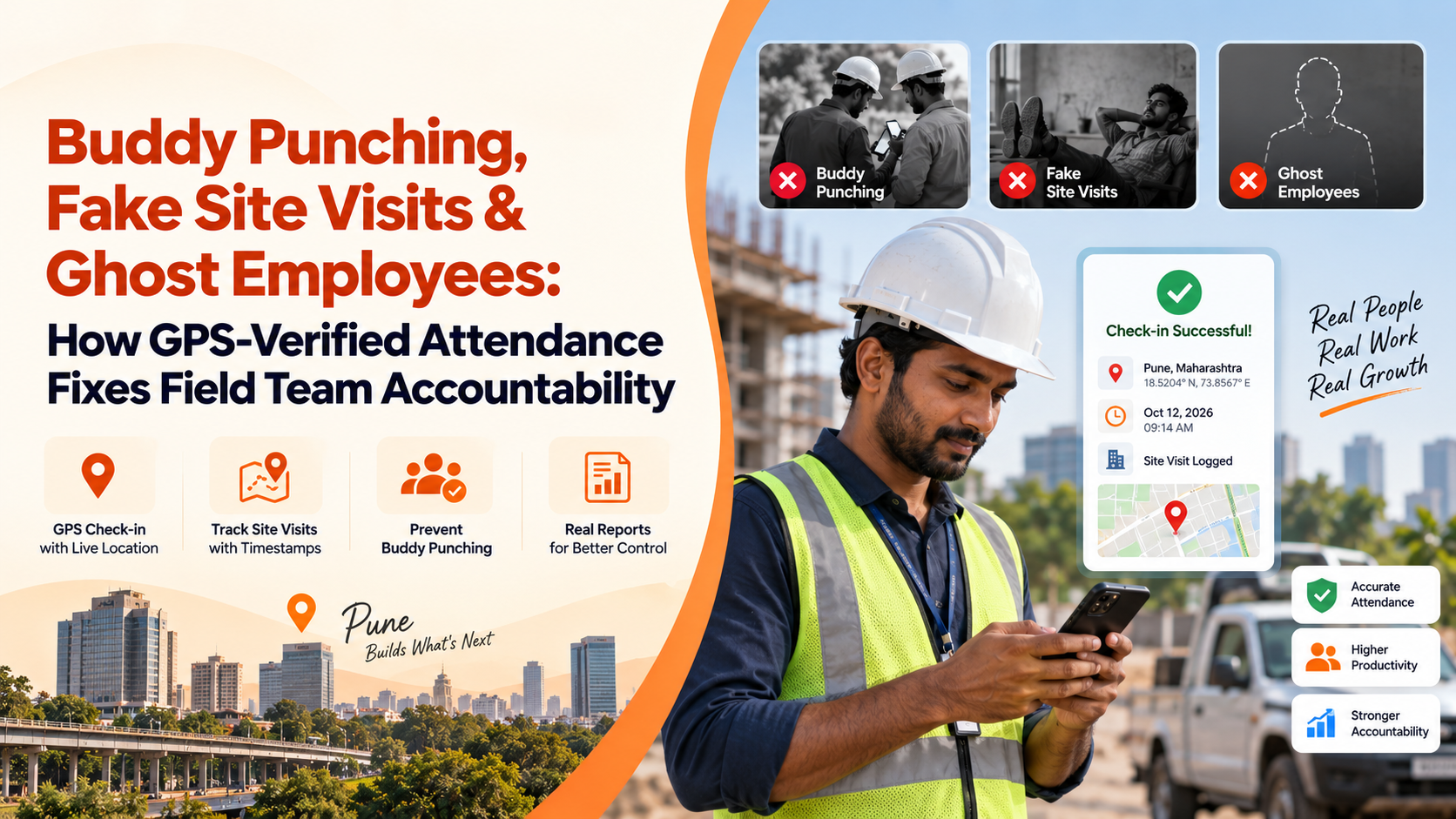
GPS-based: App captures location when employee marks attendance. You can set geo-fencing (allowed radius from designated location).
Selfie-based: Employee takes photo while marking attendance. Face recognition confirms identity.
QR code: Physical QR codes placed at locations. Employee scans to mark attendance.
Combination: GPS + selfie for stronger verification, preventing proxy attendance.
Web-Based Attendance
Browser-based attendance marking for remote workers or office staff.
When it works best:
- Work-from-home employees
- Flexible work arrangements
- Small offices without physical devices
- Budget-conscious startups
Features to look for:
- IP address capture (confirms they're on company network if required)
- Screenshot capture at intervals (if monitoring needed)
- Integration with calendar apps
- Desktop notifications for breaks and shift end
Hybrid Approach
Most modern businesses need a combination. Your factory workers use biometric, sales team uses mobile app, and remote developers use web check-in.
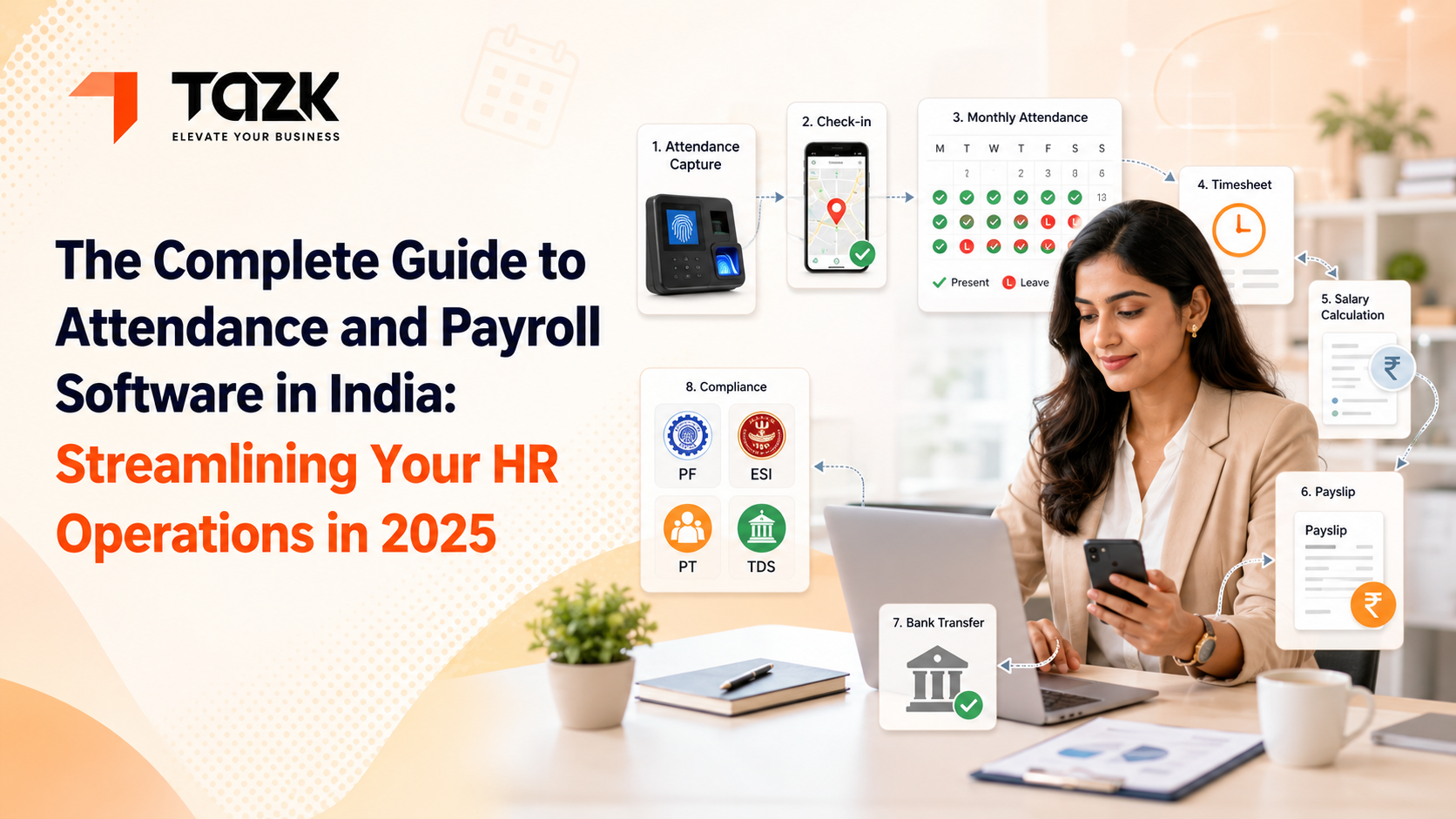
The key is: all these different methods should feed into one unified attendance and payroll software system, not separate databases you manually combine later.
Choosing the Right Biometric Devices
If you're buying biometric devices, here's what matters in Indian conditions.
Brands That Work Reliably in India
I've seen dozens of attendance systems, and certain brands consistently perform better:
eSSL:
Probably the most popular in India. Good range from basic (₹5,000) to advanced (₹20,000). Service network across most cities.
ZKTeco:
International brand with strong India presence. Reliable devices, slightly pricier but good quality. Their face recognition devices are excellent.
Realtime:
Indian brand, decent quality, competitive pricing. Good for smaller businesses.
Suprema:
Premium range, mainly for large enterprises. Excellent accuracy but expensive.
Matrix:
Good mid-range option with reliable after-sales support.
Avoid:
Unknown Chinese brands available cheaply on e-commerce sites. They might work initially but fail within months, and you'll get zero support.
Technical Specifications to Check
Don't just look at price. Check these specifications:
Fingerprint sensor type:
- Optical sensors (₹5,000-₹10,000): Work well but can be fooled by fake fingerprints
- Capacitive sensors (₹10,000-₹15,000): More secure, work with slightly wet fingers
- Multi-spectral sensors (₹15,000+): Best accuracy, work even with very rough or worn fingerprints
Storage capacity:
- Minimum 1,000 fingerprints for small businesses
- 5,000+ for medium businesses
- 10,000+ for large factories
Transaction logs:
Stores at least 50,000 attendance records before needing a clear-out
Communication:
Must support both USB (for backup) and LAN/WiFi (for real-time sync)
Display:
LCD display that shows employee name/ID after recognition (confirms correct marking)
Backup battery:
At least 2-4 hours backup for power outages
Operating temperature:
Important for India—should work 0-45°C minimum
Face Recognition vs. Fingerprint
Face recognition is becoming popular. Here's the honest comparison:
Fingerprint advantages:
- Cheaper devices
- Works in all lighting conditions
- Proven technology, highly reliable
- Lower processing power needed
Fingerprint limitations:
- Physical contact (hygiene concerns)
- Doesn't work well with very rough/worn fingers
- Can be slow if recognition quality degrades
- Requires employees to remove gloves
Face recognition advantages:
- Contactless (huge plus post-COVID)
- Faster (walk up, recognized, done)
- Works with gloves, rough hands
- Can recognize with masks (newer models)
Face recognition limitations:
- More expensive
- Needs good lighting
- Affected by major appearance changes
- Requires more processing power
My recommendation:
For manufacturing/industrial settings with physical work, face recognition is worth the extra cost. For offices and shops, fingerprint still works great and costs less.
Setting Up Biometric Devices Properly
You've bought your device. Now here's how to set it up so it actually works reliably.
Physical Installation
Location matters enormously:
For entry/exit tracking:
- Mount at entry points where employees naturally pass
- Height: 4-5 feet from floor (comfortable for most people)
- Protected from direct rain and sunlight
- Near power outlet for stable electricity
- Away from high-traffic areas where people might bump into it
For factory floors:
- Multiple devices if factory is large (one device per 100-150 employees max)
- Near shift change points
- Protected enclosures if dust/humidity is high
For offices:
- Near main entrance or reception
- One device sufficient for 50-75 employees
- Consider additional devices on higher floors in multi-story buildings
Network Configuration
This is where many installations fail. The device must communicate with your attendance software.
Option 1: LAN Connection (Most Reliable)
Connect device to your local network via Ethernet cable:
- Connect device to LAN switch/router
- Access device admin panel (usually via IP address in browser)
- Configure device IP address (static preferred)
- Note down device IP and port (usually 4370)
- Configure firewall to allow device communication
Option 2: WiFi Connection
Some devices support WiFi:
- Access device settings via admin panel
- Scan for available WiFi networks
- Enter WiFi password
- Assign static IP to device (prevents connection loss if router restarts)
Pro tip: Always use LAN where possible. WiFi is convenient but less reliable for critical systems.
Device Configuration
Admin settings:
- Set date and time: Critical for accurate attendance stamps
- Configure departments: Create department list matching your organization
- Set working hours: Define standard shift timings
- Late-coming threshold: How many minutes after shift start counts as late
- Early leaving threshold: How many minutes before shift end counts as early exit
- Overtime calculation: Automatically flag hours beyond shift end
Authentication settings:
- Fingerprint quality: Set to medium or high (low quality allows false positives)
- Matching threshold: 1:1 (one finger matches one stored template) vs 1:N (any finger matches any stored template)
- Verification mode: Fingerprint only, or fingerprint + password for sensitive areas
Employee Enrollment
Now you need to register employees in the device.
Best practice process:
- Enroll during onboarding: Add new employees to attendance system on day one
- Multiple fingerprints: Register 2-3 fingers per employee (in case one finger gets injured or dirty)
- Quality check: Ensure enrollment shows "good quality" before accepting
- Test immediately: Have employee test marking attendance right after enrollment
Common enrollment mistakes:
- Registering only one finger (creates problems if that finger is injured)
- Accepting poor quality fingerprints (leads to recognition failures later)
- Not testing immediately after enrollment
- Forgetting to sync enrollment data to software
For understanding how attendance data affects salary calculations and deductions, check our comprehensive salary calculation guide.
Integrating Devices with Payroll Software
Having a biometric device is one thing. Making it talk to your payroll system is where the magic happens.
Understanding SDK and APIs
Most attendance devices come with SDK (Software Development Kit) or API (Application Programming Interface) for integration.
Your payroll management software needs to support your device's communication protocol. Common protocols:
- ZKTeco proprietary protocol
- SOAP-based web services
- REST APIs
- Direct database access
Good news: Modern cloud-based payroll software typically supports all major device brands out-of-box. You just select your device model from a dropdown.
Integration Setup Steps
Step 1: Software configuration
In your attendance software:
- Go to device management section
- Click "Add New Device"
- Select device brand and model
- Enter device IP address and port
- Enter device admin credentials
- Test connection
Step 2: Data sync setup
Configure how often data syncs:
- Real-time: Every attendance mark immediately syncs (requires stable network)
- Scheduled: Every 15 minutes, hourly, or daily
- Manual: You trigger sync when needed
Recommendation: Hourly sync for most businesses. Real-time if you need instant visibility. Daily if network is unreliable.
Step 3: Employee mapping
Map device employee IDs to software employee records:
- Export employee list from device
- Import into software
- Match device ID with software employee ID
- Verify mapping is correct
Critical: If employee IDs don't match between device and software, attendance won't link to the right person.
Step 4: Attendance rules setup
Configure rules in software:
- Shift timings for different employee groups
- Grace period for late arrivals
- Half-day rules (e.g., late by >4 hours = half day)
- Overtime calculation triggers
- Missing punch handling (what if someone marks only IN, not OUT?)
Step 5: Test thoroughly
Before going live:
- Mark test attendance for 5-10 employees
- Verify it appears correctly in software
- Process a test payroll cycle
- Check if attendance affects salary correctly
- Generate attendance reports and review
Don't skip testing. Find errors now, not when processing actual salaries.
Handling Multiple Devices
If you have devices at multiple locations:
- Centralized sync: All devices connect to same central software database
- Branch-wise setup: Each branch has local device connected to central cloud software
- Failover: If network fails, device stores data locally and syncs when connection restores
Modern software handles all this automatically. The IT team's job is ensuring reliable network connectivity to each device.
Setting Up Mobile Attendance Apps
Mobile attendance is simpler to set up but needs different considerations.
App Selection Criteria
Essential features:
- GPS location capture
- Geo-fencing (mark attendance only within allowed area)
- Works offline (syncs when internet available)
- Photo/selfie capture
- Multiple check-in points for field staff
- Battery efficient (doesn't drain phone fast)
Good to have:
- QR code scanning
- Voice notes/reports
- Route tracking (for delivery/sales teams)
- Client visit tracking
- Expense reporting integration
Most HR and payroll software platforms include their own mobile app, or integrate with popular attendance apps.
Mobile App Configuration
Step 1: Define work locations
For each office/branch/client location:
- Add location name
- Set GPS coordinates (latitude/longitude)
- Define geo-fence radius (usually 50-500 meters)
- Set location type (office, client site, flexible)
Example:
- Office: 100-meter radius (employees must be within this to mark attendance)
- Client sites: 200-meter radius (more flexibility)
- Field work: No geo-fence (mark from anywhere)
Step 2: Employee setup
- Download app on employee smartphones
- Employee logs in with credentials
- Grant location permissions
- Grant camera permissions (if selfie verification used)
- Test marking attendance
Step 3: Verification rules
Configure verification method per employee type:
- Office staff: GPS + selfie at office location
- Field sales: GPS only, from designated client locations
- Remote workers: No geo-fence, but selfie required
- Delivery staff: GPS + photo of delivery proof
Step 4: Shift and schedule
Assign shifts in software:
- Define shift timings for each employee
- Set expected work location for each shift
- Configure exception handling (what if they're at different location?)
GPS Accuracy and Troubleshooting
GPS-based attendance has quirks. Here's how to handle them:
- Poor GPS signal:
- Inside buildings, GPS can be 50-100 meters off
- Under flyovers or dense tree cover, accuracy drops
- Solution: Allow wider geo-fence radius or use WiFi-based location
- Battery drain:
- Continuous GPS tracking drains battery fast
- Solution: Capture GPS only during check-in/out, not continuously
- Fake GPS apps:
- Some employees use apps to spoof location
- Solution: Good attendance apps detect and block fake GPS
- Network issues:
- If internet is down, attendance won't sync
- Solution: App stores data locally, syncs automatically when connected
- Timezone problems:
- Employee traveling across timezones
- Solution: Software should record UTC time and convert to local time
Privacy and Trust
Mobile attendance tracking raises privacy concerns. Address them transparently:
Be clear about:
- Location is captured only during check-in/out, not continuously tracked
- Data is used only for attendance, not surveillance
- Employees can see their own location history
- Privacy policy covers data usage
Build trust through:
- Explaining why GPS is needed (preventing time theft, ensuring safety)
- Giving employees access to their own data
- Not tracking during off-hours
- Clear policies about data retention and deletion
Handling Shift Work and Complex Schedules
Many businesses have rotating shifts, night shifts, or flexible schedules. Your system needs to handle this.
Fixed vs. Rotating Shifts
Fixed shifts:
- Employee always works same timing (9 AM to 6 PM)
- Easy to configure: assign shift to employee once
- Attendance rules apply consistently
Rotating shifts:
- Employee works different shifts different days (morning one week, night next week)
- Requires roster management
- Attendance rules change based on assigned shift that day
Software features needed:
- Shift roster creation (weekly/monthly)
- Automatic shift assignment based on roster
- Attendance validation against assigned shift
- Shift change approvals and tracking
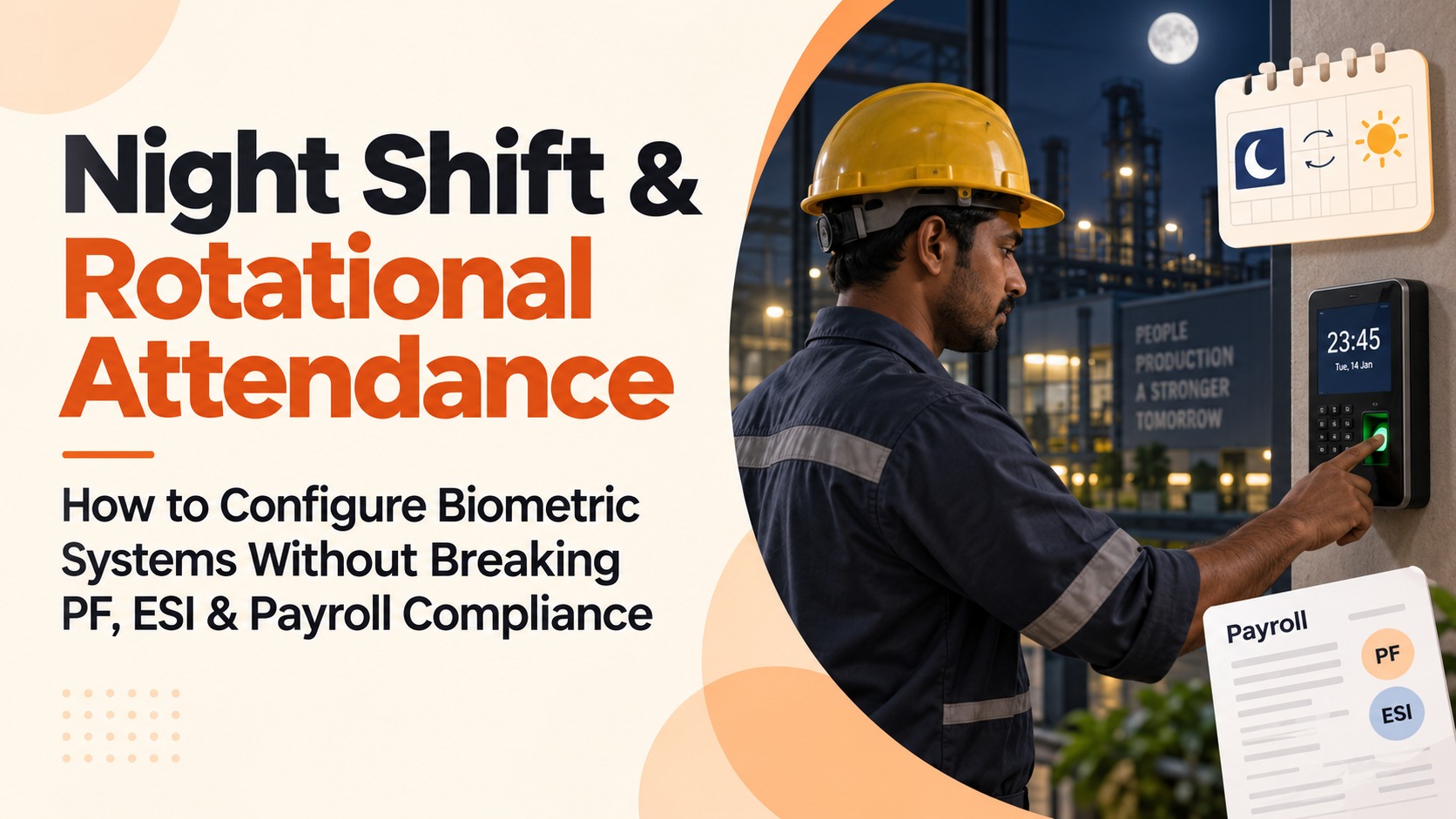
Night Shift Handling
Night shifts spanning midnight create calculation challenges.
Example: Shift: 10 PM to 6 AM
Employee marks IN at 10:05 PM on March 15th, OUT at 6:10 AM on March 16th.
Which date's attendance does this count under? March 15 or 16?
Best practice: Count under shift start date (March 15). Most software handles this automatically once you define shift as "night shift."
Flexible Working Hours
Some companies allow flexible timing within constraints.
Example: Core hours 11 AM to 4 PM mandatory. Employees can start anytime 8-11 AM, leave anytime 4-7 PM.
Configuration:
- Set core hours
- Define flexible window
- Mark attendance valid if core hours are met
- Calculate total hours, flag if below minimum
Work from Home Attendance
For remote work days:
- Option 1: Web-based check-in without geo-fence
- Option 2: Mobile app without location requirement
- Option 3: Trust-based system with productivity tracking instead
Define clear WFH attendance policy and configure system accordingly.
For understanding how different types of attendance (present, absent, half-day, overtime) affect salary calculations, see our detailed salary calculation workflows.
Attendance Reports and Analytics
Once attendance is flowing smoothly, leverage it for insights.
Essential Attendance Reports
Daily reports:
- Who's present today
- Who's absent
- Who's on leave
- Late arrivals
- Early exits
Monthly reports:
- Employee-wise attendance summary
- Department-wise attendance
- Absent days, leave days, LOP days
- Overtime hours by employee
- Late-coming frequency
Trend reports:
- Absenteeism trends over time
- Department-wise comparison
- Seasonal patterns (absences higher certain months?)
- Individual employee attendance patterns
Red Flags to Watch
Good attendance analytics highlight problems early:
- Frequent late arrivals: Might indicate personal issues, transport problems, or disengagement
- Pattern of Monday/Friday absences: Possible sign of weekend extension, needs attention
- Clustered absences in one team: Could indicate management issues or workplace problems
- Sudden attendance drop: Overall attendance dropping might indicate morale issues
- Overtime concentration: Few employees doing excessive overtime might indicate understaffing
These insights help you address issues proactively rather than discovering them during appraisals or exit interviews.
Troubleshooting Common Integration Issues
Things will occasionally break. Here's how to fix common problems:
Device Not Connecting
Symptoms: Device is on, but software shows "disconnected"
Solutions:
- Check network cable is properly connected
- Ping device IP address to verify network connectivity
- Check if device IP changed (set to static IP)
- Verify firewall isn't blocking device port
- Restart device and attempt reconnection
Attendance Not Syncing
Symptoms: Employees marking attendance, but it's not appearing in software
Solutions:
- Check last successful sync time
- Manually trigger sync from software
- Check device memory isn't full (clear old logs if needed)
- Verify employee ID mapping is correct
- Check for date/time mismatch between device and software
Recognition Failures
Symptoms: Device frequently says "fingerprint not recognized"
Solutions:
- Clean fingerprint sensor with soft cloth
- Ask employee to clean their finger and retry
- Re-enroll affected employees with better quality scans
- Check if sensor is damaged (physical issue)
- Adjust recognition sensitivity in device settings
GPS Attendance Rejected
Symptoms: Mobile app says "outside allowed location"
Solutions:
- Check geo-fence radius (might be too tight)
- Verify GPS coordinates of allowed location are correct
- Ensure employee has location permissions enabled
- Wait for GPS accuracy to improve (initially can be 50m off, improves to 10-20m)
- Consider WiFi-based location as backup
Duplicate Attendance Entries
Symptoms: Same employee showing multiple IN/OUT entries
Solutions:
- Configure de-duplication rules (ignore marks within 15 minutes of each other)
- Educate employees not to mark attendance multiple times
- Check if multiple devices are syncing same employee
- Review and delete duplicate entries manually if needed
For comprehensive compliance guidance related to attendance data and statutory filings, check our detailed payroll compliance guide.
Maintenance and Long-Term Management
Set up is one-time. Maintenance is ongoing.
Regular Maintenance Tasks
Weekly:
- Check device connectivity status
- Review failed sync attempts
- Clear obvious duplicate/erroneous entries
Monthly:
- Clean biometric sensors
- Verify device time/date accuracy
- Review attendance anomalies
- Check device memory usage
Quarterly:
- Update device firmware if available
- Review employee enrollment quality
- Audit attendance rules and thresholds
- Backup device configuration
Annually:
- Full system audit
- Review and optimize geo-fence locations
- Update shifts and schedules for next year
- Refresh employee enrollments if recognition degrading
Device Lifespan and Replacement
Expected lifespan:
- Good quality fingerprint device: 5-7 years
- Face recognition device: 4-6 years
- Mobile apps: Continuous updates, no replacement needed
Signs you need replacement:
- Frequent hardware failures
- Recognition accuracy dropping despite maintenance
- Device no longer supported by vendor
- Can't integrate with modern software
- Operating costs exceeding replacement cost
Training and Adoption
Technology works only if people use it correctly.
Employee training:
- How to mark attendance properly
- What to do if device doesn't recognize
- Whom to contact for issues
- Understanding their attendance reports
Manager training:
- Approving attendance exceptions
- Reviewing team attendance reports
- Understanding overtime calculations
- Managing shift rosters
HR training:
- Configuring devices and rules
- Troubleshooting common issues
- Running reports and analytics
- Processing attendance for payroll
Ongoing support:
- Create internal FAQ document
- Designate attendance system admin
- Establish helpdesk for issues
- Regular refresher training
Making It All Work Together
Here's what successful attendance integration looks like:
For employees: Walk in, mark attendance on biometric/mobile, see confirmation. Check leaves and attendance history on self-service portal anytime.
For managers: View team attendance in real-time. Get alerts for anomalies. Approve leave requests with one click. Review overtime without manual counting.
For HR: Attendance data flows automatically into payroll. No manual entry. No Excel gymnastics. Just review, verify, and process salaries.
For management: Dashboard showing attendance trends, absenteeism rates, overtime costs. Data-driven decisions about staffing and scheduling.
This integration is what transforms attendance from an administrative burden into a strategic HR tool.
Modern payroll software brings everything together—biometric devices, mobile apps, web check-ins, leave management, shift scheduling, and payroll processing—into one smooth workflow.
Your Next Steps
If you're starting fresh:
- Define requirements: What type of attendance tracking do you need? Biometric, mobile, or both?
- Choose software first: Select payroll software that supports your device requirements
- Buy compatible devices: Get devices that integrate seamlessly with your software
- Plan installation: Decide device locations and network setup
- Test thoroughly: Run pilot with small group before full rollout
If you're replacing existing system:
- Document current issues: What's not working? Where are the pain points?
- Choose better solution: Find software that solves those specific problems
- Plan migration: How will you transition without disrupting attendance?
- Train everyone: Ensure smooth adoption of new system
- Monitor closely: Watch for issues in first few weeks and address quickly
Either way, remember: attendance tracking isn't about surveillance. It's about fairness, accuracy, and making payroll processing easier for everyone.
When it works well, nobody notices it. And that's exactly the point.