
How do I mark attendance manually for an employee in Tazk Payroll?
Open Manual Attendance. On the Quick tab, choose the employee and date, enter the clock-in and clock-out times (and any breaks), pick the shift and click Save attendance. To enter many days or employees at once, use the Bulk grid or upload an Excel file. History lists every manual punch, and the Request tab records leave, permission or an attendance correction on an employee's behalf.
What tabs does Manual Attendance have?
Quick · Bulk · History · Request. Today's date is shown beside the title. A tab with unsaved work shows a dot, and you are asked before leaving it. Only employees with Manual Attendance turned on in their profile (Application Info) can be selected.
How do I enter attendance for one employee?

- On Quick, choose the Employee and the Date (not a future date, and not before they joined).
- Enter Clock in and Clock out. Clock out must be later than clock in.
- Select the Shift — only the shifts assigned to them on that date are listed (picked automatically if there is one). For a night shift the end date is the next day.
- Optionally click + Add break for each break; breaks must fall between clock in and clock out.
- Click Save attendance — the form moves to the next employee (Shift + Enter keeps the same one).
Keyboard shortcuts: Tab to the next field, Shift + Tab to the previous, Enter to save, Esc to clear. Recent entries lists what you saved in this session with its status — Saved, Partial or Failed — and lets you copy an entry back into the form.
How do I enter attendance for many employees or days?
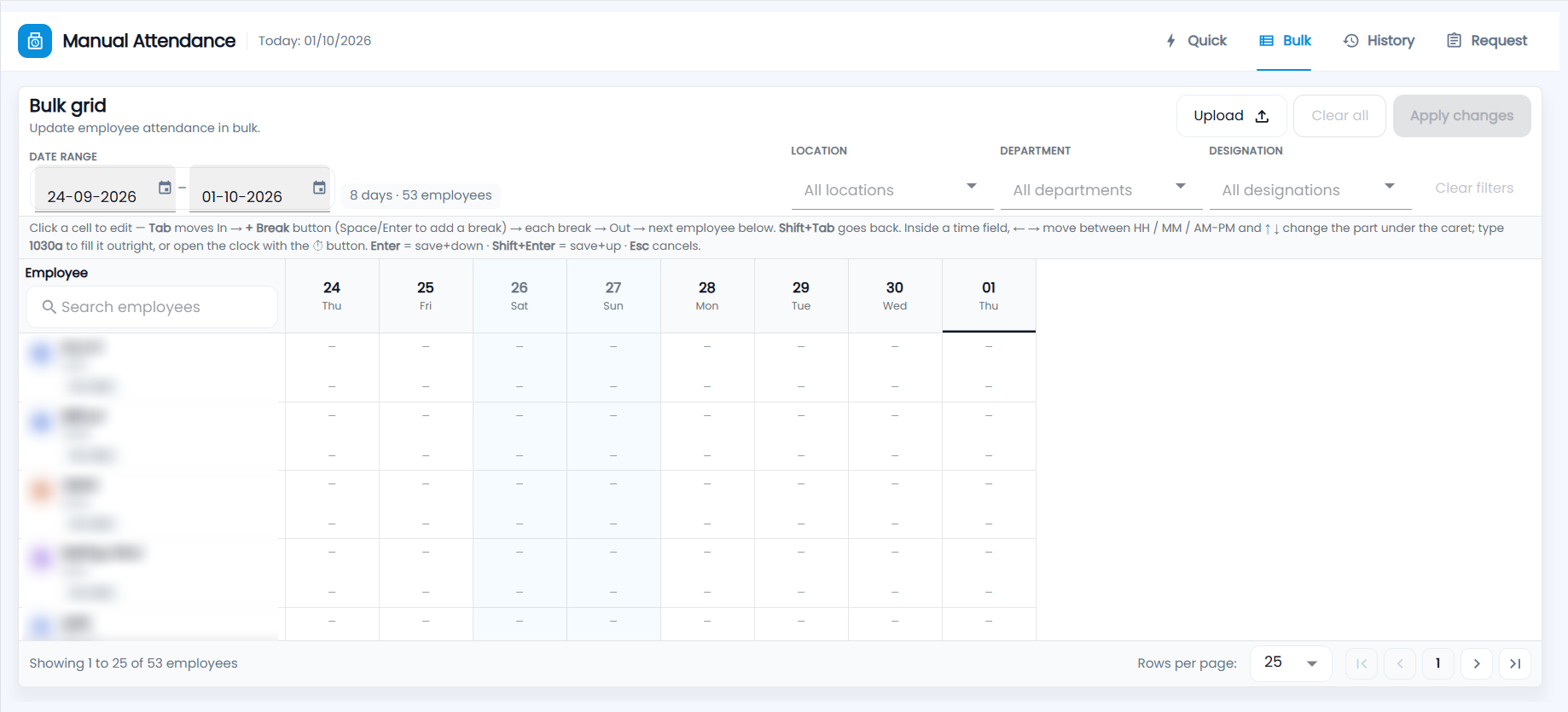
- Open Bulk. Choose the Date range (up to 31 days; the last 8 days by default) and filter by Location, Department or Designation. The chip shows how many days and employees are in the grid.
- Click a cell to edit it: enter In, add breaks with + Break, enter Out, and optionally Copy to other dates. Type 1030a to fill 10:30 AM. Enter saves and moves down, Esc cancels.
- Edited cells are marked; complete days show green, In without Out shows as Missing out, and invalid entries are outlined in red.
- Click Apply changes. It runs only when no cell is invalid. Clear all discards unsaved edits.
To upload from Excel, click Upload, download the template for the date range (employee name and code, shift, date, In, Out, up to three breaks), fill it in, choose the file, fix any rows flagged in Review & fix, and upload.
Where can I see manual punches?
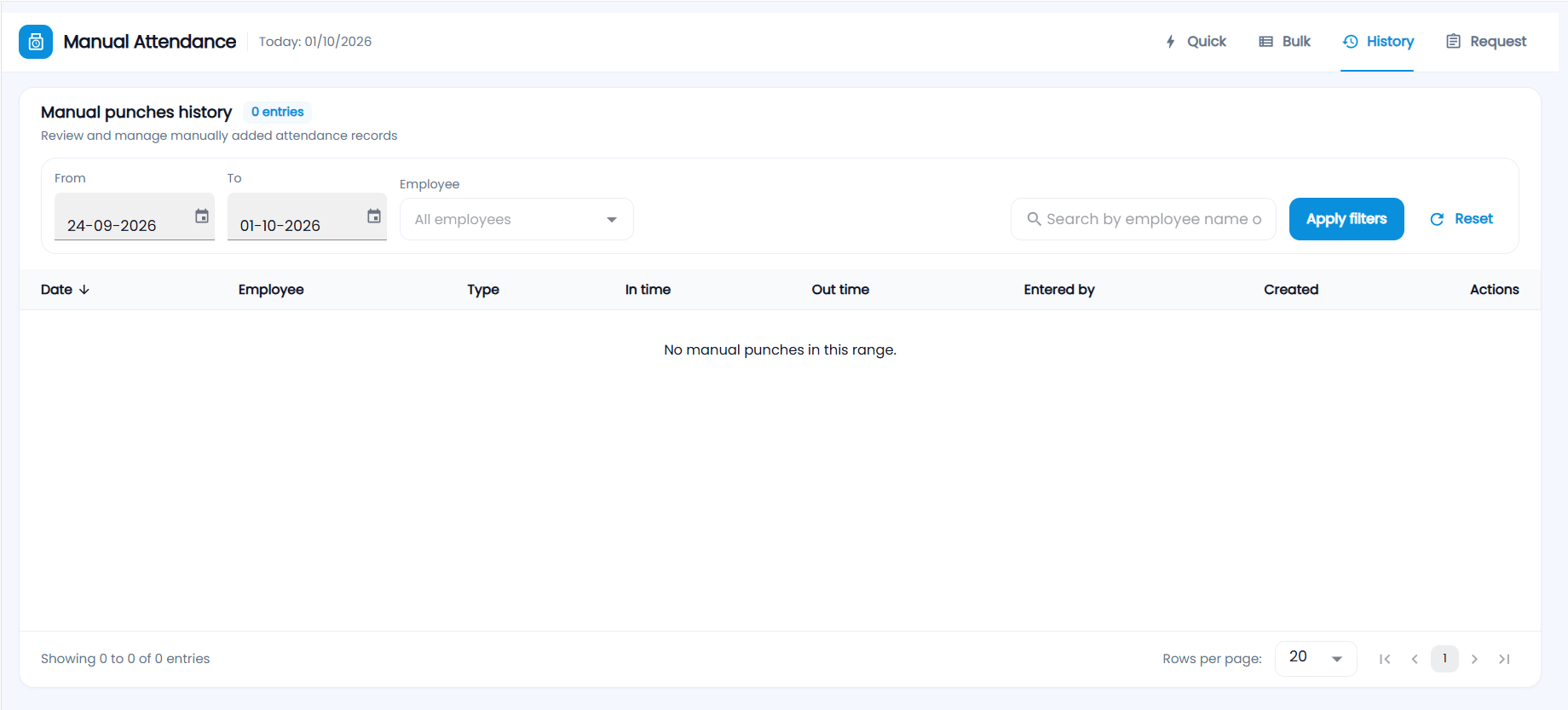
History ("Manual punches history") lists every manually added punch for the chosen dates (the last 7 days by default) — date, employee, type, in and out time, who entered it and when. Filter by From, To and Employee, or search, then Apply filters; Reset clears them. Users with delete rights can delete a punch, which removes it from attendance.
How do I raise a request on behalf of an employee?
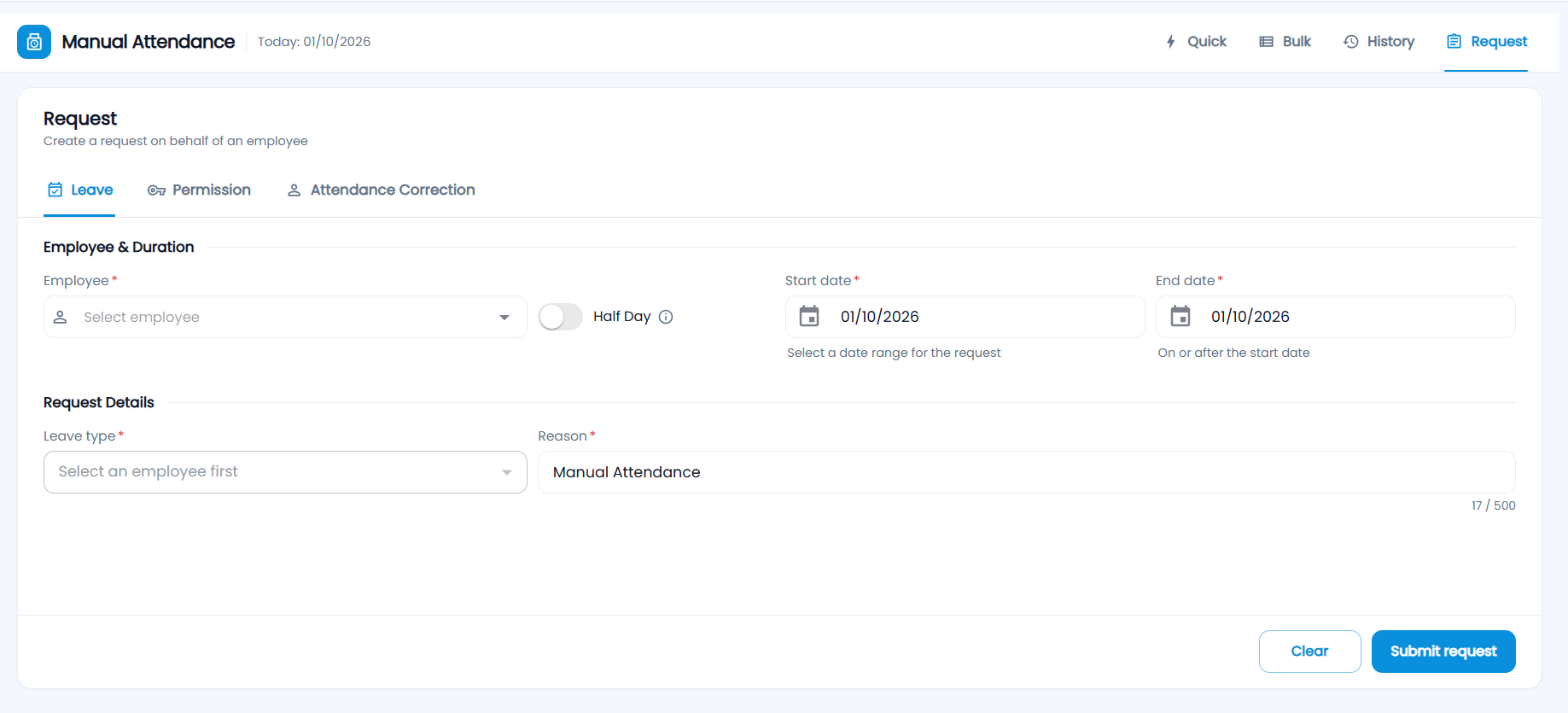
Open Request ("Create a request on behalf of an employee") and choose a tab:
- Leave — employee, start and end date (or Half Day with a half-day type), leave type with the available count, and reason. Some leave types ask for a supporting document.
- Permission — employee, date, start and end time, permission type and reason.
- Attendance Correction — employee, a past date, shift (the existing punches are shown), corrected clock-in and clock-out, and reason.
Click Submit request (Clear resets the form).