
How do I add a bank account or cash box in Tazk POS?
Open Settings → Cash and Bank. On Bank Accounts click + and enter the bank name, account number, account type, IFSC, branch, any opening balance and the location. On Payment Methods add each way you take or make payments, such as a cheque or UPI method, linked to a bank. On Cash Box add a cash box for each counter or till, and choose whether it counts notes (denominations).
How do I add a bank account?
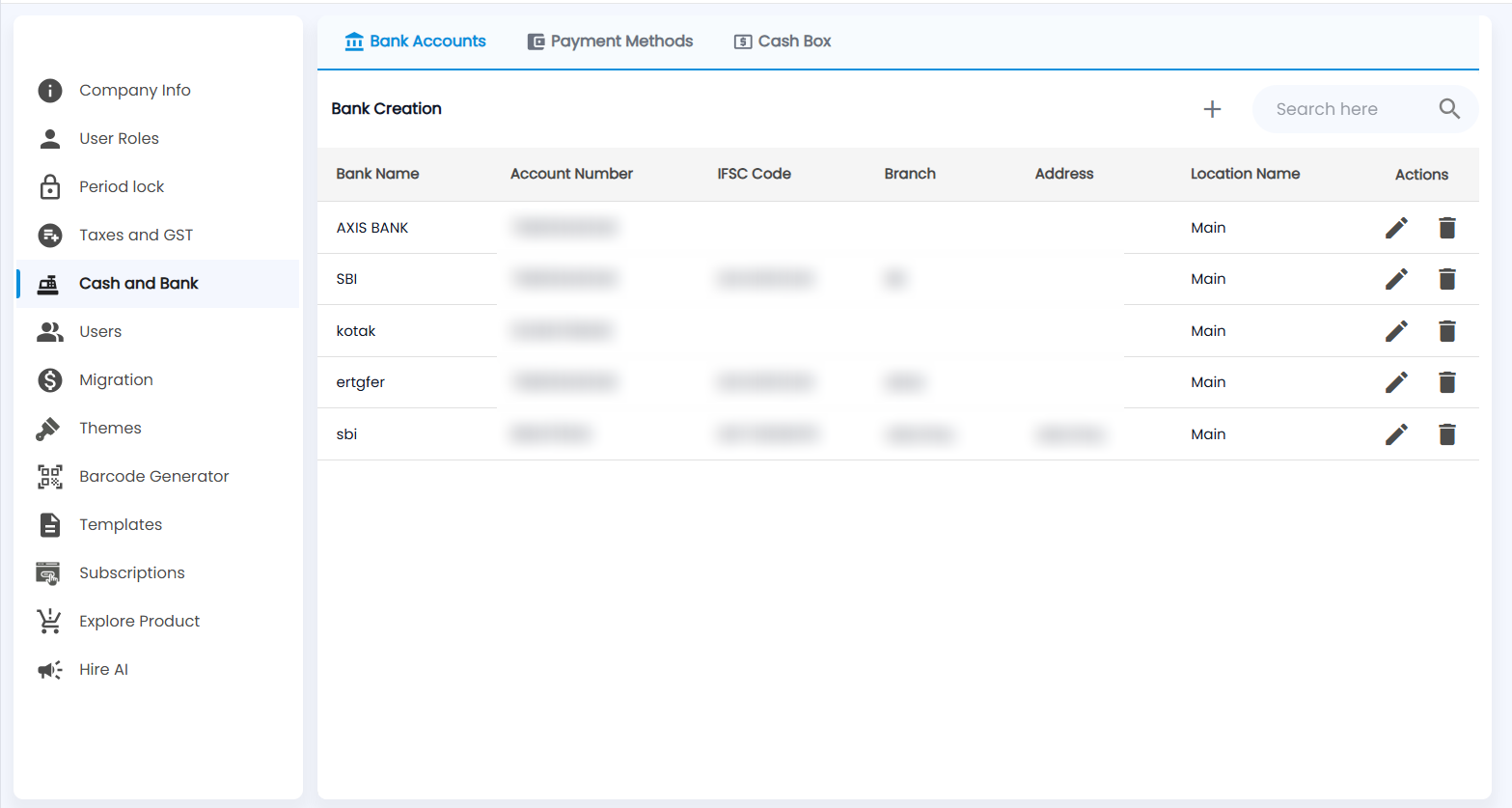
Open Settings → Cash and Bank. It has three tabs: Bank Accounts, Payment Methods and Cash Box. Bank Accounts (Bank Creation) lists Bank Name, Account Number, IFSC Code, Branch, Address, Location Name and Actions (edit and delete). Use Search here to find one.
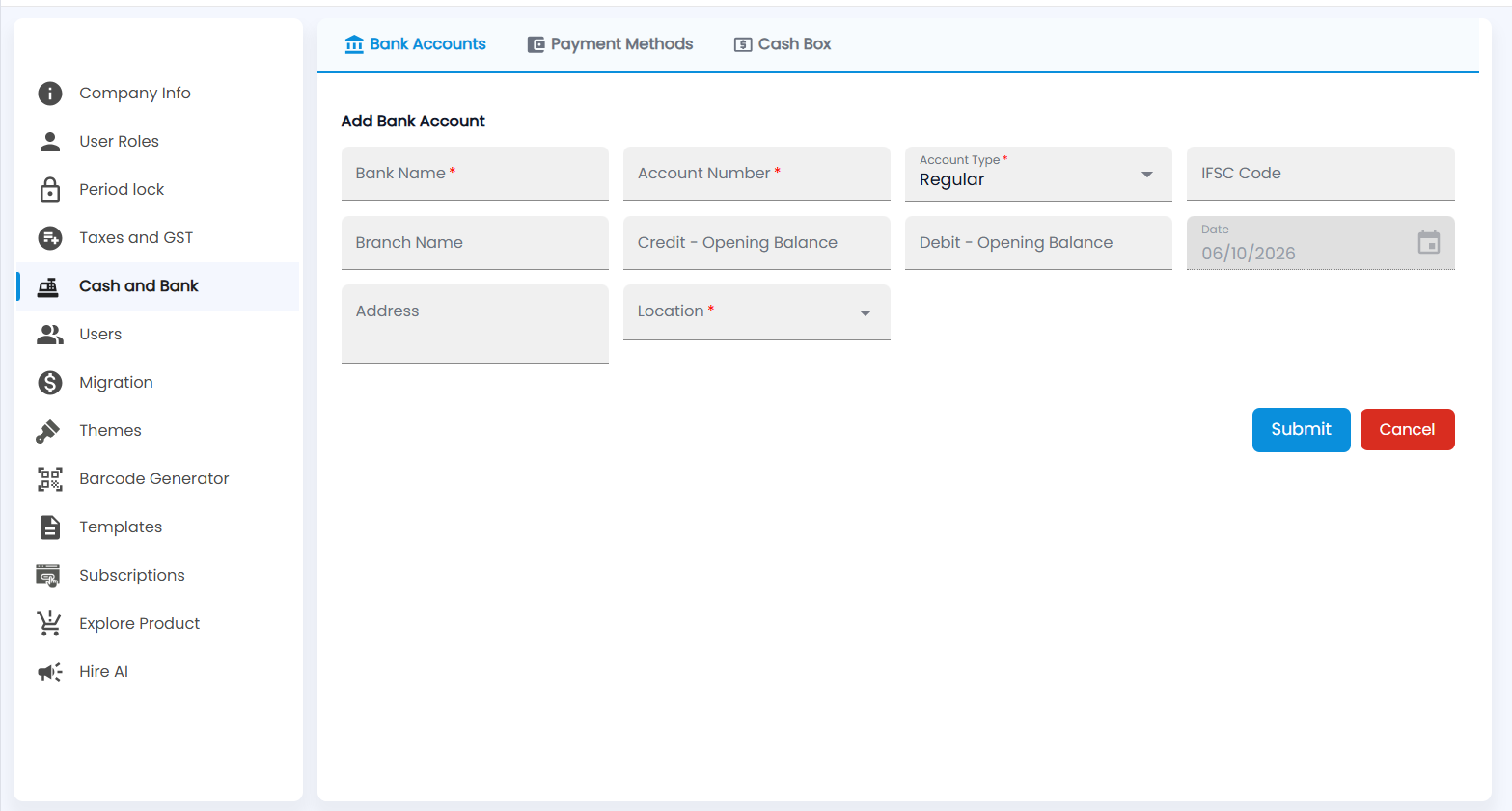
- Click +. Add Bank Account opens.
- Enter the Bank Name and Account Number, and choose the Account Type (Regular to start). All three are required.
- Add the IFSC Code, Branch Name and Address if you want them on record.
- If the account already has money in it, enter it as Debit - Opening Balance; an overdraft goes in Credit - Opening Balance. The Date is today.
- Choose the Location (required) and click Submit (or Cancel).
Each bank account gets its own ledger in Chart of Accounts, and appears in receipts, payments and Bank Reconciliation.
How do I add a payment method?
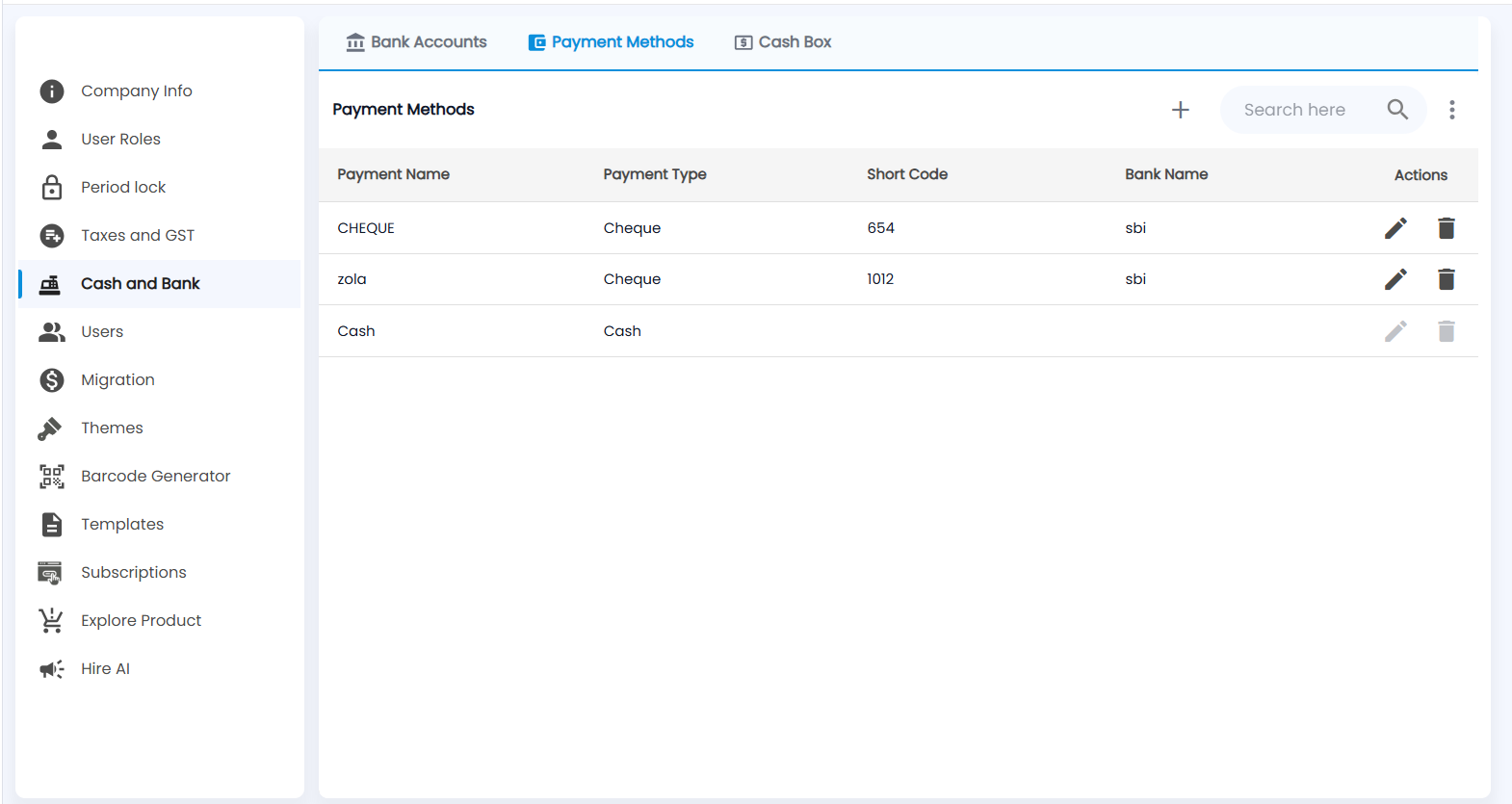
The Payment Methods tab lists the ways money comes in and goes out: Payment Name, Payment Type (for example Cheque or Cash), Short Code, Bank Name and Actions. The built-in Cash method cannot be edited or deleted. The ⋮ menu next to the search has more options.
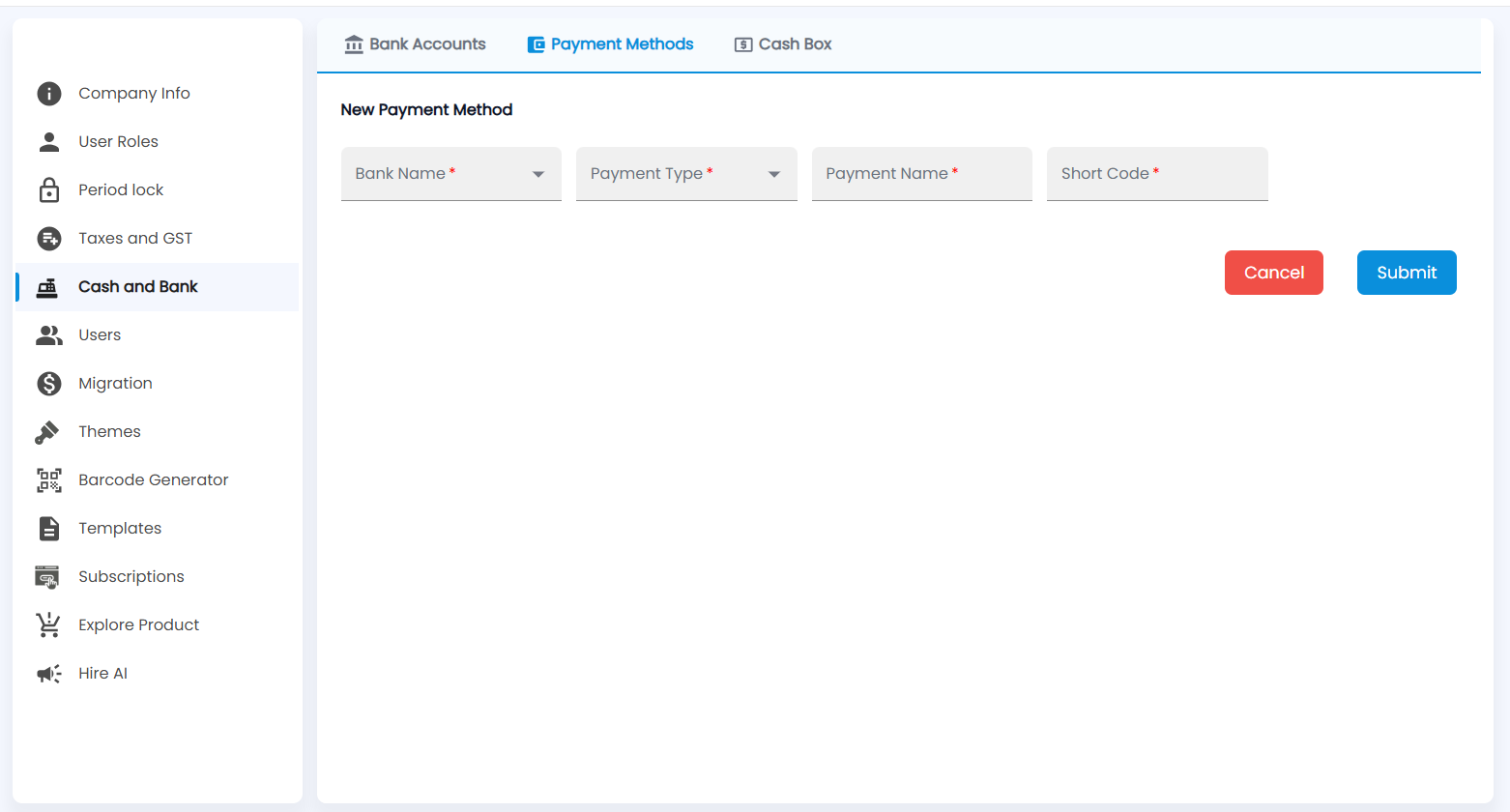
- Click +. New Payment Method opens.
- Choose the Bank Name the money goes to and the Payment Type.
- Enter the Payment Name shown when billing and a Short Code. All four fields are required.
- Click Submit (or Cancel).
These methods are the ones you tick on the Receipt Voucher and Payment Voucher; see Receipts and Purchase Payments.
How do I add a cash box?
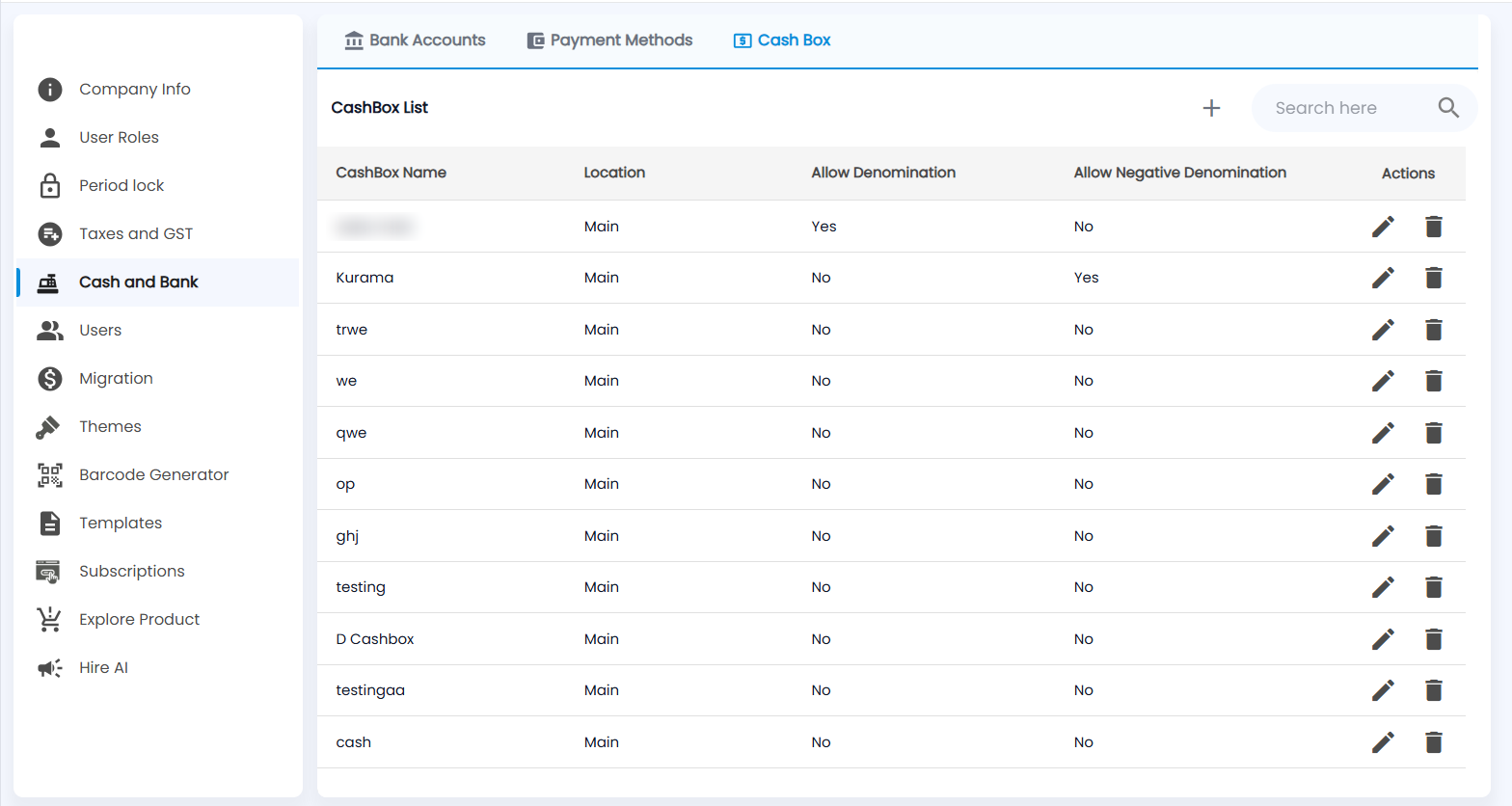
The Cash Box tab (CashBox List) lists CashBox Name, Location, Allow Denomination, Allow Negative Denomination (Yes / No) and Actions.
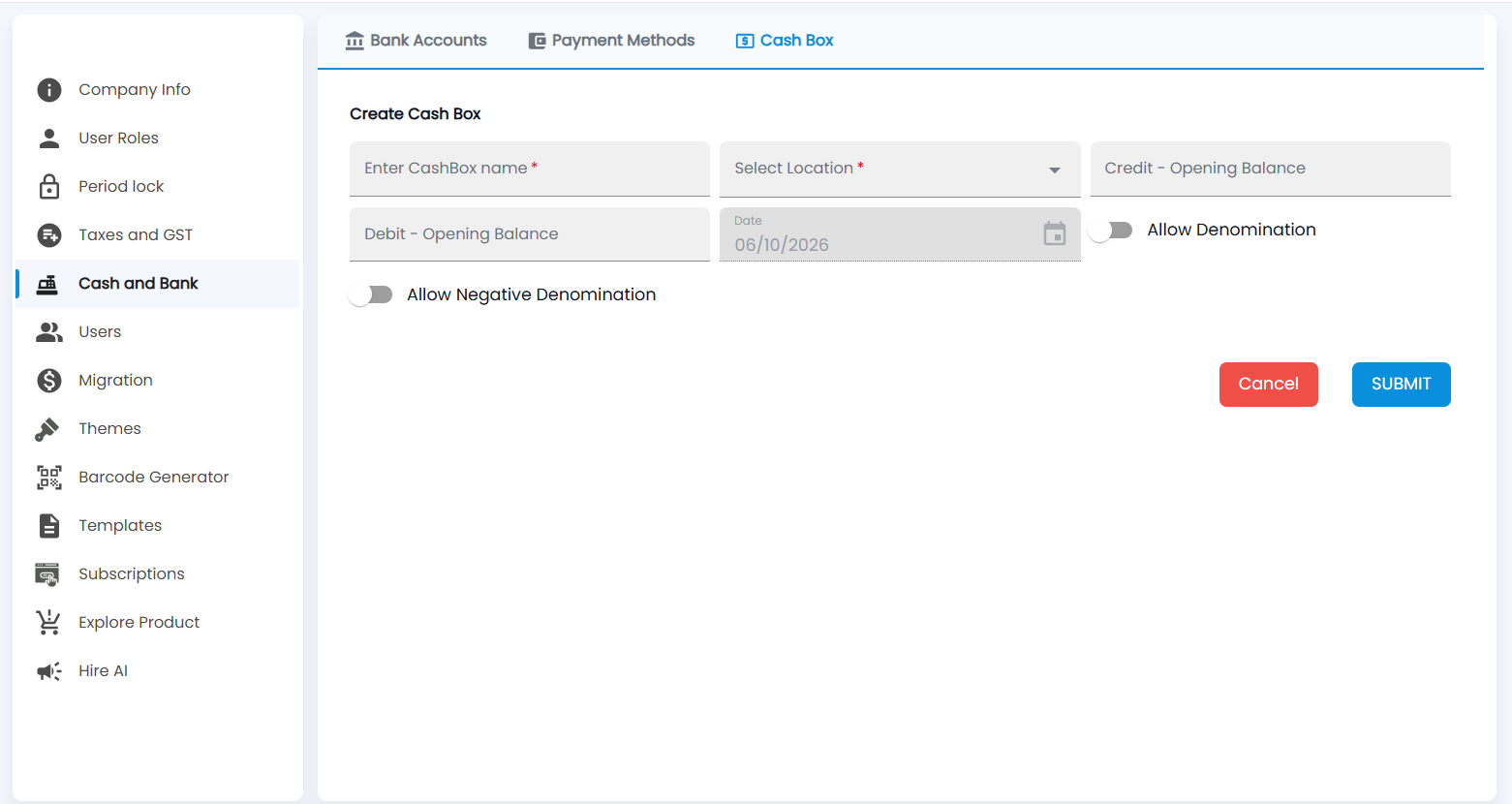
- Click +. Create Cash Box opens.
- Enter the CashBox name and Select Location (both required).
- Enter any cash already in the box as Debit - Opening Balance (Credit - Opening Balance is for the rare negative balance). The Date is today.
- Switch on Allow Denomination if cashiers count the notes and coins going in and out, and Allow Negative Denomination if the count may go below zero for a note.
- Click SUBMIT (or Cancel).
Cash boxes are chosen on Sales Counter counters and in Cash In Hand; note counts are kept in Denomination.