
How do I see my chart of accounts in Tazk POS?
Open Accounts → Chart of Accounts. It shows every account type, group, parent ledger and ledger as an expandable tree with balances, and cards for Total Assets, Total Liabilities, Equity, Revenue - Expense and Net Worth. Click a ledger in the tree to open its monthly summary.
What do the cards show?
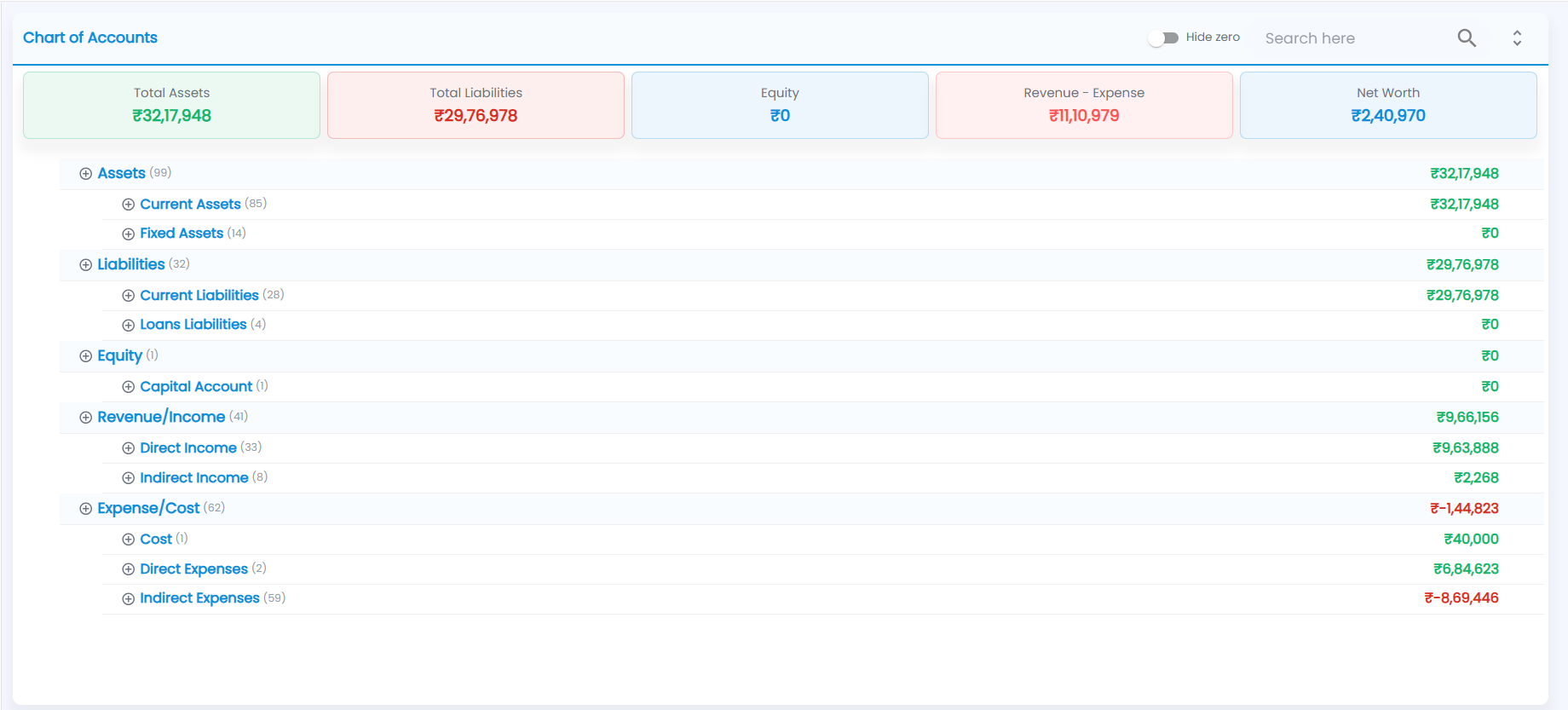
Go to Accounts → Chart of Accounts. Five cards sum up the books:
| Card | What it shows |
|---|---|
| Total Assets | Sum of asset ledgers |
| Total Liabilities | Sum of liability ledgers |
| Equity | Capital ledgers only. Hover to see book equity including the current period’s result |
| Revenue - Expense | Revenue less expense for the period (hover for both figures) |
| Net Worth | Assets less liabilities. It matches book equity when the books balance |
How do I use the tree?
- The top levels open by default: the account types (Assets, Liabilities, Equity, Revenue/Income, Expense/Cost) and their groups (for example Current Assets, Fixed Assets, Direct Income, Indirect Expenses). Click the ⊕ / ⊖ icons to expand or collapse a branch, or the up-down icon at the top right to expand or collapse everything.
- A number in brackets shows how many ledgers sit under a branch, and each row shows its balance on the right — negative balances in red. Ledgers show their account code.
- Turn on Hide zero to hide ledgers with a zero balance.
- Search to find a ledger or group by name.
- Click a ledger (a leaf in the tree) to open its monthly summary and vouchers, the same view as Ledgers.
Tip: If Net Worth and book equity do not match, an entry is out of balance somewhere. Check recent Journal Entry vouchers and opening balances.
To add or change ledgers, use Ledgers. For a formal Profit & Loss, Trial Balance or Balance Sheet, see the Accounts group in Reports.