
What can I change in Tazk POS Settings?
Settings holds your company's admin screens: Company Info, User Roles, Period Lock, Taxes and GST, Cash and Bank, Users, Migration, Themes, Barcode Generator, Templates, Subscriptions, Explore Product and Hire AI. Each has its own article. Open Settings from the sidebar and choose a screen from the rail on the left.
How is the Settings screen laid out?
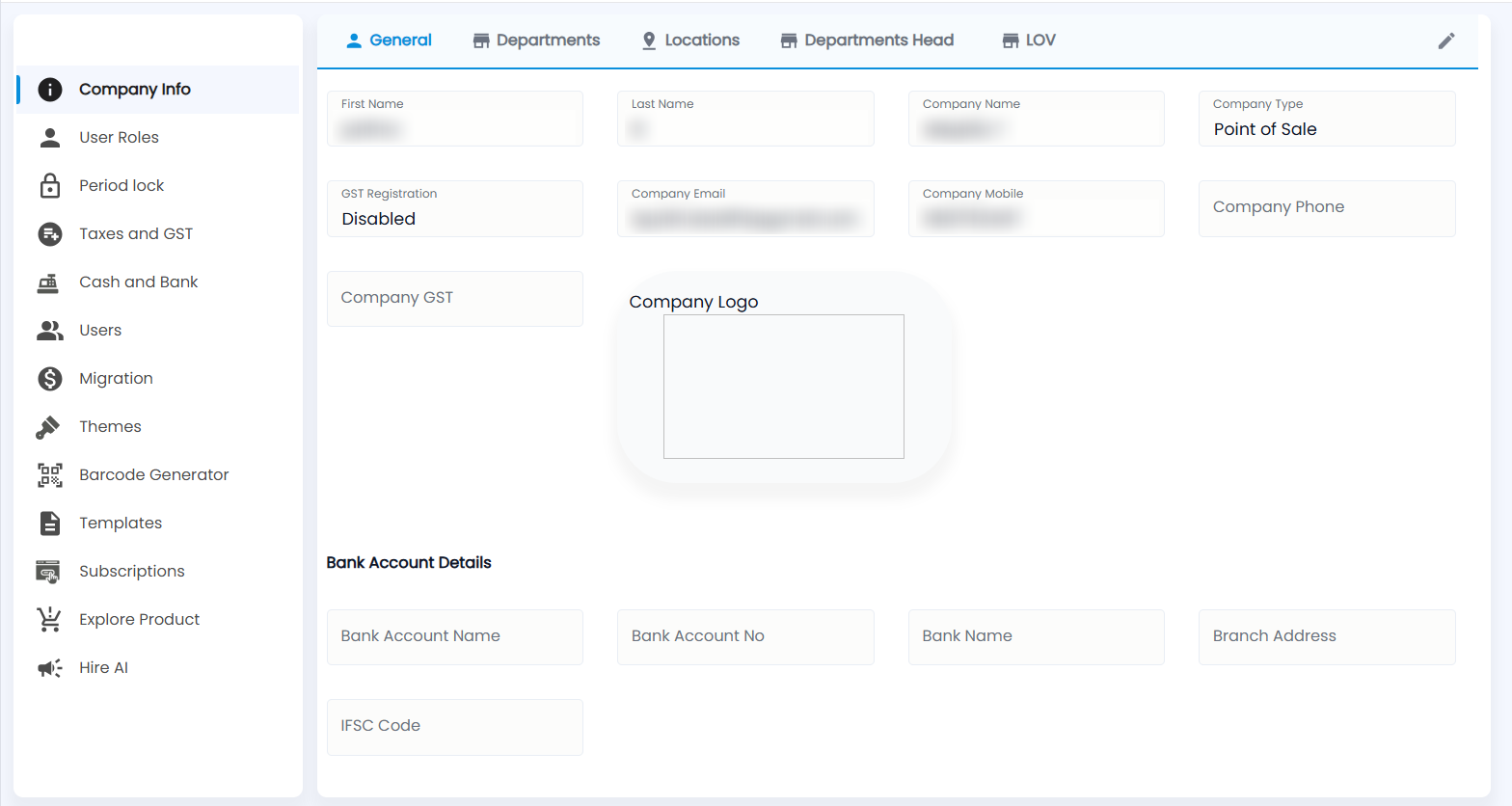
Click Settings in the sidebar. A rail on the left lists the screens your role can open, in your company's menu order; the selected one is highlighted. The first one opens by default. The selected screen is saved in the page address (?tab=…), so you can bookmark it or refresh without losing your place.
Which screens are in Settings?
A typical POS account sees this rail:
| Screen | What it is for |
|---|---|
| Company Info | Company profile and bank details, plus the Departments, Locations, Departments Head and LOV tabs — see Company Info |
| User Roles | Which menus, dashboard widgets, notifications, data and fields each role gets — see User Roles |
| Period lock | Locks a financial year so no one can post into it — see Period Lock |
| Taxes and GST | The GST rates used on bills and invoices — see Taxes and GST |
| Cash and Bank | Bank accounts, payment methods and cash boxes — see Cash and Bank |
| Users | Who can sign in, with which role and location — see Users |
| Migration | Opening balances from your old system — see Migration |
| Themes | Navigation style and sidebar colours — see Themes |
| Barcode Generator | Barcode and QR labels for your products — see Barcode Generator |
| Templates | Print layouts for your documents — see Document Templates |
| Subscriptions | Your plan, renewal and Tazk tax invoices — see Subscriptions |
| Explore Product | Other Tazk products you can add — see Explore Product |
| Hire AI | AI assistants for your business — see Hire AI |
Your list may differ. A screen appears only when your plan includes it and your role is allowed to see it; some plans also have Document Sequences and a Deleted Log.
How do I set my invoice numbering?
Where your plan has Document Sequences, it lists each Document Type with its Sequence Name, Pattern, Current # and FY Reset. Edit a sequence to set the Prefix (Short Code) and the Pattern, built from tokens: {P} (prefix), {FY} (financial year) and {SEQ:N} (counter padded to N digits). Quick patterns (Standard, No FY, 4-digit, Plain) fill it in for you, and a preview shows the next number. Tick Reset counter at Financial Year start (April 1) to restart numbering each year.
Related: Configuration, Chart of Accounts, Navigating the Sidebar Menu.