
How do I print barcode labels in Tazk POS?
Open Settings → Barcode Generator. Choose the type (QR code or barcode), pick the product, enter the MRP, offer price and how many labels you need, and optionally a prefix for the codes. The Sample QR Code shows what the first code will look like. Click View Label to see the labels and print them.
How do I make labels?
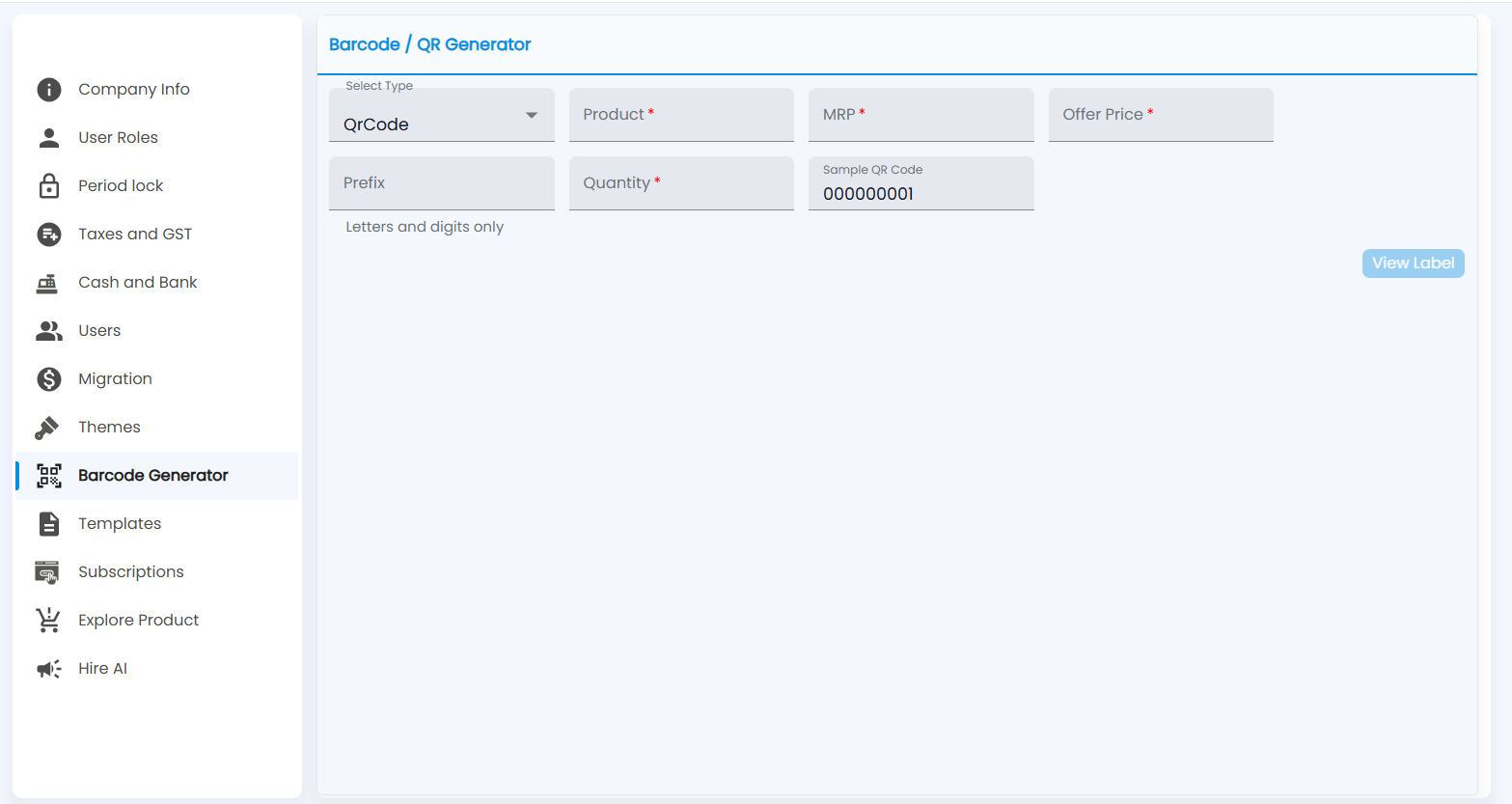
- Open Settings → Barcode Generator (Barcode / QR Generator).
- Under Select Type, keep QrCode or choose a barcode.
- Pick the Product and enter its MRP and Offer Price.
- Optionally enter a Prefix for the codes (letters and digits only), and enter the Quantity of labels. The required fields are marked *.
- Check the Sample QR Code, for example 000000001 — the codes run on from it.
- Click View Label (available once the required fields are filled) and print.
Tip: Scan these labels on the Sales Counter to add items to the bill.