
How do I change what a role can do in Tazk POS?
Open Settings → User Roles and pick the role on the left, for example Administrator, Employee, Manager or POS User. On the Menu Access tab, tick View, Create, Edit, Delete, Export or Approve for each menu, then click Save Menu Access. The Dashboard, Notifications, Data Scope and Field Visibility tabs control the rest. Every user with that role gets the change.
Which roles are there?
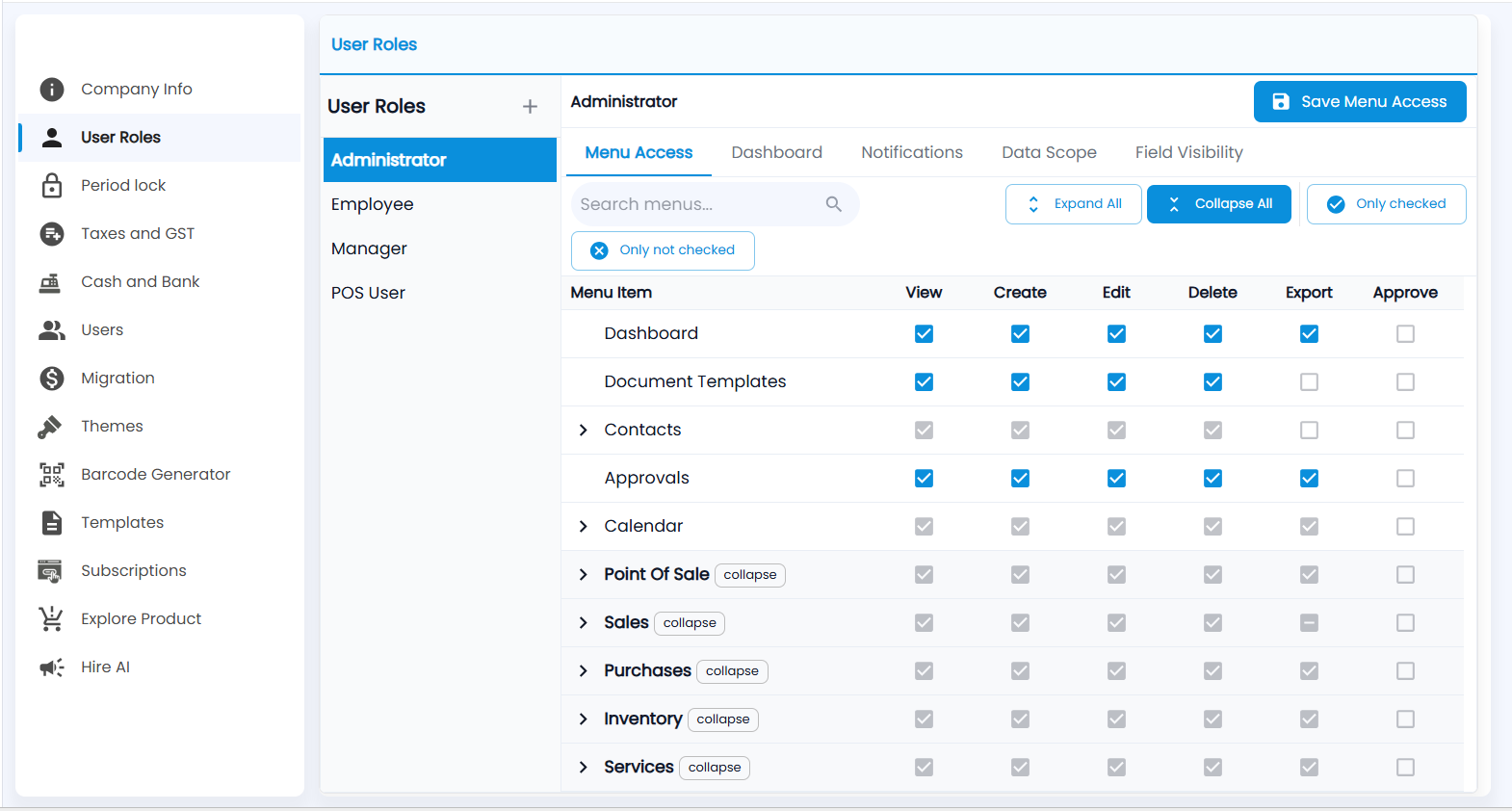
Open Settings → User Roles. The User Roles panel on the left lists your roles — a typical POS account has Administrator, Employee, Manager and POS User. Click a role to open it; the selected role is highlighted and its name shows at the top of the right panel.
To add a role, click + next to User Roles, enter the Role Name and a Description, and choose the role it starts from. Custom roles show a Custom chip.
How do I set menu access?
The Menu Access tab lists every Menu Item with six permission columns:
| Column | Lets the role |
|---|---|
| View | See the menu and open its screen. Without View the menu disappears from the sidebar, and the other ticks are turned off |
| Create | Add new records |
| Edit | Change existing records |
| Delete | Delete records |
| Export | Download or export lists and reports |
| Approve | Approve documents that need sign-off |
- Click the arrow next to a menu, such as Contacts or Sales, to show its submenus. Expand All and Collapse All open or close every menu at once.
- Tick or untick the boxes. A menu with submenus shows a grey tick when all its submenus have that permission, and a dash when only some do.
- Use Search menus… to find a menu, and Only checked or Only not checked to show just the granted or missing permissions.
- Click Save Menu Access.
What do the other tabs do?
| Tab | What you set |
|---|---|
| Dashboard | Which dashboard widgets the role sees |
| Notifications | Which notifications the role receives |
| Data Scope | Per menu, whose records the role sees: all, location, team or self |
| Field Visibility | Which tabs, sub-tabs, KPI tiles, view chips and form fields are visible or editable |
Each tab has its own save button at the top right, such as Save Menu Access.
Users are given a role on their user record; see Users.