
Where do I see how much cash and bank balance my business has in Tazk POS?
Open Cash & Bank → Cash In Hand. Four cards at the top show the Total Balance, Bank Balance, Cash Balance and OD Balance across the company. Below, the left panel lists every cash box and bank account with its opening and closing balance, and the right panel lists the entries for the date range — click an account to see only its entries and running balance.
What do the cards at the top show?
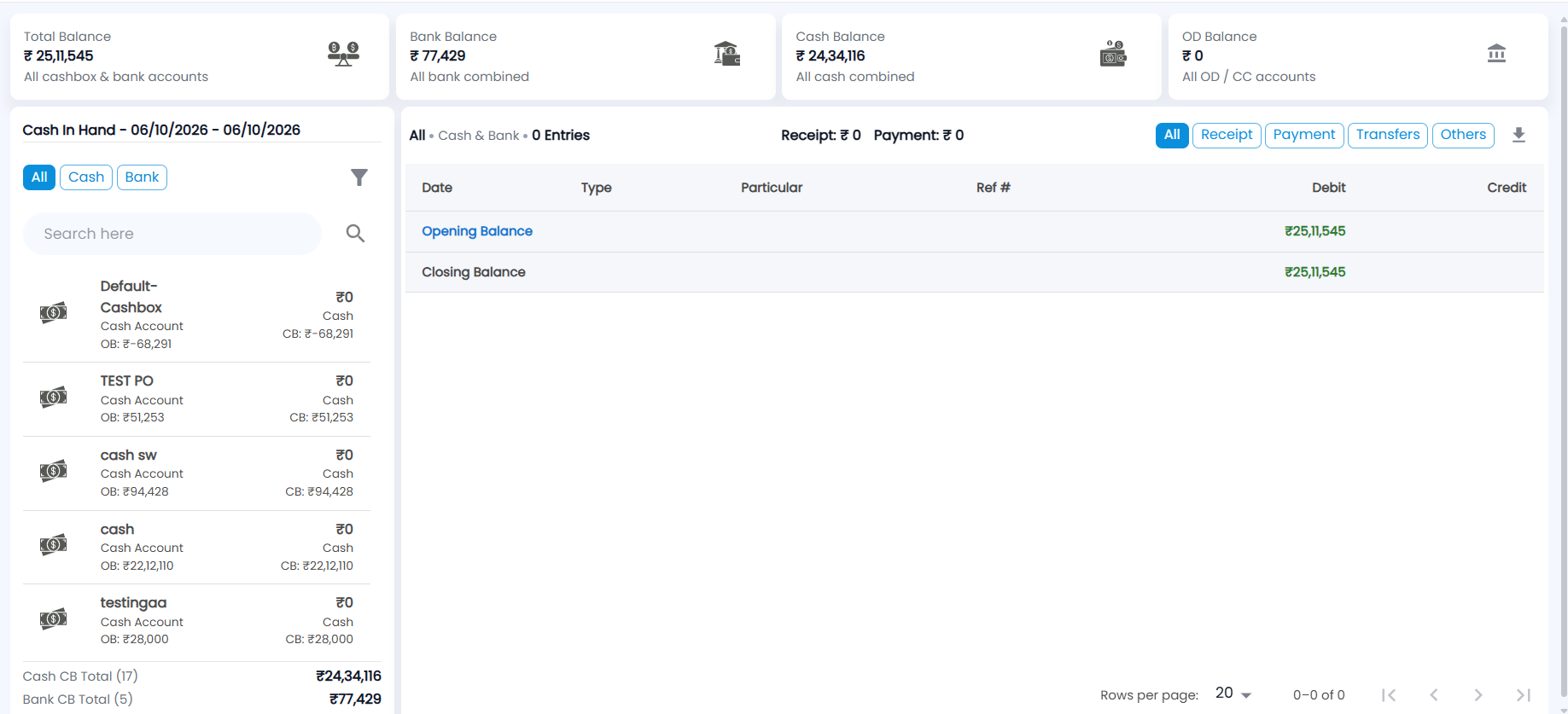
Go to Cash & Bank → Cash In Hand. The cards are company-wide and are not narrowed by the filters below them.
| Card | What it shows |
|---|---|
| Total Balance | All cash boxes and bank accounts together |
| Bank Balance | All bank accounts combined |
| Cash Balance | All cash boxes combined |
| OD Balance | All OD / CC (overdraft, cash credit) accounts. These are a borrowing facility, so they are kept out of Total Balance and Bank Balance |
What is in the account list?
The left panel is headed Cash In Hand with the date range you are looking at (today by default). Use the chips All, Cash or Bank to choose which accounts are listed, and the search box to find one by name.
Each row shows the account name, whether it is a Bank Account or Cash Account, its opening balance (OB), the movement in the period, and its closing balance (CB). The footer adds up the closing balances of the accounts listed: Cash CB Total, Bank CB Total and OD Bank CB Total, each with the number of accounts.
On a smaller screen the account list is hidden; tap the menu icon at the top of the entries panel to open it.
What does the entries panel show?
With no account selected you see the entries of all listed accounts. Click an account to see only its entries — click it again to go back to all. The panel title shows the account name (or All), its type and the number of entries — for example All • Cash & Bank • 0 Entries — with the Receipt and Payment totals beside it.
| Column | Description |
|---|---|
| Date | Transaction date |
| Type | For example Receipt, Payments, Pay In, Pay Out, Contra, Journal Entry, POS Invoice |
| Particular | The customer, vendor or ledger on the other side of the entry |
| Ref # | The document or reference number |
| Debit / Credit | Money in / money out of the account |
| Balance | Running balance — shown only when one account is selected |
The list starts with an Opening Balance line and ends with a Closing Balance line. Click Opening Balance to see the entries before the period that add up to it.
Use the chips above the list to narrow it by type:
- Receipt — money received, with the count and total.
- Payment — money paid out, with the count and total.
- Transfers — contra entries that move money between your own cash and bank accounts.
- Others — entries with no customer or vendor attached.
Can I open the entries behind a line?
Yes. Where the Particular is a link:
- A customer or vendor opens their Statement of Accounts with total debit, total credit and closing balance.
- Another ledger opens its Ledger Detail.
- A company loan EMI, disbursement, prepayment or foreclosure opens that loan (see Loan Accounts).
System labels such as Sales Payment or a payment method name are not links.
How do I change the date range or filter by amount?
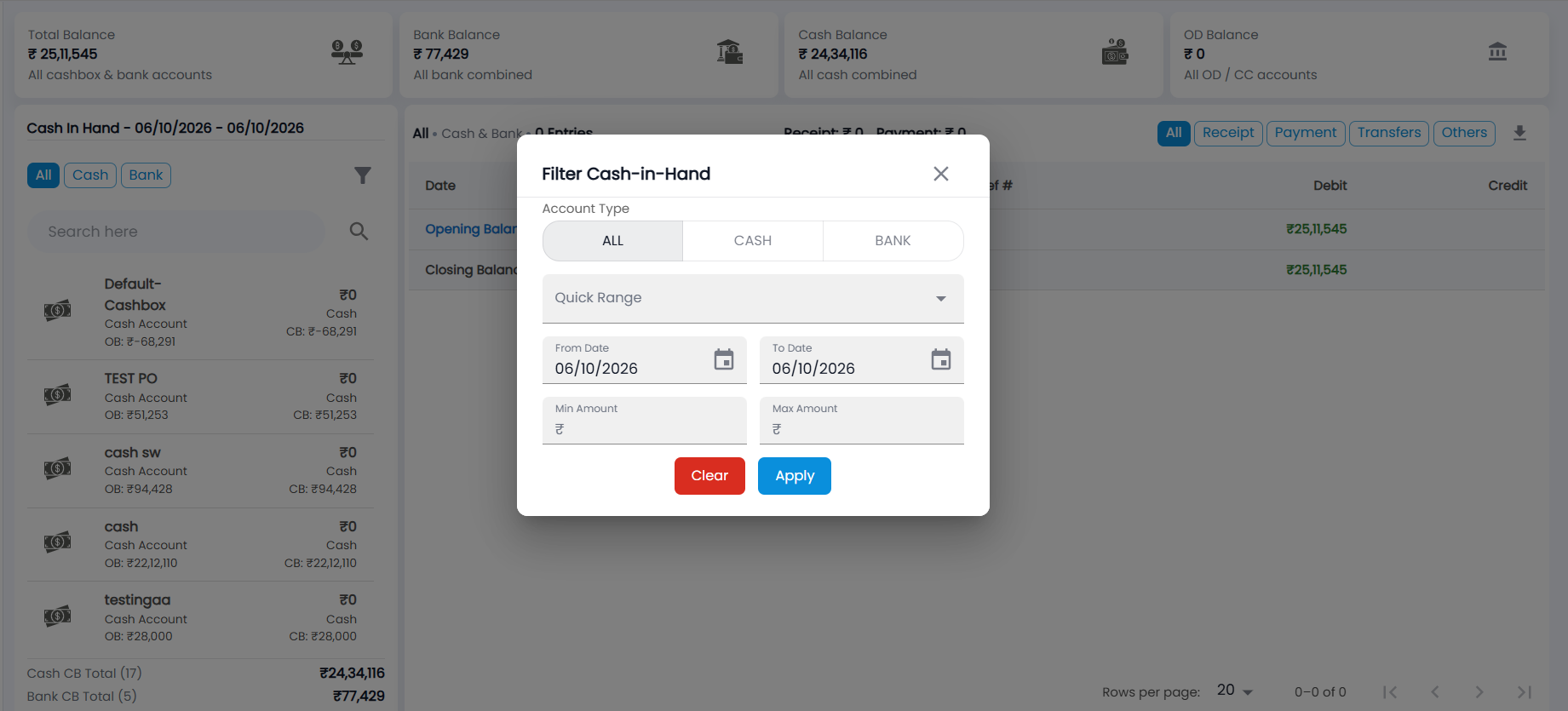
- Click the Filter icon in the account list. Filter Cash-in-Hand opens.
- Choose the Account Type — ALL, CASH or BANK.
- Pick a Quick Range — Today, Yesterday, This Week, Last Week, Last 7 Days, This Month, Last Month, This Quarter, Last Quarter, Current Fiscal Year, Previous Fiscal Year or Last 365 Days — or set a From Date and To Date.
- Optionally enter a Min Amount and Max Amount.
- Click Apply. Clear resets the fields to today and keeps the panel open.
How do I download the entries?
Click the Download icon above the entries and choose Export PDF or Export CSV. The file is named after the selected account (or All) and includes the opening and closing balance lines.
Where do these entries come from?
Cash In Hand does not create entries; it shows what other screens posted — Receipts, Purchase Payments, Pay In / Pay Out, Expenses, POS sales and journals. To see the notes and coins in a cash box, use Denomination.