
Where are GST rates set in Tazk POS?
Open Settings → Taxes and GST. The Tax Rate list has one row per tax component: for each GST category, such as GST18, an INTER row for IGST at the full rate (sales to another state) and two INTRA rows for CGST and SGST at half the rate each (sales within your state). Click + to add a rate with its tax code, category, jurisdiction and percentage.
What does the Tax Rate list show?
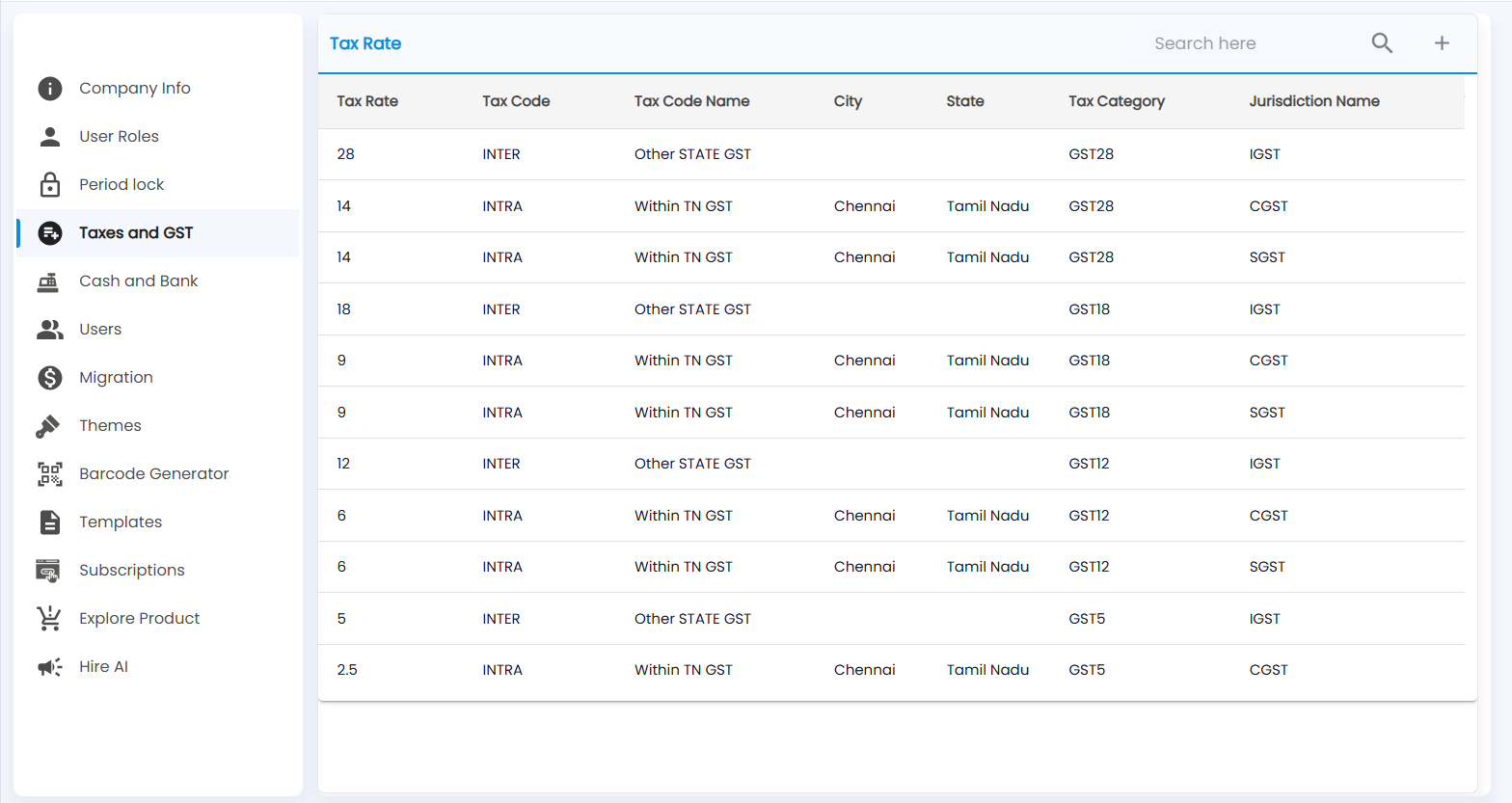
Open Settings → Taxes and GST. The Tax Rate list has Search here and + at the top right.
| Column | What it shows |
|---|---|
| Tax Rate | The percentage, for example 18 or 9 |
| Tax Code | INTER (to another state) or INTRA (within your state) |
| Tax Code Name | For example Other STATE GST or Within TN GST |
| City / State | Where an INTRA rate applies; blank for INTER |
| Tax Category | The GST slab the rate belongs to: GST28, GST18, GST12, GST5 and so on |
| Jurisdiction Name | IGST, CGST or SGST |
How do the rows fit together?
Each tax category has three rows. For GST18:
- 18 INTER — IGST 18%, charged when you sell to another state.
- 9 INTRA CGST + 9 INTRA SGST — charged together (18% in total) when you sell within your state.
Products carry a tax category (set in Product Master). When you bill, Tazk compares your location's state with the customer's and applies the INTER or INTRA rows of that category.
How do I add a tax rate?
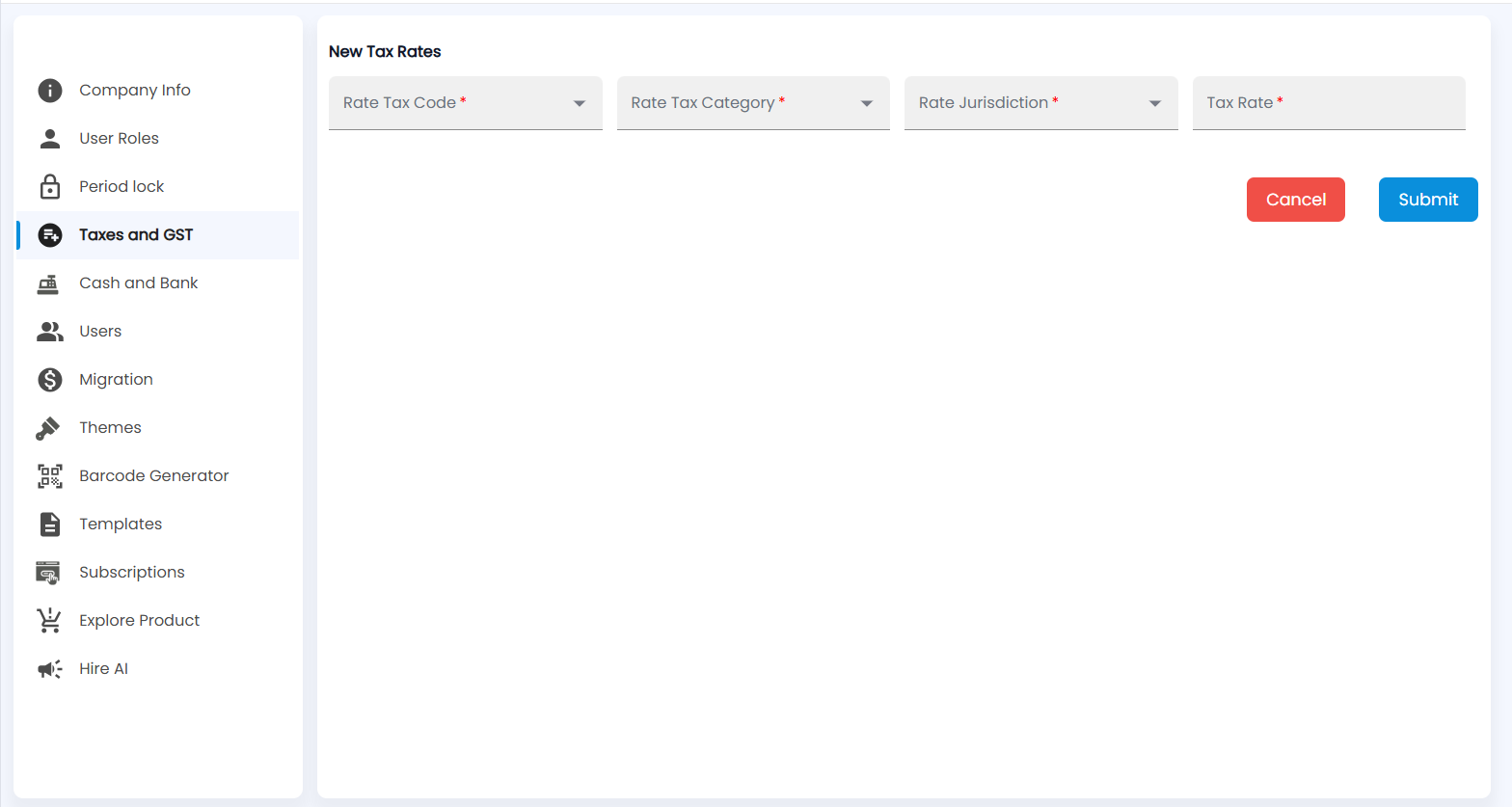
- Click +. New Tax Rates opens.
- Choose the Rate Tax Code (INTER or INTRA), the Rate Tax Category (for example GST18) and the Rate Jurisdiction (IGST, CGST or SGST).
- Enter the Tax Rate %. All four fields are required.
- Click Submit (or Cancel).
GST returns built from these rates are under Reports → Taxes.