
Where do I record a payment to a vendor?
Go to Purchases → Payments (this article calls it Purchase Payments, to tell it apart from the Payments menu). Click + to open the Payment Voucher, choose the vendor and how you paid, then pick the bills the money settles and submit. Each payment reduces the bills' due amounts in Payables and is listed here as a voucher.
In the sidebar this page is labelled Payments under Purchases. Do not confuse it with the separate Payments menu (Analytics, Pay In / Pay Out, Expenses).
What does the Payments list show?
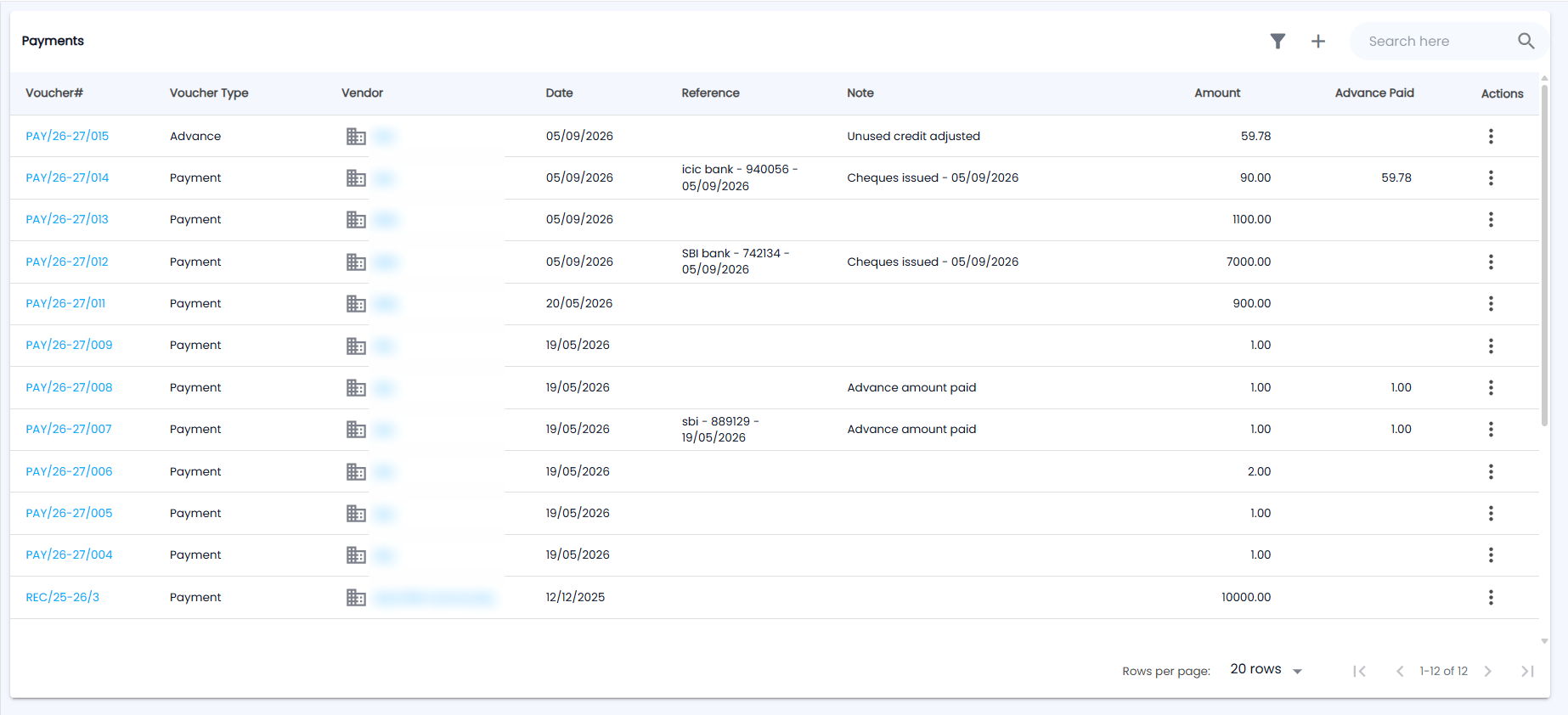
The page is titled Payments; the toolbar has the filter icon, + and Search here, and the list shows 20 rows per page by default.
| Column | What it shows |
|---|---|
| Voucher# | The payment voucher number, for example PAY/26-27/015. Click it to see the voucher PDF. |
| Voucher Type | How the bills were settled: Payment, Advance, Debit Note, or a mix such as "Payment, Debit Note" |
| Vendor | Who was paid |
| Date | Payment date |
| Reference / Note | What was entered on the voucher. A cheque payment shows the bank, cheque number and date as the reference, and a note such as Cheques issued - 05/09/2026; others show notes such as Advance amount paid or Unused credit adjusted |
| Amount | Amount paid |
| Advance Paid | Any part paid as an advance |
| Actions | The ⋮ menu with Edit and Delete, if your role allows them |
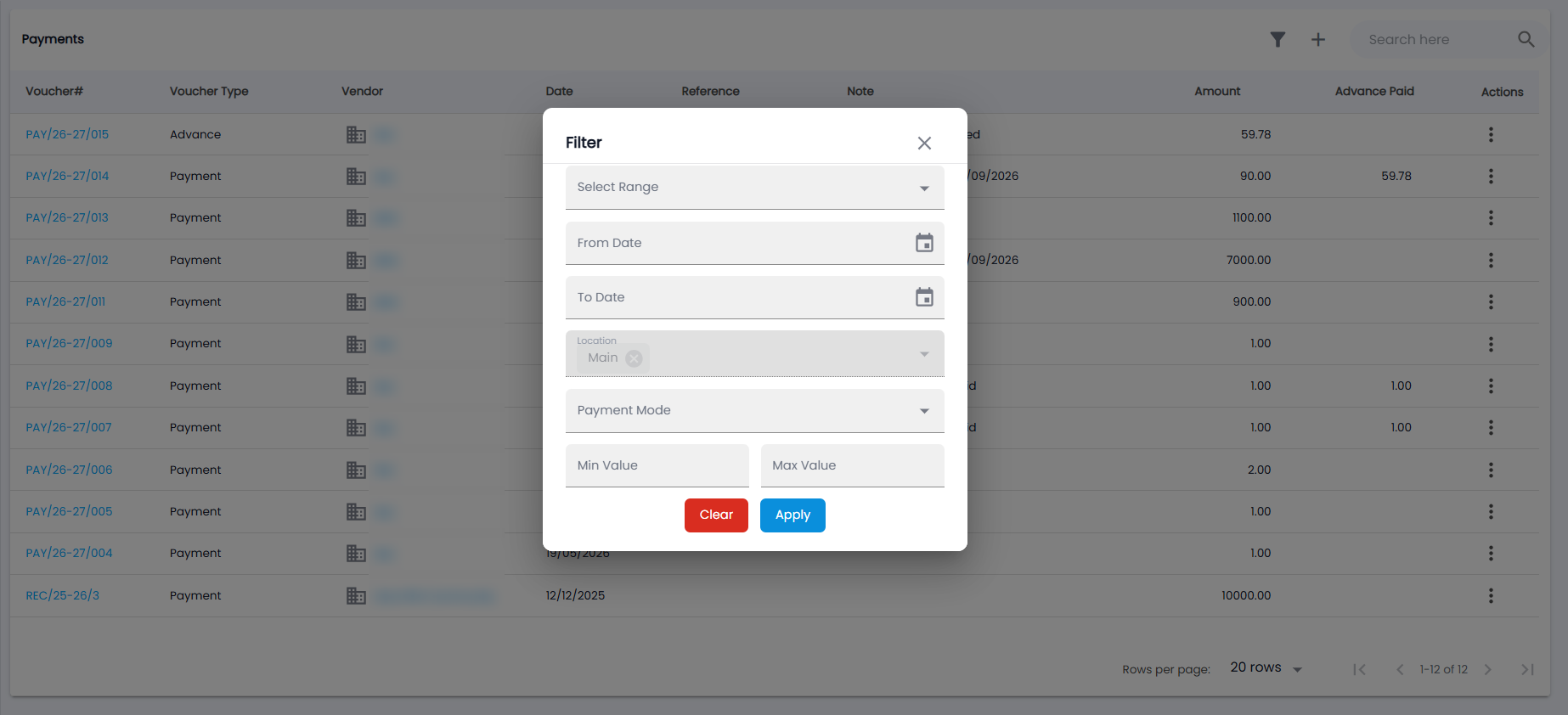
Use search or the filter: Select Range, From Date / To Date, Location (your location is already chosen), Payment Mode, and Min Value / Max Value. More actions has Export CSV and Export PDF. Click a row to open the voucher's detail, with Previous / Next.
How do I pay one or more bills?
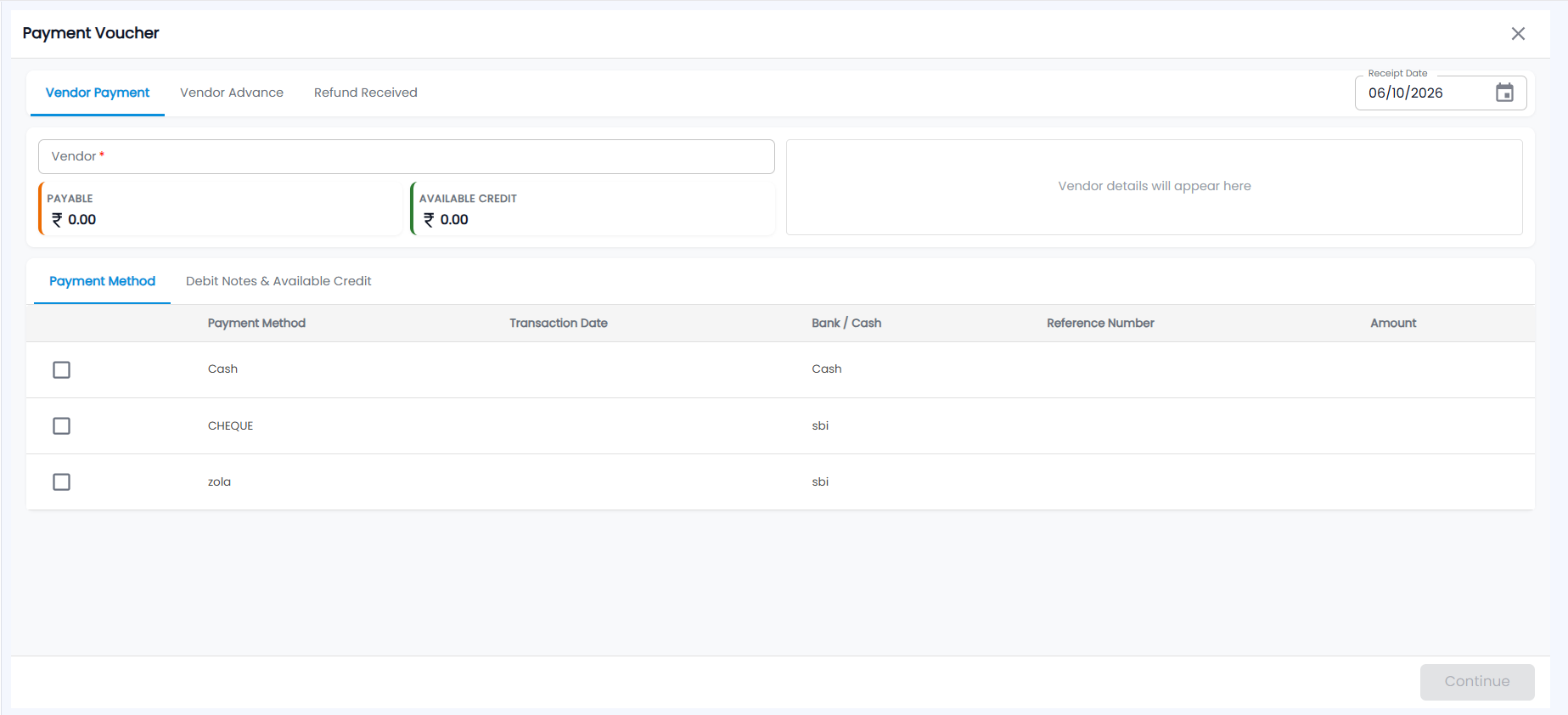
- Click + (Add). Select a location in the header first if you are asked to. The Payment Voucher opens on the Vendor Payment tab.
- Check the Receipt Date (today by default) and choose the Vendor (required). Their details appear on the right — until then it says Vendor details will appear here — and the cards show their PAYABLE and AVAILABLE CREDIT.
- On the Payment Method tab, every payment method you have set up is listed with its Bank / Cash account. Tick each one you paid with and enter the Transaction Date, Reference Number and Amount. For a cheque, enter the Cheque Number, Cheque Date and Bank Name; for a transfer, the Reference Number.
- To use a debit note or an unused advance, open the Debit Notes & Available Credit tab and pick it.
- Add a Note if you like and click Continue.
- The vendor's unpaid bills are listed with Vendor INV#, Location, Total and Due Amount. Enter the Payment Amount against each bill — it cannot be more than the due amount — and click Submit.
You can also start a payment from a bill (Make Payment on Bills) or from Payables; the voucher then opens with that bill selected.
How do I pay an advance or record a refund from a vendor?
- Vendor Advance — money paid before a bill exists. Choose the vendor and payment method, enter the amount and click Submit. The advance can be adjusted against the vendor's bills later from the Debit Notes & Available Credit tab.
- Refund Received — money the vendor pays you back. Enter the refund amount and adjust it against the vendor's credit.
Can I edit or delete a payment?
Yes, from the row’s ⋮ menu or the voucher’s detail, if your role allows it. On edit, the voucher opens on the tab it was saved with. Deleting a payment puts the amount back on the bill's Due.