
How do I lock a financial year in Tazk POS?
Open Settings → Period lock. The Financial Years tab lists each year with its status. Click Lock FY on the year you have closed. From then on no one, including admins, can add or edit accounting transactions dated in that year. Every lock and unlock is recorded on the Audit Log tab.
What does the Financial Years tab show?
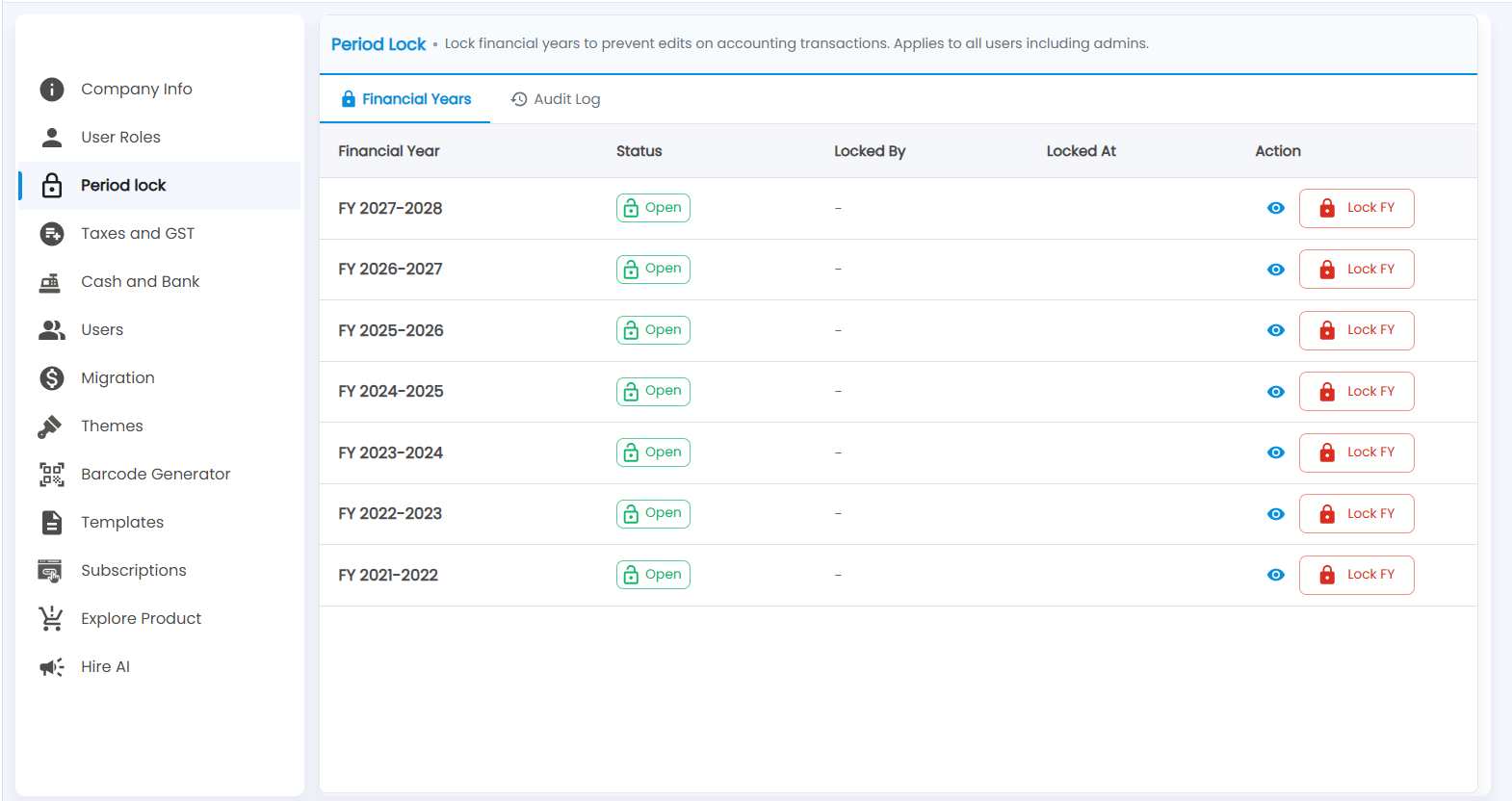
Open Settings → Period lock. The page says what it does: Lock financial years to prevent edits on accounting transactions. Applies to all users including admins. Each financial year (April to March, for example FY 2026-2027) has a row, newest first:
| Column | What it shows |
|---|---|
| Financial Year | The year |
| Status | Open (green) or Locked |
| Locked By / Locked At | Who locked it and when; a dash while it is open |
| Action | The eye icon shows records still pending in that year; Lock FY locks it, and a locked year shows Unlock FY |
How do I lock or unlock a year?
- Click the eye icon on the year. It lists what is still open, such as Uncleared / Held Cheques and Unreconciled Payments. Clear them first — see Cheques and Bank Reconciliation.
- Click Lock FY, add a reason if asked, and confirm.
- To reopen a year, click Unlock FY on it.
Important: Lock a year only after your books are final and returns are filed. While it is locked, no one can post or change accounting transactions dated in that year.
Where do I see who locked a year?
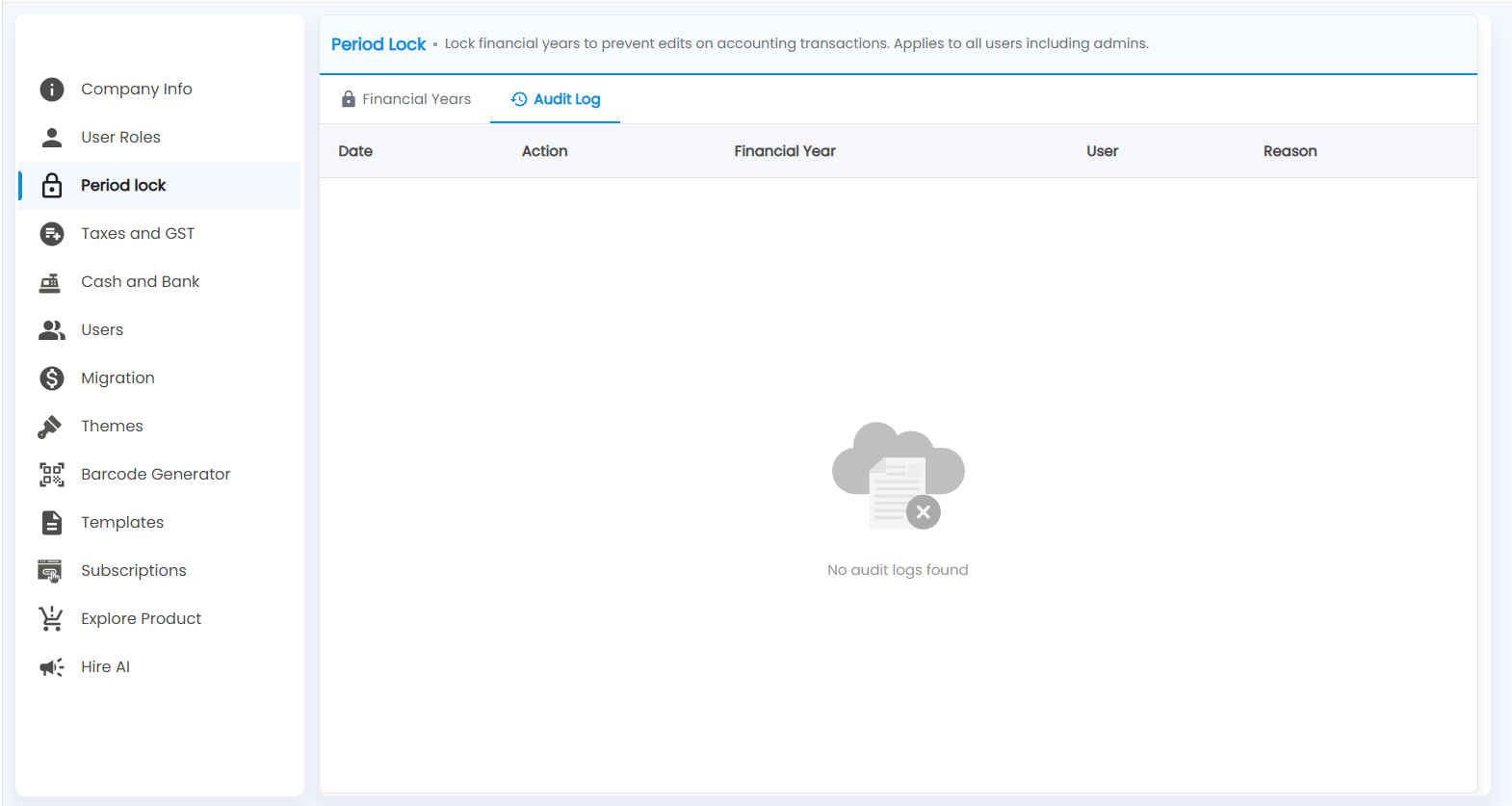
The Audit Log tab records every lock and unlock with the Date, Action, Financial Year, User and Reason. Until a year has been locked it says No audit logs found.
Tip: Run Health Audit before you lock a year. It also flags any transaction posted into a locked period.