
How do I record a customer payment in Tazk POS?
Go to Sales → Receipts and click +. Choose the receipt date and customer, enter how they paid (cash, bank, cheque and so on), and allocate the amount to their unpaid invoices. You can also use their advances or credit notes. Confirm to save. The invoices’ dues go down, and anything paid in excess can be kept as an advance.
What does the Receipts page show?
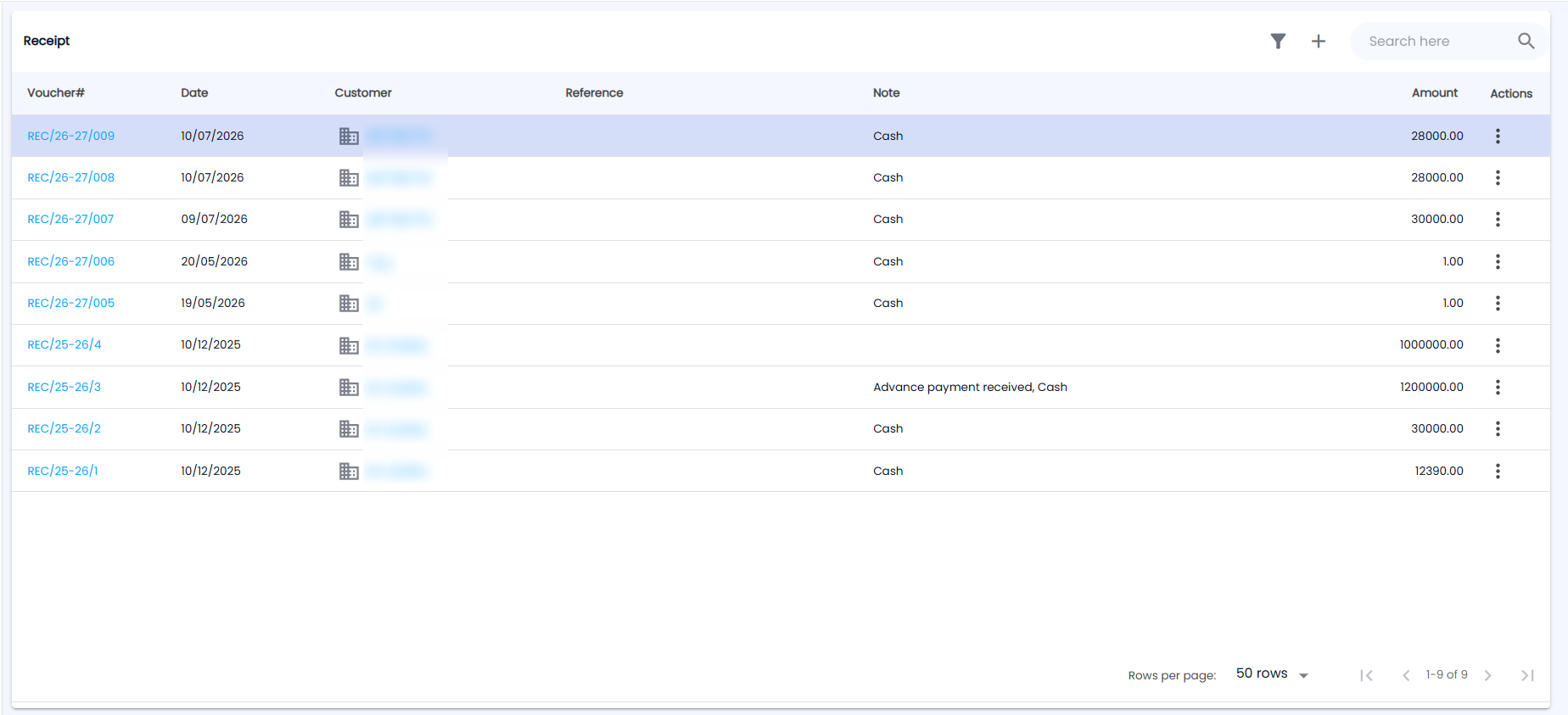
Open Sales → Receipts. The Receipt list has the filter icon, + (new receipt) and Search here at the top, and shows 50 rows per page by default.
| Column | Description |
|---|---|
| Voucher# | Receipt number, for example REC/26-27/009. Opens the Receipt Voucher PDF, which you can Share |
| Date | Receipt date |
| Customer | Opens the customer's page |
| Reference / Note | Your reference, and the note with the payment modes used — for example Cash, or Advance payment received, Cash |
| Amount | Total received, in ₹ |
| Actions | The ⋮ menu with Edit and Delete |
The Filter has Select Range (Weekly to Yearly), From Date / To Date, Location, Payment Mode and Min Value / Max Value. You must select a location in the header before you can add a receipt.
How do I record a receipt?
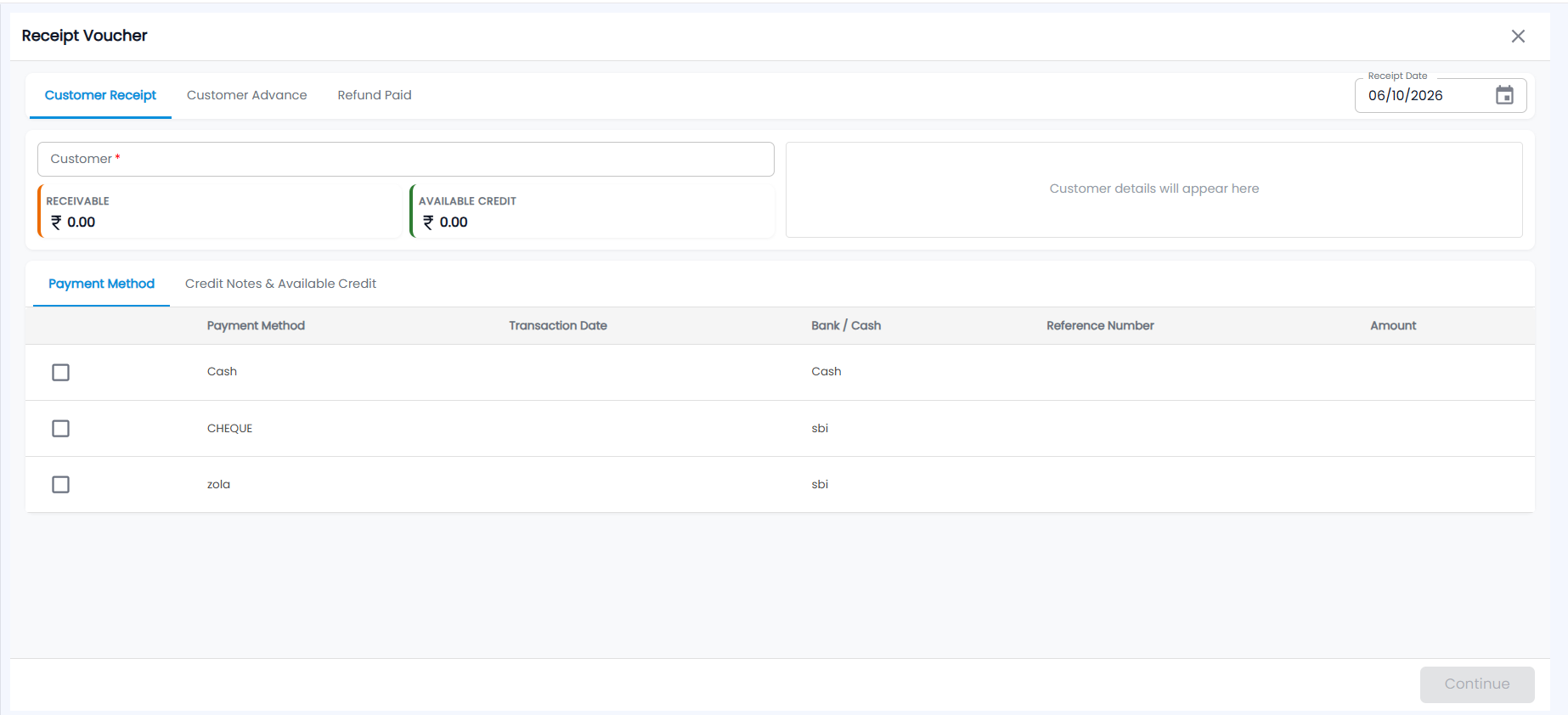
- Click +. The Receipt Voucher opens. Choose a tab: Customer Receipt (payment against invoices, the default), Customer Advance (money received before billing) or Refund Paid.
- Check the Receipt Date (today by default) and choose the Customer (required). Their address and mobile appear on the right — until then it says Customer details will appear here — and the cards show their RECEIVABLE and AVAILABLE CREDIT.
- On the Payment Method tab, every payment method you have set up is listed with its Bank / Cash account. Tick each one the customer paid with and enter the Transaction Date, Reference Number and Amount. Cheques ask for the cheque number and date; cash may ask for the cash box and denominations. Then click Continue.
- Where they apply, add deduction lines: TDS (for TDS-deducting customers), Discount, Round Off or Courier Charges. These post to their own ledgers rather than to bank or cash.
- In the invoice list, enter the Payment Amount against each invoice you are settling. Each invoice shows its Total and Due Amount.
- To use credit, open Credit Notes & Available Credit, or use the Advances section, and enter the amount to adjust.
- Check the summary (Total Received, Total Receipt Amount, Advance Received), add a Note, and click Confirm in Confirm Receipt.
What is on the receipt detail page?
Click a receipt to open it. The page shows:
- the customer and their GSTIN/UIN
- the payment mode, reference, amount in words, note and entry date
- an AMOUNT RECEIVED badge
- for bank receipts, a reconciliation chip: Reconciled, Unreconciled or Adjusted
- the linked invoices, each marked Fully Paid or Partially Paid
- for an advance receipt, an Advance Utilization & Refunds section showing how much has been used or refunded and the balance left
The Actions menu has Print, Download, Edit and Delete.
What happens if I delete a receipt?
Receipts reduce the customer's dues in Receivables. They can also be recorded straight from an invoice in Invoices, or from an ecom order in Ecom Orders.