
How do I reconcile my bank account in Tazk POS?
Open Cash & Bank → Bank Reconciliation. Either tick the unreconciled entries that appear in your bank statement and reconcile them with a reconcile date, or use Import Statement to upload the statement as an Excel file. Tazk POS shows which statement lines matched your entries and which did not; record the unmatched ones, then Submit to reconcile.
What does the Bank Reconciliation page show?
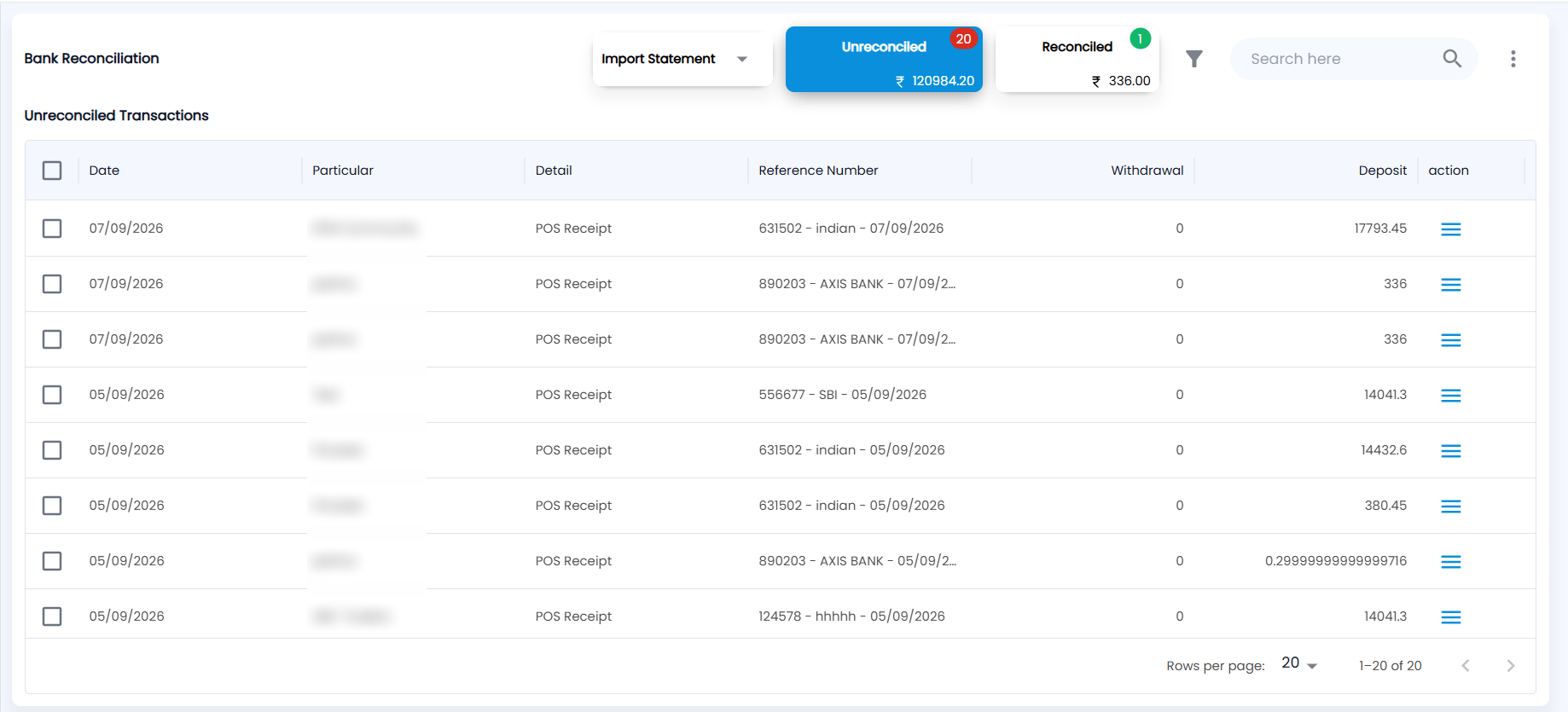
Go to Cash & Bank → Bank Reconciliation. Next to Import Statement, two cards show the count (in the badge) and value of Unreconciled and Reconciled entries; click a card to switch the list. Use the filter icon and the search box to narrow it.
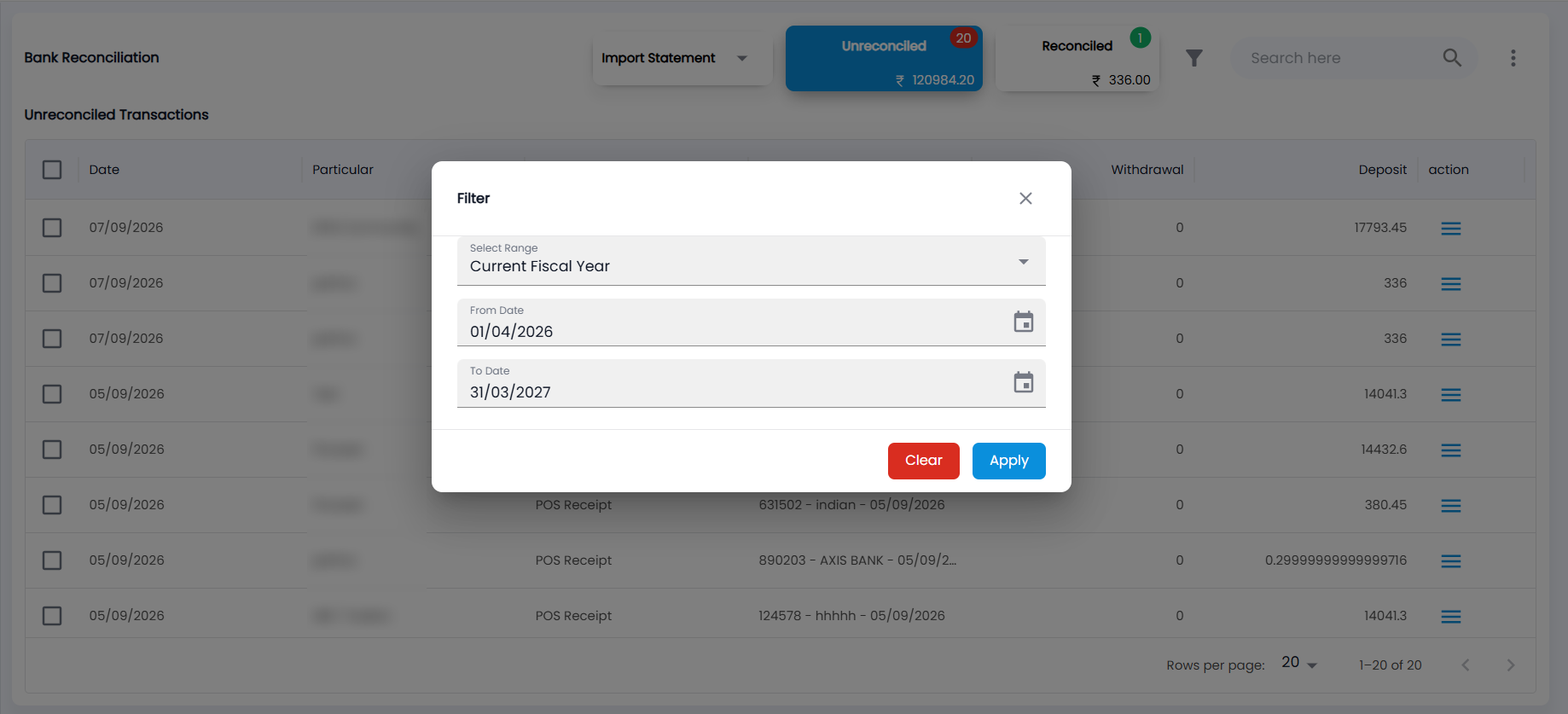
The filter has Select Range (Current Fiscal Year by default) and the From Date and To Date it fills in — 1 April to 31 March — which you can change; then Apply or Clear.
| Column | Description |
|---|---|
| Date | Entry date in your books |
| Particular / Detail | Who the entry is for, and what kind it is (for example POS Receipt) |
| Reference Number | Cheque number, UTR or other reference — for a cheque, the number, bank and date |
| Withdrawal / Deposit | Money out of / into the bank |
| Action | The ≡ icon: Reconcile (or Unreconcile on the Reconciled list) |
How do I reconcile entries by hand?
- On the Unreconciled Transactions list, click Reconcile on a row, or tick several rows to reconcile them together.
- Enter the Reconcile Date — the date the money appears in the bank — and confirm.
To undo, open the Reconciled card and use Unreconcile.
How do I import a bank statement?
- Click the arrow on Import Statement and choose the bank account.
- Download the Sample Template if you need the column layout, fill in your statement, and attach the .xls or .xlsx file.
- Click Upload. Matched and Unmatched Records opens, listing each statement line with its date, description, withdrawal, deposit and status — Matched where Tazk POS found the entry in your books, Unmatched where it did not.
What do I do with unmatched lines?
Click the icon on an unmatched line and choose how to record it:
| Line | Options |
|---|---|
| Deposit (money in) | Receipt Entry, Pay In or Manual Match to an existing receipt |
| Withdrawal (money out) | Payment Entry, Expenses, Pay Out, Contra or Manual Match to an existing payment |
| Bounced cheque | Cheque Bounced — enter the bounced date, bounce reason, bank charges and remarks |
The options you see depend on your role’s rights to create receipts, payments, expenses and pay-ins. Once lines are matched, click Submit and confirm in Reconciliate Confirmation.