How Do You Close the Day in a Retail Shop? X-Report, Z-Report and Cash Reconciliation, Explained in 10 Minutes
7 min read | By Tazk Team
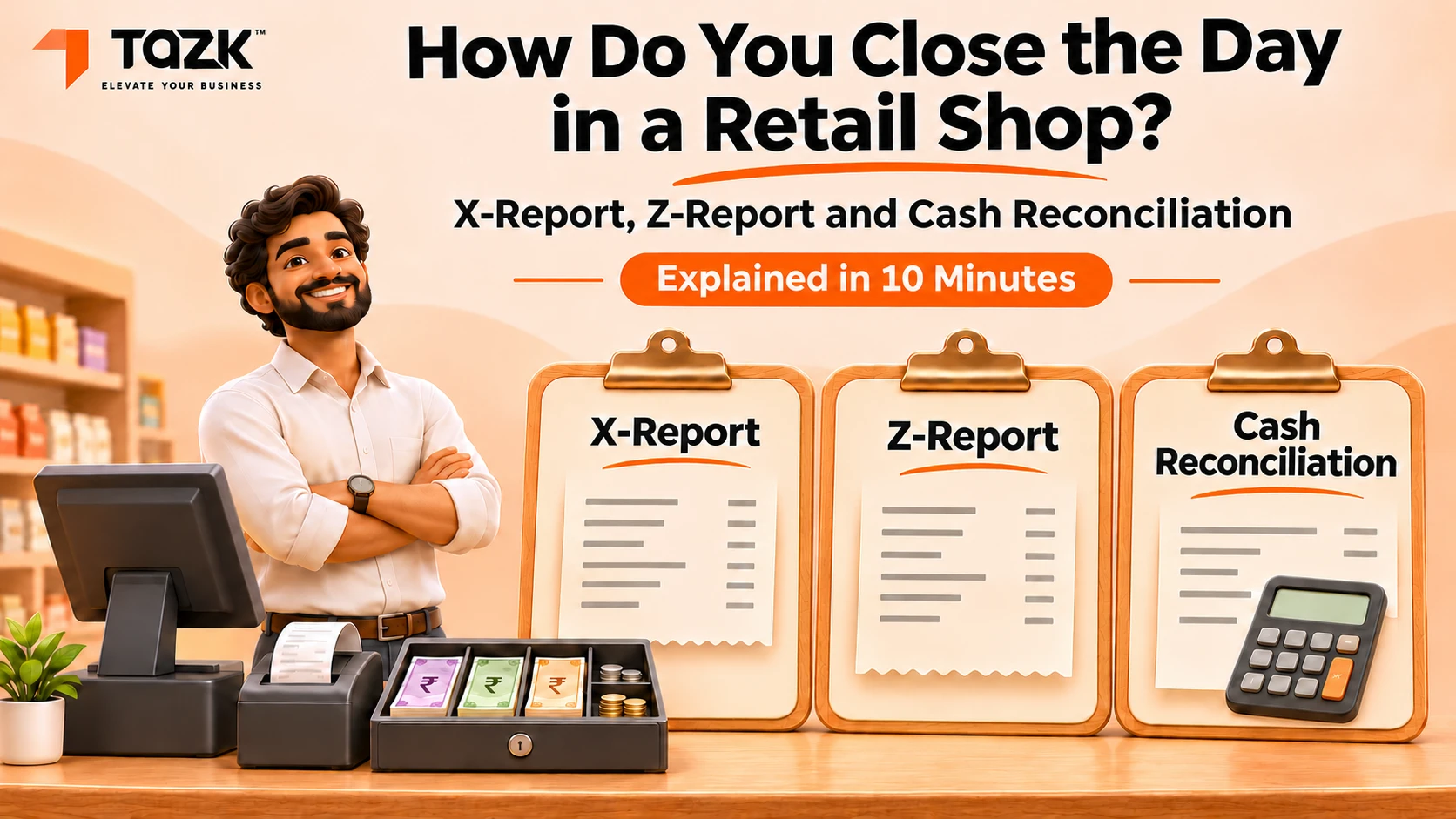
Table Of Contents
Social Media


An X-report shows the day’s sales so far and leaves the counters running; a Z-report closes the day, prints the final totals and resets them. Run whenever you want a check, and run Z once, after counting cash and matching UPI and card totals.
It is nine at night. The last customer has gone and the drawer is full of notes. Do you trust the number on the screen or the cash in your hand? Day-end closing in a retail shop makes the two agree. The POS Z report locks in the day’s figures, and the X-report is your check on the way.
This guide is for shop owners, store managers and cashiers in garment shops, supermarkets, electronics stores and mobile shops. It explains the Z-report in plain words, then walks through a cash count, UPI and card matching, returns and the manager’s sign-off. We build point of sale software at Tazk , so day-end closing is part of our daily work. The steps work on any system. We treat the Z-report as good practice, not as a legal rule. For the records the law needs you to keep, ask your CA.
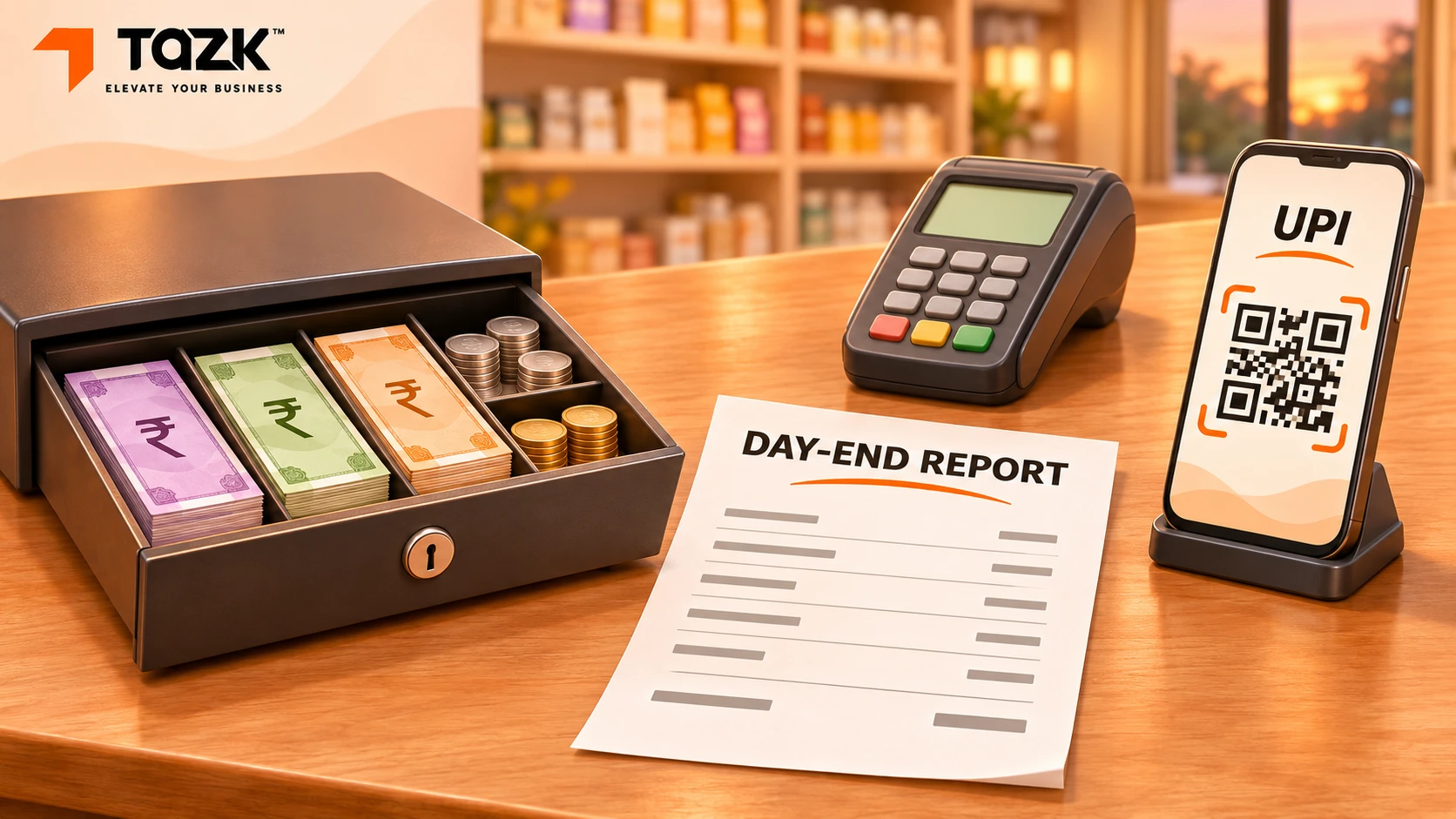
Whatis the difference between an X-report and a Z-reportin POS?
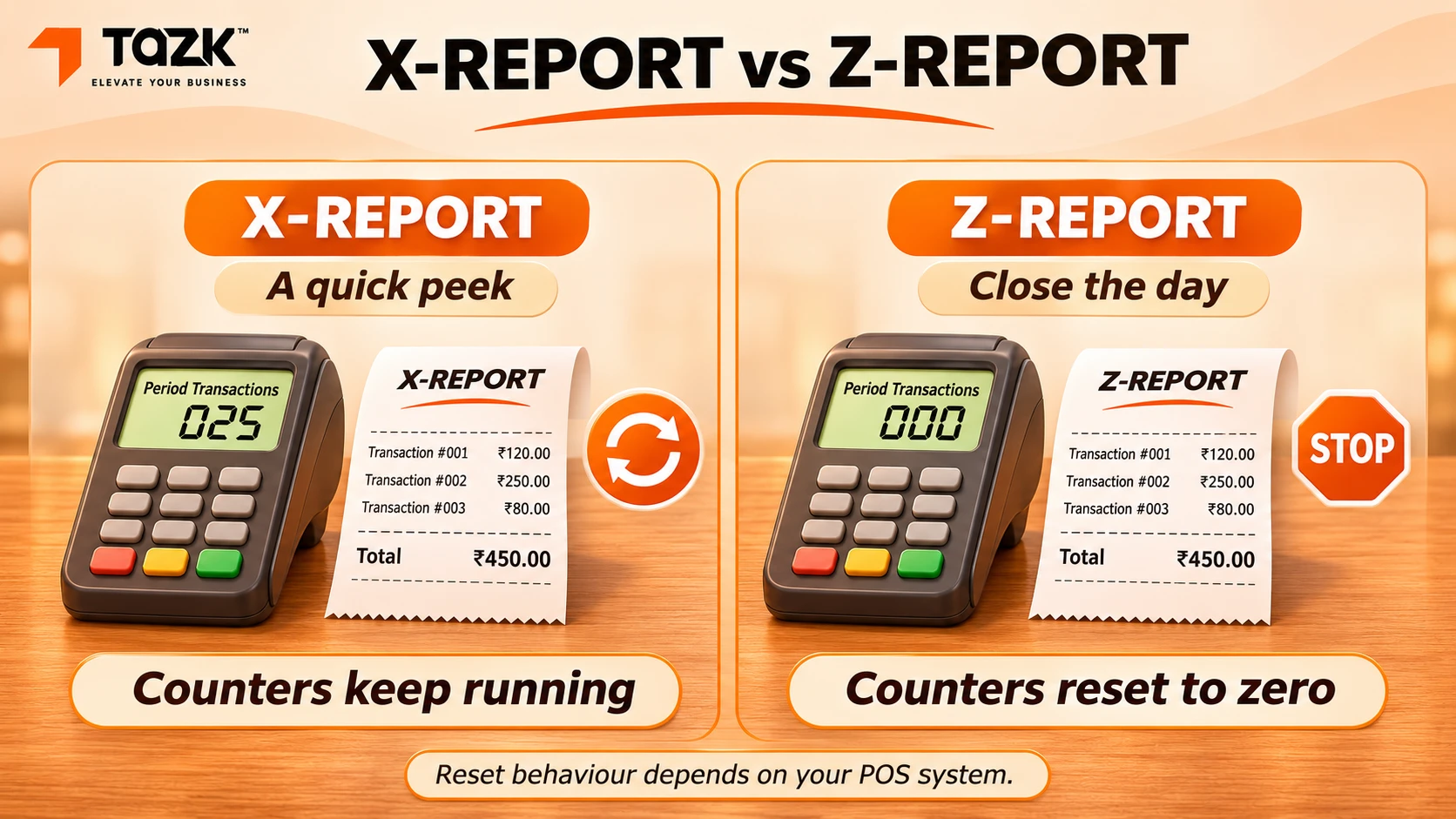
Think of the X-report as a peek and the Z-report as the full stop. An X-report is an interim report. It shows what you have sold so far, and billing carries on. You can run it as often as you like. A Z-report closes the period. It prints the final totals for the day and sets the counters back to zero, so the next sale starts a new day.
Buckaroo, a payments company, explains the same split for card terminals. X totals print without closing the period. Z totals close it and reset the counters. Buckaroo also warns that a day closing on a terminal cannot be undone. Some billing software lets a manager reopen a closed day, and some does not. Ask your vendor, and plan to close once.
Here is the X report vs Z report at a glance:
| X-report | Z-report | |
|---|---|---|
| Resets the counters | No | Yes, to zero |
| How often | Any time, as often as you like | Once a day, or once a shift |
| Who runs it | Cashier or manager | Manager, after the count |
| Used for | Mid-day checks and shift handover | Day-end closing and your daily record |
Systems use different names. You may see “day close”, “shift close”, “session close” or “end-of-day billing report”. Look for the action that locks the totals and starts a fresh period. In Tazk POS, the day’s figures sit in the “Point of Sale Report & Daily Report” dashboards. The MIS reports add a “Payment Mode Analysis”. New to billing software? Start with our guide to point of sale software in India.
How do I close the billing day without a cash mismatch?
Count the cash first, match UPI and card, then run the Z-report once. Cash reconciliation in your POS means checking that the cash in the drawer equals the cash the system expects. Count before you look at the screen. A few words you will need:
- Opening float: the cash you keep in the drawer at the start of the day, so you can give change
- Cash drawer count: the total of the notes and coins you find at closing.
- Short cash and variance: the gap between the cash the system expects and the cash you count. Less cash than expected is short. More is over.
Wikipedia’s page on cashier balancing says the closing cash must match the X-report or Z report. Shopify’s guide to balancing a cash drawer adds a “blind” count. Staff count first and see the expected amount afterwards, so the screen cannot nudge them.
This routine fits in about ten minutes at one counter. A busy store needs longer.
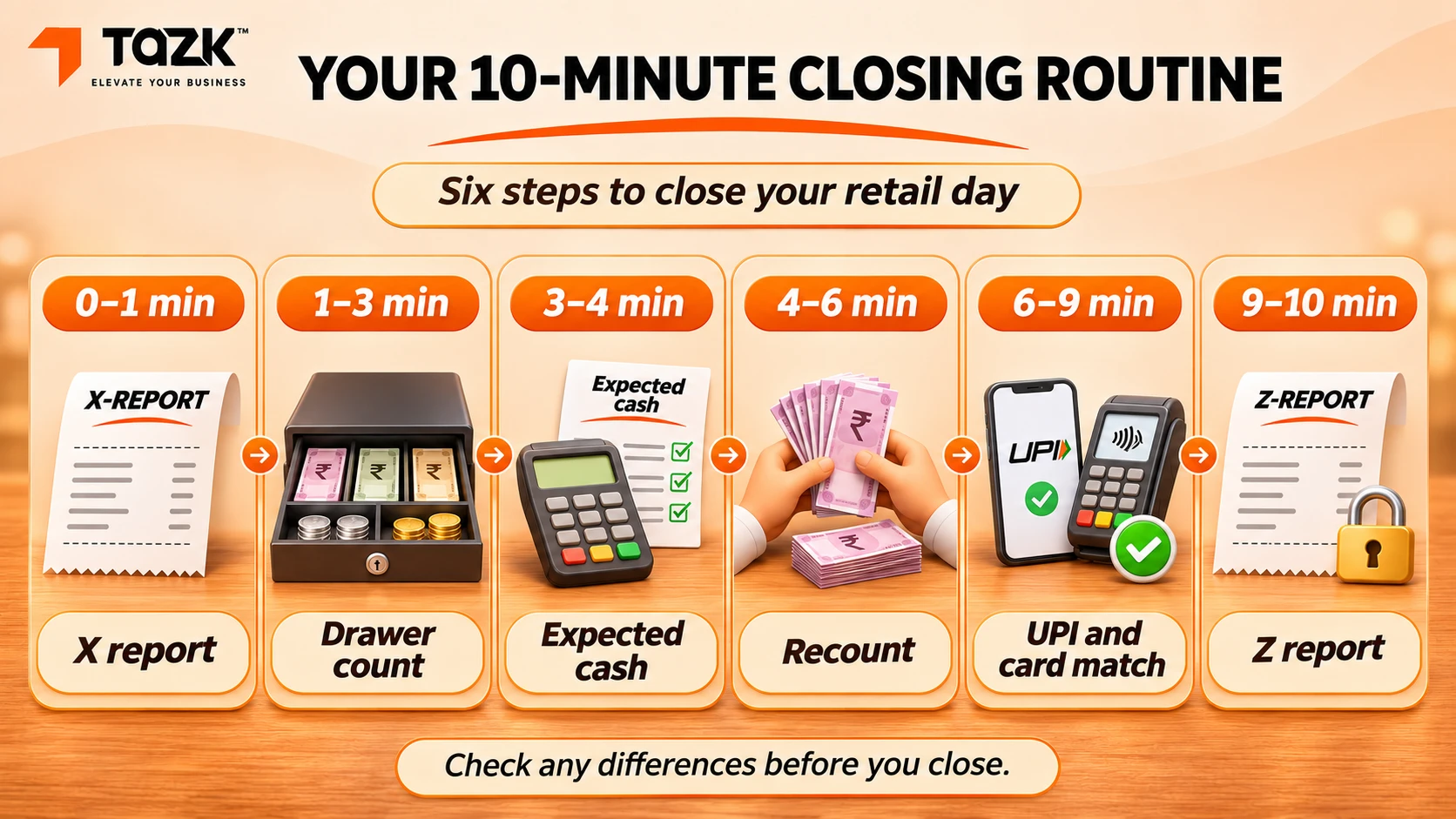
- Minute 1: stop and take an X-report. Finish the last bill. Run the X-report and note cash, UPI, card, refunds and pay-outs. Do not close yet.
- Minutes 2 to 5: count the drawer. Count the notes and coins by denomination. Write the total on paper before you see the expected cash.
- Minute 6: work out the expected cash. Use the table below
- Minutes 7 to 8: compare and recount. If the two numbers differ, count again, slowly. Ask a second person to count too.
- Minute 9: match UPI and card. The next section shows how
- Minute 10: run the POS Z report. Print or save it, sign it and clip it to the cash sheet.Leave tomorrow’s float in the drawer and move the rest to the safe or the bank bag.
Here is an example with made-up numbers.
| Line | Amount (₹) |
|---|---|
| Opening float | 5,000 |
| Add: cash sales on the X-report | 38,400 |
| Subtract: cash refunds | 1,200 |
| Subtract: pay-out for courier | 300 |
| Cash that should be in the drawer | 41,900 |
| Cash you counted | 41,400 |
| Difference | ₹500 short |
The drawer is ₹500 short. Do not close yet, and do not top up the drawer from your pocket to hide the gap. A round figure like ₹500 is a clue, so look for a bill of that size. Wikipedia lists common causes: wrong change, a payment type keyed wrongly, or an item entered wrongly. Check those first.
If the gap survives a recount, write it on the closing sheet with the date, the amount and the likely cause. One gap is usually a mistake. The same gap again and again, for one cashier or one shift, is a pattern. Shopify’s guide says patterns may call for retraining or tighter permissions.
How do I match UPI, card and cash totals to the system?
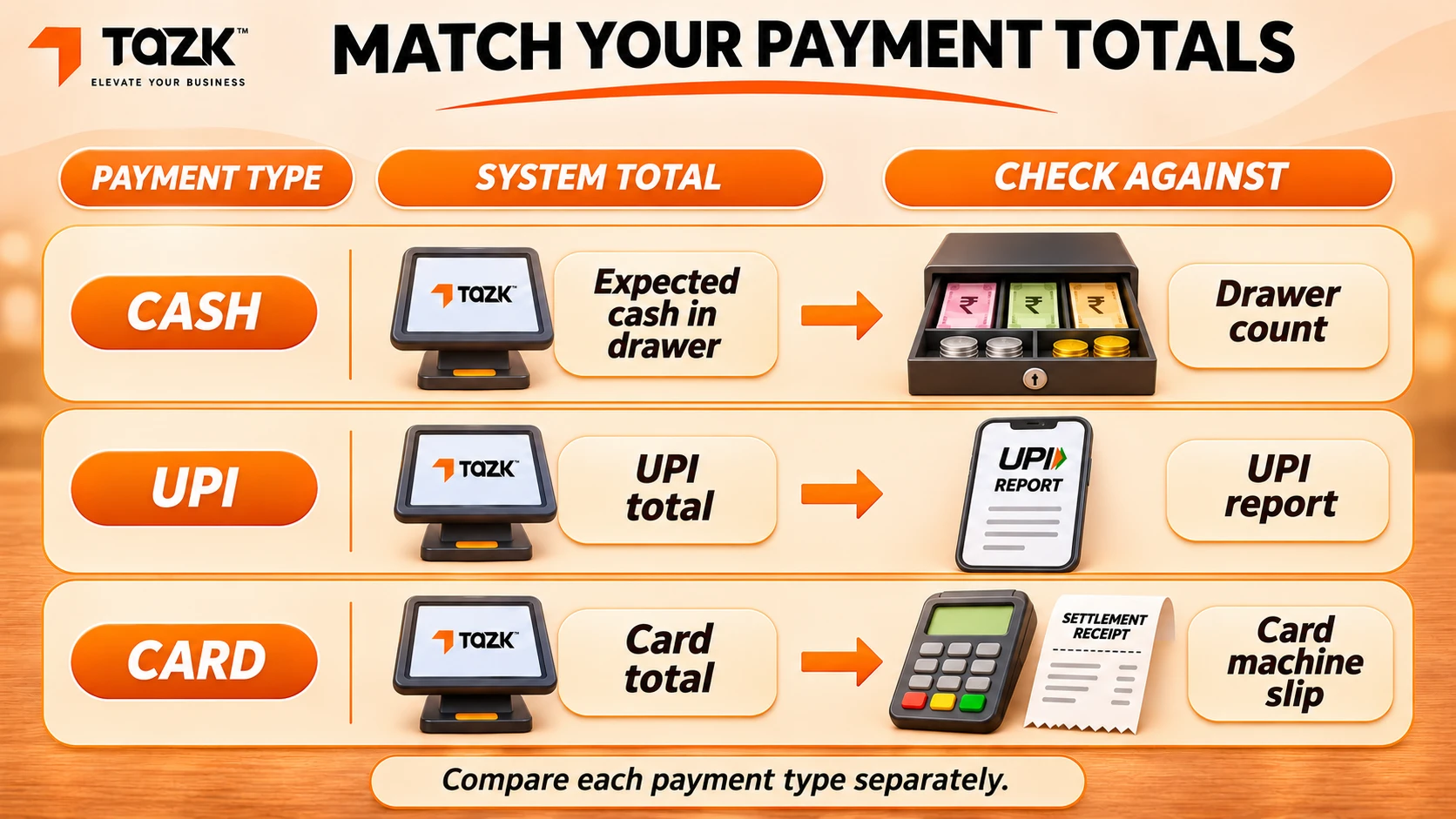
Match each tender type to a record from outside your billing system. Tender types are the ways a customer pays: cash, UPI, card and, in some shops, store credit. Your system totals each type, and each total needs a second record to prove it.
- Cash: the drawer count from the last section.
- UPI: the day’s report from your UPI app or payment provider.
- Card: the batch or settlement slip from your card machine. Many card machines have their own X and Z totals too, so check your machine’s manual.
Use the same cut-off time on both sides. A payment made after your cut-off belongs to the next day.
Back to our example. The UPI total matches, and the card total does not.
| Tender | System says (₹) | Outside record says (₹) | Gap |
|---|---|---|---|
| UPI | 52,600 | 52,600 (UPI report) | None |
| Card | 21,300 | 21,800 (card machine) | ₹500 more on the machine |
Now the cash gap makes sense. A customer paid ₹500 by card, but the bill was saved as cash. Ask your manager to correct that bill’s payment type, using your system’s approval step, and add a note to the sheet. After the fix, the expected cash is ₹41,400, the card total is ₹21,800 and every line matches.
This is the UPI and card settlement match in its simplest form: your sales total against your provider’s report. A second check comes when the money reaches your bank, so make sure the credit agrees. Ask your payment provider how that works. We have not covered settlement timing here.
What happens to returns, exchanges and credit notes at day end?
Every return must show up in the day’s totals. It should never just disappear. What changes depends on how you pay the customer back:
- Cash refund: the expected cash goes down.
- UPI or card refund: that tender’s total goes down.
- Credit note: no money moves today. The customer holds a credit to spend later.
- Exchange: this is one return and one new sale. Only the difference in amount moves money.
A credit note is the record of a sales return. Tazk POS has “Credit notes for sales returns”, which link to your accounts. Your CA can tell you how returns and credit notes appear in your GST return.
At day end, check three things:
- Count the credit notes issued today. Match each one to an item in the returns tray.
- Check that a manager approved every cash refund. In Tazk POS, only approved roles can view, refund or export records.
- Put each returned item back on the shelf, or in a damaged-stock bin, so the stock count stays true.
A closed day stays closed. If a customer returns a bill from last week, record the return today and link it to the old invoice.
Should the day be closed per counter or per store?
Both, in that order. Close and count each counter first. Then add the counters up for the store total. A counter-wise report shows who sold what, and where a gap began. If two cashiers share one drawer, you cannot tell who made a mistake.
Set it up like this:
- Give each cashier their own login and their own opening float.
- At a shift change, do a shift close. Some systems call it a session close. The outgoing cashier counts the drawer, the incoming cashier counts it again, and both sign.
- Before the manager takes the store total, make sure every counter has synced. Tazk POS keeps billing offline and syncs on its own when the internet returns, so let that finish first. Our guide to offline-first POS explains how it works.
- The store total should equal the sum of the counters. If it does not, a counter has not synced or a bill went to the wrong counter.
With one counter, your counter is the store. Follow the same steps.
Each counter may use its own invoice series, such as C1/0001 and C2/0001. Rule 46 of the CGST Rules allows a tax invoice number “in one or multiple series”. It can have up to 16 characters, using letters, numbers, a hyphen or a slash, and it must be unique for the financial year. Show your GST invoice series to your CA first.
How often should I reconcile stock against sales?
Check a few items every day and count everything on a fixed schedule. This is our suggestion, not a rule, so adjust it to your shop.
- Every day: count your fastest-selling items and every high-value item, such as phones, watches or branded jackets.
- Every week: count one shelf or section, so the whole shop is covered in a month.
- Every quarter: do a full count. Ask your CA about the count at the financial year-end.
The sum is simple. Start with the opening stock and add what you received. Subtract what the day’s report shows as sold. Add returns that went back on the shelf. The result is what should be on the shelf.
For example, a mobile shop starts with 12 chargers and sells 5. One comes back in good condition. The shelf should hold 8. If you find 7, one is missing. Look for an unbilled sale, a wrong variant, a damaged piece nobody wrote down, or a loss. Serial numbers and IMEI numbers make this hunt faster.
The inventory module in Tazk POS has “Stock reconcile & sync” for this check. Festival weeks need a bigger count, before and after. We cover that in our Diwali rush checklist, so we do not repeat it here.
What should a manager review before signing offthe day?
Take two minutes to run through this list before you sign:
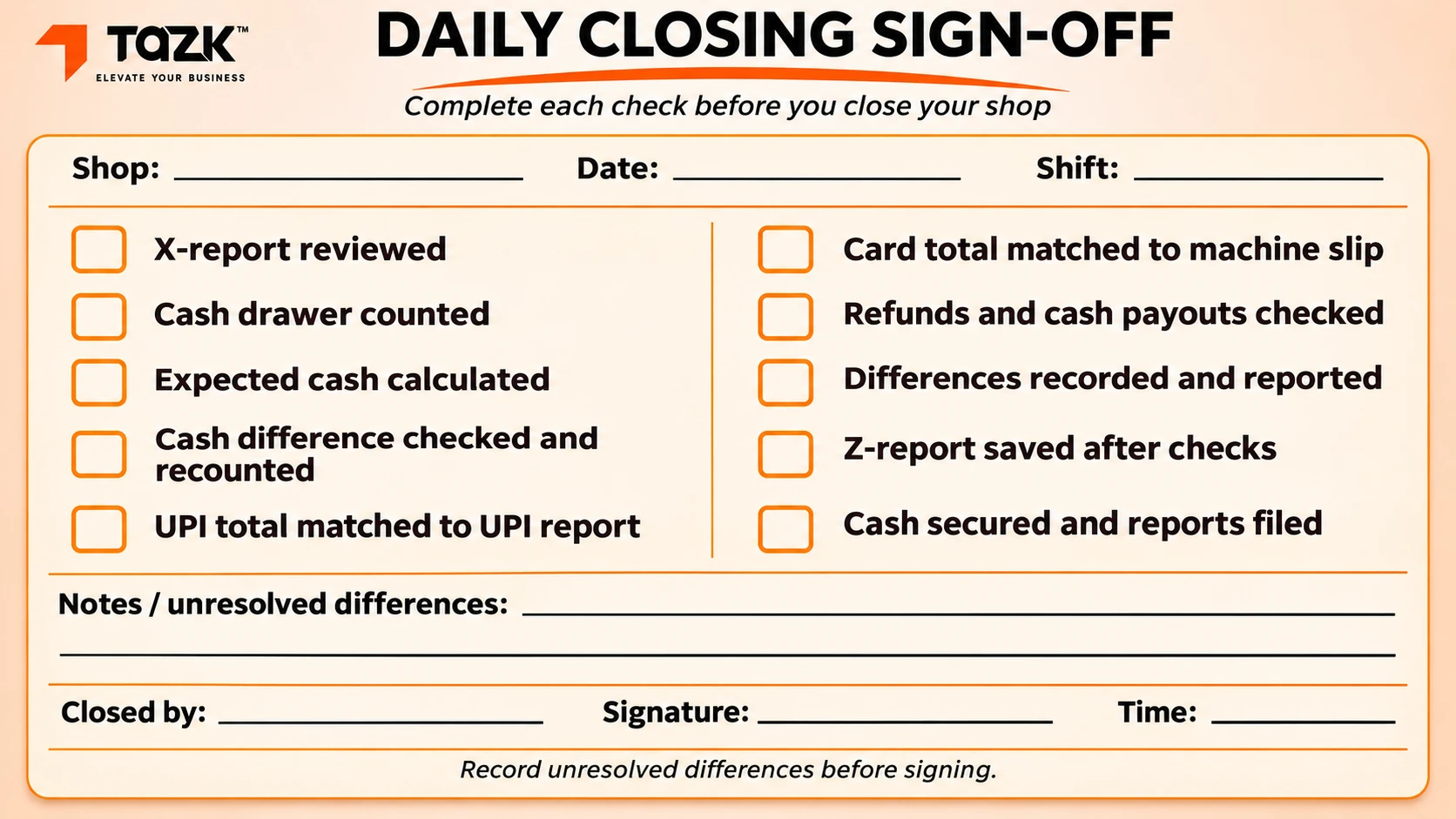
- The POS Z report totals match the last X-report.
- Every cash, UPI or card gap is explained in writing.
- Refunds, voids and discounts were approved by the right person. Tazk POS keeps “Audit logs & security reports” for this.
- Credit notes match the returned items in the tray.
- Pay-in and pay-out slips are attached. Tazk POS records “Pay in / Pay out”.
- Invoice numbers run in order, with no gaps, in every series.
- Cash above the float is in the safe or the bank bag, and tomorrow’s float is counted.
- The Z-report is printed or saved, signed and filed.
- Customer names and phone numbers on bills are personal data, so limit who can view or export them. Our DPDP readiness check for small businesses explains the law.
Set a gap limit that fits your shop. Any gap above it needs a written reason and the manager’s name.
Ready to try your first close? Start a free trial and run your first day-end close on Tazk POS.
This guide is general information, not accounting or legal advice. The example numbers are made up to show the steps. Check your own records and rules with your CA.
Ready to upgrade your retail billing?
Tazk Point of Sale handles billing, inventory, GST invoices, and multi-store management. 14-day free trial — no credit card required.
14-day free trial. No credit card required. Go live in hours.