
What is the Health Audit in Tazk POS?
Health Audit (the Audit Dashboard) runs a set of automatic checks on your company's data: double-entry balance, missing or orphan records, GST and ITC reconciliation, payments and cheques, credit and debit notes, and stock. It then gives you a score out of 10. Click the Run icon to start an audit. Each failed check shows how many records are affected, why it matters and how to fix it, and you can open or export the records.
How do I open and run the audit?
- Click Health Audit in the sidebar. The page is titled Audit Dashboard.
- If no audit has run yet, the page says so. Click the Run Audit Now icon (▶) at the top right.
- A progress bar shows Running checks — this usually takes 30-120 seconds. You can stay on the page. It updates when the run finishes.
- Last run shows when the results you are looking at were produced. Run it again any time you want fresh results.
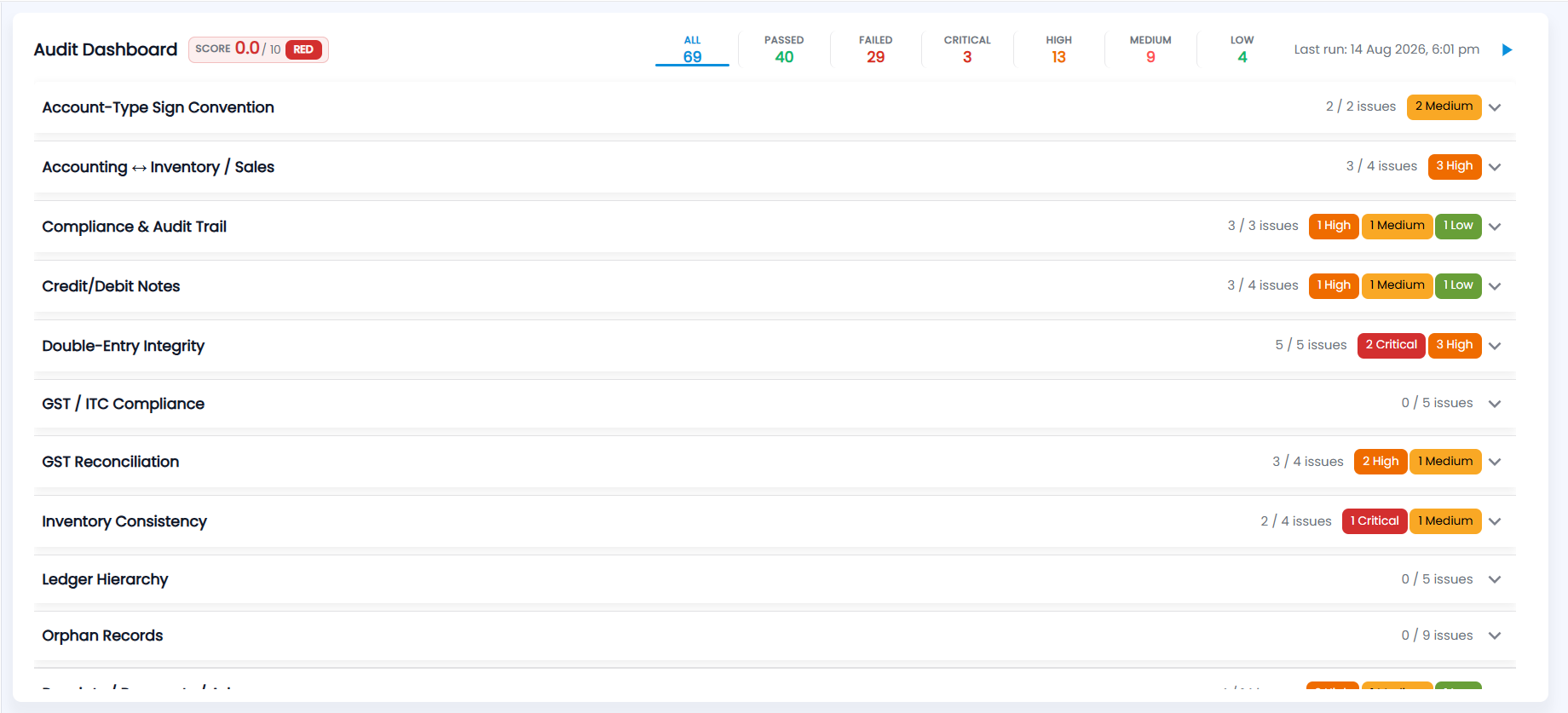
How is the score worked out?
The Score pill beside the title shows a number out of 10 and a colour label — for example 0.0 / 10 RED:
| Score | Label |
|---|---|
| 8 to 10 | GREEN: healthy |
| 5 to 7.9 | AMBER: needs attention |
| Below 5 | RED: serious problems |
The score starts at 10. For each check that finds problems, it drops by 2.0 for a Critical check, 0.8 for High, 0.3 for Medium and 0.1 for Low, and it never goes below 0. The number of bad rows in a check does not change the score; only the number of failed checks and their severity do.
What do the tiles at the top do?
The tiles filter the list below. Click one to show only those checks:
| Tile | Shows |
|---|---|
| ALL | Every check in the last run |
| PASSED | Checks that found nothing wrong |
| FAILED | Checks that found problems or could not run |
| CRITICAL / HIGH / MEDIUM / LOW | Failed checks of that severity |
What does the audit check?
Checks are grouped into sections you can expand with the arrow on the right. Each section header shows how many of its checks found issues out of how many it ran — for example 3 / 4 issues, or 0 / 5 issues when all passed — and coloured chips count the failures by severity (for example 2 Critical, 3 High, 1 Medium, 1 Low). The sections are:
| Section | Examples of what it looks for |
|---|---|
| Double-Entry Integrity | Trial balance debits ≠ credits; transactions whose own debits and credits do not match; single-entry or zero-amount entries |
| Orphan Records | Entries pointing to deleted ledgers, customers or suppliers |
| Soft-Delete Consistency | Deleted transactions, customers, suppliers or payments that still have live ledger entries |
| Ledger Hierarchy | Ledgers that are their own parent, manual entries on group ledgers, and cached balances that differ from the entries |
| Credit/Debit Notes | Notes not posted to the ledger, or whose header amount ≠ the sum of their lines |
| Receipts / Payments / Advances | Payments with a broken or double ledger link, bounced cheques with no reversal, stale presented cheques, cash boxes or bank accounts with no ledger |
| Suspicious Patterns | Future-dated and duplicate transactions; old unadjusted advances |
| Voucher / Sequence | The same source document posted twice; party ledgers with no account code |
| Account-Type Sign Convention | Asset accounts with a credit balance; liability accounts with a debit balance |
| Inventory Consistency | Lot quantities that do not match their source documents; duplicate SKUs; stock that differs from the lot ledger |
| Accounting ↔ Inventory / Sales | Sales or purchases with no accounting entry; sales (net of GST) that differ from income ledger credits |
| GST Reconciliation / GST / ITC Compliance | GST on documents vs GST ledgers; sales missing CGST/SGST/IGST entries; unequal CGST and SGST; ITC claimed on invoices missing from GSTR-2B; ineligible ITC not reversed; RCM invoices without the payable leg; postings inside a filed GST period |
| Compliance & Audit Trail | TDS/TCS ledger consistency; transactions in a locked period; how much was deleted in the last 90 days |
Each row shows a Severity chip, the check ID and title (for example DE-1 Trial balance — debits vs credits) with a one-line description, and the Count of affected rows: red if there are problems, green if zero.
How do I see and fix the records behind a failed check?
- On a failed check, click View records (eye icon). The check opens full-screen.
- Read the Impact (why it matters) and How to fix boxes.
- For reconciliation checks, the Reconciliation summary compares Expected (from source docs) with Actual (GL ledgers) and shows the Gap in ₹, marked WITHIN TOLERANCE or EXCEEDS TOLERANCE. Tolerance is 1% of expected or ₹10,000, whichever is higher.
- Detailed records lists the offending rows, up to the first 500. Click Export CSV (download icon) for the full list.
- Correct the records in the screens where they live, such as Journal Entry, Ledgers, Invoices or Bank Reconciliation.
- Click Re-run this check (↻) to check just this one again. The score and tiles update without a full audit.