
How do I mark a cheque as cleared or bounced in Tazk POS?
Open Cash & Bank → Cheques, find the cheque and click its action icon. A Not Presented cheque can be marked Presented (or Return To Customer); a Presented cheque can then be marked Cleared or Bounced. Marking a cheque Bounced or returned reverses the receipt or pay-in entry it was recorded against.
What does the Cheques page show?
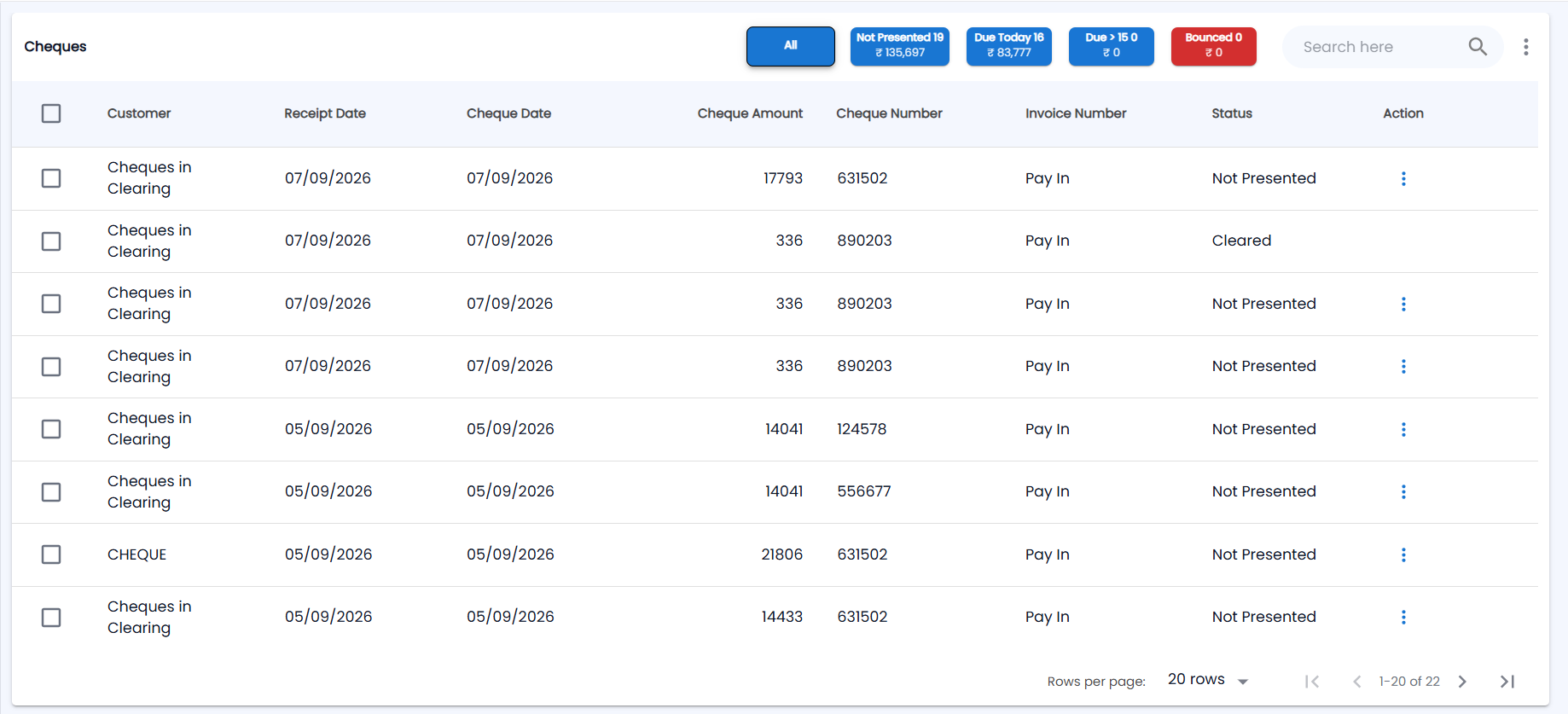
Go to Cash & Bank → Cheques. It lists the cheques recorded on Receipts and on Pay In entries (Pay In / Pay Out). For a pay-in cheque, Customer shows the ledger it was recorded against (for example Cheques in Clearing) and Invoice Number shows Pay In.
| Column | Description |
|---|---|
| Customer | Who gave the cheque |
| Receipt Date | When the receipt was entered |
| Cheque Date | Date written on the cheque |
| Cheque Amount / Cheque Number | Amount and number |
| Invoice Number | Invoice the cheque was received against |
| Status | Current status — the column header has a status filter |
| Action | The ⋮ menu to change the status — not shown once a cheque is final (for example Cleared) |
Tick the boxes to select several cheques. The chips above the list show a count and amount each: All, Not Presented, Due Today, Due > 15 and Bounced. Due Today and Due > 15 pick out cheques that need action — not-presented cheques whose date has come, along with bounced ones. Use Export PDF or Export CSV from the actions menu if your role can export.
How does a cheque move between statuses?
| From | You can change it to |
|---|---|
| Not Presented | Presented or Return To Customer |
| Presented / Re-Presented | Cleared or Bounced |
| Bounced | Re-Presented or Return To Customer |
| Cleared / Return To Customer | Final — no further change |
How do I change a cheque’s status?
- Click the action icon on the row and choose the new status.
- In Confirm Status Change, enter the date (Presented Date, Cleared Date or Bounced Date). For Presented, choose the employee who presented it (Select Employee).
- For Bounced, choose a Bounce Reason (Insufficient Balance, Signature Mismatch or Others) and enter any Bank Charges.
- Add Remarks if needed and confirm.
What happens when I re-present a bounced cheque?
Choose Re-Presented on a bounced cheque and confirm. Tazk POS opens the receipt entry form (or the Pay In form, for a pay-in cheque) and you create the new receipt manually. You need rights to create receipts or pay-ins for this option to appear.