
How do I generate an HR letter in Tazk Payroll?
Open HRMS → HR Letters and stay on the Generate tab. Step 1, Select Employees — tick up to 50 employees, or choose Non-employee for an offer to a candidate. Step 2, Choose Letter — pick the letter type. Step 3, Review & Issue — check the letter data, Preview, then Print, Download as Word or PDF, Email, or Issue & Notify, which records the letter in History and notifies the employee.
What tabs does HR Letters have?
Generate · History · Letter Types · Letterhead.
How do I generate letters?

Generate is a three-step wizard — Select Employees, Choose Letter, Review & Issue — with Back and Next at the bottom.
- Select Employees — keep Employee selected and tick one or many employees ("the same letter, rendered from each employee's own record"). Search by name, code, designation or department, or click Select all; Clear unticks everyone. Up to 50 per batch. Load Draft reopens a saved draft.
- Choose Letter — pick the letter type, grouped by category: Joining, Confirmation, Movement, Disciplinary, Separation, Certificate and Other.
- Review & Issue — the letter data is filled from each employee's profile and salary structure; fill anything required (in a batch, Apply to all). Preview or Edit the letter, then Print, Download (Word or PDF), Email, Save Draft or Issue & Notify — or their batch versions.
Can I send an offer letter to a candidate?
Yes. In step 1 choose Non-employee (candidate / pre-hire) and enter the recipient's name, designation offered, email, gross salary / CTC and address. This is for the Offer Letter and Appointment Order only, delivered by Print or Email — History and Drafts are not available for it.
Where are issued letters kept?
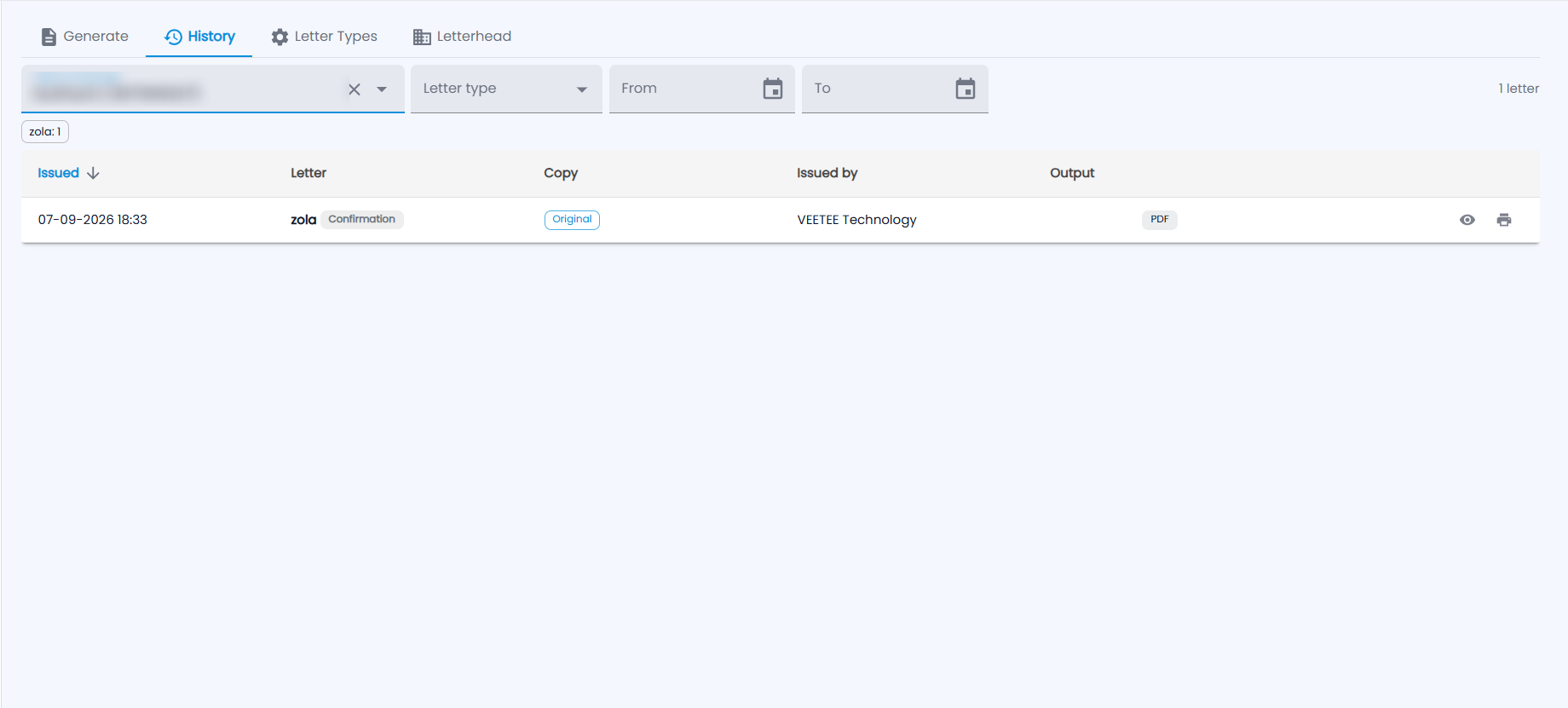
On History. Filter by Select employee, Letter type and a From / To date; the count of letters is shown on the right, with a chip per letter type. Each row shows when it was Issued, the Letter and its category, Copy (Original or Duplicate), Issued by and Output (for example PDF), with Preview (eye) and Re-print (printer).
How do I add a new letter type?
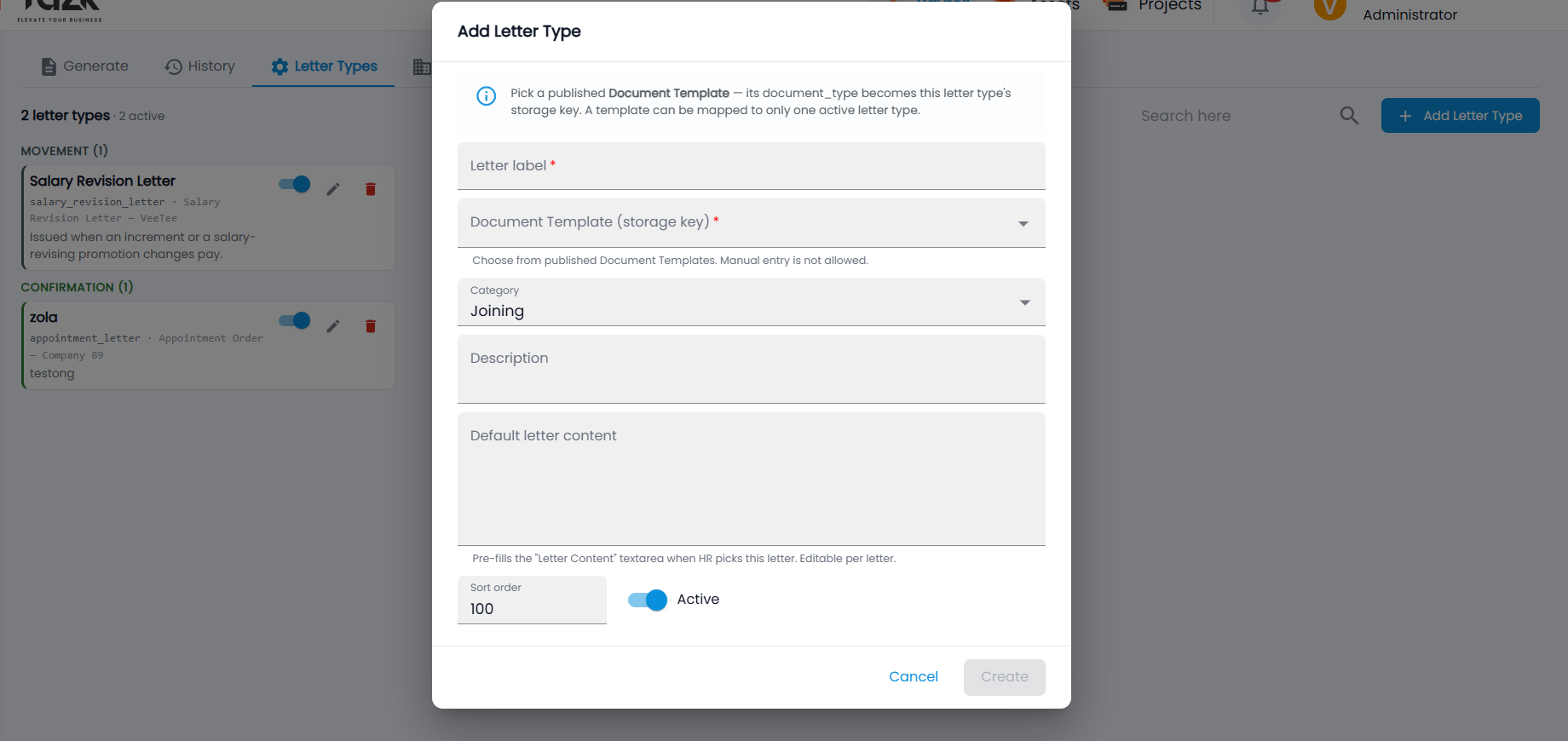
The Letter Types tab lists every letter type by category ("2 letter types · 2 active"), each with its template, description, an Active switch, edit and delete.
- First create and publish its template in Document Templates.
- Click Add Letter Type and enter the Letter label.
- Choose the Document Template (storage key) — only published templates are listed, and a template can be mapped to only one active letter type.
- Choose the Category, and optionally a Description and Default letter content (it pre-fills the letter content when HR picks this letter, and can be edited per letter).
- Set the Sort order, keep Active on, and click Create.
Turn the switch off on a card to disable a letter type without deleting it.
Where do I set the company letterhead and signatory?
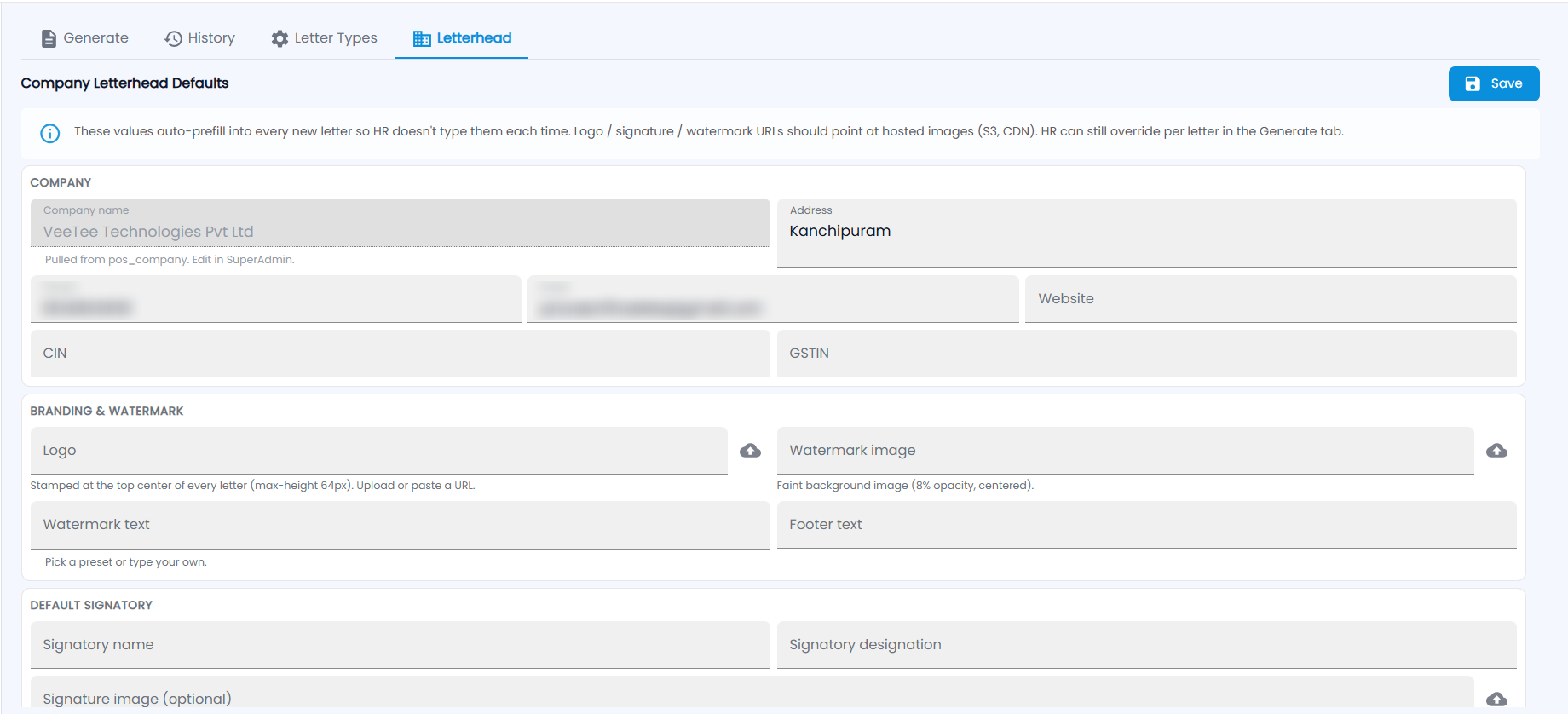
Company Letterhead Defaults are filled into every new letter so HR does not type them each time (they can still be changed per letter on Generate):
- Company — company name (from your company account), address, phone, email, website, CIN and GSTIN.
- Branding & Watermark — Logo (stamped at the top centre of every letter), Watermark image (a faint background image), Watermark text (pick a preset or type your own) and Footer text. Upload an image or paste its URL.
- Default Signatory — signatory name, designation and an optional signature image.
Click Save.