
How do I change the payslip or HR letter template in Tazk Payroll?
Click Document Templates in the sidebar and filter by document type. Clone the closest system template — the copy is a draft — then Edit it in the Visual Builder or the HTML / CSS tab, and Preview it. Click Publish, then the empty star to make it the default for that document type. Every publish creates a new version, so you can roll back from Versions.
What is on the Document Templates list?
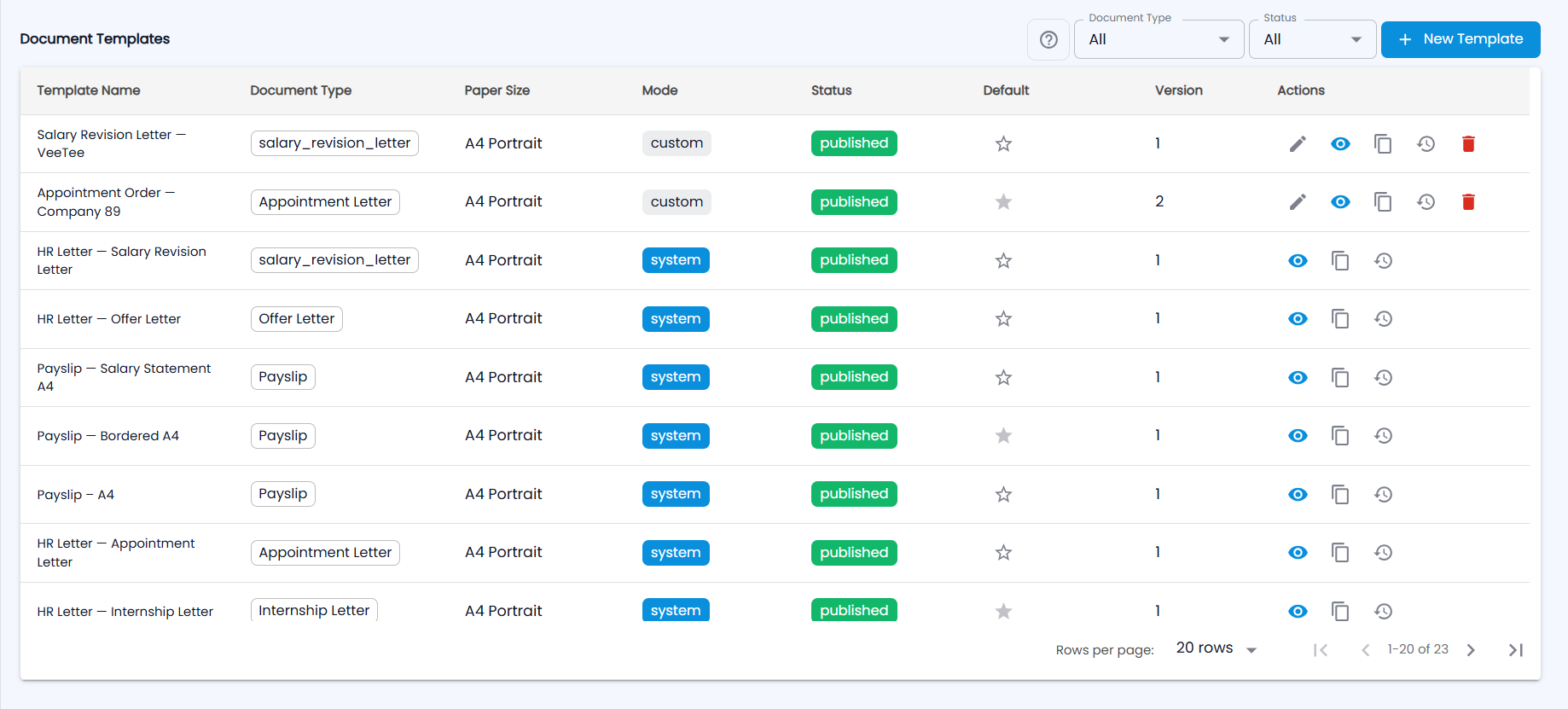
Filter by Document Type and Status (All, Draft, Published) at the top; the ? icon opens how-to steps.
| Column | Description |
|---|---|
| Template Name | For example "HR Letter — Offer Letter" or "Payslip — Bordered A4" |
| Document Type | Payslip or the HR letter it prints |
| Paper Size | For example A4 Portrait |
| Mode | system (supplied by Tazk), clone or custom (your own) |
| Status | draft, published or archived |
| Default | A filled star marks the default template for that document type |
| Version | The current version number |
| Actions | Edit, Preview, Clone (copy), Versions (history), Publish (drafts) and Delete |
System templates cannot be edited or deleted — clone them instead. Choose how many rows to show per page at the bottom.
Payroll document types are the Payslip and the HR letters: Offer, Appointment, Confirmation, Promotion, Increment, Transfer, Warning, Termination, Relieving, Experience and Internship letters, Address Proof Letter, Salary Certificate, Employment Certificate, NOC Letter and Bonafide Letter.
How do I create a template?
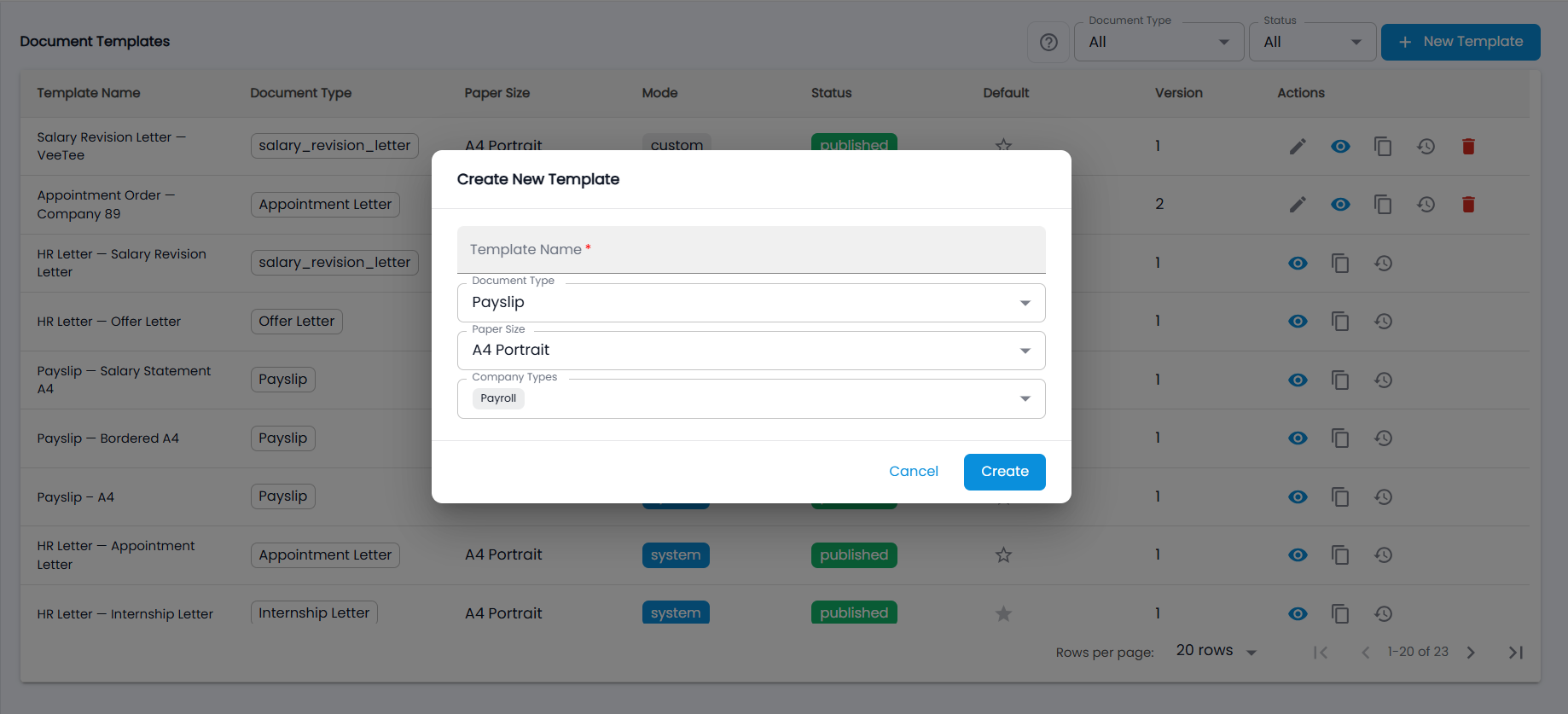
- Clone a system template (recommended), or click New Template. In Create New Template enter the Template Name, choose the Document Type (for example Payslip), the Paper Size (A4 or A5, portrait or landscape; thermal 80 mm or 58 mm) and the Company Types (Payroll), and click Create. The new template is a draft.
- Click Edit to open the editor.
- Click Save Draft as you go, then Publish when it is ready.
What can I change in the editor?
| Tab | What it does |
|---|---|
| Settings | Template details, which sections show (logo, GST, signature, bank details, terms), a footer note and terms & conditions. |
| Visual Builder | Drag blocks onto the page — header, company info, document info, tables, totals, signature, declaration, bank details, QR code, footer, custom text and layout blocks — and insert placeholders. Page styles set the font, size and colour. |
| HTML / CSS | Edit the template's HTML and CSS directly, with a palette of placeholders (click to copy, double-click to insert). |
| Preview | See the rendered template. |
Placeholders use double braces, for example {{employee.name}}, with {{#if field}}…{{/if}} for optional parts and {{#each items}}…{{/each}} for rows. Upload PDF replaces the HTML and CSS with text extracted from a PDF of up to 10 MB — images and graphics are not extracted, so check the result.
How do I make a template the default?
Publish it, then click the empty star in the Default column and confirm Set as default. It replaces the current default for that document type. Drafts cannot be the default.
How do I undo a change to a template?
Click Versions on the template. Each publish is listed with its version number, date and note; click Rollback on the one you want.
How do templates connect to HR Letters?
Each letter type in HR Letters → Letter Types is mapped to one published template, and letters are generated from it with the employee's details, the company letterhead and the letter data filled in. To add a new kind of letter, publish its template here first, then add the letter type.