
How do I publish an HR policy and track acknowledgements in Tazk Payroll?
Open HRMS → HR Policies → All Policies and click Add Policy. Enter the policy name, write the content or attach a document, set the dates and the departments or grades it applies to, keep Requires Employee Acknowledgment on, and click Create — it is saved as a draft. Click Publish on its card to make it active. Employees acknowledge it in the ESS Portal, and you follow progress on the policy card.
What tabs does HR Policies have?
Compliance Dashboard · All Policies · My Policies · Acknowledgment Tracking · Audit Log. Each role sees only the tabs it has been given — some users see only All Policies.
What is on the All Policies tab?

Filter with All, Draft, Active and Archived, or search. Each policy card shows:
- its name and status (draft, active or archived) and category (for example General);
- Ack Required and the acknowledgement due date;
- progress — for example "0 / 119 Ack'd" with a %;
- the effective dates;
- actions: Preview (eye), Publish (green arrow, drafts only), Edit and Delete.
How do I create and publish a policy?
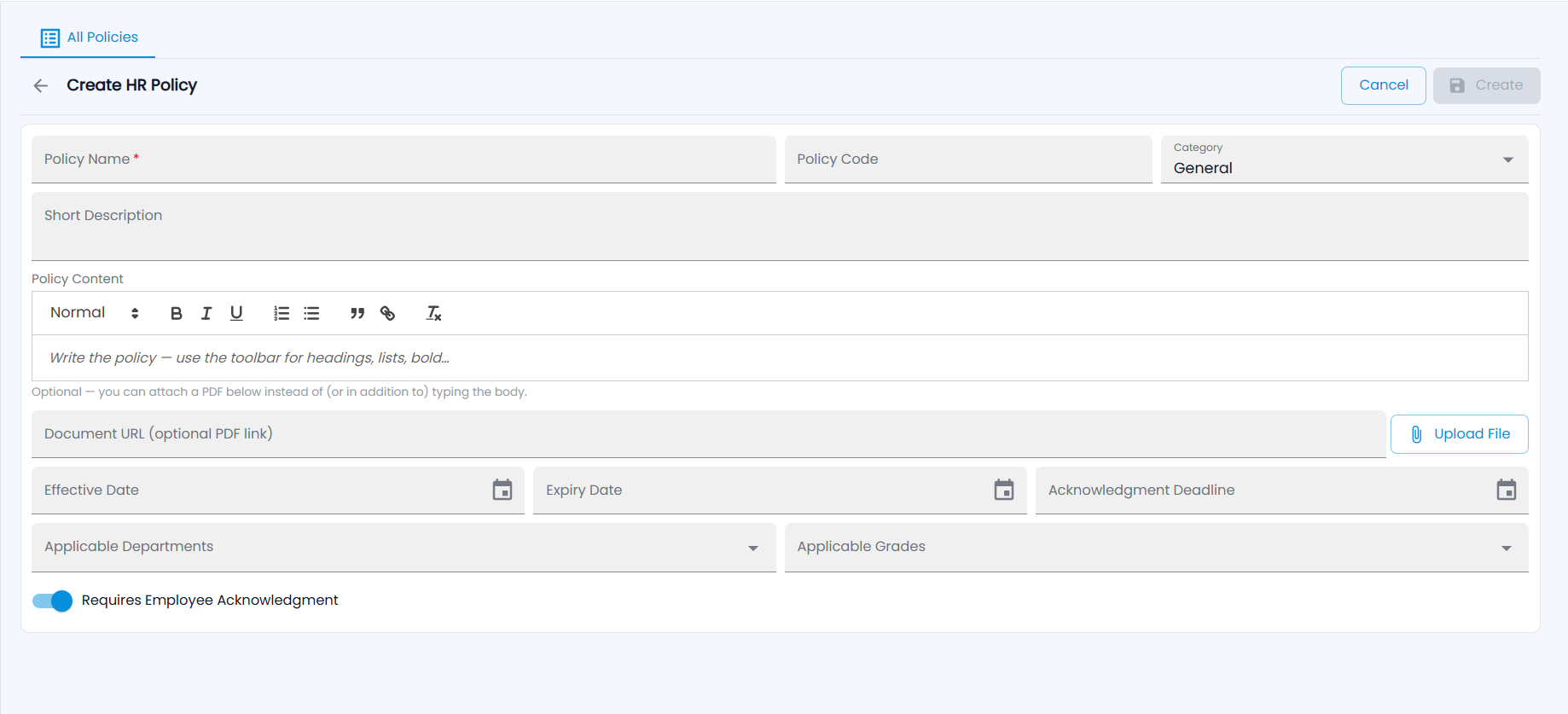
- Click Add Policy. Create HR Policy opens.
- Enter the Policy Name (required), an optional Policy Code, and the Category (General by default).
- Add a Short Description, and write the Policy Content with the toolbar (headings, bold, italic, underline, lists, quotes, links).
- Instead of — or as well as — typing the body, paste a Document URL or click Upload File to attach a PDF.
- Set the Effective Date, Expiry Date and Acknowledgment Deadline.
- Choose the Applicable Departments and Applicable Grades (leave empty for everyone).
- Keep Requires Employee Acknowledgment on if employees must confirm they have read it, and click Create. The policy is saved as a draft.
- Click Publish on its card and confirm the number of employees targeted. The policy becomes active.
How do employees acknowledge a policy?
In ESS Portal → HR Policy Acknowledgement (or My Policies): open the policy, read it, then Acknowledge and Confirm Acknowledge. Administrators do not acknowledge policies.
How do I see who has not acknowledged?
- On each policy card, the "Ack'd" progress shows how many of the targeted employees have acknowledged.
- Compliance Dashboard — compliance %, pending acknowledgements, overdue and expiring policies, and a card per policy marked Overdue, Due Soon or On Track; the group icon lists who has not acknowledged.
- Acknowledgment Tracking — per policy, or a per-employee matrix.
- Audit Log — every create, update, publish, archive, delete and acknowledgement.